This interactive demo was created free with Storylane in 2 minutes. Create your own demo
Start free
All Tutorials /Framer

Framer Payment Integration

Updated on:
June 5, 2026
By:
Madhav Bhandari
Use this interactive demo to learn how to connect Stripe payments to your Framer site.

Quick summary

This tutorial shows how to integrate Stripe payments into a Framer website by adding a styled payment button and linking it directly to a Stripe checkout URL. No third-party plugins are required — the entire setup is done inside the Framer editor in minutes.


Steps

  1. Open your Framer project where you want to add payment functionality.
  2. Create a payment button with clear text such as "Buy Now" or "Complete Purchase".
  3. Add the payment button to your page — this is where the Stripe integration takes effect.
  4. Style your payment button to stand out while matching your site's design language.
  5. Set up navigation links to connect your checkout page to your product pages.
  6. Copy and paste your Stripe payment link from your Stripe dashboard.
  7. Preview your changes to ensure the payment flow works smoothly.
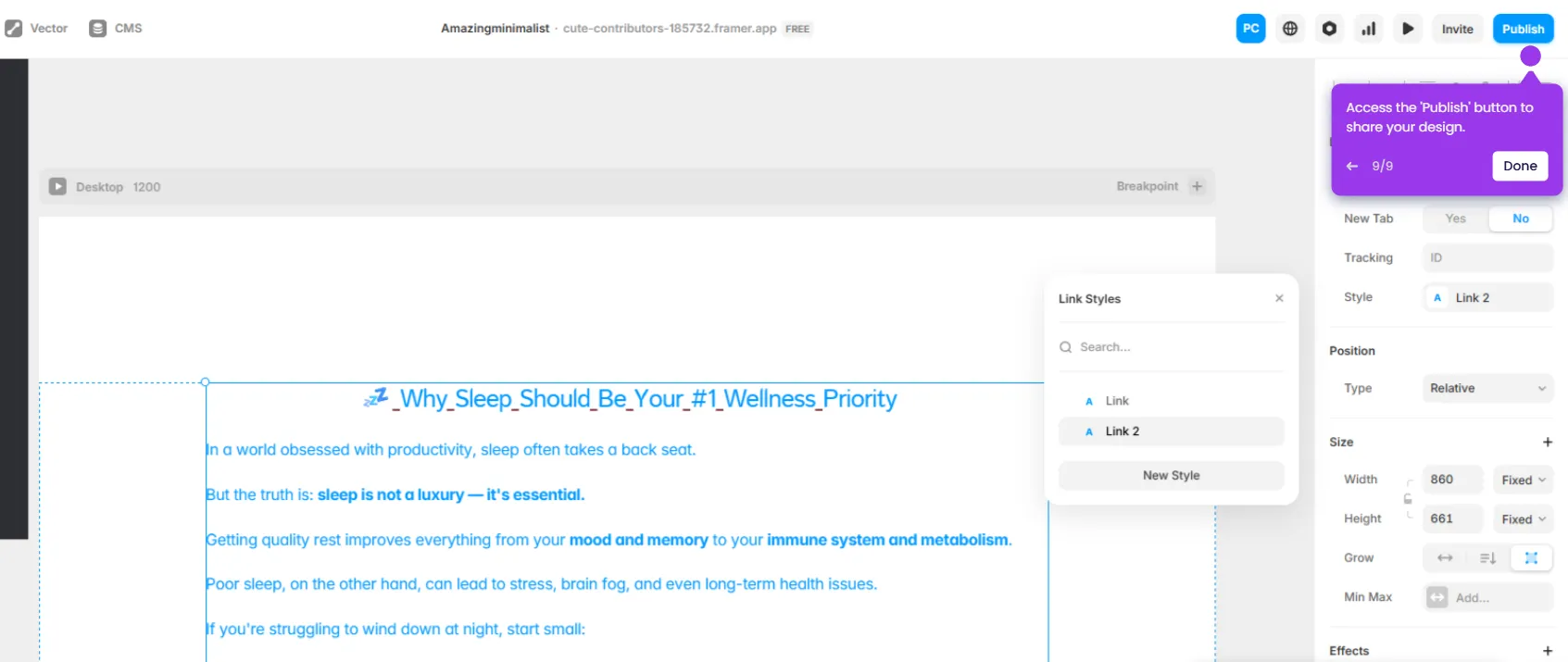
  8. Set the button to link directly to your Stripe checkout URL and configure it to open in a new tab.
  9. Your Framer site is now ready to accept payments through Stripe.
📌 Why this matters

Adding Stripe payment integration to a Framer website allows designers and developers to monetize their sites without switching tools or writing complex backend code. By linking a styled payment button directly to a Stripe checkout URL, teams can launch a fully functional e-commerce flow entirely within the Framer editor. This approach removes the need for third-party plugins, keeping the site fast, on-brand, and easy to maintain. For creators and small businesses, it is one of the fastest ways to go from design to accepting real payments online.
Your product deserves an interactive demo
Start free
Similar Articles
Framer

How to Add Adobe Fonts to Framer

Madhav Bhandari
Director of Marketing @ Storylane
Framer

Framer CRM Integration

Madhav Bhandari
Director of Marketing @ Storylane
Framer

How to Link to Section in Framer

Madhav Bhandari
Director of Marketing @ Storylane
No items found.
Platform
Interactive Demos
Sandbox Demos
Hubs
RepX
Integrations
Solutions
Product Marketers
Growth & Demand Gen
Sales Reps & AEs
Presales & SEs
Customer Success
Product Managers
Customers
Demo Showcase
Customer Stories
Finer Demos Club
Features
Demo Signals
Personalization
Deal Intelligence
Resources
Blog
The Plot
Tutorials
Help Docs
What’s New
Demo Dundies
Company
Careers
Pricing
Partners
Contact
Trust Center
Backed by
Chrome Extension Icon
Chrome extension
Download
Desktop app
Download
Built in San Francisco Bay Area - ©2026 Storylane
Privacy PolicyTerms & Conditions
X Corp (formerly Twitter)LinkedIn
This website uses cookies to ensure you get the best experience on our website. Learn More
Got it
This website uses cookies to ensure you get the best experience on our website. Learn More
Got it