This interactive demo was created free with Storylane in 2 minutes. Create your own demo
Start free
All Tutorials /Framer

Framer WhatsApp Integration

Updated on:
June 5, 2026
By:
Madhav Bhandari
Use this interactive demo to learn how to add a WhatsApp button to your Framer project.

Quick summary

This tutorial shows you how to integrate WhatsApp into a Framer project by building a custom WhatsApp button with a stack layout, link settings, and an icon from the Iconic library. Follow the steps below to connect your Framer design directly to a WhatsApp link in just a few minutes.


Steps

  1. Open your Framer project to get started.
  2. Create a button for your WhatsApp integration from scratch on the canvas.
  3. Right-click the button element and select Add Stack to group it into a stack container.
  4. Go to the Layout section and adjust the padding and alignment of your button.
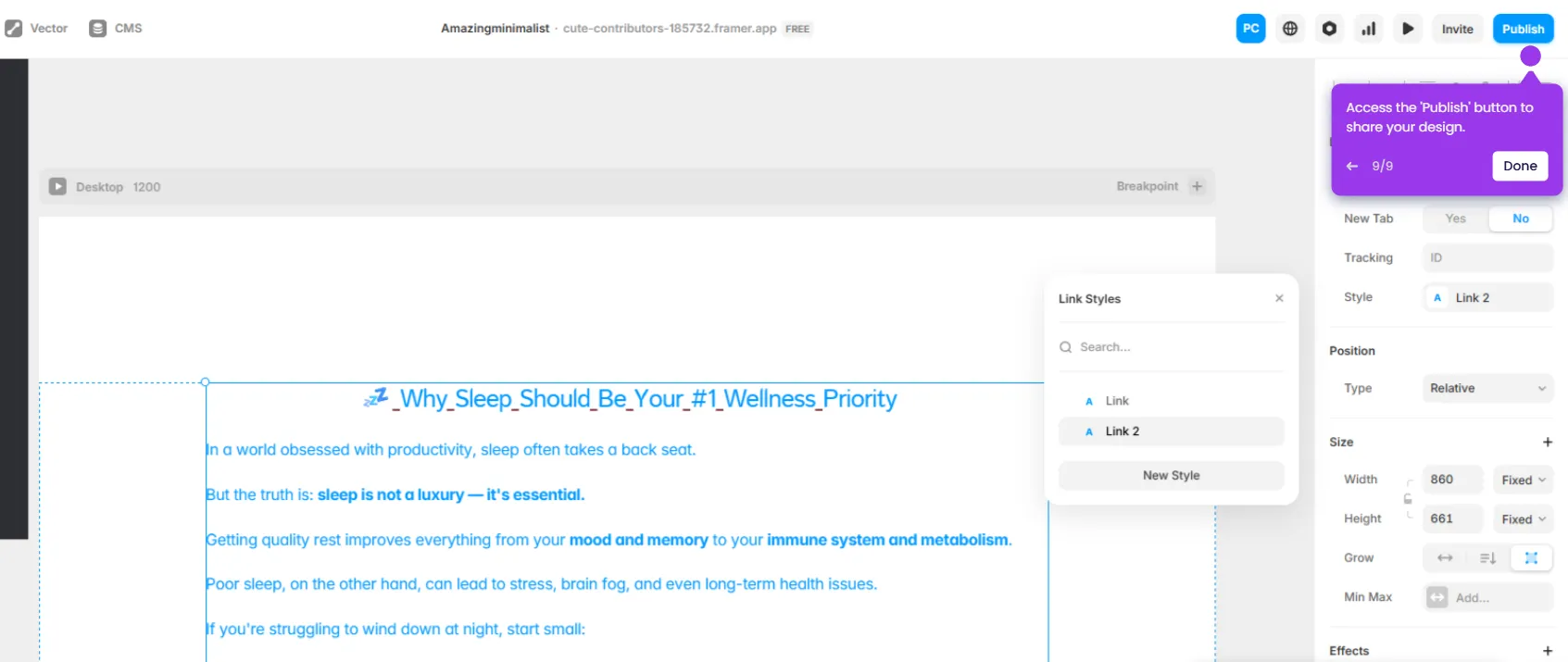
  5. Navigate to the Link section in the right-hand panel.
  6. Under Link settings, set the link to your WhatsApp URL.
  7. Choose Yes to open the WhatsApp link in a new tab if desired.
  8. Go to Insert and click Icons to open the icon browser.
  9. Select Iconic from the available icon library options.
  10. Choose the WhatsApp icon and begin designing your icon to match your brand style.
  11. Your Framer WhatsApp integration is now ready — publish your site to make the button live.
📌 Why this matters

Adding a WhatsApp button to a Framer website gives visitors an instant, low-friction way to start a conversation directly from your site, which can significantly improve lead capture and customer support response rates. Framer's native stack and link settings make it straightforward to build a fully functional WhatsApp integration without third-party plugins. Using the built-in Iconic icon library ensures the WhatsApp button looks polished and on-brand across all devices. For businesses that rely on WhatsApp for sales or support, this integration turns a static Framer site into an active conversion channel.
Your product deserves an interactive demo
Start free
Similar Articles
Framer

How to Add Adobe Fonts to Framer

Madhav Bhandari
Director of Marketing @ Storylane
Framer

Framer CRM Integration

Madhav Bhandari
Director of Marketing @ Storylane
Framer

How to Link to Section in Framer

Madhav Bhandari
Director of Marketing @ Storylane
No items found.
Platform
Interactive Demos
Sandbox Demos
Hubs
RepX
Integrations
Solutions
Product Marketers
Growth & Demand Gen
Sales Reps & AEs
Presales & SEs
Customer Success
Product Managers
Customers
Demo Showcase
Customer Stories
Finer Demos Club
Features
Demo Signals
Personalization
Deal Intelligence
Resources
Blog
The Plot
Tutorials
Help Docs
What’s New
Demo Dundies
Company
Careers
Pricing
Partners
Contact
Trust Center
Backed by
Chrome Extension Icon
Chrome extension
Download
Desktop app
Download
Built in San Francisco Bay Area - ©2026 Storylane
Privacy PolicyTerms & Conditions
X Corp (formerly Twitter)LinkedIn
This website uses cookies to ensure you get the best experience on our website. Learn More
Got it
This website uses cookies to ensure you get the best experience on our website. Learn More
Got it