


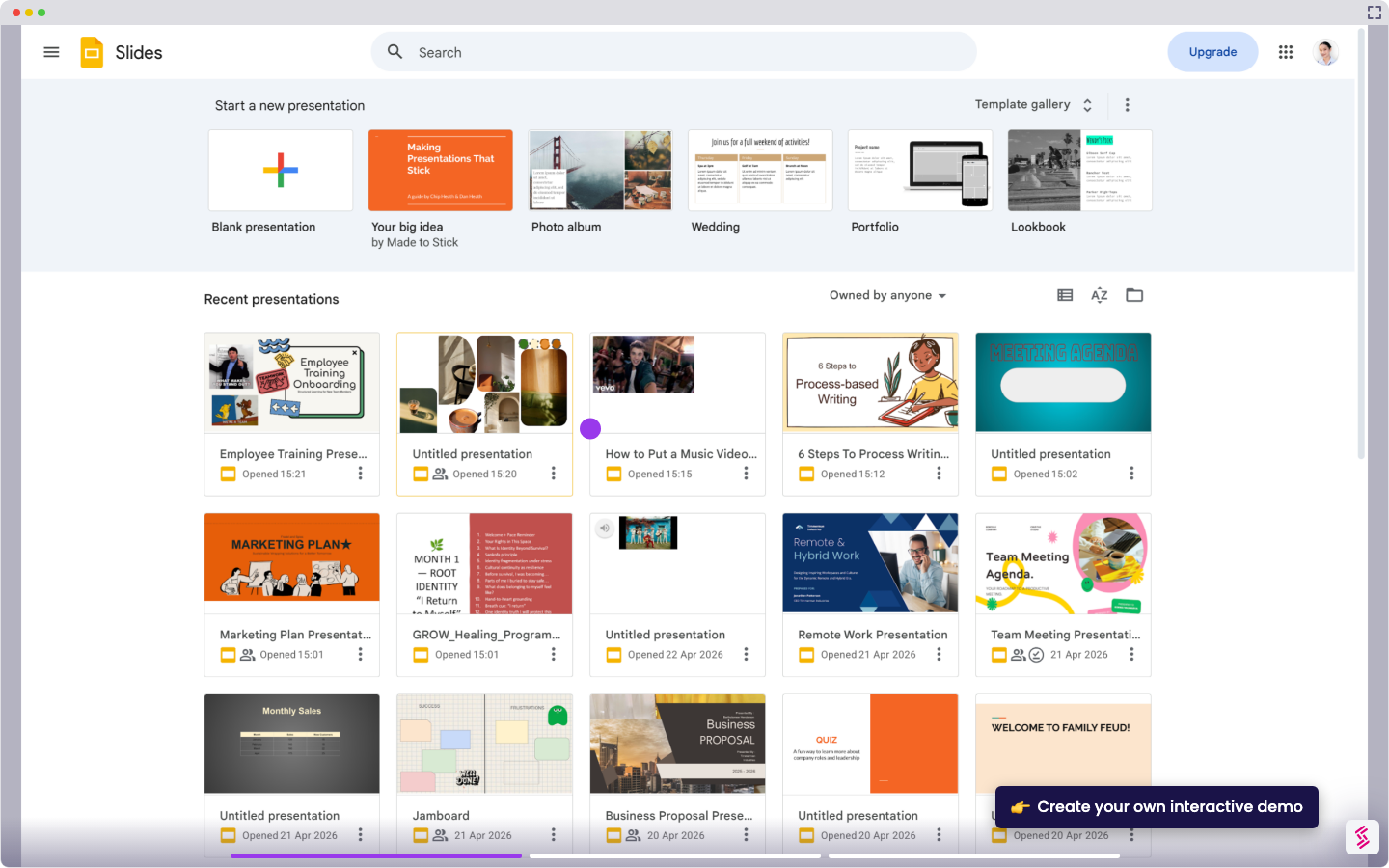
- Open your Google Slide presentation and click on the slide where you want to add a transition.
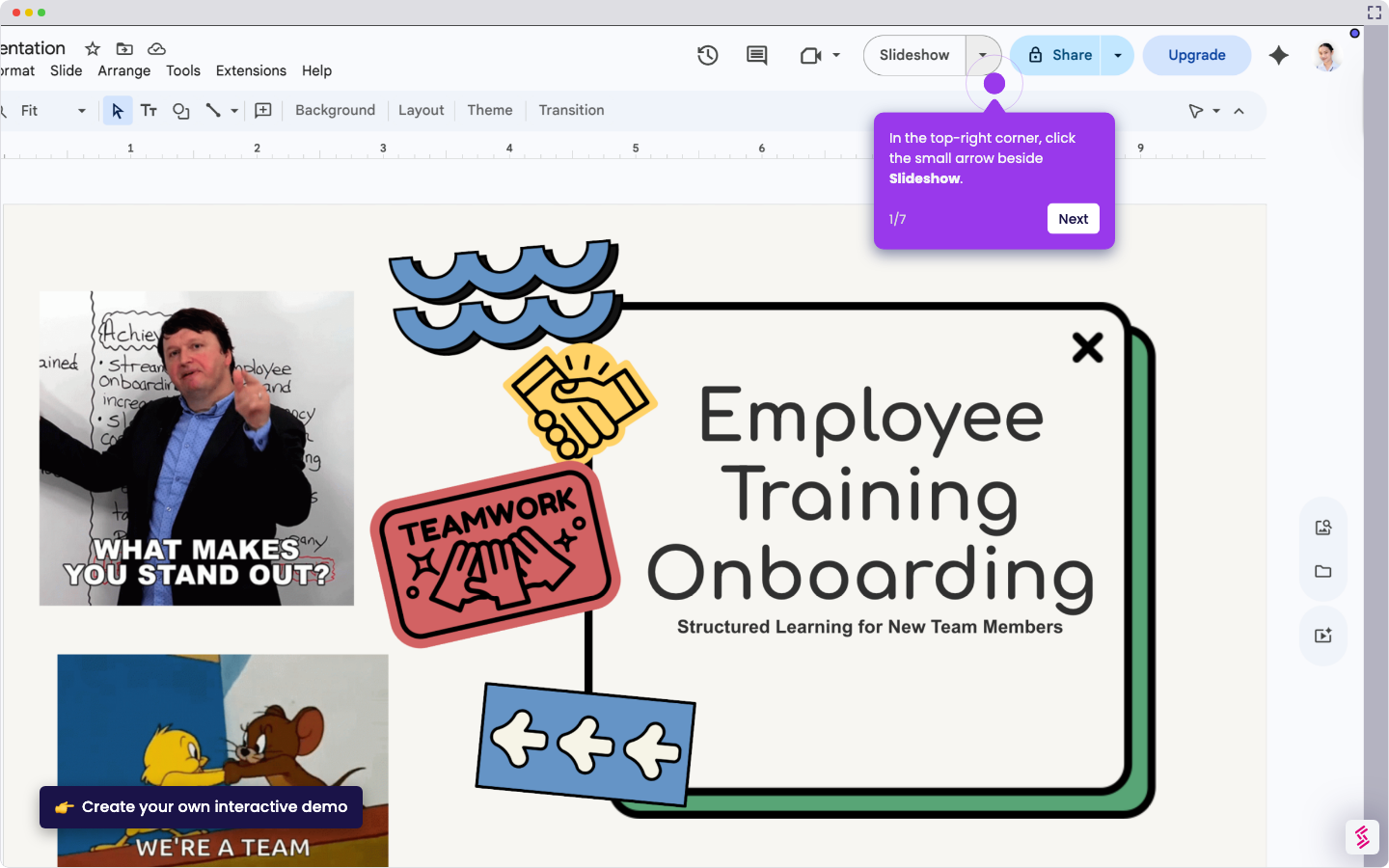
- Go to the menu and click 'Transition' to customize your slide transitions.
- In the Transition toolbar, select the dropdown arrow to view all the transition options[c][d].
- After choosing a transition, select your preferred transition speed.
- Click 'Apply to all slides' to apply the transition settings to your entire presentation.
- Click 'Play' to preview your transition settings.
- Click the 'Exit' icon in the top-right corner to close the transition settings and apply the transitions to your presentation.
How to Add [a] [b] Transitions in Google Slides
Try this guided demo to learn how to add [a] [b] transitions in Google Slides.
📌 Why this matters
Slide transitions keep your audience visually engaged and help maintain their attention throughout your presentation. They create smooth flow between ideas and prevent the jarring effect of abrupt slide changes that can break concentration. Beyond aesthetics, transitions actually serve as subtle psychological cues that signal topic shifts or emphasize important points. They give viewers a moment to mentally process information before moving to the next concept, making your content more digestible and memorable. Strategic transition timing can also help you control presentation pace during live delivery.
Your product deserves an interactive demo
Similar Articles
No items found.