This interactive demo was created free with Storylane in 2 minutes. Create your own demo
Start free
All Tutorials /LinkedIn

How to Add a Hyperlink in a LinkedIn Message

Updated on:
June 9, 2026
By:
Madhav Bhandari
Use this interactive demo to learn how to share a clickable URL in a LinkedIn message.

Quick summary

Adding a hyperlink in a LinkedIn message is done by copying a URL from any website and pasting it directly into the chat box before hitting Send. LinkedIn automatically renders the pasted URL as a clickable link, making it easy to share resources with any connection.


Steps

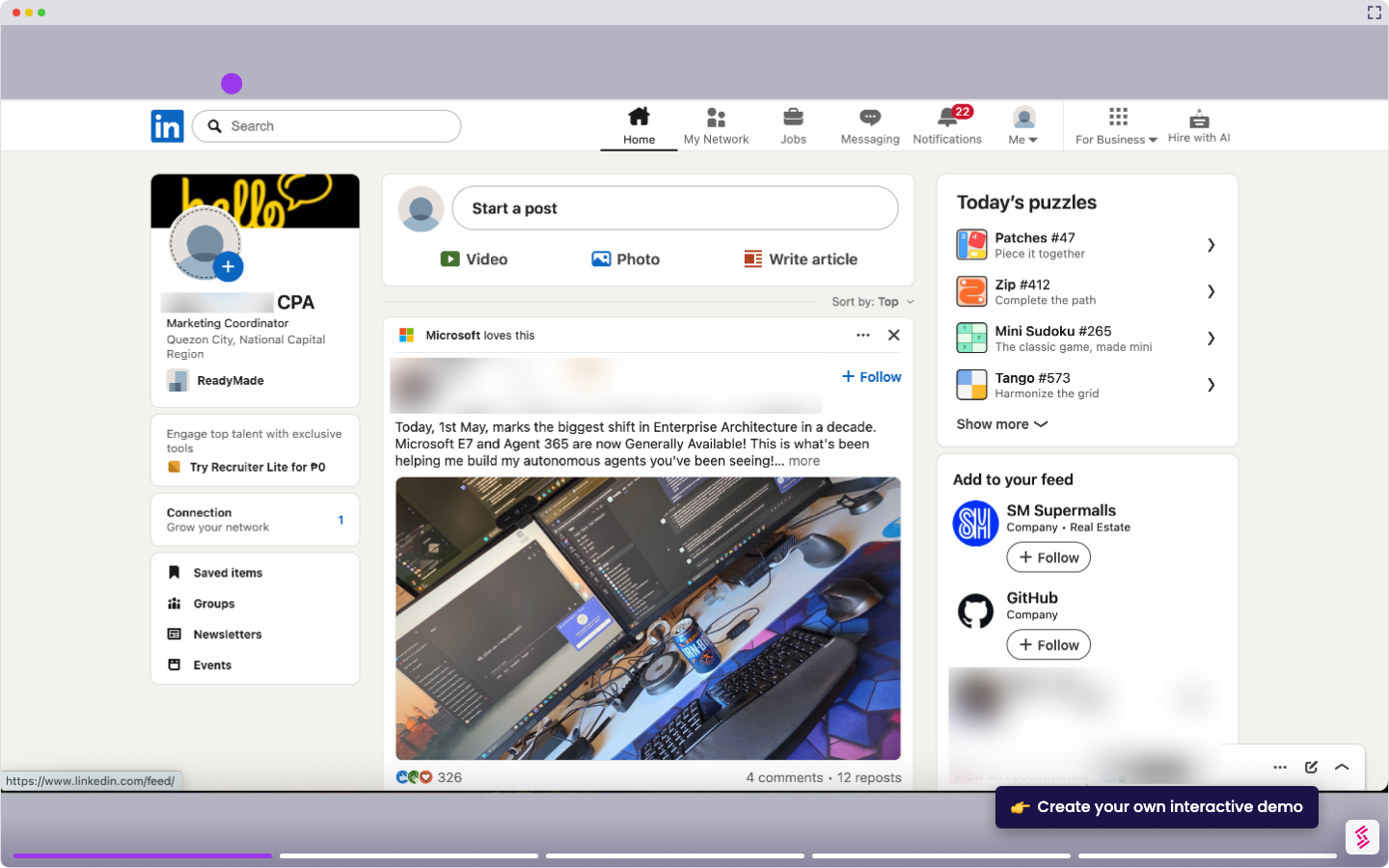
  1. Copy the URL by navigating to the website you want to share and copying its address from the browser.
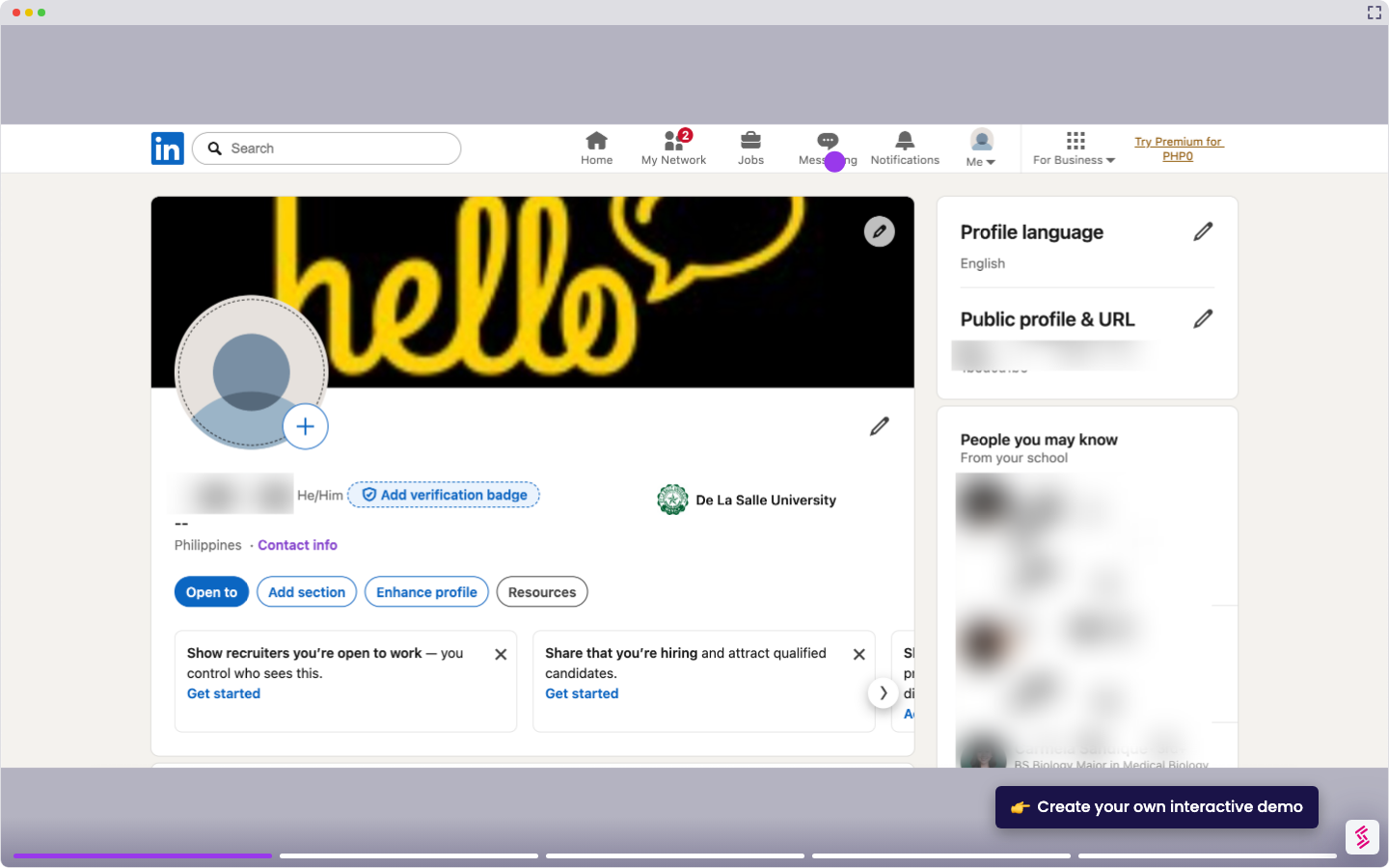
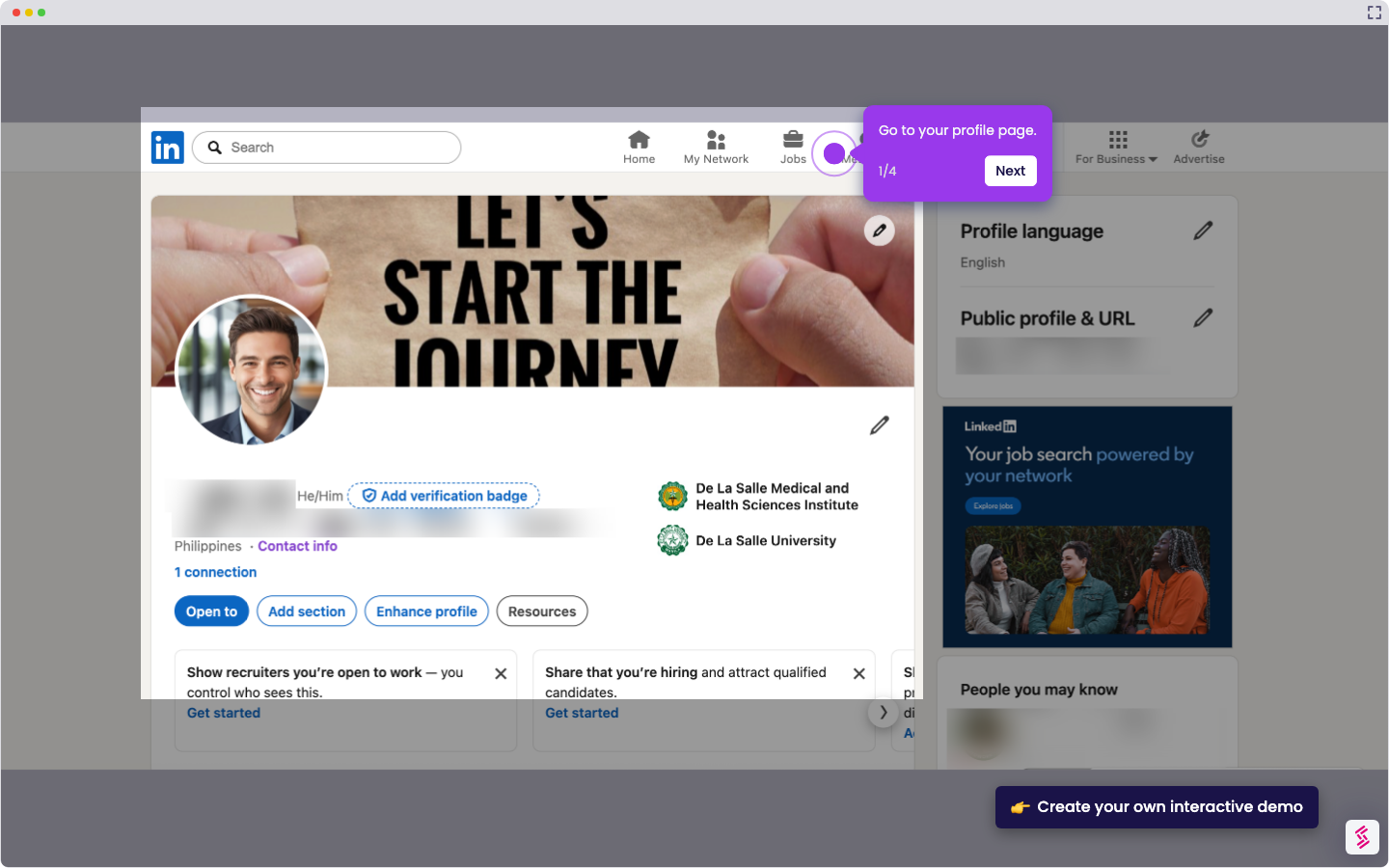
  2. Open your LinkedIn messages and choose a recipient from your connections list.
  3. Paste the URL into the chat box and click the Send button to deliver the link.
  4. Your hyperlink has been successfully added — the recipient can now click the link directly inside the LinkedIn message.
📌 Why this matters

Sharing hyperlinks in LinkedIn messages is a key tactic for professionals who want to send resources, portfolio links, or articles directly to connections without leaving the platform. LinkedIn does not offer a traditional hyperlink formatting tool in its messaging interface, so knowing the correct paste-and-send method saves time and avoids confusion. This demo matters because it closes a common knowledge gap — many users assume clickable links require special formatting, when in fact a simple URL paste is all that is needed. Mastering this skill helps sales professionals, recruiters, and networkers share content more effectively in every LinkedIn conversation.
Your product deserves an interactive demo
Start free
Similar Articles
LinkedIn

How to Add Extracurricular Activities on LinkedIn

Madhav Bhandari
Director of Marketing @ Storylane
LinkedIn

How to Find Out who Viewed your Profile Anonymously on LinkedIn

Madhav Bhandari
Director of Marketing @ Storylane
LinkedIn

How to do an Advanced Job Search on LinkedIn

Madhav Bhandari
Director of Marketing @ Storylane
No items found.
Platform
Interactive Demos
Sandbox Demos
Hubs
RepX
Integrations
Solutions
Product Marketers
Growth & Demand Gen
Sales Reps & AEs
Presales & SEs
Customer Success
Product Managers
Customers
Demo Showcase
Customer Stories
Finer Demos Club
Features
Demo Signals
Personalization
Deal Intelligence
Resources
Blog
The Plot
Tutorials
Help Docs
What’s New
Demo Dundies
Company
Careers
Pricing
Partners
Contact
Trust Center
Backed by
Chrome Extension Icon
Chrome extension
Download
Desktop app
Download
Built in San Francisco Bay Area - ©2026 Storylane
Privacy PolicyTerms & Conditions
X Corp (formerly Twitter)LinkedIn
This website uses cookies to ensure you get the best experience on our website. Learn More
Got it
This website uses cookies to ensure you get the best experience on our website. Learn More
Got it