This interactive demo was created free with Storylane in 2 minutes. Create your own demo
Start free
All Tutorials /LinkedIn

How to Add a Portfolio on LinkedIn

Updated on:
June 9, 2026
By:
Akash Bansal
Use this interactive demo to learn how to showcase your work with a LinkedIn portfolio section.

Quick summary

Adding a portfolio on LinkedIn lets you showcase work samples, projects, and documents directly on your profile. Use the Featured section or the Projects section to display links or files that highlight your professional accomplishments.


Steps

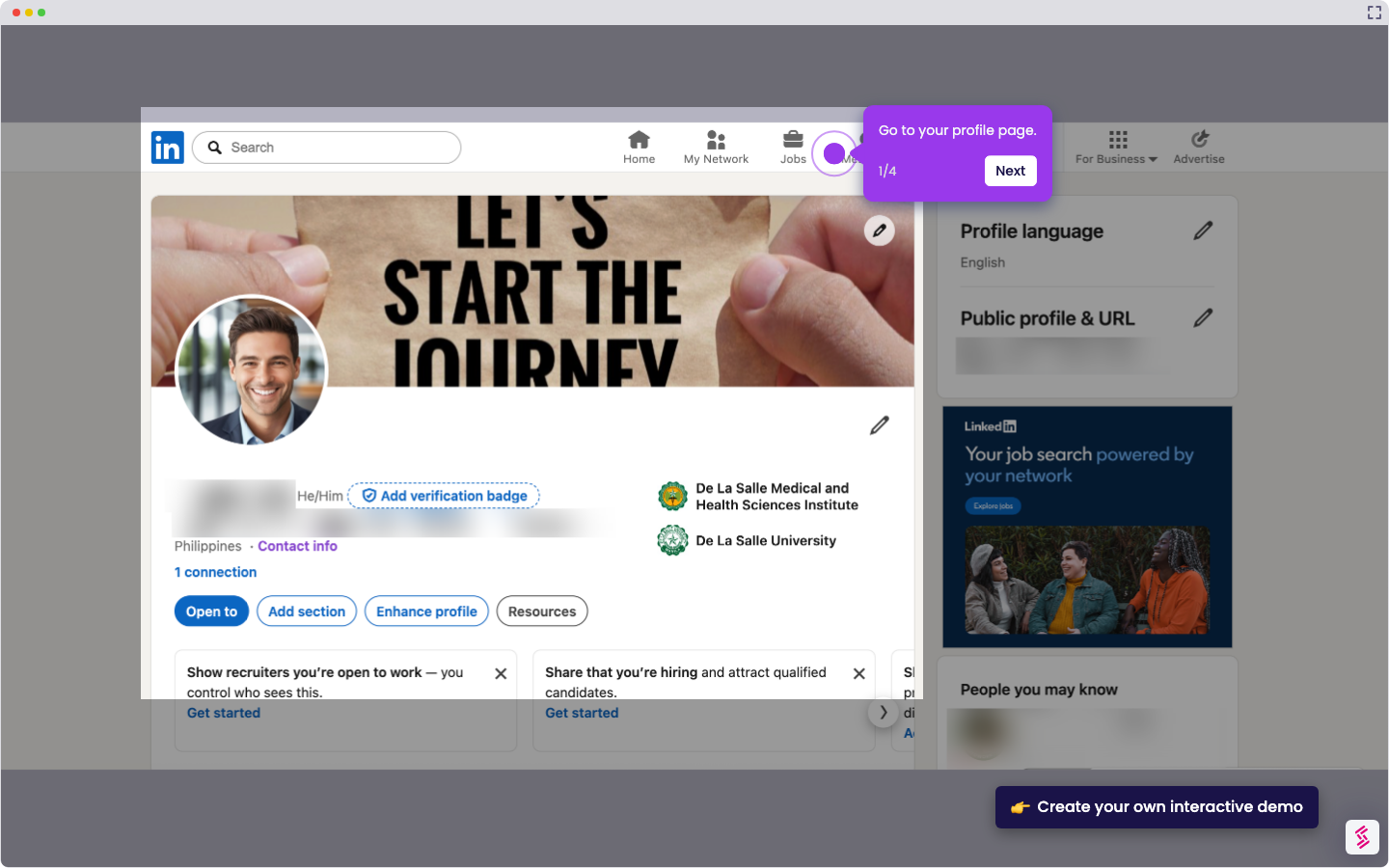
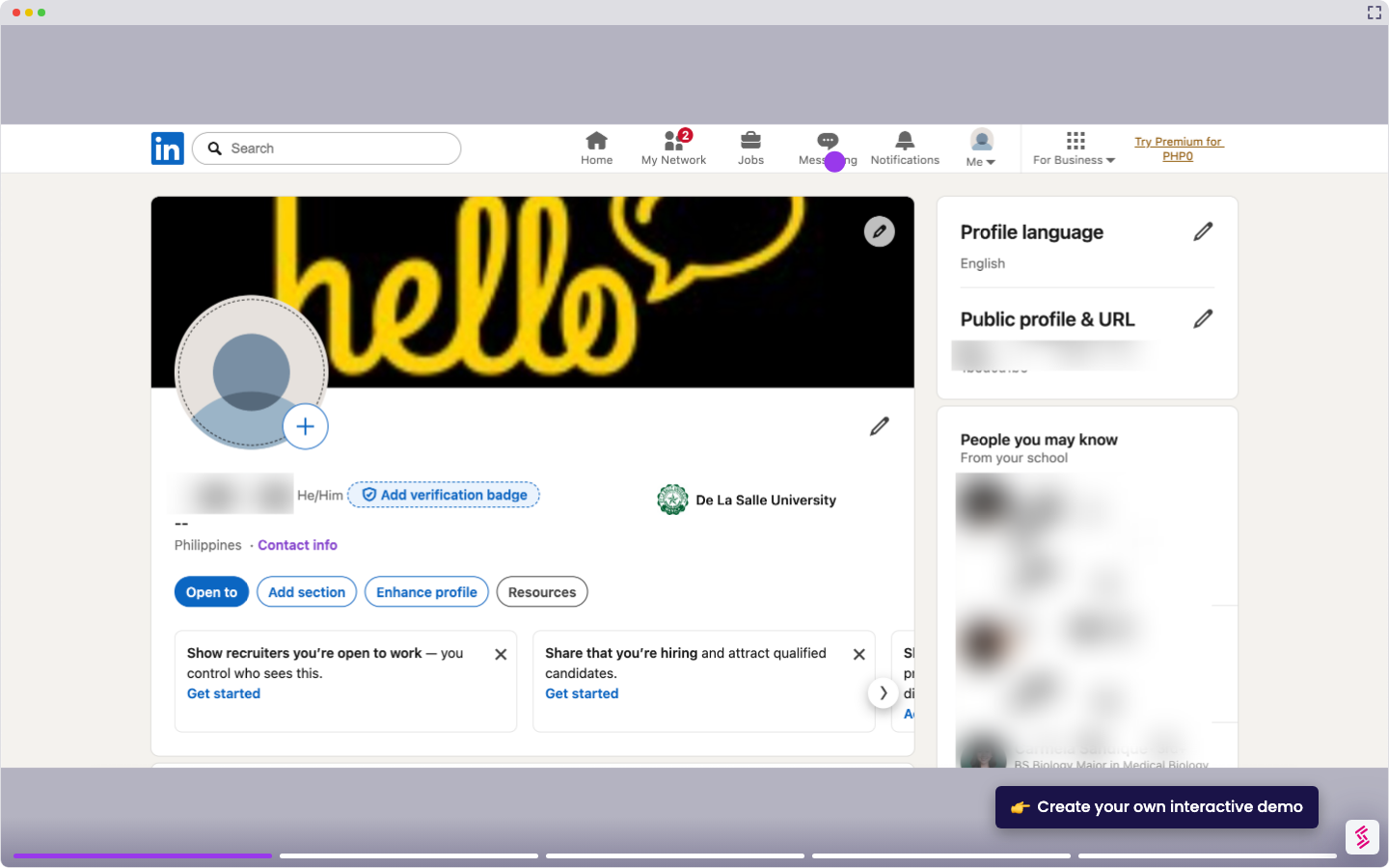
  1. Go to your LinkedIn profile page and click the 'Add section' button beneath your name and photo.
  2. Under 'Recommended', select 'Add featured' to add a portfolio section to your profile.
  3. Click the '+' icon in the top-right corner of the Featured section to begin adding content.
  4. Select the format for uploading your portfolio — choose either a document or a link-based option.
  5. Still under 'Recommended', select 'Add project' to also add a dedicated Projects section to your portfolio.
  6. To attach your portfolio to your work history, click the '+' icon in the top-right corner of the Experience section.
  7. Click 'Add position' to add your current job or previous work experience linked to your portfolio.

📌 Why this matters

A complete LinkedIn portfolio dramatically increases profile visibility and recruiter engagement by showcasing real work samples alongside your experience. LinkedIn is the world's largest professional network, and profiles with featured content and projects rank higher in search results and attract more connection requests. Adding a portfolio section lets job seekers, freelancers, and professionals demonstrate skills with tangible evidence rather than text alone. This feature bridges the gap between a traditional resume and a dynamic, media-rich professional presence.
Your product deserves an interactive demo
Start free
Similar Articles
LinkedIn

How to Add Extracurricular Activities on LinkedIn

Madhav Bhandari
Director of Marketing @ Storylane
LinkedIn

How to Find Out who Viewed your Profile Anonymously on LinkedIn

Madhav Bhandari
Director of Marketing @ Storylane
LinkedIn

How to do an Advanced Job Search on LinkedIn

Madhav Bhandari
Director of Marketing @ Storylane
No items found.
Platform
Interactive Demos
Sandbox Demos
Hubs
RepX
Integrations
Solutions
Product Marketers
Growth & Demand Gen
Sales Reps & AEs
Presales & SEs
Customer Success
Product Managers
Customers
Demo Showcase
Customer Stories
Finer Demos Club
Features
Demo Signals
Personalization
Deal Intelligence
Resources
Blog
The Plot
Tutorials
Help Docs
What’s New
Demo Dundies
Company
Careers
Pricing
Partners
Contact
Trust Center
Backed by
Chrome Extension Icon
Chrome extension
Download
Desktop app
Download
Built in San Francisco Bay Area - ©2026 Storylane
Privacy PolicyTerms & Conditions
X Corp (formerly Twitter)LinkedIn
This website uses cookies to ensure you get the best experience on our website. Learn More
Got it
This website uses cookies to ensure you get the best experience on our website. Learn More
Got it