Quick summary
Adding a shape in Framer lets designers insert scalable vector graphics and customize them with fills, colors, and interactive animations directly inside the Framer canvas. This step-by-step walkthrough covers everything from opening your project to applying a hex color and adding motion to your shape.
Steps
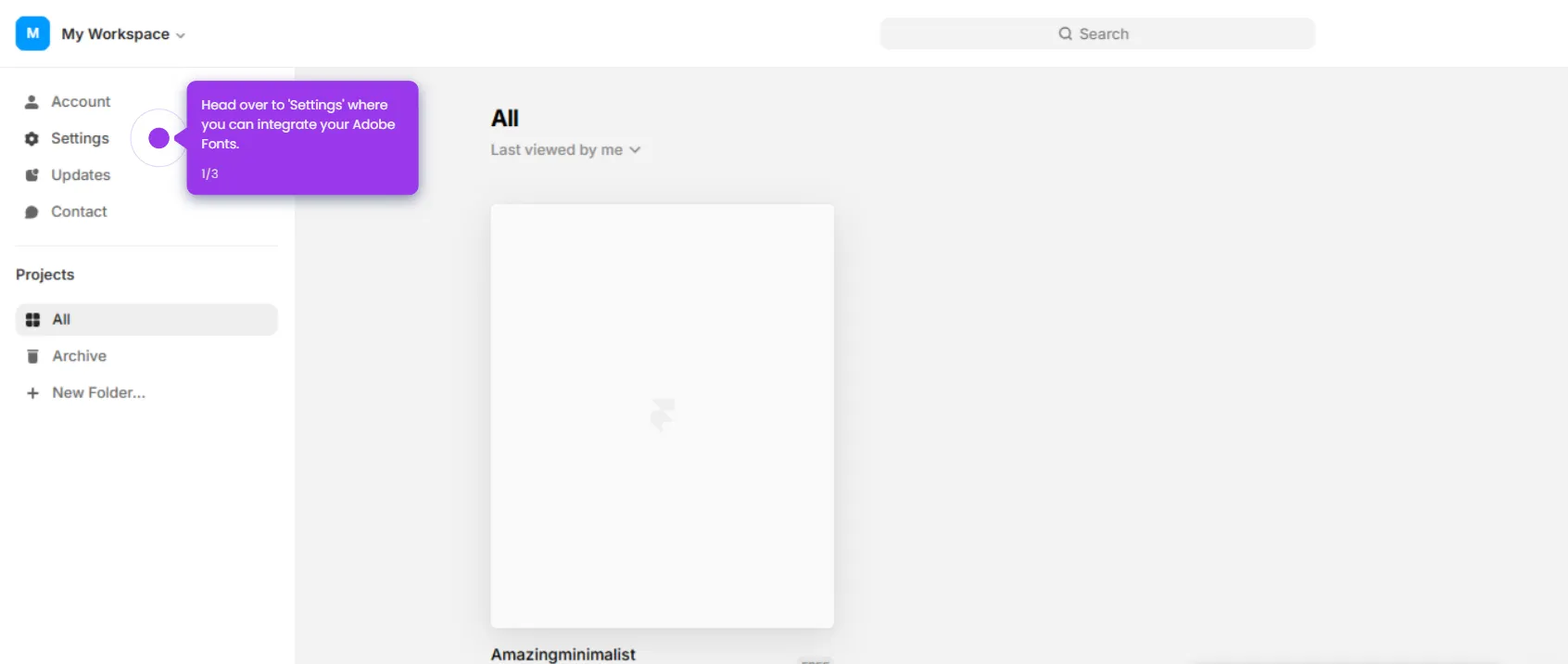
- Open your Framer project from the recent projects view.
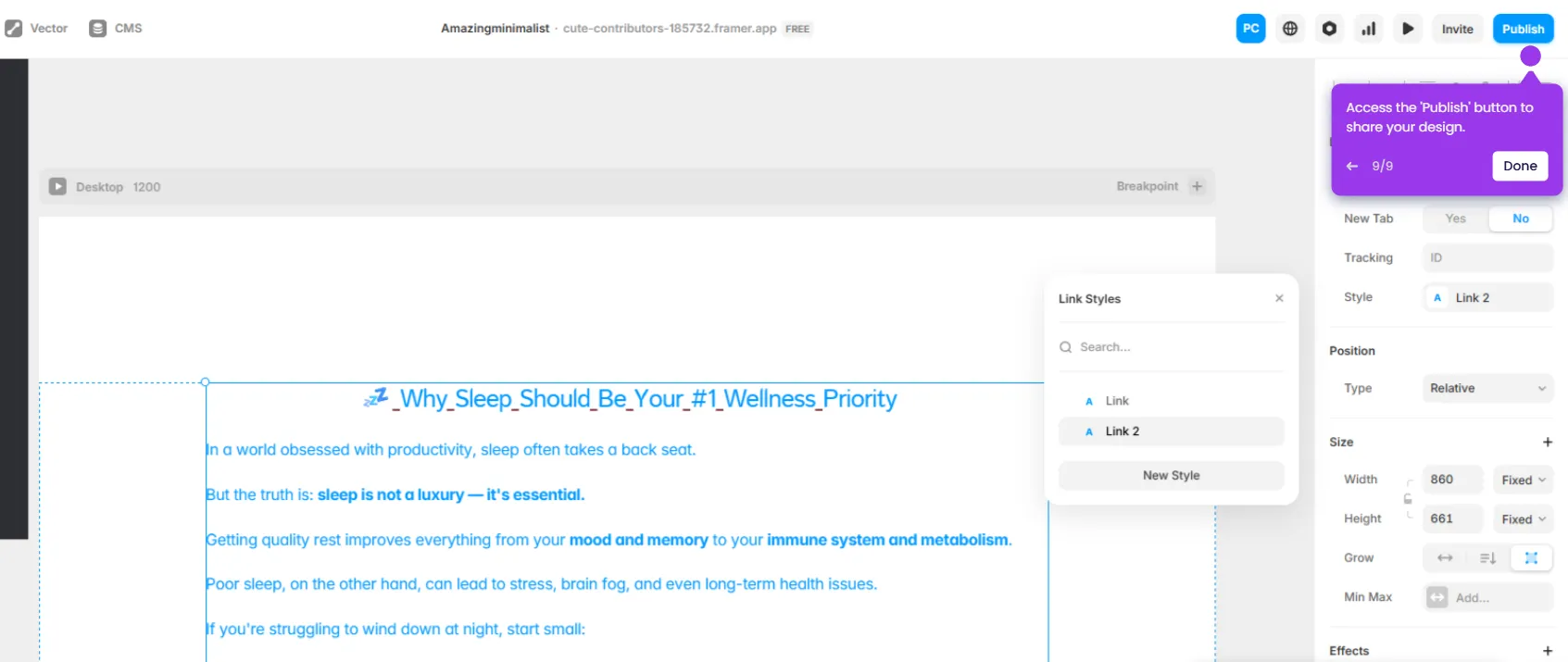
- Click Vector in the toolbar to incorporate scalable vector graphics into your design.
- Select a shape type (such as Star) to add a visual element to your canvas.
- Customize the shape style using the options available in the design panel.
- Use the hex color picker to customize the color scheme of your shape.
- Add a Fill color to your shape under the right-hand properties panel.
- Apply interactive animations to your shape to engage visitors on your published site.