This interactive demo was created free with Storylane in 2 minutes. Create your own demo
Start free
All Tutorials /MS PowerPoint

How To Add Animation To PowerPoint Slide

Updated on:
June 9, 2026
By:
Madhav Bhandari
Use this step-by-step demo to learn how to add animation to PowerPoint slide.
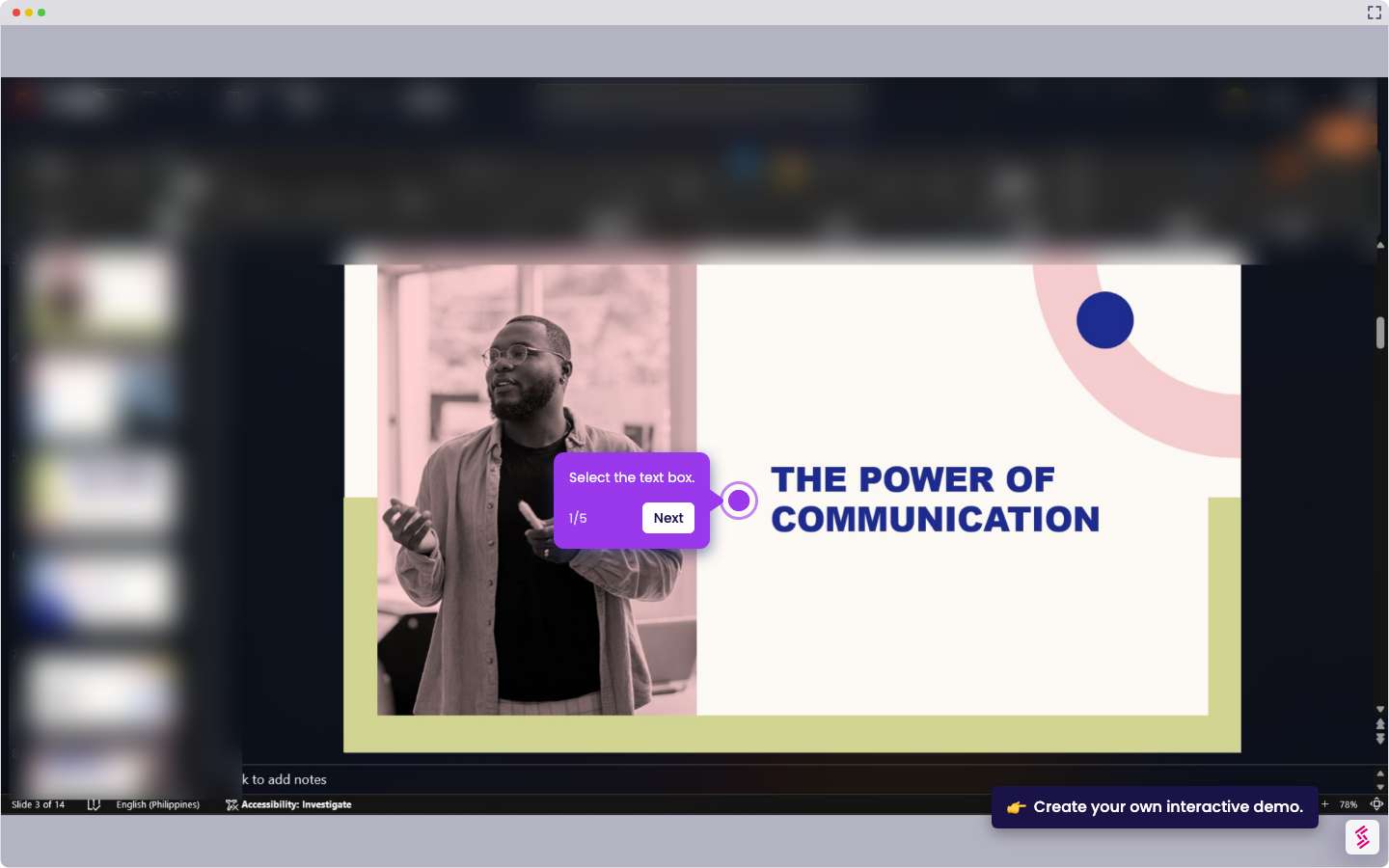
  1. Open your presentation and go to the slide you want to animate.
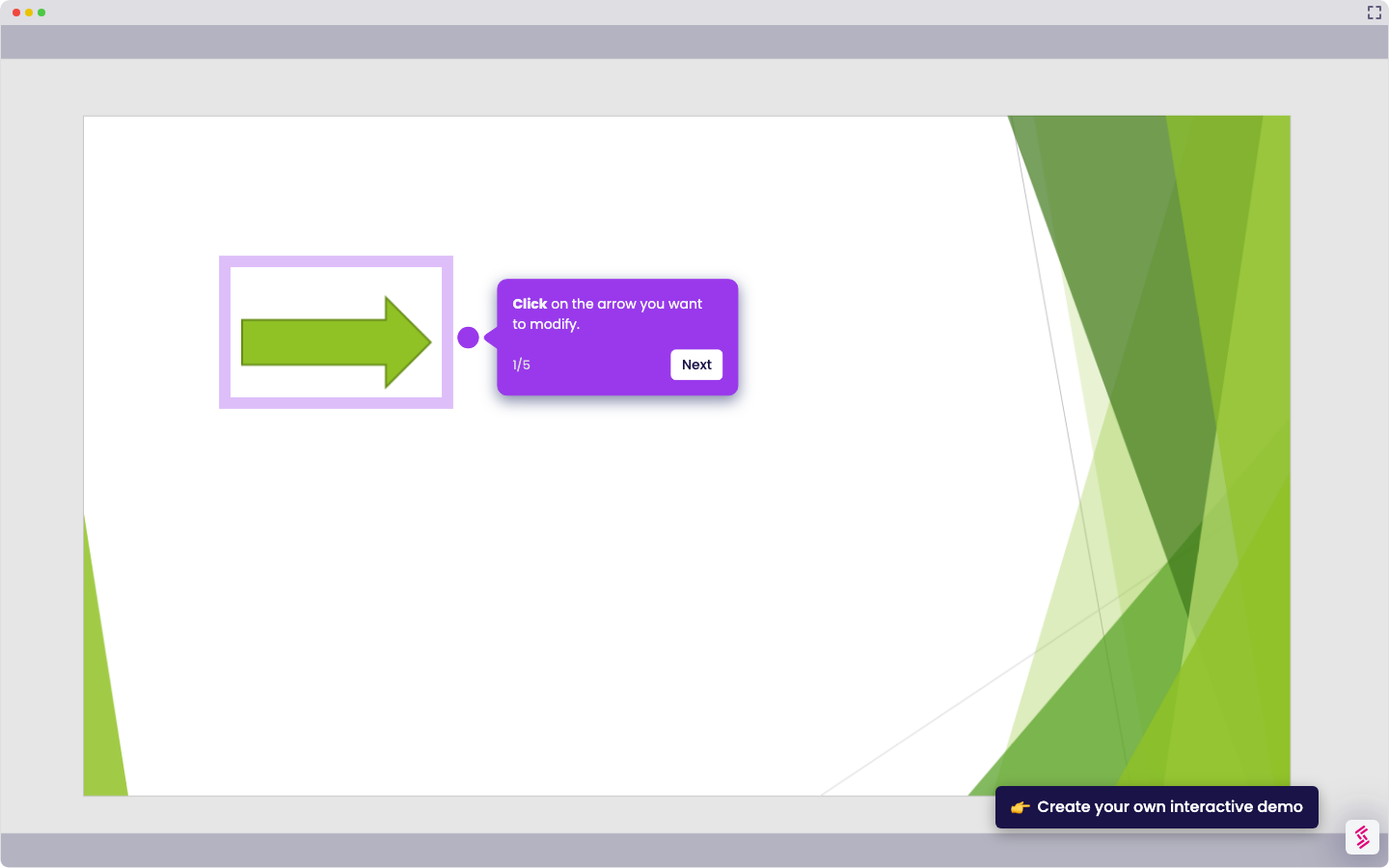
  2. Click the object (text, image, or shape) you want to apply animation to.
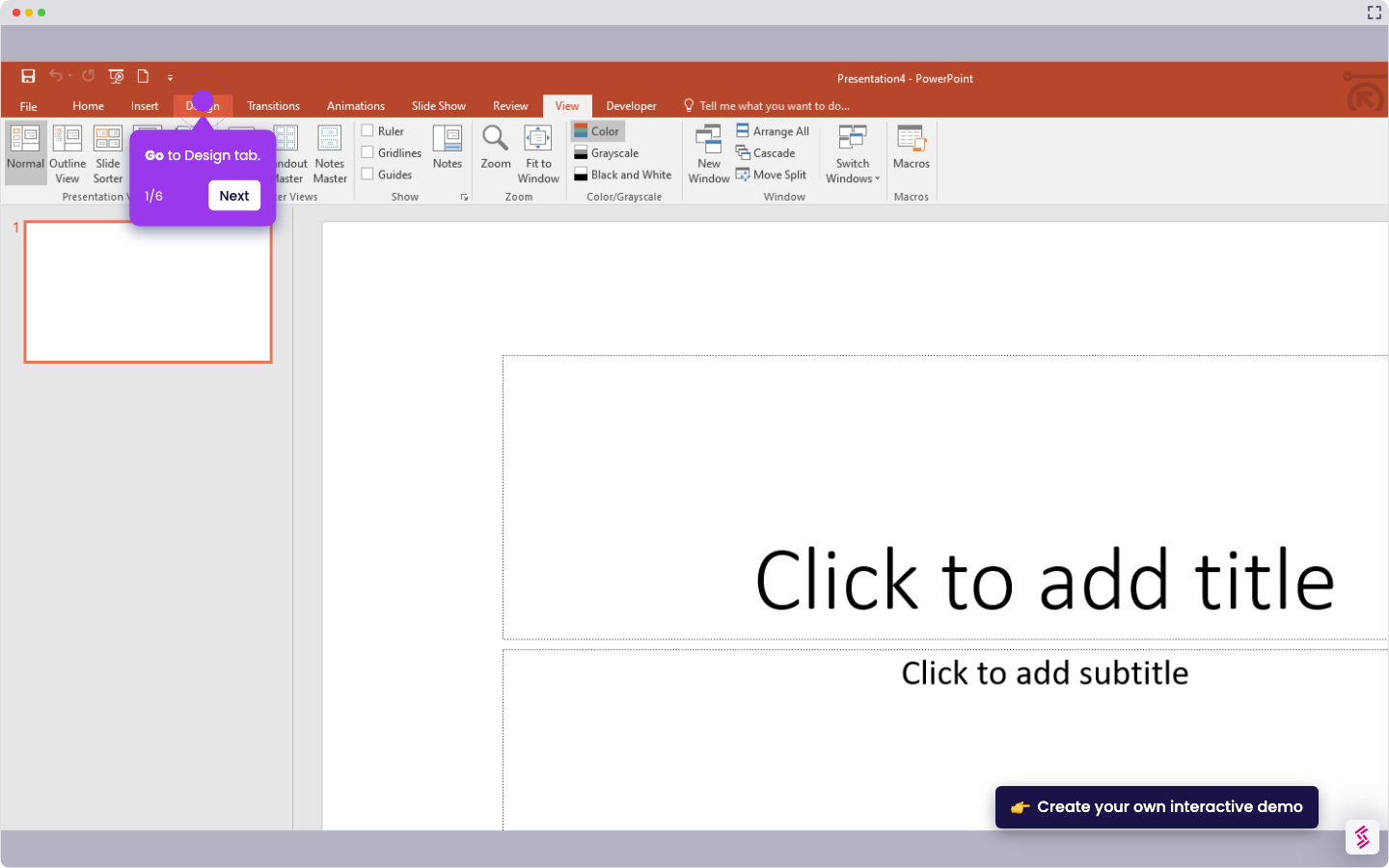
  3. Select the "Animations" tab from the top menu.
  4. Choose an animation effect such as Fade, Fly In, or Zoom.
  5. Click "Options" to customize direction to bottom-right for a unique entrance that guides viewer focus strategically.
  6. Adjust the start option and speed based on how you want the animation to play.

📌 Why this matters

Adding animations transforms static slides into guided experiences that control viewer attention. Strategic entrance effects like bottom-right direction create visual pathways that lead eyes exactly where you want them to look first. This becomes powerful during presentations when you need to reveal information sequentially, preventing audiences from reading ahead or getting overwhelmed by dense content. Well-timed animations also mask transitions between complex ideas, giving your brain a moment to process before introducing the next concept, ultimately improving comprehension and retention.

Your product deserves an interactive demo
Start free
Similar Articles
MS PowerPoint

How To Curve Letters In PowerPoint

Madhav Bhandari
Director of Marketing @ Storylane
MS PowerPoint

How to Make PowerPoint Slide 8.5 by 11

Madhav Bhandari
Director of Marketing @ Storylane
MS PowerPoint

How to Make Arrow Thicker in PowerPoint

Madhav Bhandari
Director of Marketing @ Storylane
No items found.
Platform
Interactive Demos
Sandbox Demos
Hubs
RepX
Integrations
Solutions
Product Marketers
Growth & Demand Gen
Sales Reps & AEs
Presales & SEs
Customer Success
Product Managers
Customers
Demo Showcase
Customer Stories
Finer Demos Club
Features
Demo Signals
Personalization
Deal Intelligence
Resources
Blog
The Plot
Tutorials
Help Docs
What’s New
Demo Dundies
Company
Careers
Pricing
Partners
Contact
Trust Center
Backed by
Chrome Extension Icon
Chrome extension
Download
Desktop app
Download
Built in San Francisco Bay Area - ©2026 Storylane
Privacy PolicyTerms & Conditions
X Corp (formerly Twitter)LinkedIn
This website uses cookies to ensure you get the best experience on our website. Learn More
Got it
This website uses cookies to ensure you get the best experience on our website. Learn More
Got it