This interactive demo was created free with Storylane in 2 minutes. Create your own demo
Start free
All Tutorials /MS PowerPoint

How To Add Chart In PowerPoint

Updated on:
June 5, 2026
By:
Madhav Bhandari
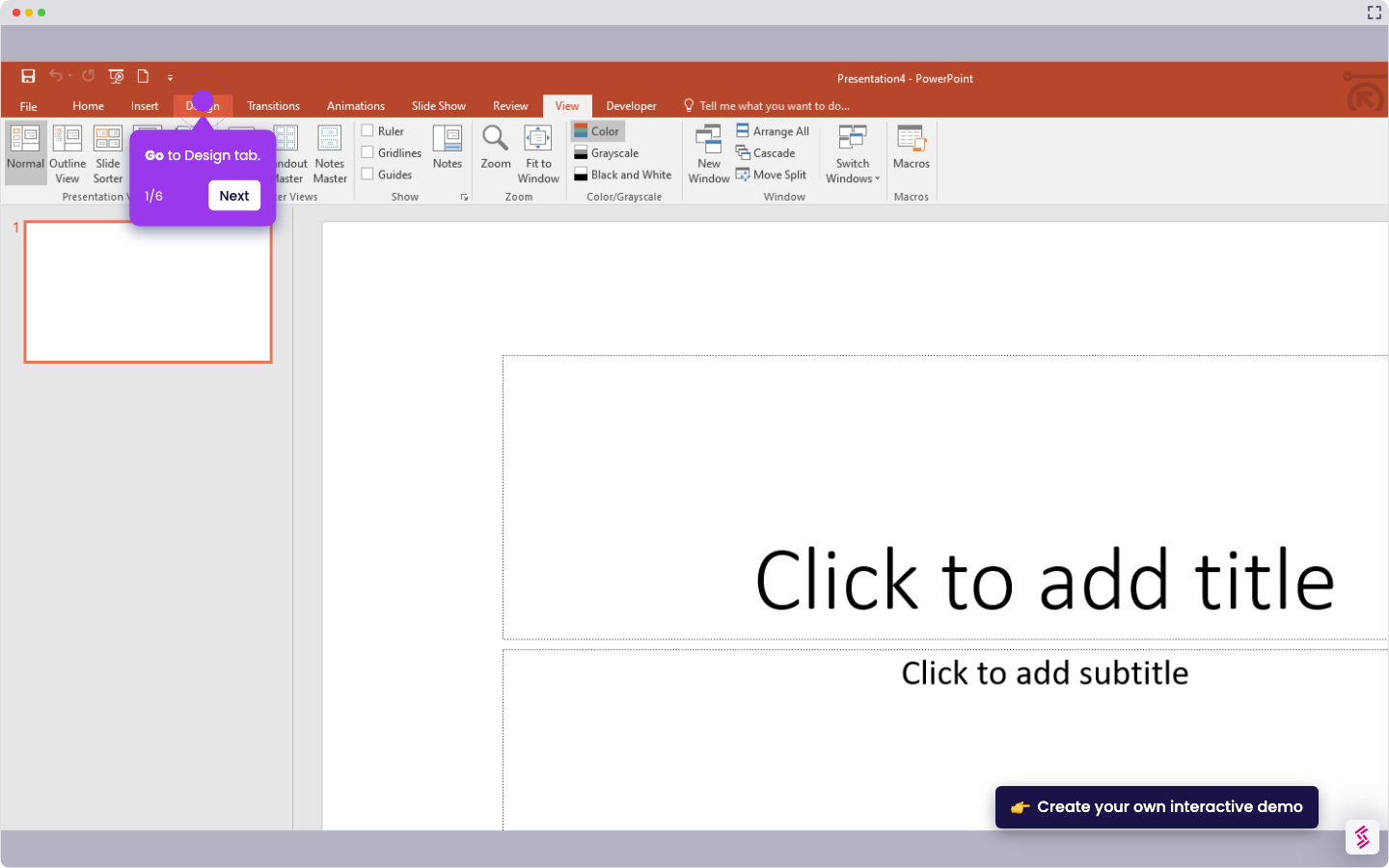
Walk through this interactive demo to learn how to add your chart in PowerPoint.
  1. Open your slide where you want the chart.
  2. Navigate to the "Insert" menu.
  3. Choose "Chart".
  4. Choose a chart type (e.g., bar, line, pie).
  5. Click "Edit in Excel" to customize the chart.
  6. Modify the chart content.

📌 Why this matters

Adding charts transforms static slides into compelling data stories that audiences actually remember. When you embed interactive visuals directly into your presentation, you eliminate the awkward back-and-forth between PowerPoint and separate spreadsheet applications during meetings. The Excel integration means your charts automatically update when underlying data changes, preventing those embarrassing moments when you're presenting outdated numbers. More importantly, well-designed charts help audiences grasp complex relationships instantly, turning dense spreadsheets into clear insights that drive decisions and keep stakeholders engaged throughout your presentation.

Your product deserves an interactive demo
Start free
Similar Articles
MS PowerPoint

How To Curve Letters In PowerPoint

Madhav Bhandari
Director of Marketing @ Storylane
MS PowerPoint

How to Make PowerPoint Slide 8.5 by 11

Madhav Bhandari
Director of Marketing @ Storylane
MS PowerPoint

How to Make Arrow Thicker in PowerPoint

Madhav Bhandari
Director of Marketing @ Storylane
No items found.
Platform
Interactive Demos
Sandbox Demos
Hubs
RepX
Integrations
Solutions
Product Marketers
Growth & Demand Gen
Sales Reps & AEs
Presales & SEs
Customer Success
Product Managers
Customers
Demo Showcase
Customer Stories
Finer Demos Club
Features
Demo Signals
Personalization
Deal Intelligence
Resources
Blog
The Plot
Tutorials
Help Docs
What’s New
Demo Dundies
Company
Careers
Pricing
Partners
Contact
Trust Center
Backed by
Chrome Extension Icon
Chrome extension
Download
Desktop app
Download
Built in San Francisco Bay Area - ©2026 Storylane
Privacy PolicyTerms & Conditions
X Corp (formerly Twitter)LinkedIn
This website uses cookies to ensure you get the best experience on our website. Learn More
Got it
This website uses cookies to ensure you get the best experience on our website. Learn More
Got it