


- Open your PowerPoint presentation, then select the slide you want to edit.
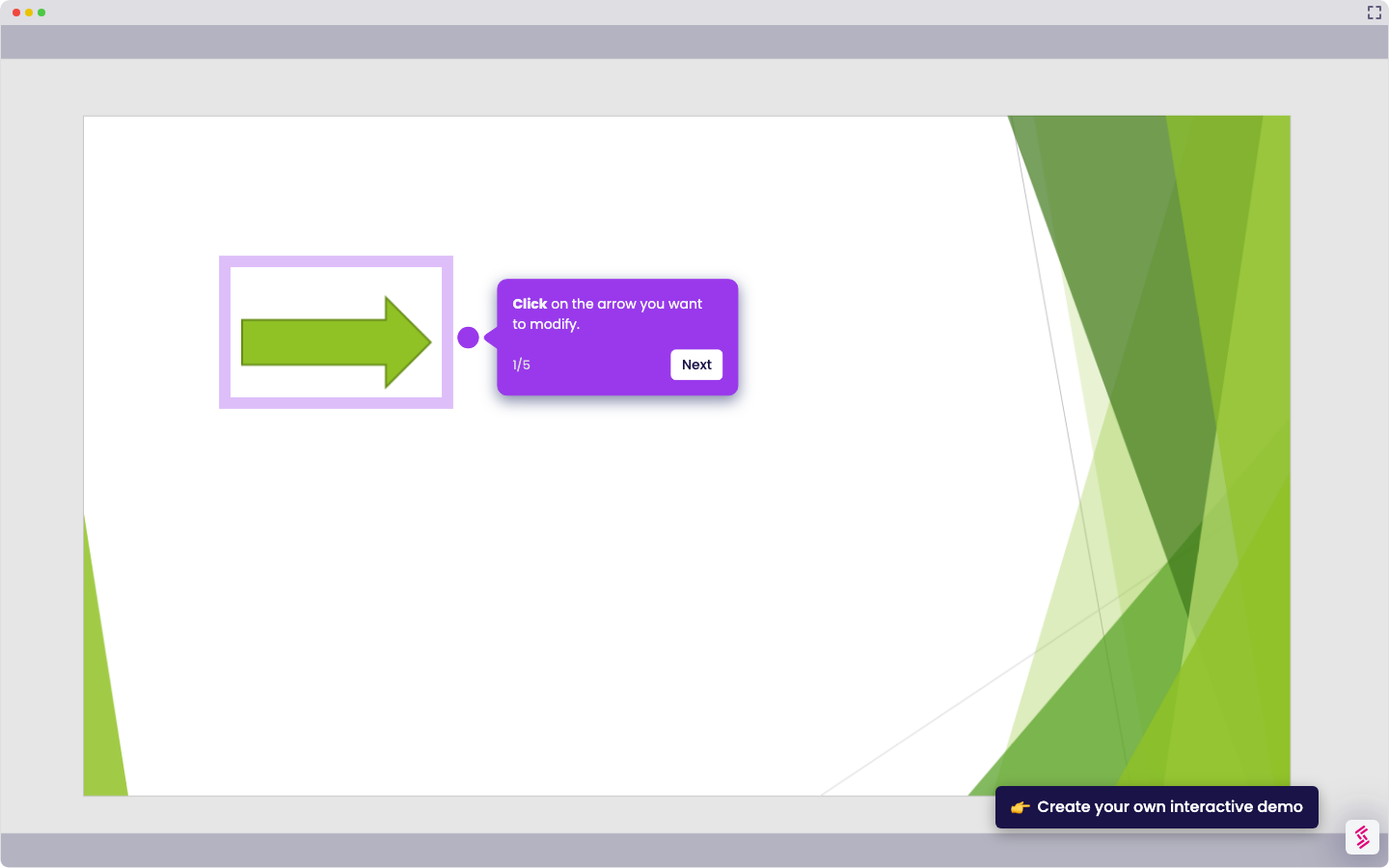
- Click "Insert", then select "Shapes" and choose a shape for your confetti.
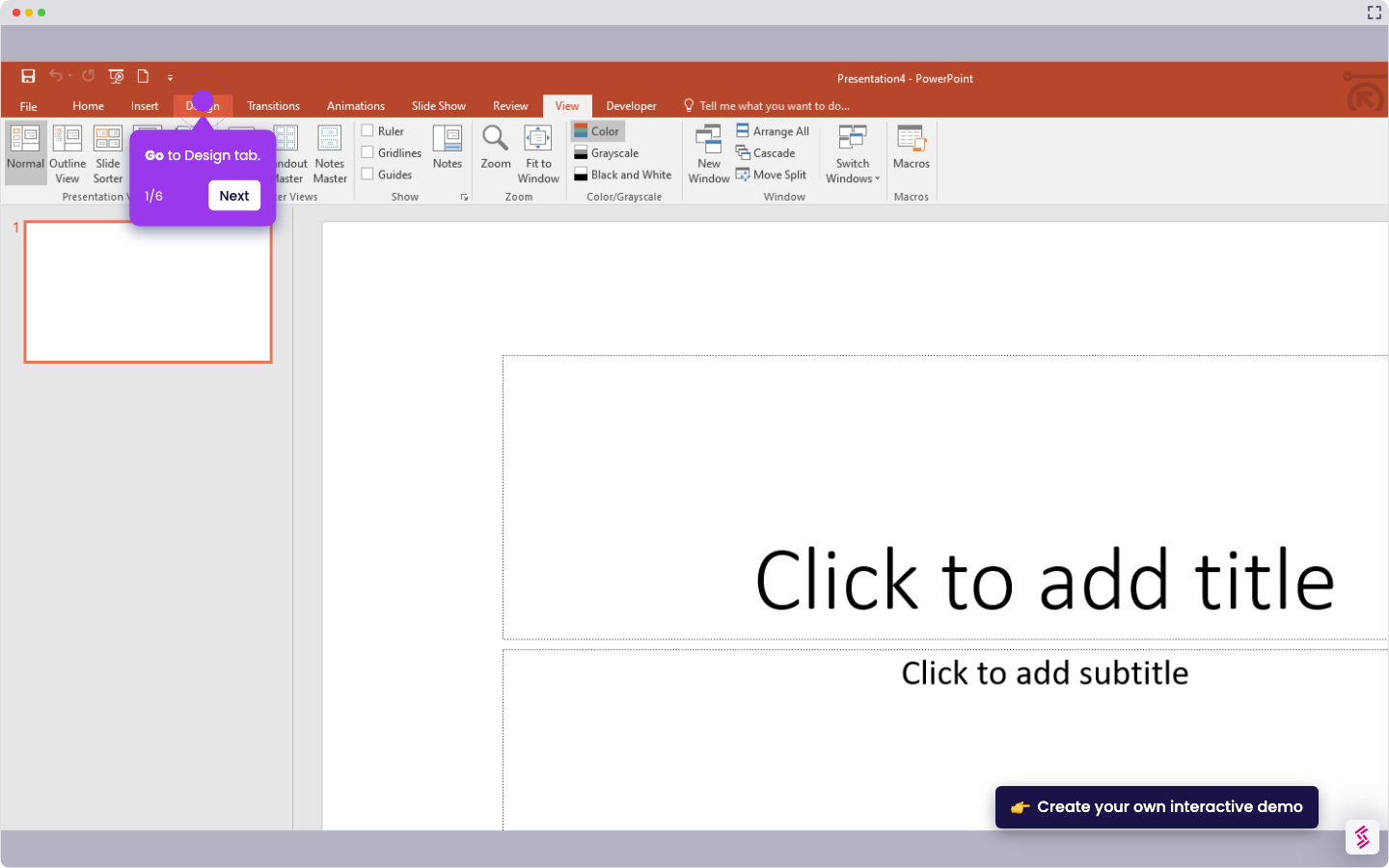
- Click "Animations" on the toolbar.
- Select "Spin" as the animation.
- Click the dropdown arrow, then adjust the effect settings.
- Set the duration and repeat timing, then click "OK".
- Click "Add Animation".
- Select "Fall Out" as the next animation.
- Adjust the timing for the fall out effect.
- Click "Add Animation" again.
- Scroll down and select "Custom Path".
- Draw the path for the animation.
- Copy and paste the shape to duplicate the animation.
- Change the color, position, and path as needed, then repeat for additional confetti.
How To Add Confetti Animation In PowerPoint
Walk through this interactive demo to learn how to add confetti animation in PowerPoint.
📌 Why this matters
Adding confetti animations transforms static presentations into memorable experiences that capture attention and create positive emotional responses. You can celebrate achievements, announce milestones, or highlight key moments with visual excitement that keeps audiences engaged. The real power lies in timing these animations strategically throughout your presentation to punctuate important points and maintain energy levels. When viewers associate your content with moments of delight, they're more likely to remember your message and respond favorably to your calls to action.
Your product deserves an interactive demo
Similar Articles

No items found.