This interactive demo was created free with Storylane in 2 minutes. Create your own demo
Start free
All Tutorials /LinkedIn

How to Add CPA to LinkedIn

Updated on:
June 9, 2026
By:
Ranga Kaliyur
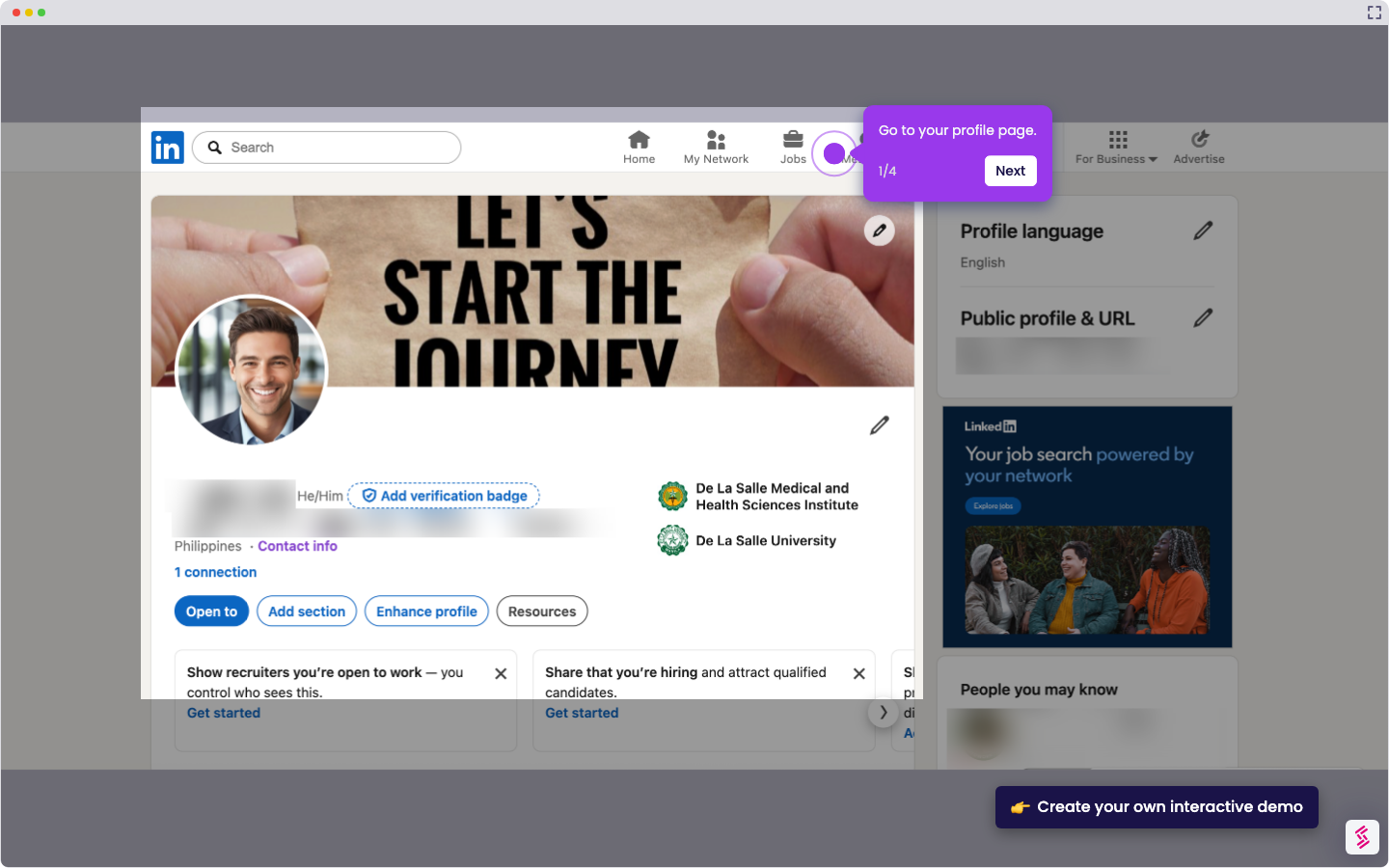
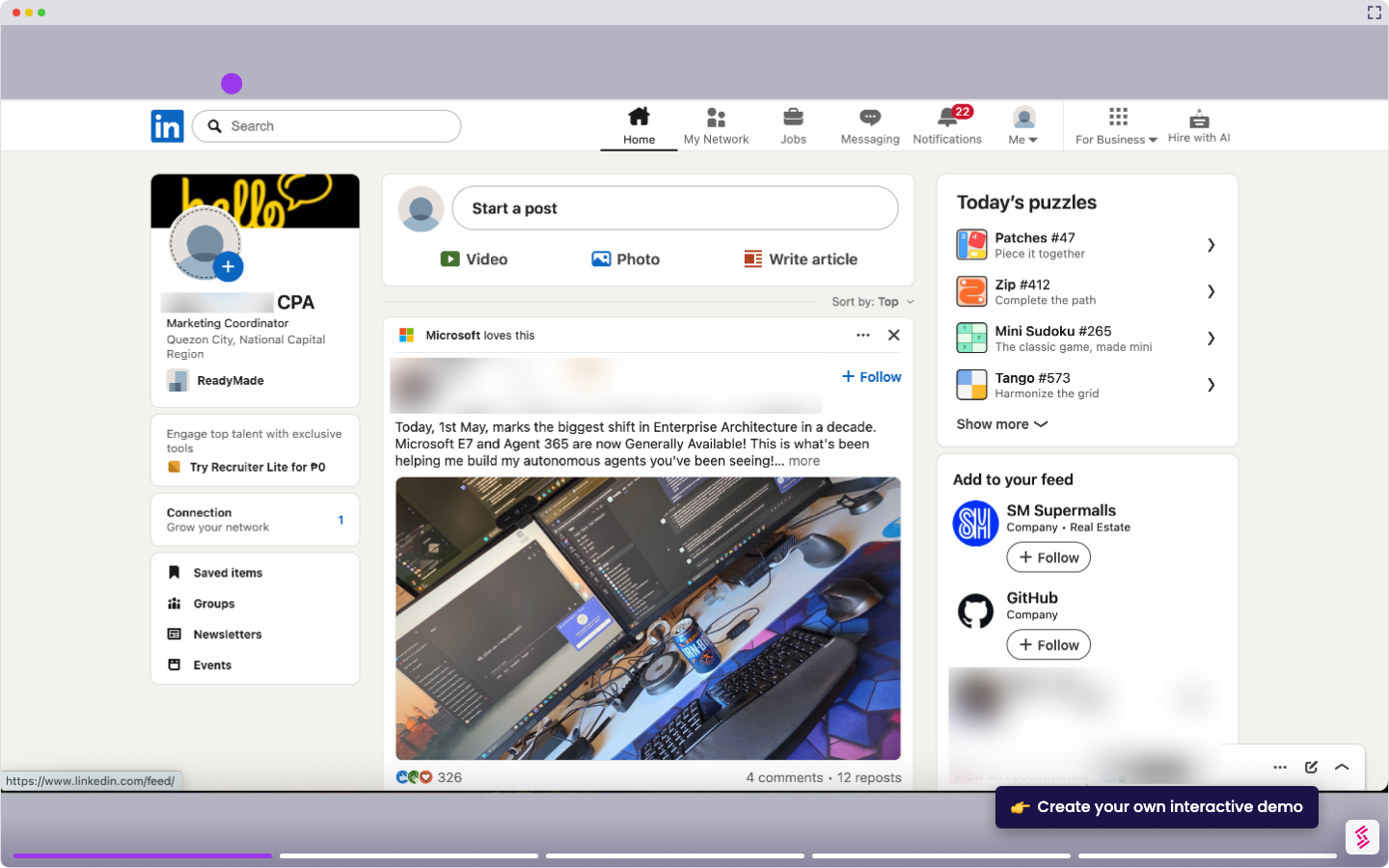
Use this interactive demo to learn how to display your CPA credential on your LinkedIn profile.

Quick summary

Adding CPA to your LinkedIn profile boosts professional credibility by showcasing your Certified Public Accountant certification under Licenses & Certifications and in your display name. This step-by-step walkthrough covers both the certification section and the name field so recruiters and clients can instantly verify your credentials.


Steps

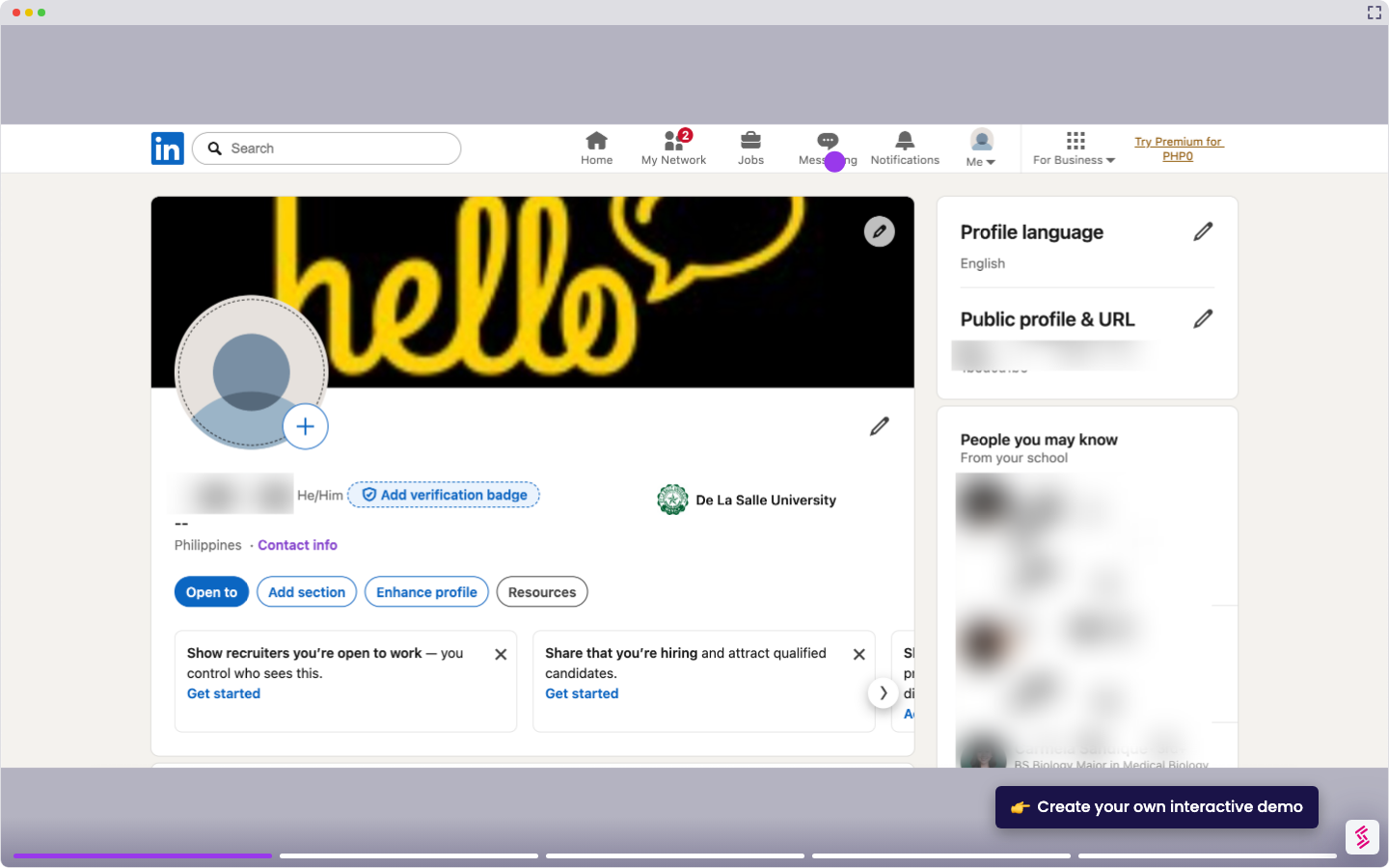
  1. Go to your LinkedIn profile page and click the 'Add section' button below your profile name and photo.
  2. Under 'Recommendations', select 'Add Licenses & Certifications'.
  3. Enter and select 'Certified Public Accountant' in the name field, then choose the issuing organization (e.g., Professional Regulation Commission for the Philippines).
  4. Scroll down to 'Media' and add your certification or valid ID by clicking the 'Add media' button.
  5. Complete other details and click 'Save'.
  6. Click the 'pencil' icon below your banner to edit your profile name.
  7. In the last name field, add 'CPA' after your surname, then click 'Save'.
📌 Why this matters

Displaying the CPA designation on LinkedIn is essential for Certified Public Accountants looking to build professional trust and stand out to recruiters, clients, and employers. LinkedIn's Licenses & Certifications section and name field allow CPAs to make their qualification immediately visible in search results and profile previews. Properly adding CPA credentials increases profile discoverability for accounting and finance roles, making it a high-impact, low-effort profile optimization. This demo ensures accountants complete every step correctly — from the certifications section to the display name — so no credential detail is missed.
Your product deserves an interactive demo
Start free
Similar Articles
LinkedIn

How to Add Extracurricular Activities on LinkedIn

Madhav Bhandari
Director of Marketing @ Storylane
LinkedIn

How to Find Out who Viewed your Profile Anonymously on LinkedIn

Madhav Bhandari
Director of Marketing @ Storylane
LinkedIn

How to do an Advanced Job Search on LinkedIn

Madhav Bhandari
Director of Marketing @ Storylane
No items found.
Platform
Interactive Demos
Sandbox Demos
Hubs
RepX
Integrations
Solutions
Product Marketers
Growth & Demand Gen
Sales Reps & AEs
Presales & SEs
Customer Success
Product Managers
Customers
Demo Showcase
Customer Stories
Finer Demos Club
Features
Demo Signals
Personalization
Deal Intelligence
Resources
Blog
The Plot
Tutorials
Help Docs
What’s New
Demo Dundies
Company
Careers
Pricing
Partners
Contact
Trust Center
Backed by
Chrome Extension Icon
Chrome extension
Download
Desktop app
Download
Built in San Francisco Bay Area - ©2026 Storylane
Privacy PolicyTerms & Conditions
X Corp (formerly Twitter)LinkedIn
This website uses cookies to ensure you get the best experience on our website. Learn More
Got it
This website uses cookies to ensure you get the best experience on our website. Learn More
Got it