This interactive demo was created free with Storylane in 2 minutes. Create your own demo
Start free
All Tutorials /Google Slides

How to Add Custom Transitions in Google Slides

Updated on:
June 5, 2026
By:
Madhav Bhandari
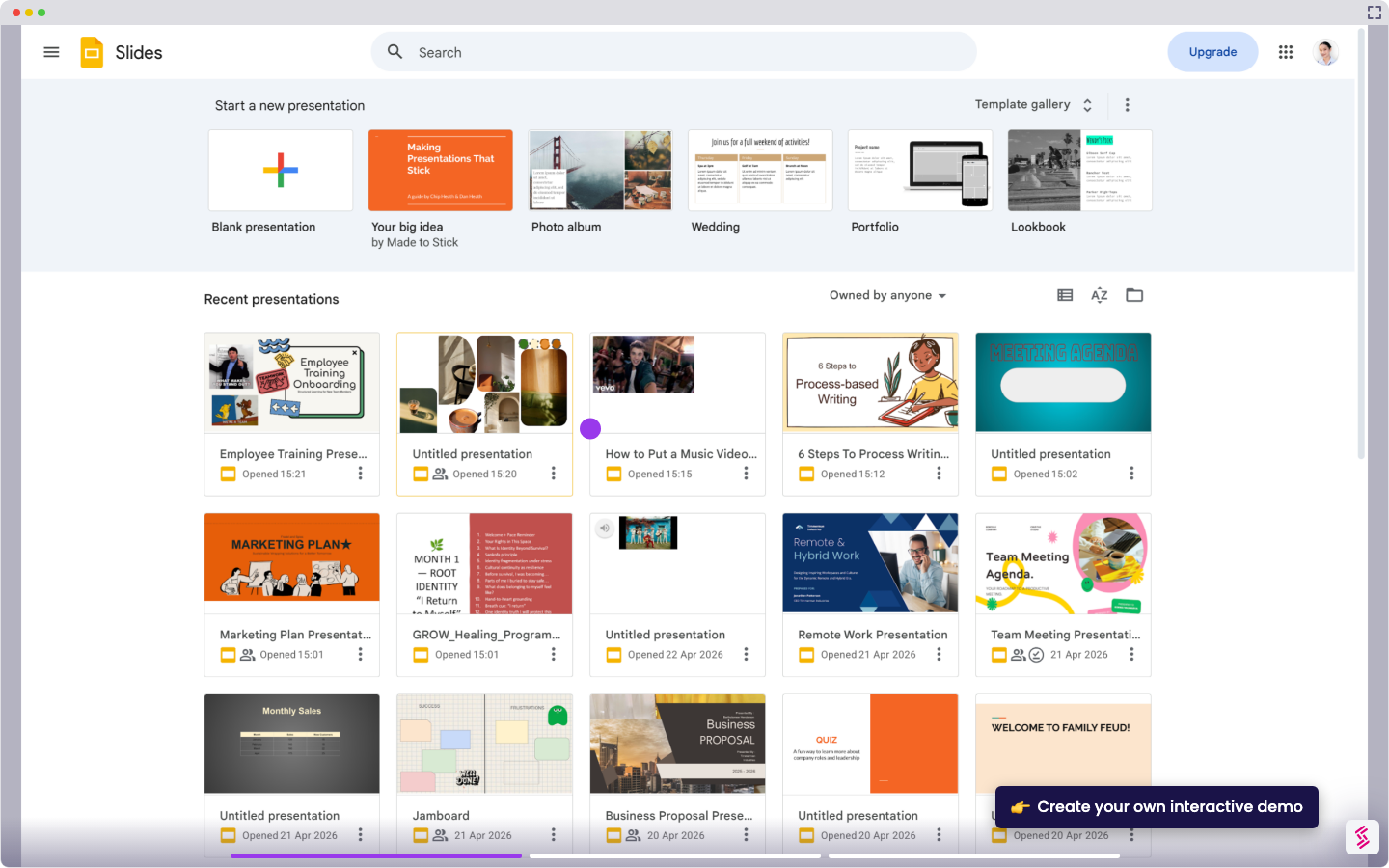
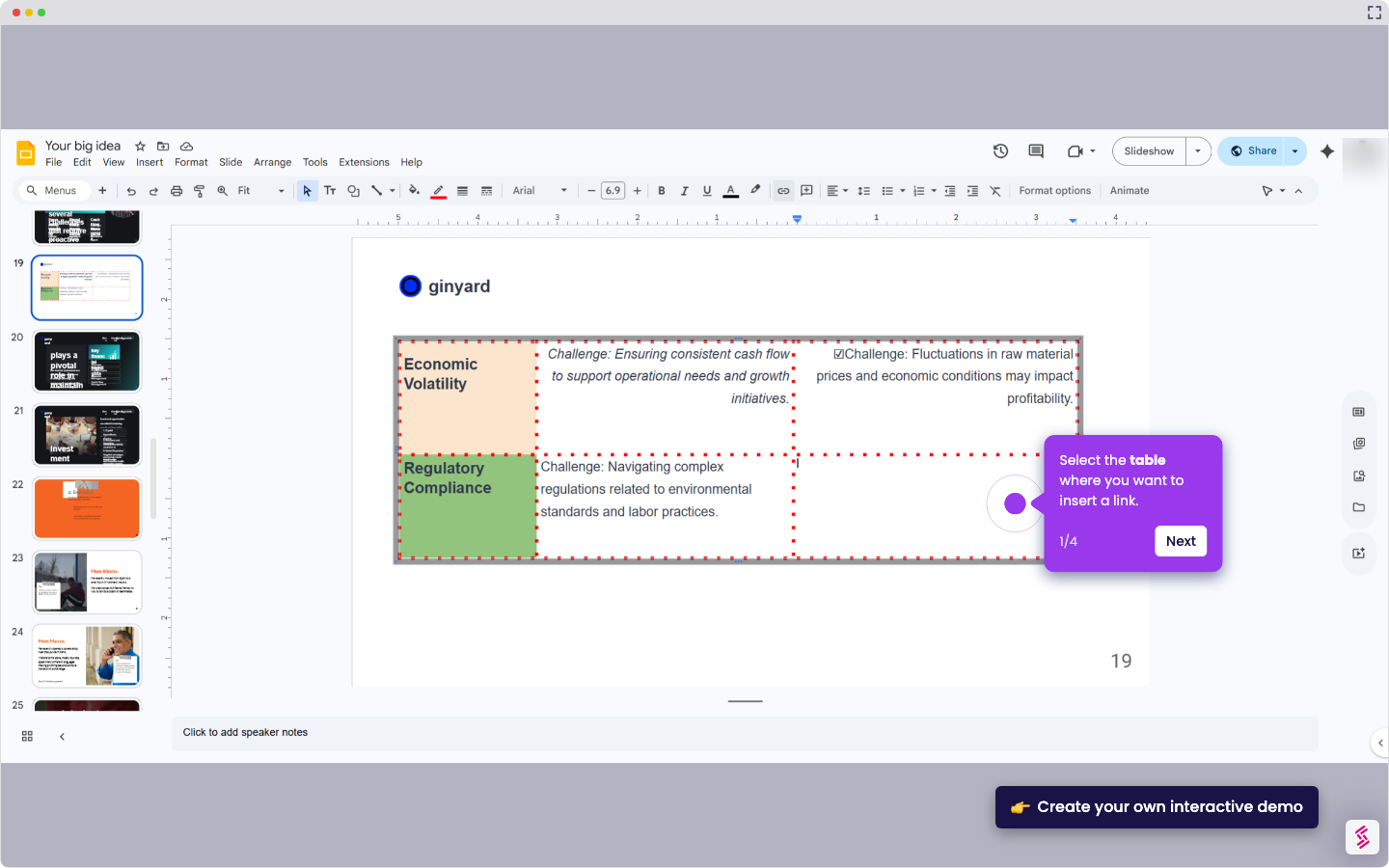
Use this interactive demo to learn how to set up custom slide transitions in Google Slides.

Quick summary

Google Slides lets you add custom transitions to any slide by accessing the Slide menu and choosing from animation styles like fade, slide, or flip. You can control transition speed, set slides to advance on click or timer, and apply your settings to one slide or the entire presentation.


Steps

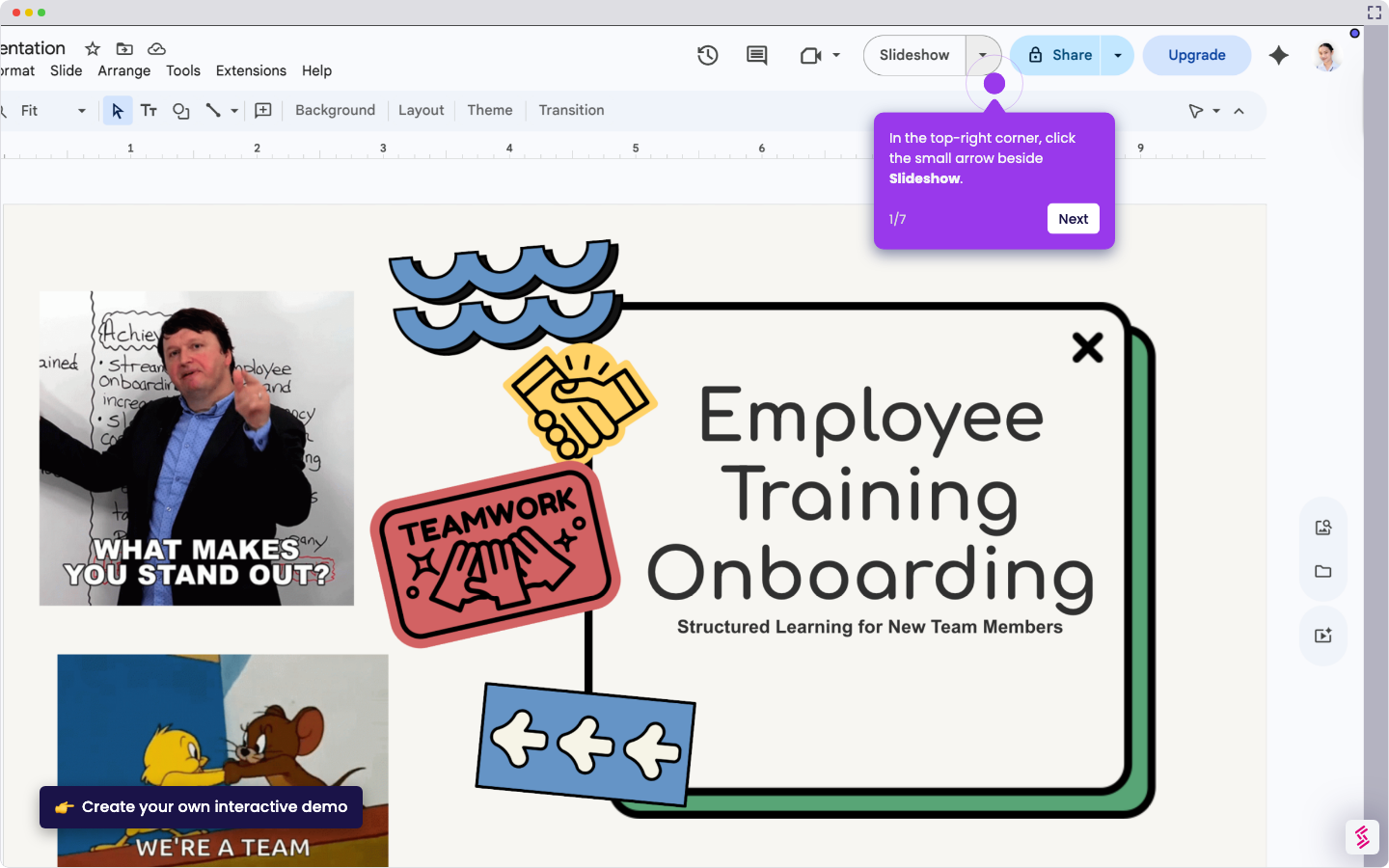
  1. Select the slide you want to customize, then click "Slide" in the top menu to open transition settings.
  2. Click "Transition" to browse all available animation styles in Google Slides.
  3. Choose a transition style that fits your needs — fade for subtle, slide for flow, or flip for bold effect.
  4. Adjust the transition speed and set whether the slide advances on click or on a timer.
  5. Click "Apply to all slides" for a uniform look, or leave it applied to just the current slide.
📌 Why this matters

Custom transitions in Google Slides give presenters precise control over how their slides flow, making presentations feel more polished and professional. Being able to set transition style, speed, and advance timing per slide — or across all slides at once — saves significant editing time. This feature is essential for educators, marketers, and business professionals who want their Google Slides decks to stand out with smooth, consistent animation. Mastering slide transitions directly improves audience engagement and the overall quality of any presentation.
Your product deserves an interactive demo
Start free
Similar Articles
Google Slides

How to Use Google Slides Presenter View

Madhav Bhandari
Director of Marketing @ Storylane
Google Slides

How to See Google Slides History

Madhav Bhandari
Director of Marketing @ Storylane
Google Slides

How to Link Table in Google Slides

Madhav Bhandari
Director of Marketing @ Storylane
No items found.
Platform
Interactive Demos
Sandbox Demos
Hubs
RepX
Integrations
Solutions
Product Marketers
Growth & Demand Gen
Sales Reps & AEs
Presales & SEs
Customer Success
Product Managers
Customers
Demo Showcase
Customer Stories
Finer Demos Club
Features
Demo Signals
Personalization
Deal Intelligence
Resources
Blog
The Plot
Tutorials
Help Docs
What’s New
Demo Dundies
Company
Careers
Pricing
Partners
Contact
Trust Center
Backed by
Chrome Extension Icon
Chrome extension
Download
Desktop app
Download
Built in San Francisco Bay Area - ©2026 Storylane
Privacy PolicyTerms & Conditions
X Corp (formerly Twitter)LinkedIn
This website uses cookies to ensure you get the best experience on our website. Learn More
Got it
This website uses cookies to ensure you get the best experience on our website. Learn More
Got it