Quick summary
Adding forms in Framer lets designers collect user input directly within their prototypes by inserting form elements through the Insert menu and customizing field properties from the right-side panel. This step-by-step walkthrough covers everything from opening your project to configuring labels, placeholders, and validation for each form field.
Steps
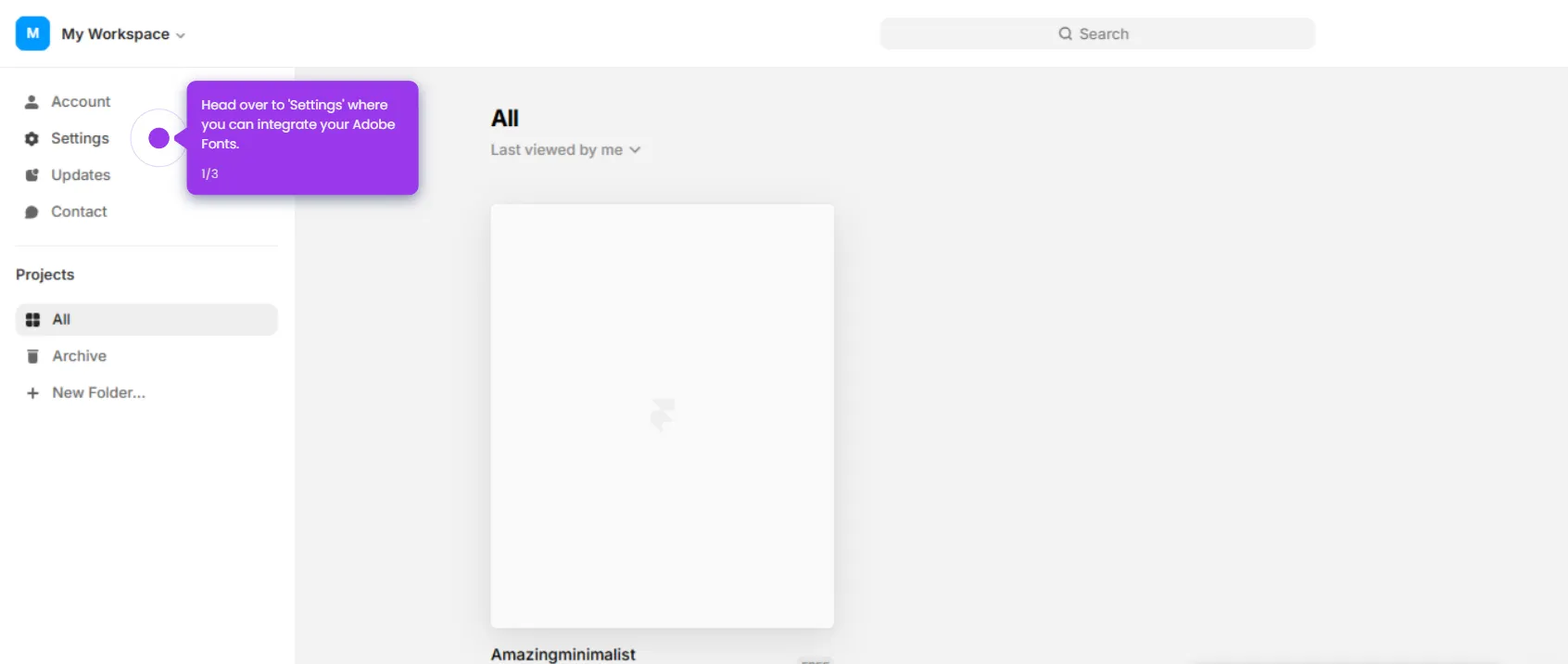
- Open your Framer project from the recent projects dashboard.
- Click the Insert menu to access available design elements you can add to your canvas.
- Navigate to the Elements settings panel to ensure proper responsive behavior for your layout.
- Select Forms from the elements list to create interactive user input components.
- Customize your design elements and position the form within your workspace canvas.
- Explore the available design tools in the panel to refine your form's appearance and layout.
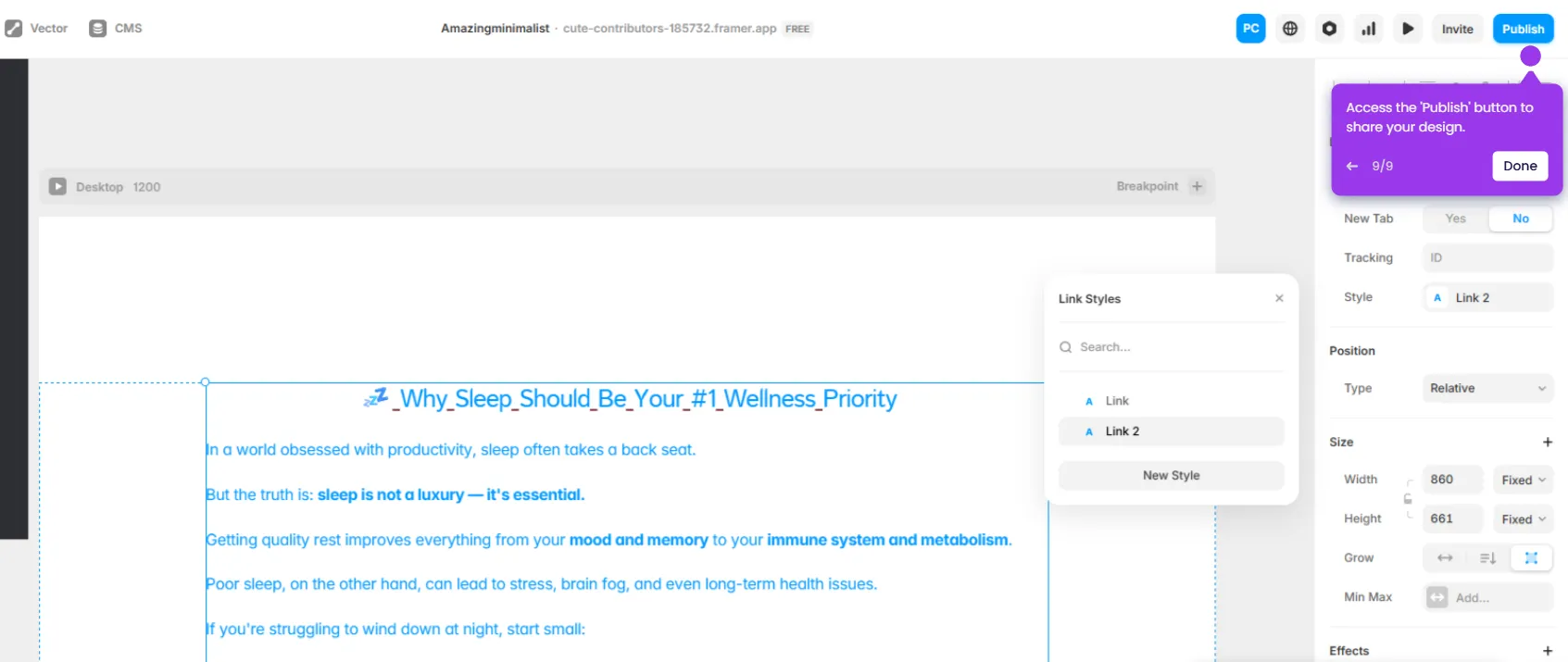
- Use the right-side properties panel to set each field's label, placeholder text, and validation rules.