This interactive demo was created free with Storylane in 2 minutes. Create your own demo
Start free
All Tutorials /LinkedIn

How to Add Multiple Links in a LinkedIn Post

Updated on:
June 9, 2026
By:
Akshaya Chandramouli
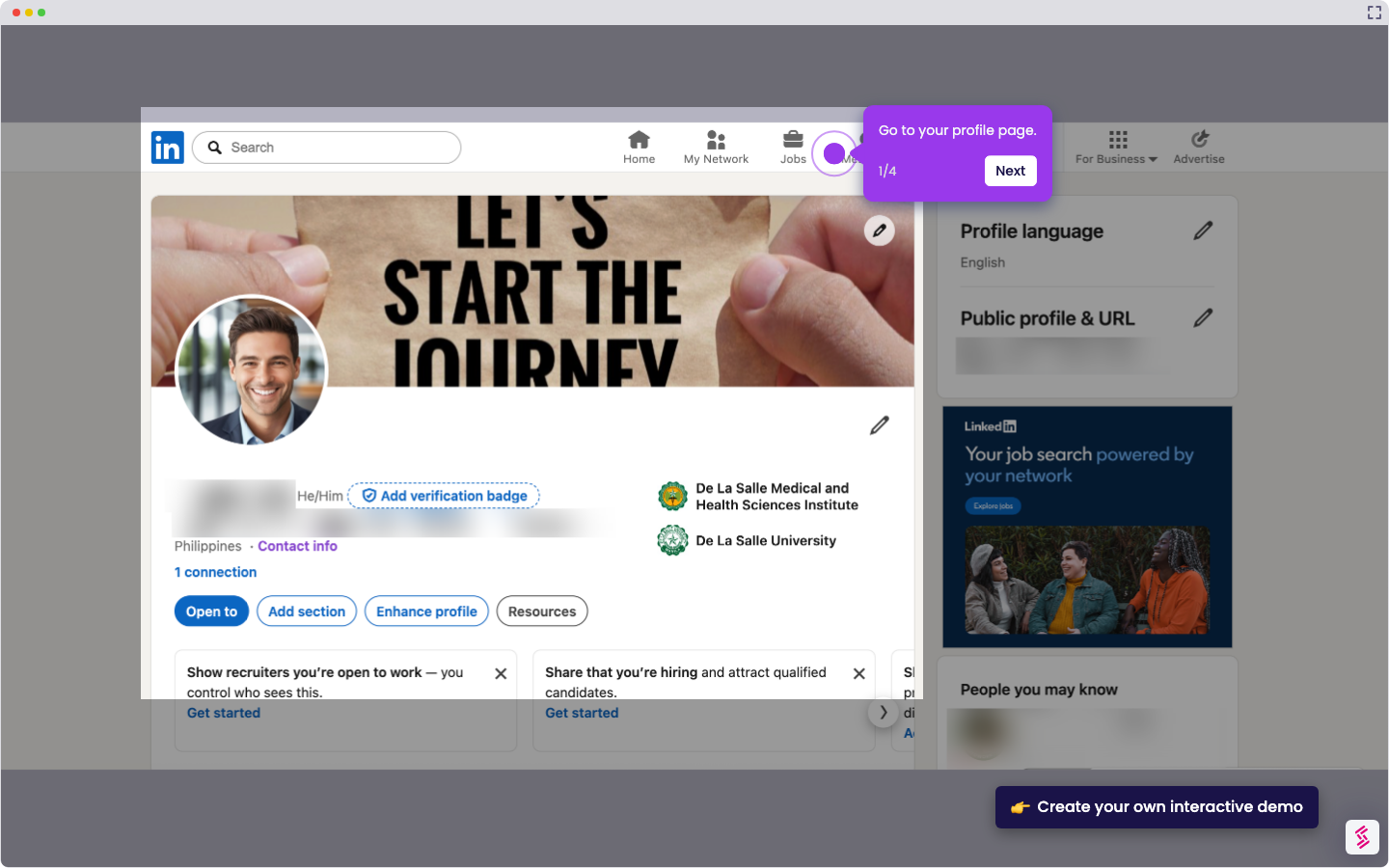
Use this interactive demo to learn how to share multiple clickable URLs in a single LinkedIn post.

Quick summary

LinkedIn does not natively support multiple clickable hyperlinks in a single post, but you can work around this by pasting multiple URLs as plain text directly into the post creation box, allowing LinkedIn to render each one as a preview link your audience can click.


Steps

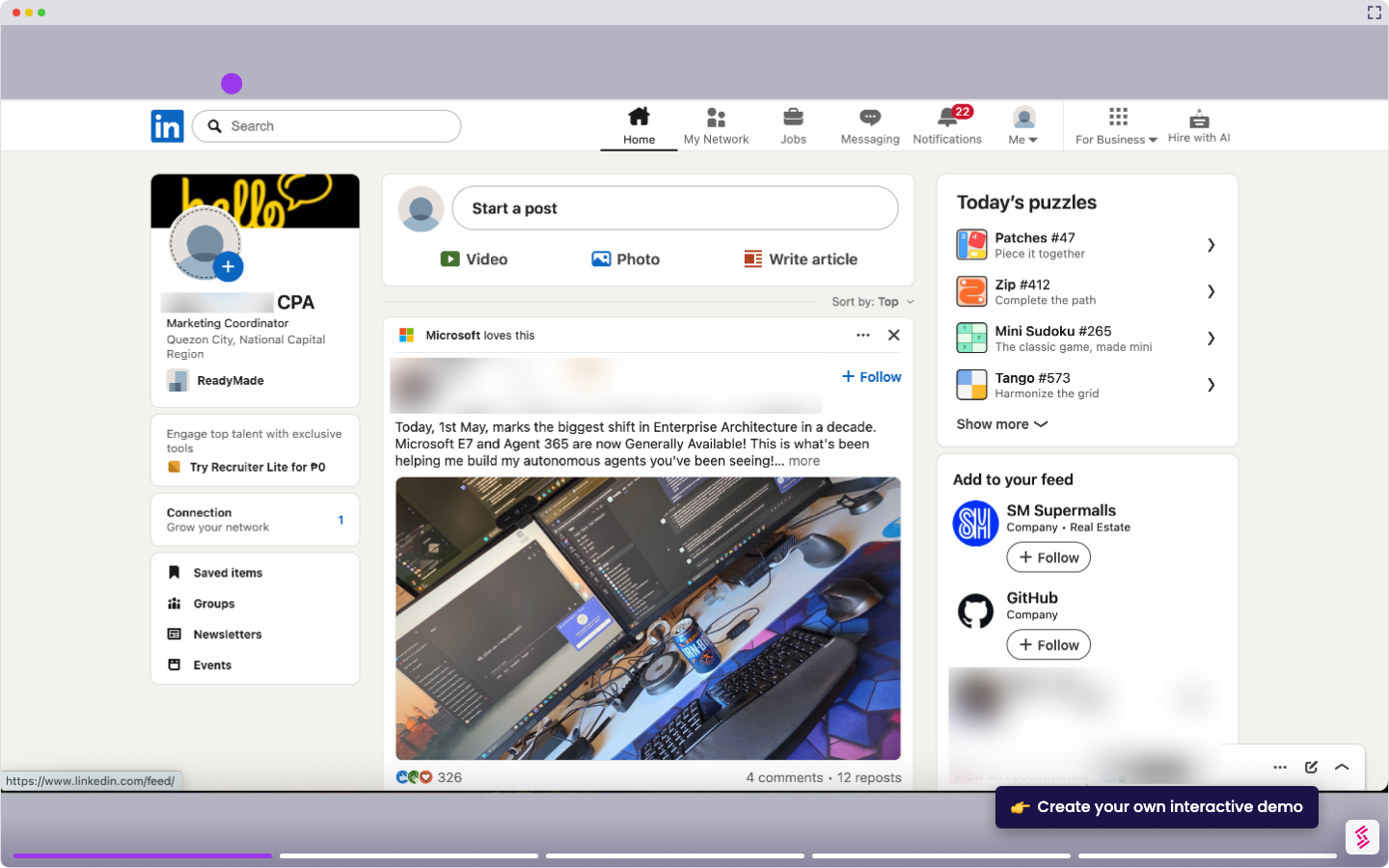
  1. Open the post creation box on your LinkedIn dashboard where you can compose and share content.
  2. Go to another website and copy its URL from the browser address bar.
  3. Paste the URL into the post creation box, then repeat the copy-and-paste process for each additional site's URL you want to include.
  4. Once all multiple URLs are added and your post content is ready, finalize the text and click the 'Post' button to publish.
  5. Your clickable links post is now live and visible to your LinkedIn network.
📌 Why this matters

LinkedIn restricts native hyperlinking within post text, making it difficult for marketers, sales professionals, and content creators to share multiple destinations in a single update. This demo matters because it reveals a simple copy-paste workaround that lets any LinkedIn user include multiple clickable URLs in one post without third-party tools. Driving traffic to several resources simultaneously — a blog, a product page, a sign-up form — from a single LinkedIn post directly improves content ROI and audience engagement. Knowing this technique gives professionals a competitive edge in LinkedIn content strategy and lead generation.
Your product deserves an interactive demo
Start free
Similar Articles
LinkedIn

How to Add Extracurricular Activities on LinkedIn

Madhav Bhandari
Director of Marketing @ Storylane
LinkedIn

How to Find Out who Viewed your Profile Anonymously on LinkedIn

Madhav Bhandari
Director of Marketing @ Storylane
LinkedIn

How to do an Advanced Job Search on LinkedIn

Madhav Bhandari
Director of Marketing @ Storylane
No items found.
Platform
Interactive Demos
Sandbox Demos
Hubs
RepX
Integrations
Solutions
Product Marketers
Growth & Demand Gen
Sales Reps & AEs
Presales & SEs
Customer Success
Product Managers
Customers
Demo Showcase
Customer Stories
Finer Demos Club
Features
Demo Signals
Personalization
Deal Intelligence
Resources
Blog
The Plot
Tutorials
Help Docs
What’s New
Demo Dundies
Company
Careers
Pricing
Partners
Contact
Trust Center
Backed by
Chrome Extension Icon
Chrome extension
Download
Desktop app
Download
Built in San Francisco Bay Area - ©2026 Storylane
Privacy PolicyTerms & Conditions
X Corp (formerly Twitter)LinkedIn
This website uses cookies to ensure you get the best experience on our website. Learn More
Got it
This website uses cookies to ensure you get the best experience on our website. Learn More
Got it