This interactive demo was created free with Storylane in 2 minutes. Create your own demo
Start free
All Tutorials /MS planner

How to Add Recurring Tasks in Microsoft Planner

Updated on:
June 5, 2026
By:
Madhav Bhandari
Use this interactive demo to learn how to set up recurring tasks in Microsoft Planner.

Quick summary

Recurring tasks in Microsoft Planner let you automate repetitive work by setting a repeat frequency so tasks regenerate automatically on your chosen schedule. This step-by-step walkthrough shows you exactly how to create and configure a recurring task in the My Tasks view of Microsoft Planner.


Steps

  1. Navigate to the left-side panel and click My Tasks.
  2. Tap Add New Task to begin creating a task.
  3. Enter a unique task name into the input field.
  4. Click the Open Details button next to the task.
  5. Open the Repeat menu in the task details panel.
  6. Choose your preferred repeat frequency (such as Daily) and set the exact timeframe if needed.
  7. Complete the setup — your recurring task is now created and added to Microsoft Planner.
📌 Why this matters

Recurring tasks in Microsoft Planner help teams and individuals automate repetitive work without manually recreating the same task every day, week, or month. By setting a repeat frequency directly within the task details panel, users can ensure consistent follow-through on routine responsibilities such as status updates, reviews, or maintenance checks. This feature reduces administrative overhead and keeps project boards accurate and up to date without extra manual effort. For Microsoft 365 users managing ongoing workflows, recurring tasks in Planner are a key productivity tool that saves time and prevents tasks from falling through the cracks.
Your product deserves an interactive demo
Start free
Similar Articles
MS planner

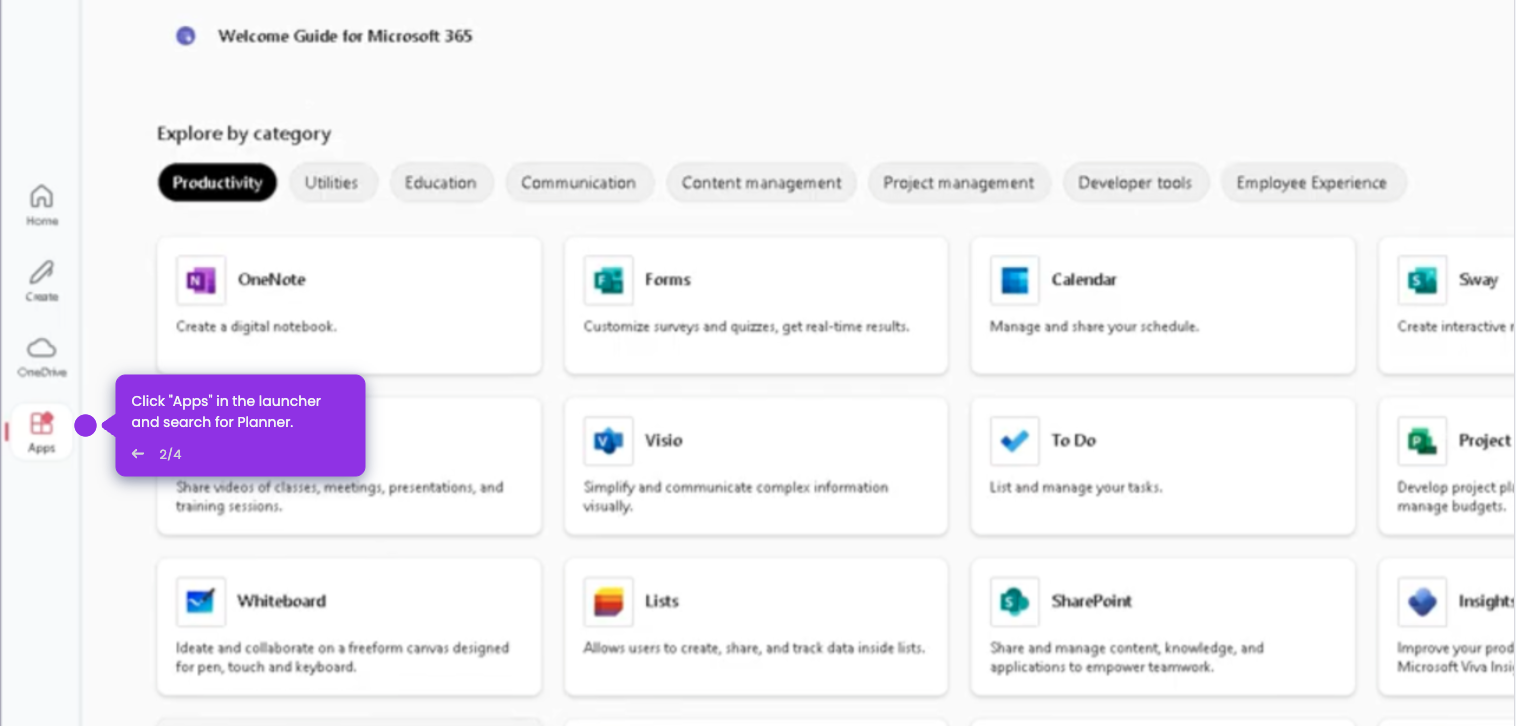
How to Access Microsoft Planner

Madhav Bhandari
Director of Marketing @ Storylane
MS planner

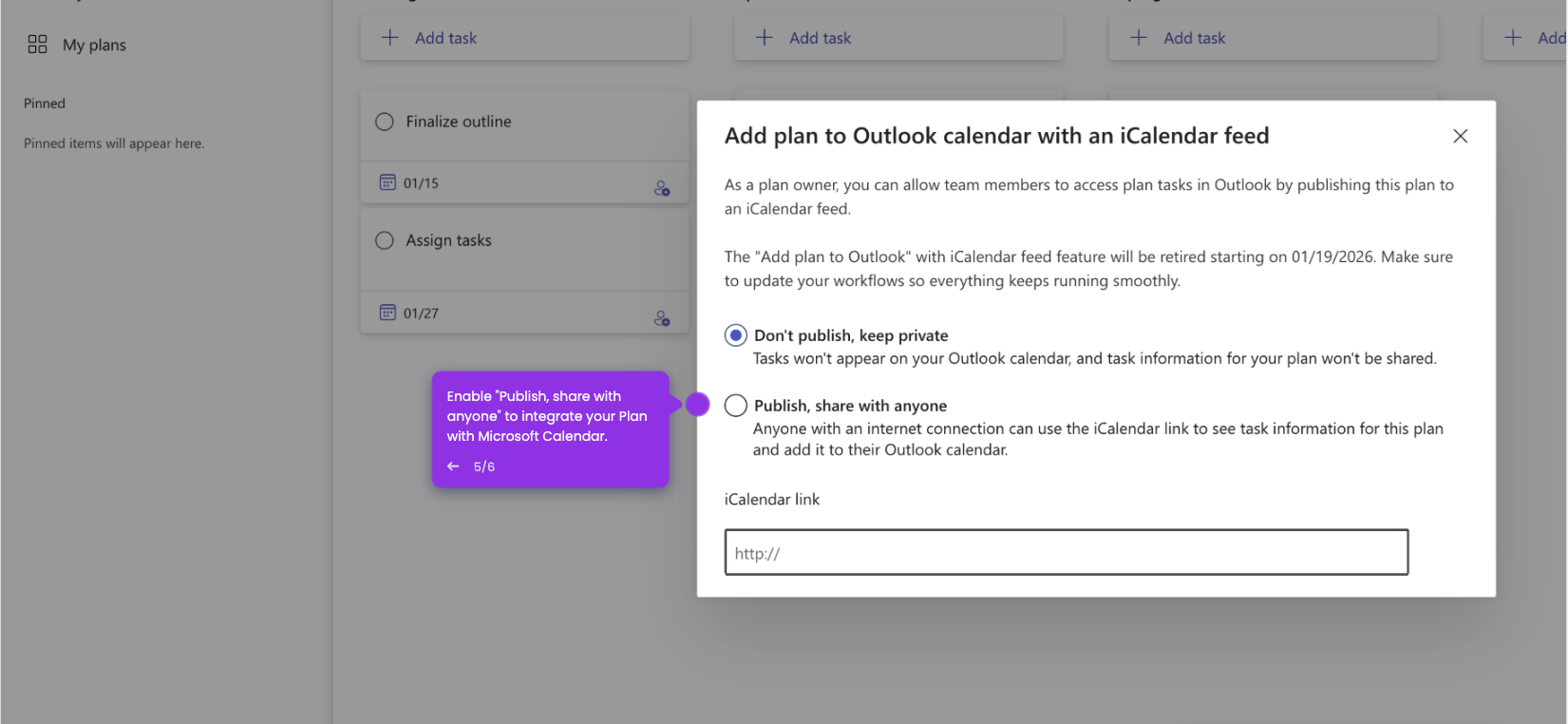
How to Integrate Microsoft Planner with Outlook Calendar

Madhav Bhandari
Director of Marketing @ Storylane
MS planner

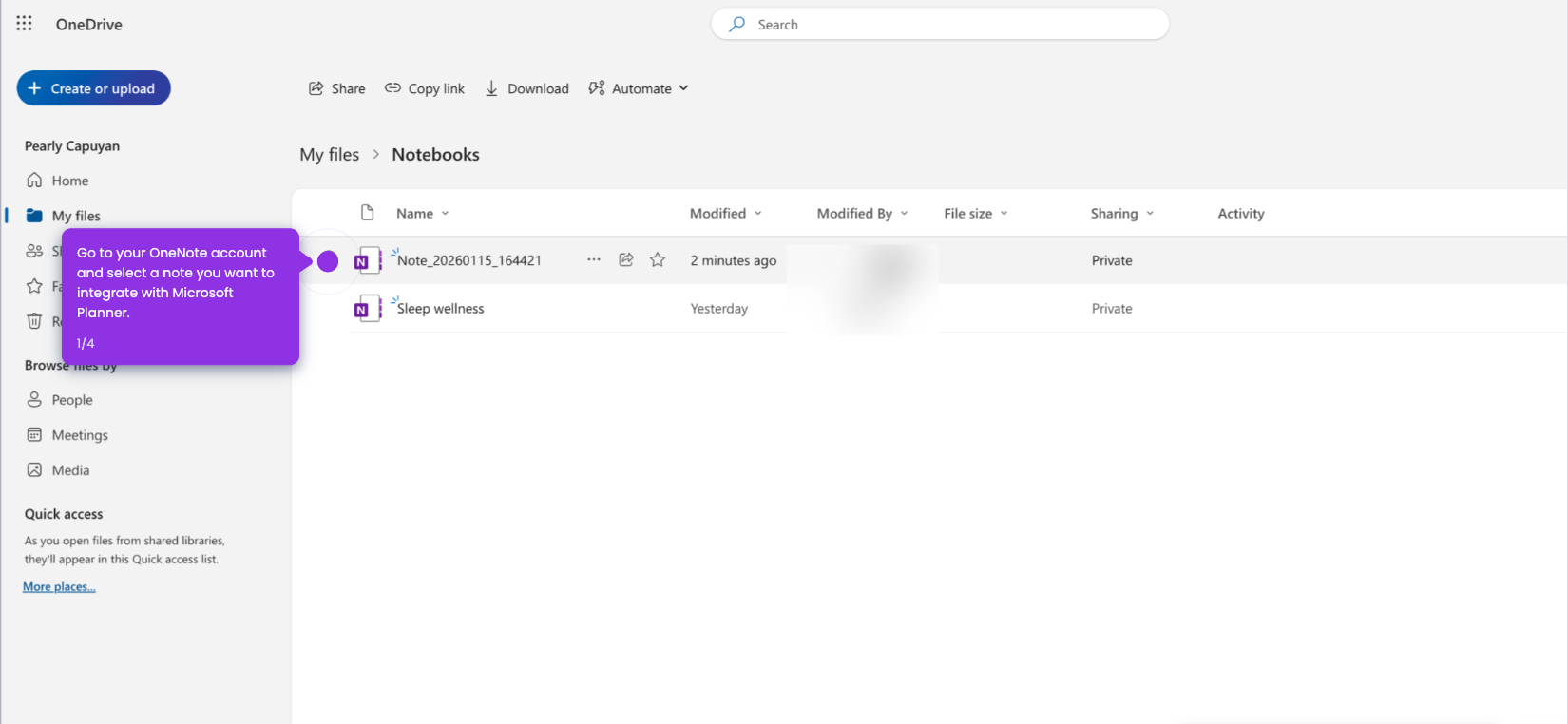
How to Integrate Microsoft Planner with OneNote

Madhav Bhandari
Director of Marketing @ Storylane
No items found.
Platform
Interactive Demos
Sandbox Demos
Hubs
RepX
Integrations
Solutions
Product Marketers
Growth & Demand Gen
Sales Reps & AEs
Presales & SEs
Customer Success
Product Managers
Customers
Demo Showcase
Customer Stories
Finer Demos Club
Features
Demo Signals
Personalization
Deal Intelligence
Resources
Blog
The Plot
Tutorials
Help Docs
What’s New
Demo Dundies
Company
Careers
Pricing
Partners
Contact
Trust Center
Backed by
Chrome Extension Icon
Chrome extension
Download
Desktop app
Download
Built in San Francisco Bay Area - ©2026 Storylane
Privacy PolicyTerms & Conditions
X Corp (formerly Twitter)LinkedIn
This website uses cookies to ensure you get the best experience on our website. Learn More
Got it
This website uses cookies to ensure you get the best experience on our website. Learn More
Got it