This interactive demo was created free with Storylane in 2 minutes. Create your own demo
Start free
All Tutorials /Google Slides

How to Add Visuals to Google Slides

Updated on:
June 9, 2026
By:
Madhav Bhandari
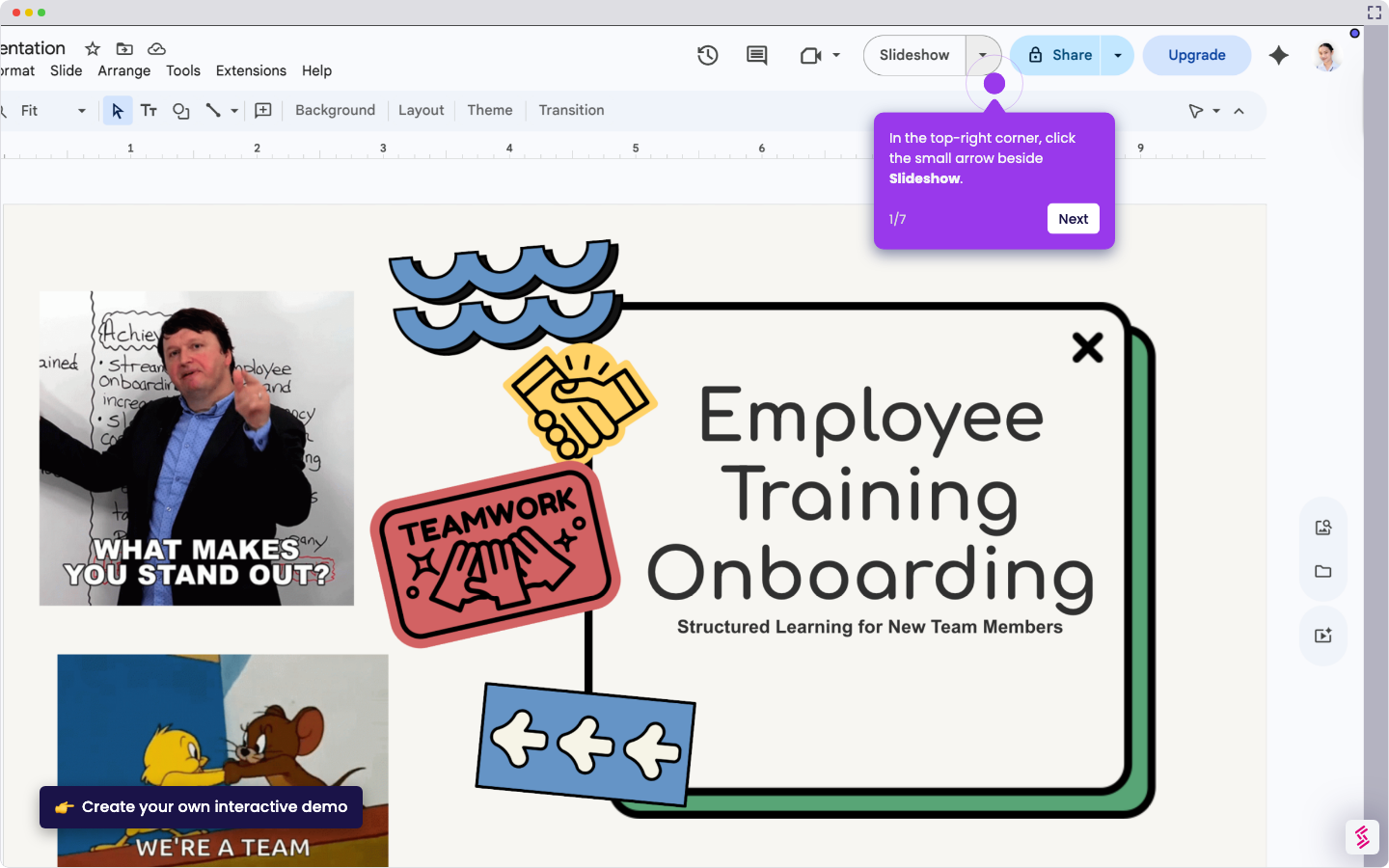
Use this step-by-step demo to learn how to add visuals to Google Slides.
  1. Start by clicking the Insert menu at the top.
  2. Choose Image from the dropdown to add your visual.
  3. Pick your source: upload from your computer, search online, or grab one from Google Drive.
  4. Nice! Now resize or reposition it by dragging the corners until it looks just right.

📌 Why this matters

Adding visuals transforms your presentations from text-heavy documents into engaging experiences that actually hold your audience's attention. Beyond making slides look better, images help you communicate complex ideas faster than words alone—your brain processes visuals 60,000 times quicker than text. When you strategically place the right image, you're not just decorating; you're creating memory anchors that help people retain your key messages long after your presentation ends. This skill turns you from someone who shares information into someone who creates lasting impact.

Your product deserves an interactive demo
Start free
Similar Articles
Google Slides

How to Use Google Slides Presenter View

Madhav Bhandari
Director of Marketing @ Storylane
Google Slides

How to See Google Slides History

Madhav Bhandari
Director of Marketing @ Storylane
Google Slides

How to Link Table in Google Slides

Madhav Bhandari
Director of Marketing @ Storylane
No items found.
Platform
Interactive Demos
Sandbox Demos
Hubs
RepX
Integrations
Solutions
Product Marketers
Growth & Demand Gen
Sales Reps & AEs
Presales & SEs
Customer Success
Product Managers
Customers
Demo Showcase
Customer Stories
Finer Demos Club
Features
Demo Signals
Personalization
Deal Intelligence
Resources
Blog
The Plot
Tutorials
Help Docs
What’s New
Demo Dundies
Company
Careers
Pricing
Partners
Contact
Trust Center
Backed by
Chrome Extension Icon
Chrome extension
Download
Desktop app
Download
Built in San Francisco Bay Area - ©2026 Storylane
Privacy PolicyTerms & Conditions
X Corp (formerly Twitter)LinkedIn
This website uses cookies to ensure you get the best experience on our website. Learn More
Got it
This website uses cookies to ensure you get the best experience on our website. Learn More
Got it