This interactive demo was created free with Storylane in 2 minutes. Create your own demo
Start free
All Tutorials /Google Slides

How to Auto Loop Google Slides

Updated on:
June 9, 2026
By:
Madhav Bhandari
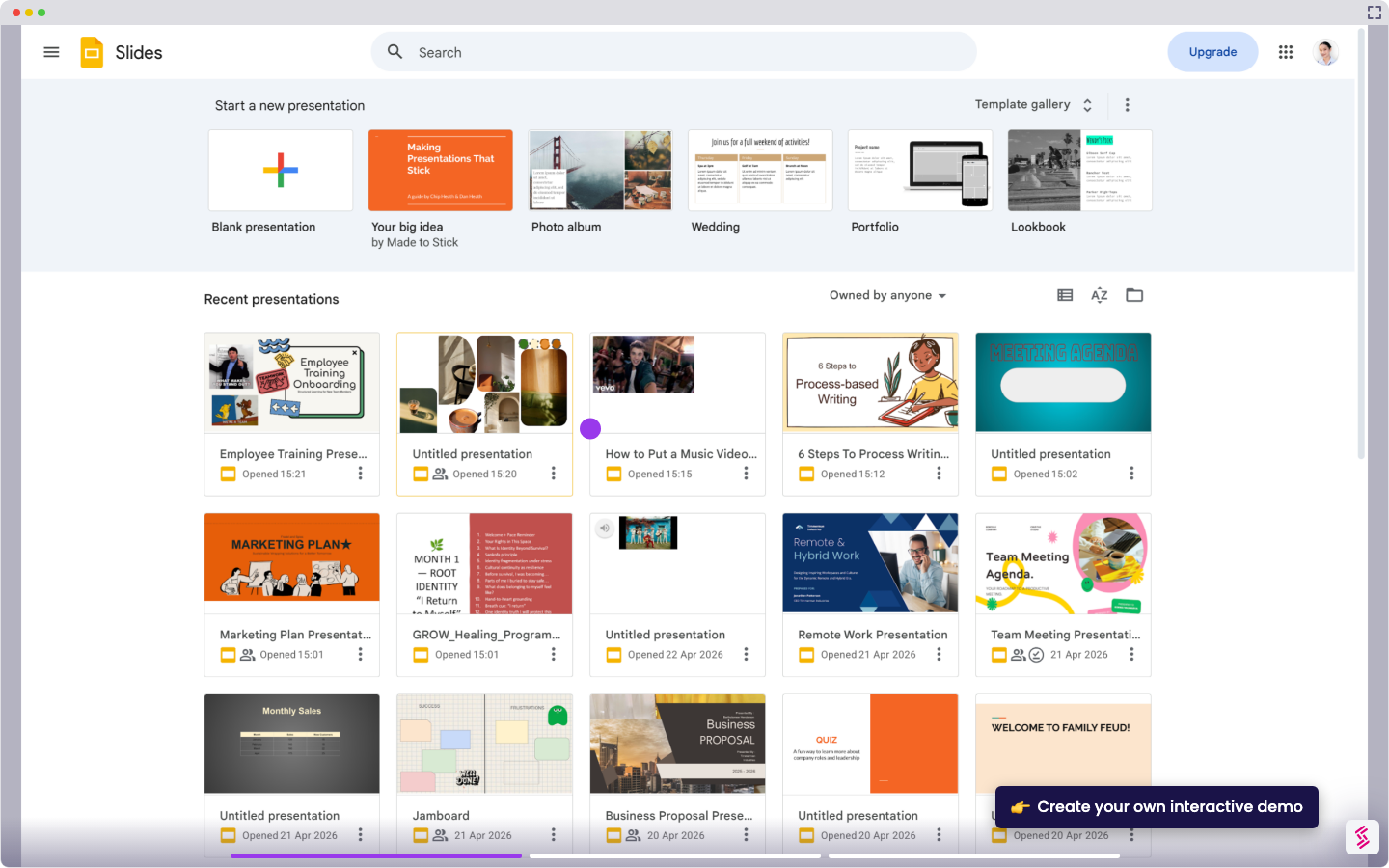
Use this interactive demo to learn how to auto loop Google Slides.
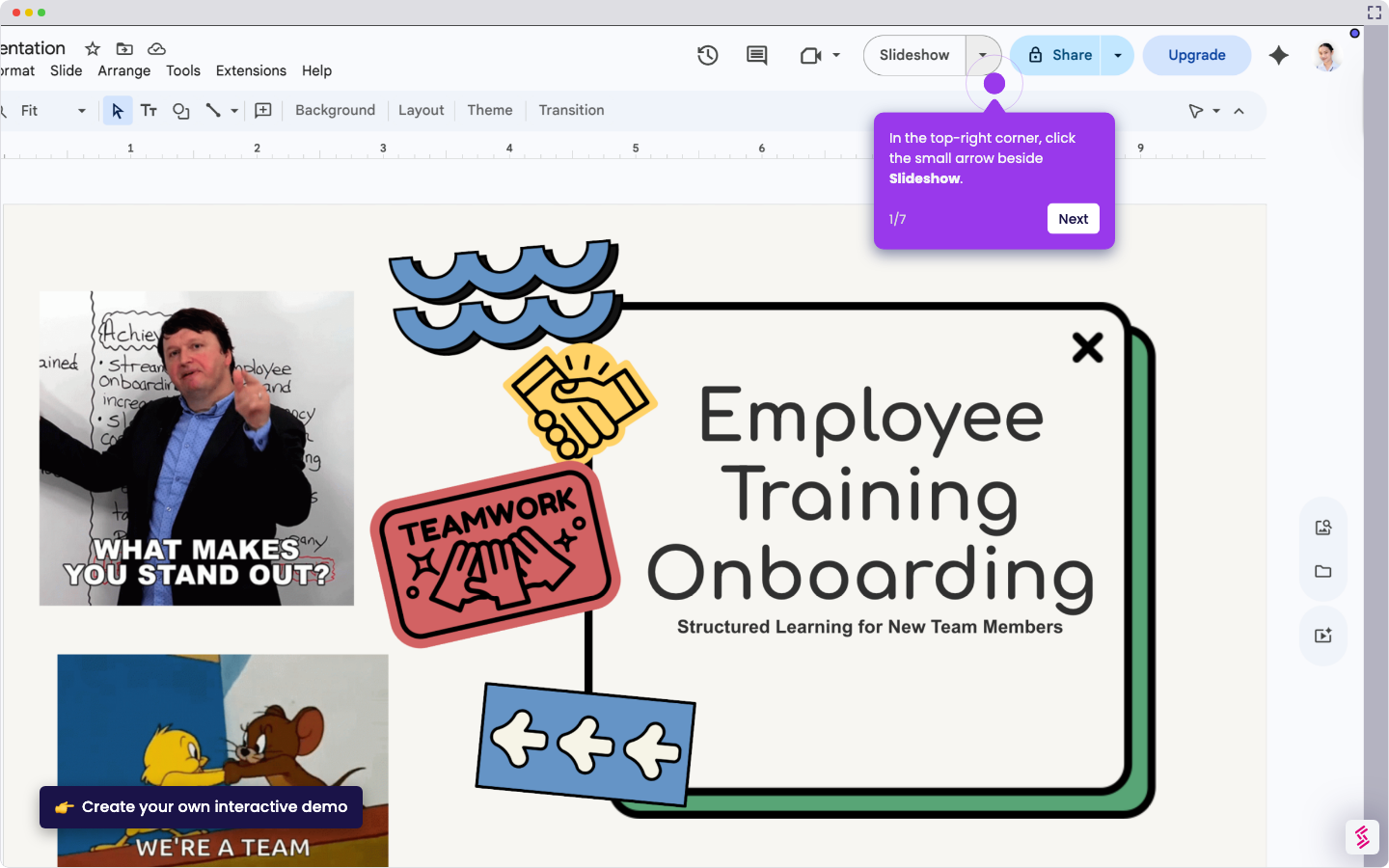
  1. Click Slideshow in the top right corner to start presenting.
  2. Click the three-dot menu or Options.
  3. Select Auto-play.
  4. Choose how long you want each slide to stay on screen.
  5. Turn on Loop so the slideshow restarts after the last slide.
  6. Click Play to start the automatic looping presentation.

📌 Why this matters

Auto-looping presentations transform static slideshows into dynamic displays perfect for trade shows, lobbies, or any unattended screen where content needs to run continuously. Beyond the obvious convenience, looping creates a psychological effect where viewers who arrive mid-presentation naturally wait to see the beginning, increasing engagement time. You can walk away knowing your content keeps working for you, whether it's showcasing products to passing customers or displaying company announcements in break rooms where people come and go throughout the day.

Your product deserves an interactive demo
Start free
Similar Articles
Google Slides

How to Use Google Slides Presenter View

Madhav Bhandari
Director of Marketing @ Storylane
Google Slides

How to See Google Slides History

Madhav Bhandari
Director of Marketing @ Storylane
Google Slides

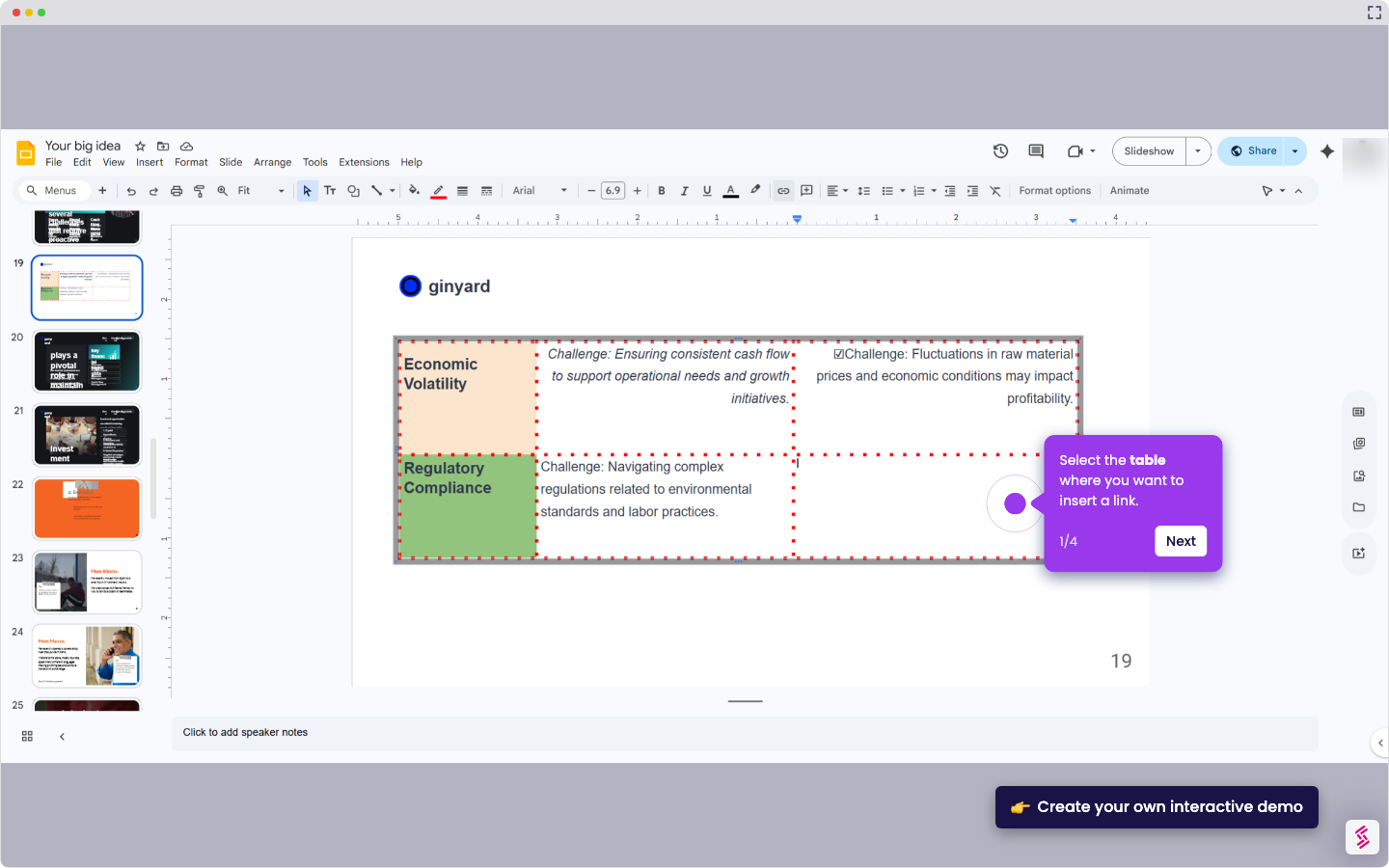
How to Link Table in Google Slides

Madhav Bhandari
Director of Marketing @ Storylane
No items found.
Platform
Interactive Demos
Sandbox Demos
Hubs
RepX
Integrations
Solutions
Product Marketers
Growth & Demand Gen
Sales Reps & AEs
Presales & SEs
Customer Success
Product Managers
Customers
Demo Showcase
Customer Stories
Finer Demos Club
Features
Demo Signals
Personalization
Deal Intelligence
Resources
Blog
The Plot
Tutorials
Help Docs
What’s New
Demo Dundies
Company
Careers
Pricing
Partners
Contact
Trust Center
Backed by
Chrome Extension Icon
Chrome extension
Download
Desktop app
Download
Built in San Francisco Bay Area - ©2026 Storylane
Privacy PolicyTerms & Conditions
X Corp (formerly Twitter)LinkedIn
This website uses cookies to ensure you get the best experience on our website. Learn More
Got it
This website uses cookies to ensure you get the best experience on our website. Learn More
Got it