
This interactive demo was created free with Storylane in 2 minutes. Create your own demo
Start free
All Tutorials /Claude

How to Best Use Claude Projects

Updated on:
June 5, 2026
By:
Madhav Bhandari
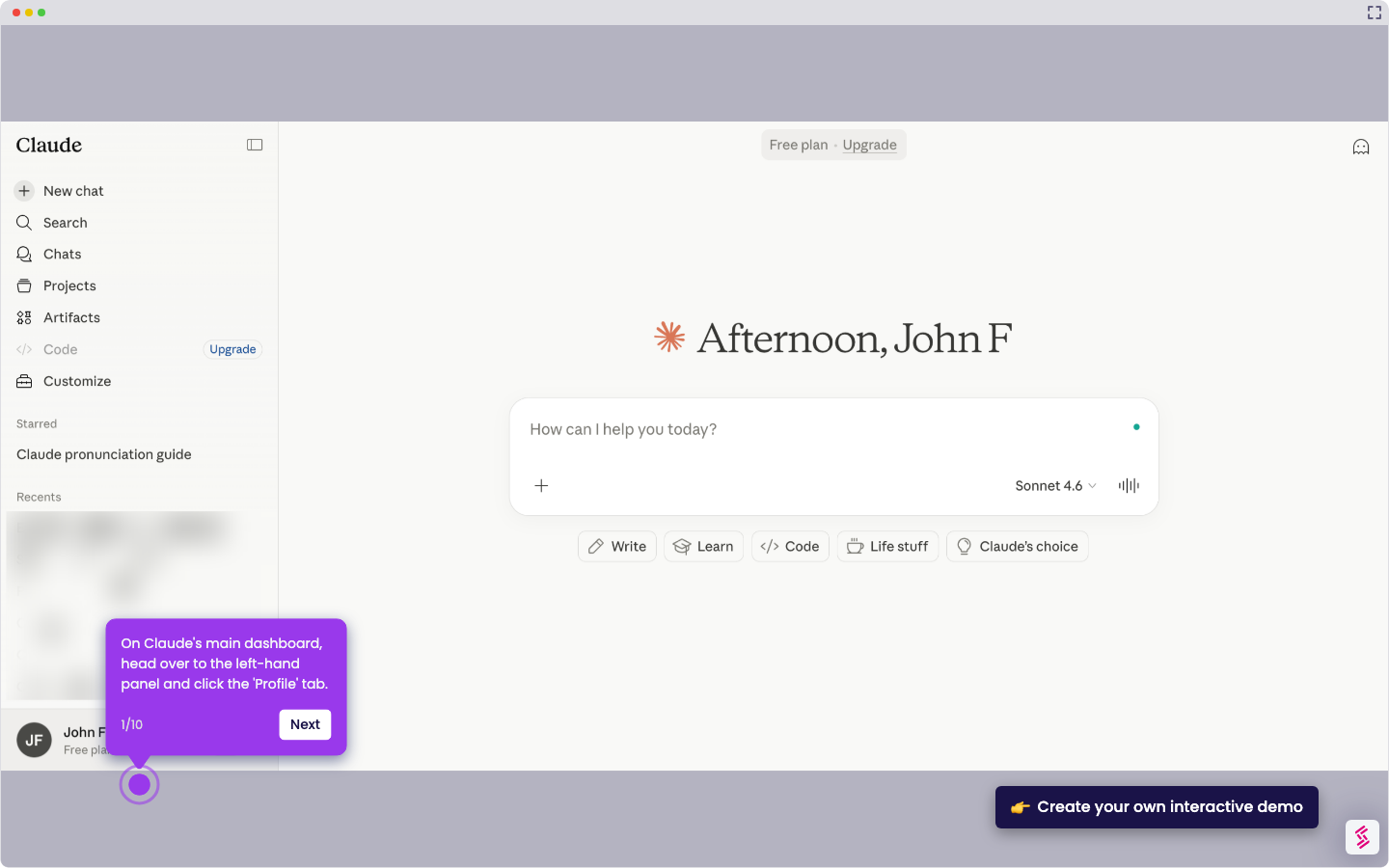
Use this interactive demo to learn how to set up and configure Claude Projects for smarter AI workflows.

Quick summary

Claude Projects lets you create a persistent, context-rich AI workspace by adding custom instructions and reference files so Claude responds more accurately to your specific goals. Setting up a Claude Project takes just a few steps and enables tailored, goal-aligned AI responses across every conversation.


Steps

  1. Inside the Claude project dashboard, click the Add button beside Instructions in the right-hand corner to get started.
  2. Write all important information relevant to your project, including your interests, goals, and your preferred response style.
  3. Click Save Instructions to store your project settings.
  4. Navigate to the Files section and tap the Add button next to it to attach reference materials Claude can use when responding.
  5. Select the type of material to upload — options include media files, text content, or data from your GitHub repository.
  6. Repeat the file upload step for each additional file you want to add to your Claude project.
  7. Once setup is complete, use the chat box to start running prompts within your configured project.

📌 Why this matters

Claude Projects is a powerful feature for anyone who wants more consistent, context-aware AI assistance without re-explaining their goals in every conversation. By saving custom instructions and uploading reference files directly into a project, users can make Claude behave like a domain-specific assistant tailored to their workflow, role, or subject matter. This is especially valuable for teams, researchers, and professionals who rely on Claude for recurring tasks and need outputs that align with their specific standards and knowledge base. Setting up a Claude Project correctly from the start means faster, more accurate, and more relevant AI responses every time.
Your product deserves an interactive demo
Start free
Similar Articles
Claude

How to Integrate Notion with Claude

Madhav Bhandari
Director of Marketing @ Storylane
Claude

How to Integrate Jira with Claude

Madhav Bhandari
Director of Marketing @ Storylane
Claude

How to Integrate Replit with Claude

Madhav Bhandari
Director of Marketing @ Storylane
No items found.
Platform
Interactive Demos
Sandbox Demos
Hubs
RepX
Integrations
Solutions
Product Marketers
Growth & Demand Gen
Sales Reps & AEs
Presales & SEs
Customer Success
Product Managers
Customers
Demo Showcase
Customer Stories
Finer Demos Club
Features
Demo Signals
Personalization
Deal Intelligence
Resources
Blog
The Plot
Tutorials
Help Docs
What’s New
Demo Dundies
Company
Careers
Pricing
Partners
Contact
Trust Center
Backed by
Chrome Extension Icon
Chrome extension
Download
Desktop app
Download
Built in San Francisco Bay Area - ©2026 Storylane
Privacy PolicyTerms & Conditions
X Corp (formerly Twitter)LinkedIn
This website uses cookies to ensure you get the best experience on our website. Learn More
Got it
This website uses cookies to ensure you get the best experience on our website. Learn More
Got it