This interactive demo was created free with Storylane in 2 minutes. Create your own demo
Start free
All Tutorials /Google Slides

How to Blur Edges of Photo in Google Slides

Updated on:
June 9, 2026
By:
Madhav Bhandari
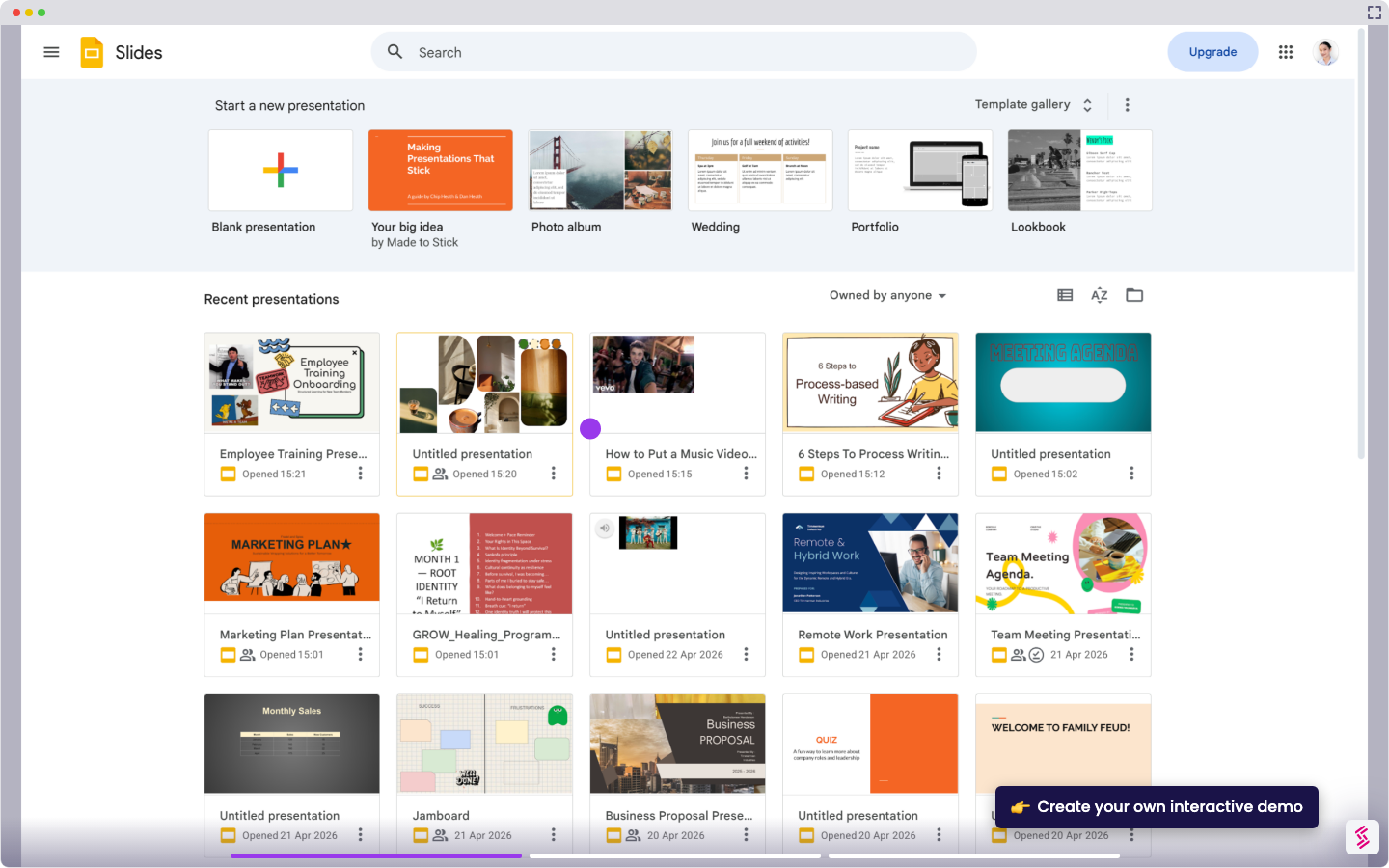
Use this interactive demo to learn how to create a blurred-edge photo effect in Google Slides.

Quick summary

Google Slides does not have a native blur edges tool, but you can simulate a blurred-edge photo effect by enabling the Drop Shadow option under Format Options and adjusting the Blur Radius and Opacity sliders. This step-by-step demo walks you through inserting an image and applying the effect entirely within Google Slides.


Steps

  1. In the top menu, click Insert.
  2. Hover over Image in the dropdown menu.
  3. Choose where to get your image from, such as Upload from computer, Stock and web, or another source.
  4. Choose your image from the panel.
  5. Click and drag the image onto your slide canvas.
  6. Right-click on the image.
  7. Click Format Options from the dropdown menu.
  8. In the format panel on the right, enable Drop Shadow.
  9. Adjust the Blur Radius slider to soften the shadow edge.
  10. Adjust the Opacity slider to make the shadow lighter or darker.
  11. Your photo now has a blurred-edge effect applied using the Drop Shadow settings.

📌 Why this matters

Blurring the edges of a photo in Google Slides gives presentations a more polished, professional look without needing external design tools. By using the built-in Drop Shadow feature with a high blur radius, anyone can achieve a soft vignette or feathered-edge effect directly in Google Slides. This technique is especially useful for marketers, educators, and business professionals who want visually compelling slides without switching to Photoshop or Canva. Mastering native Google Slides formatting options saves time and keeps your entire workflow inside one platform.
Your product deserves an interactive demo
Start free
Similar Articles
Google Slides

How to Use Google Slides Presenter View

Madhav Bhandari
Director of Marketing @ Storylane
Google Slides

How to See Google Slides History

Madhav Bhandari
Director of Marketing @ Storylane
Google Slides

How to Link Table in Google Slides

Madhav Bhandari
Director of Marketing @ Storylane
No items found.
Platform
Interactive Demos
Sandbox Demos
Hubs
RepX
Integrations
Solutions
Product Marketers
Growth & Demand Gen
Sales Reps & AEs
Presales & SEs
Customer Success
Product Managers
Customers
Demo Showcase
Customer Stories
Finer Demos Club
Features
Demo Signals
Personalization
Deal Intelligence
Resources
Blog
The Plot
Tutorials
Help Docs
What’s New
Demo Dundies
Company
Careers
Pricing
Partners
Contact
Trust Center
Backed by
Chrome Extension Icon
Chrome extension
Download
Desktop app
Download
Built in San Francisco Bay Area - ©2026 Storylane
Privacy PolicyTerms & Conditions
X Corp (formerly Twitter)LinkedIn
This website uses cookies to ensure you get the best experience on our website. Learn More
Got it
This website uses cookies to ensure you get the best experience on our website. Learn More
Got it