This interactive demo was created free with Storylane in 2 minutes. Create your own demo
Start free
All Tutorials /Smartsheet

How to Change the Primary Column in Smartsheet

Updated on:
June 5, 2026
By:
Madhav Bhandari
Use this interactive demo to learn how to reassign the primary column in your Smartsheet grid.

Quick summary

Smartsheet does not allow you to directly reassign the primary column, but you can effectively change it by inserting a new column, copying data between columns, and renaming them to reflect the correct structure. This step-by-step process lets you reorganize your sheet layout without losing any existing row data.


Steps

  1. In Smartsheet's Grid View, locate the primary column and click its Column Menu button.
  2. Select Insert Column Right from the dropdown list of options.
  3. Enter a column name and select the appropriate column type, ensuring they match the content of the current primary column, then proceed.
  4. Click OK to confirm and create the new column.
  5. Select all the content under the original primary column and press Ctrl+C (or Command+C) to copy it.
  6. Click the first cell of the newly created column and press Ctrl+V (or Command+V) to paste the copied content.
  7. Find the other column you want to set as the new primary and select its cell data.
  8. Press Ctrl+C (or Command+C) again to copy that column's content.
  9. Click the first cell under the current primary column and press Ctrl+V (or Command+V) to paste the content from the other column.
  10. Click the column header of the column whose data you just moved, then open its Column Menu.
  11. Choose Delete Column from the menu options to remove the now-redundant column.
  12. Navigate to the primary column and open its Column Menu.
  13. Click Rename Column from the options list.
  14. Type the original name of the deleted column into the input field and click OK.
  15. The primary column in your Smartsheet is now updated to reflect the new column structure.
📌 Why this matters

Smartsheet's primary column is locked by default, meaning teams cannot simply reassign it through a settings panel — a workaround using copy, paste, and rename actions is required. Understanding how to change the primary column in Smartsheet is essential for project managers and operations teams who need to restructure sheets as data requirements evolve. This process ensures row data integrity is maintained while giving teams full control over how their sheet is organized and displayed. Mastering this column management technique helps Smartsheet users maintain clean, accurate, and scalable project tracking workflows.
Your product deserves an interactive demo
Start free
Similar Articles
Smartsheet

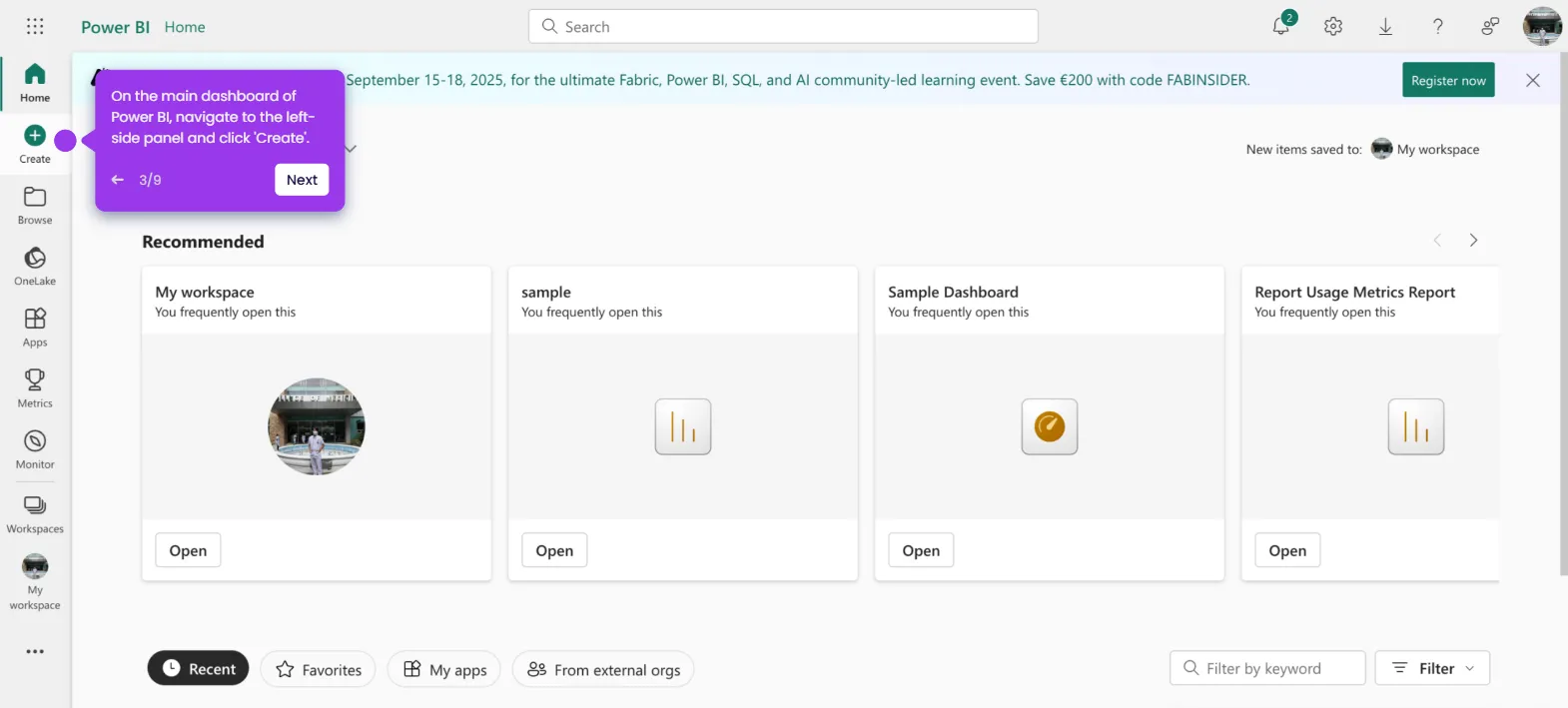
How to Connect a Smartsheet Document to Power BI

Madhav Bhandari
Director of Marketing @ Storylane
Smartsheet

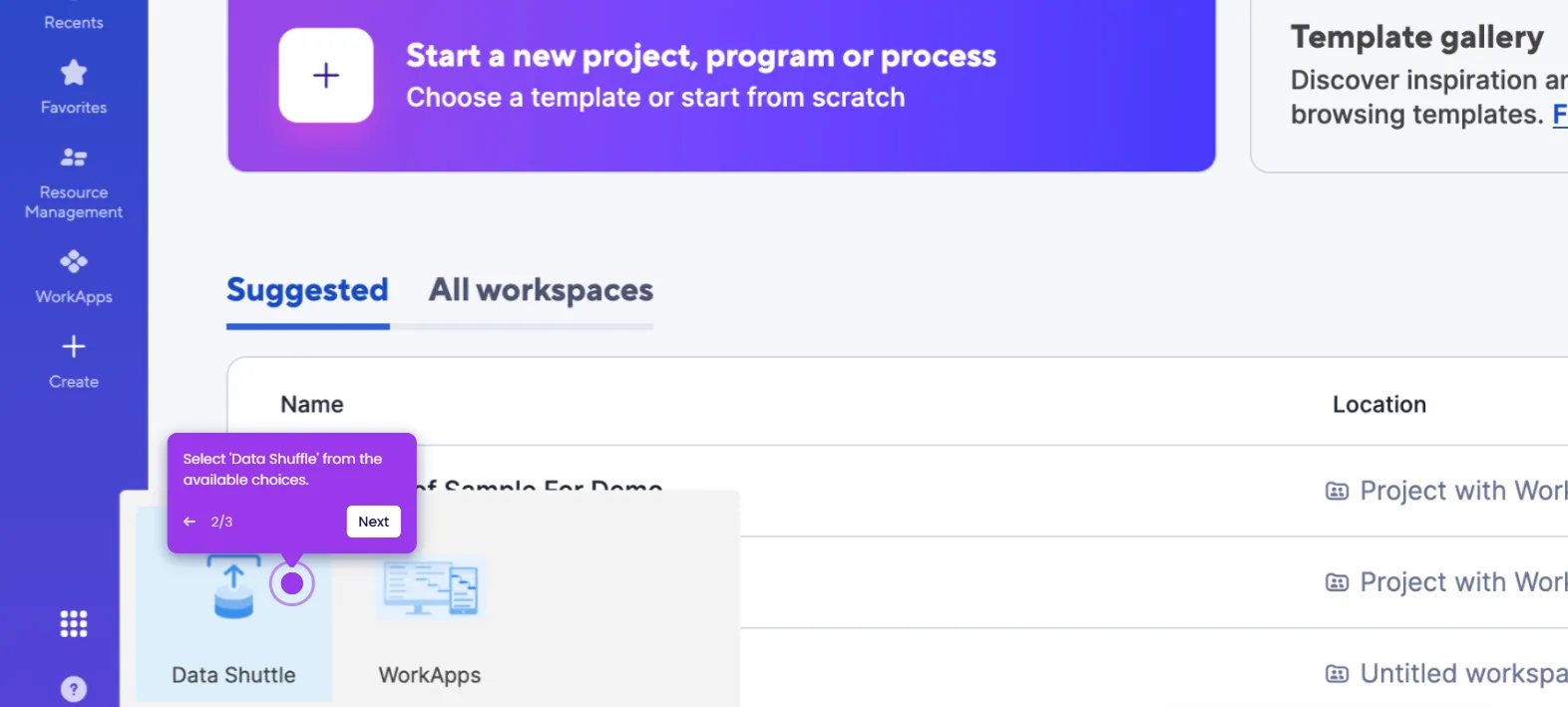
How to Use Data Shuffle in Smartsheet

Madhav Bhandari
Director of Marketing @ Storylane
Smartsheet

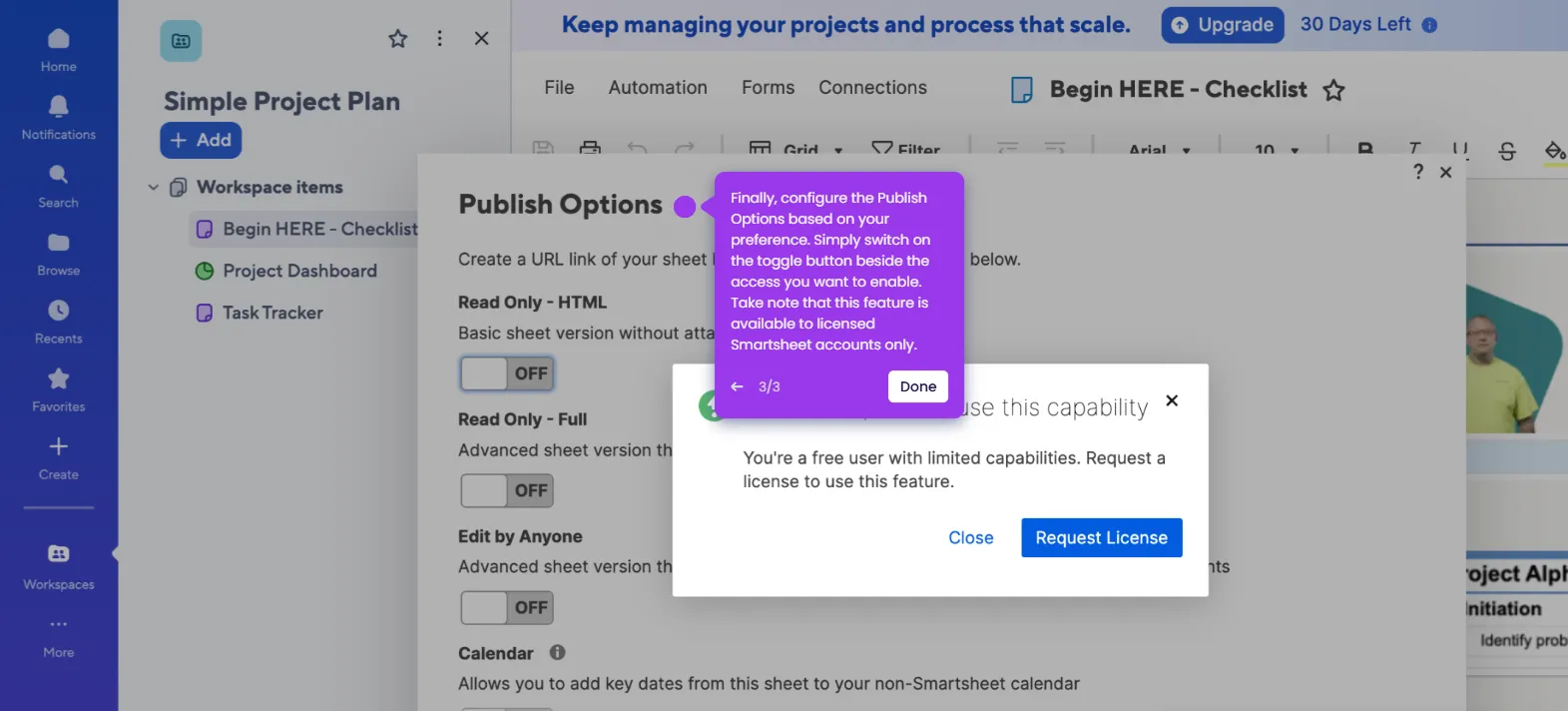
How to Publish a Smartsheet Document

Madhav Bhandari
Director of Marketing @ Storylane
No items found.
Platform
Interactive Demos
Sandbox Demos
Hubs
RepX
Integrations
Solutions
Product Marketers
Growth & Demand Gen
Sales Reps & AEs
Presales & SEs
Customer Success
Product Managers
Customers
Demo Showcase
Customer Stories
Finer Demos Club
Features
Demo Signals
Personalization
Deal Intelligence
Resources
Blog
The Plot
Tutorials
Help Docs
What’s New
Demo Dundies
Company
Careers
Pricing
Partners
Contact
Trust Center
Backed by
Chrome Extension Icon
Chrome extension
Download
Desktop app
Download
Built in San Francisco Bay Area - ©2026 Storylane
Privacy PolicyTerms & Conditions
X Corp (formerly Twitter)LinkedIn
This website uses cookies to ensure you get the best experience on our website. Learn More
Got it
This website uses cookies to ensure you get the best experience on our website. Learn More
Got it