This interactive demo was created free with Storylane in 2 minutes. Create your own demo
Start free
All Tutorials /Alteryx

How to Compare Two Files in Alteryx

Updated on:
June 9, 2026
By:
Madhav Bhandari
Use this interactive demo to learn how to join and compare two data files in Alteryx.

Quick summary

The Alteryx Join tool lets you compare two files side by side by connecting Input Data tools to the L and R anchors and configuring match settings in the workflow designer. Once connected, you can instantly preview merged or unmatched records using the J, L, and R output anchors.


Steps

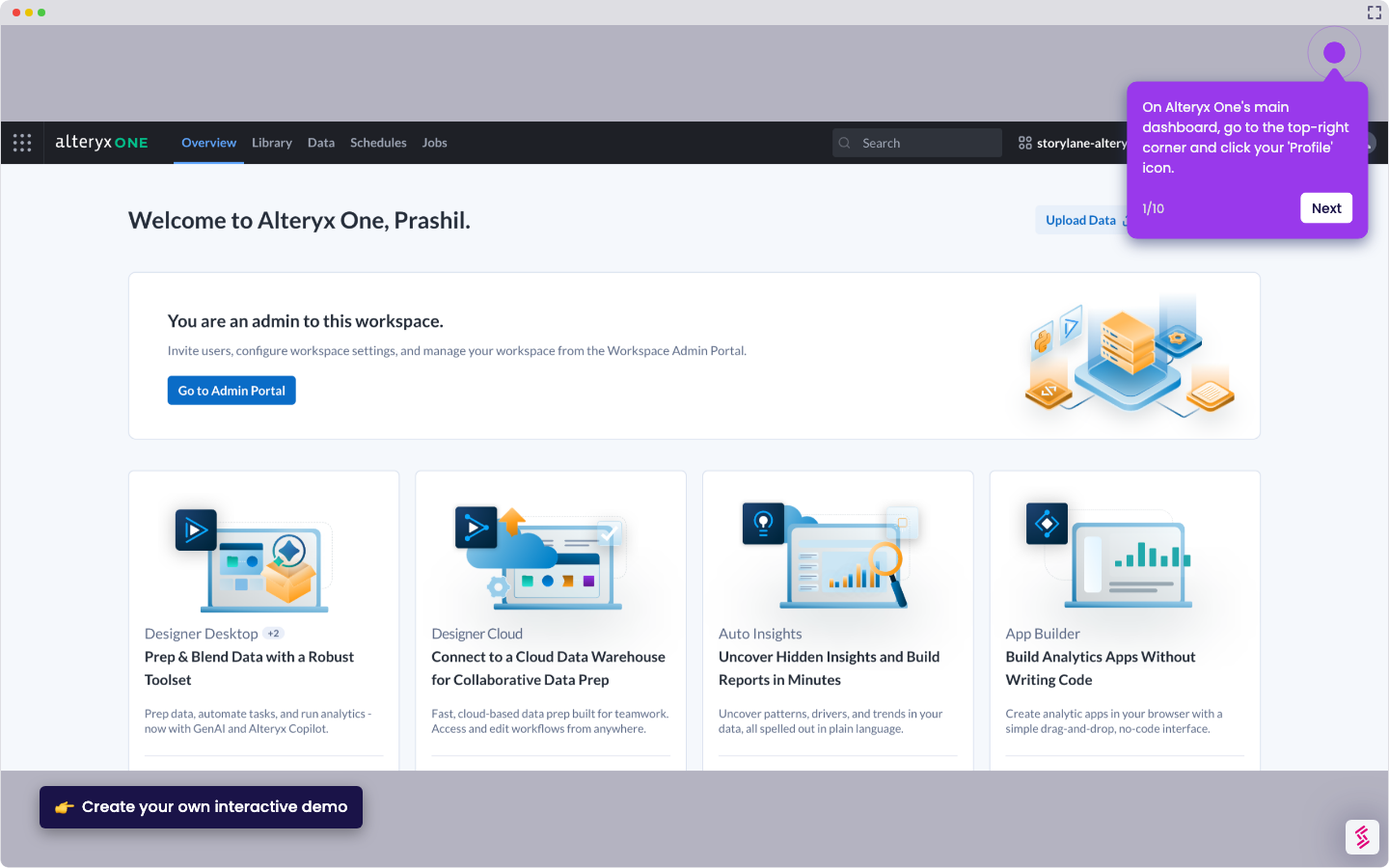
  1. In the Alteryx workflow designer, locate Join in the left-side panel and drag it onto the canvas.
  2. Go to the first Input Data tool, hold its Output anchor, and connect it to the L input anchor of the Join tool.
  3. Go to the second Input Data tool, hold its Output anchor, and connect it to the R input anchor of the Join tool.
  4. Click the Join tool on the canvas to open its configuration panel.
  5. In the right-hand panel, configure the Join Options — such as Join by Specific Columns or by Record Position — based on how you want to compare your files.
  6. Tap the J output anchor of the Join tool to preview and compare the combined data from both files.
  7. Click the L or R output anchor to review data exclusively from a specific input file.
📌 Why this matters

Alteryx's Join tool enables analysts to compare two datasets within a no-code workflow designer, making it faster to identify matching, missing, or divergent records across files. Instead of manually cross-referencing spreadsheets, users can configure column-level or position-based join logic and instantly preview results through dedicated output anchors. This capability is critical for data reconciliation, audit workflows, and any use case where two data sources must be validated against each other. Alteryx streamlines file comparison into a repeatable, scalable workflow that eliminates manual effort.
Your product deserves an interactive demo
Start free
Similar Articles
Alteryx

How to Integrate Alteryx with Snowflake

Madhav Bhandari
Director of Marketing @ Storylane
Alteryx

How to Use the Summarize Tool in Alteryx

Akshaya Chandramouli
Head of Brand at Storylane
Alteryx

How to Pivot the Data in Alteryx

Prashil Prakash
Marketing & Product Specialist @ Storylane
No items found.
Platform
Interactive Demos
Sandbox Demos
Hubs
RepX
Integrations
Solutions
Product Marketers
Growth & Demand Gen
Sales Reps & AEs
Presales & SEs
Customer Success
Product Managers
Customers
Demo Showcase
Customer Stories
Finer Demos Club
Features
Demo Signals
Personalization
Deal Intelligence
Resources
Blog
The Plot
Tutorials
Help Docs
What’s New
Demo Dundies
Company
Careers
Pricing
Partners
Contact
Trust Center
Backed by
Chrome Extension Icon
Chrome extension
Download
Desktop app
Download
Built in San Francisco Bay Area - ©2026 Storylane
Privacy PolicyTerms & Conditions
X Corp (formerly Twitter)LinkedIn
This website uses cookies to ensure you get the best experience on our website. Learn More
Got it
This website uses cookies to ensure you get the best experience on our website. Learn More
Got it