This interactive demo was created free with Storylane in 2 minutes. Create your own demo
Start free
All Tutorials /Google Slides

How to Copy a Template in Google Slides

Updated on:
June 9, 2026
By:
Madhav Bhandari
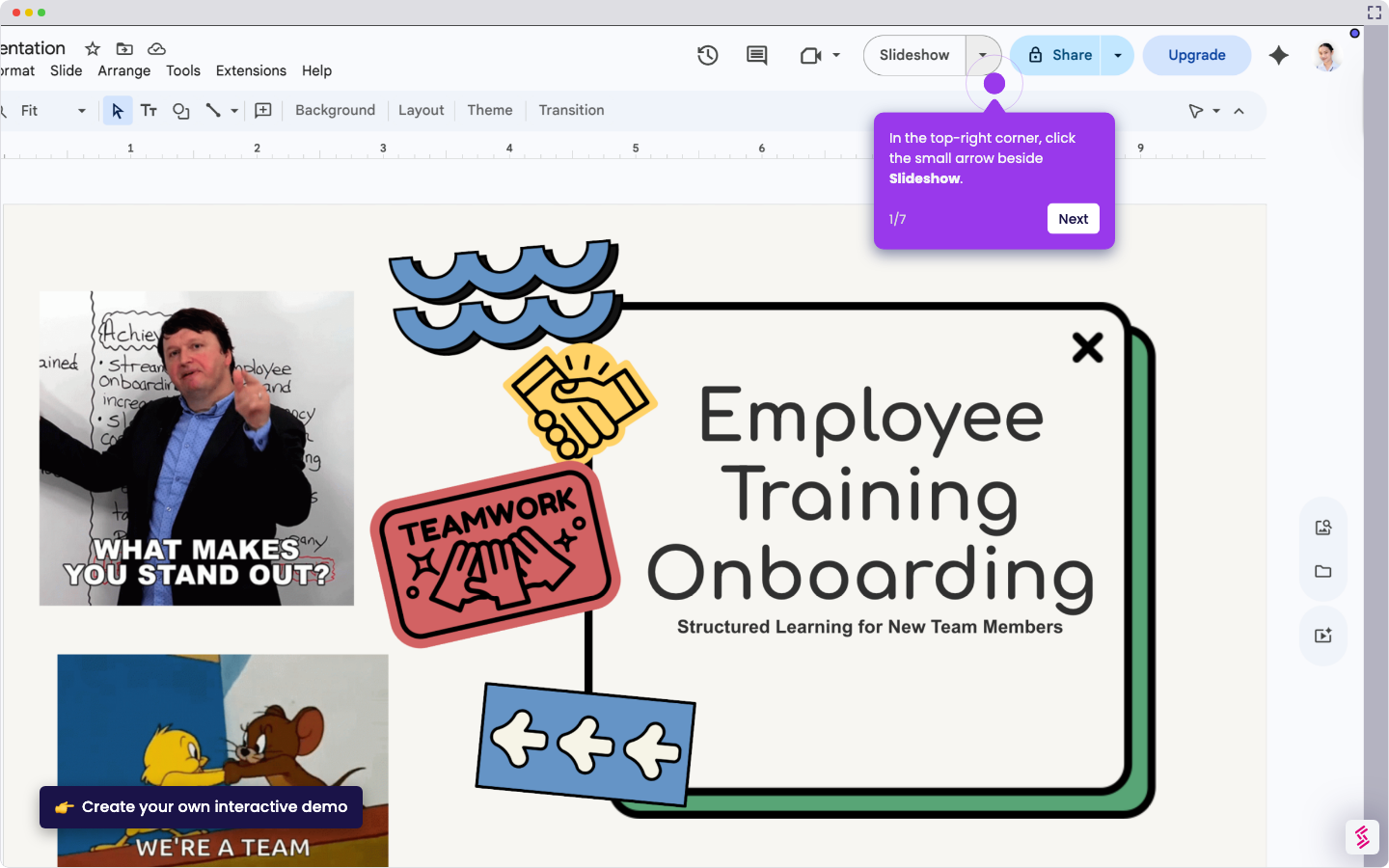
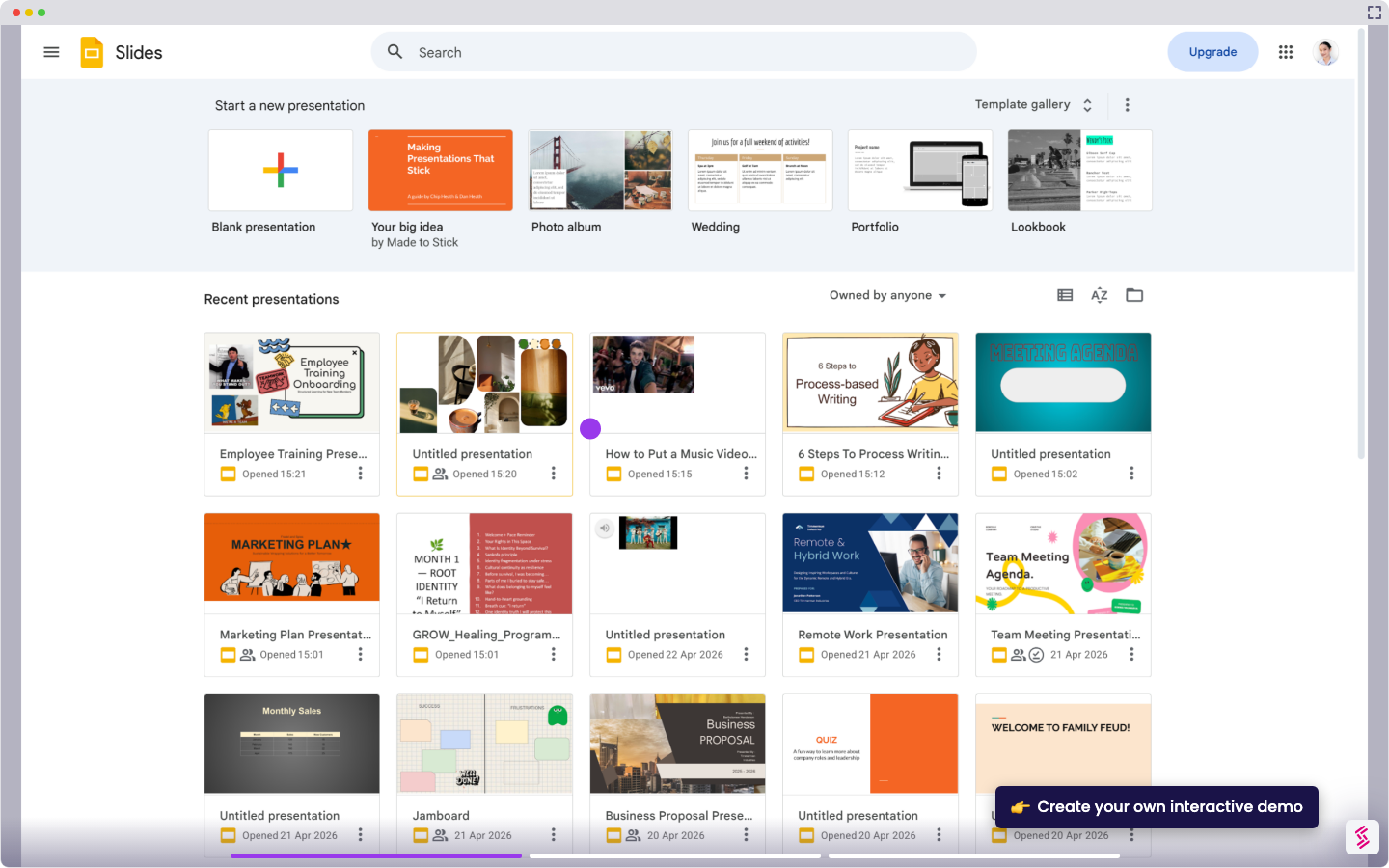
Try this interactive demo to learn how to copy a template in Google Slides.
  1. Open the template in Google Slides.
  2. In the top left, click File.
  3. Hover over Make a copy, then click the entire presentation.
  4. In the Copy document window, enter a new name for the copied template.
  5. Choose where you want to save the file.
  6. Review the copy options if needed.
  7. Click Make a copy.

📌 Why this matters

Why This Matters

Copying templates gives you a personal workspace where you can experiment freely without affecting the original design. You can customize colors, fonts, and layouts to match your brand or specific project needs. Templates often contain sophisticated design elements and animations that would take hours to recreate from scratch. By making copies, you build a library of customized presentations that can serve as starting points for future projects, turning one good template into multiple tailored solutions for different audiences or occasions.

Demo: https://app.storylane.io/share/a210pt7jeljm

Your product deserves an interactive demo
Start free
Similar Articles
Google Slides

How to Use Google Slides Presenter View

Madhav Bhandari
Director of Marketing @ Storylane
Google Slides

How to See Google Slides History

Madhav Bhandari
Director of Marketing @ Storylane
Google Slides

How to Link Table in Google Slides

Madhav Bhandari
Director of Marketing @ Storylane
No items found.
Platform
Interactive Demos
Sandbox Demos
Hubs
RepX
Integrations
Solutions
Product Marketers
Growth & Demand Gen
Sales Reps & AEs
Presales & SEs
Customer Success
Product Managers
Customers
Demo Showcase
Customer Stories
Finer Demos Club
Features
Demo Signals
Personalization
Deal Intelligence
Resources
Blog
The Plot
Tutorials
Help Docs
What’s New
Demo Dundies
Company
Careers
Pricing
Partners
Contact
Trust Center
Backed by
Chrome Extension Icon
Chrome extension
Download
Desktop app
Download
Built in San Francisco Bay Area - ©2026 Storylane
Privacy PolicyTerms & Conditions
X Corp (formerly Twitter)LinkedIn
This website uses cookies to ensure you get the best experience on our website. Learn More
Got it
This website uses cookies to ensure you get the best experience on our website. Learn More
Got it