


- On your slide canvas, click Insert.
- In the dropdown menu, click Image.
- Upload photos from your computer, Drive, or the web.
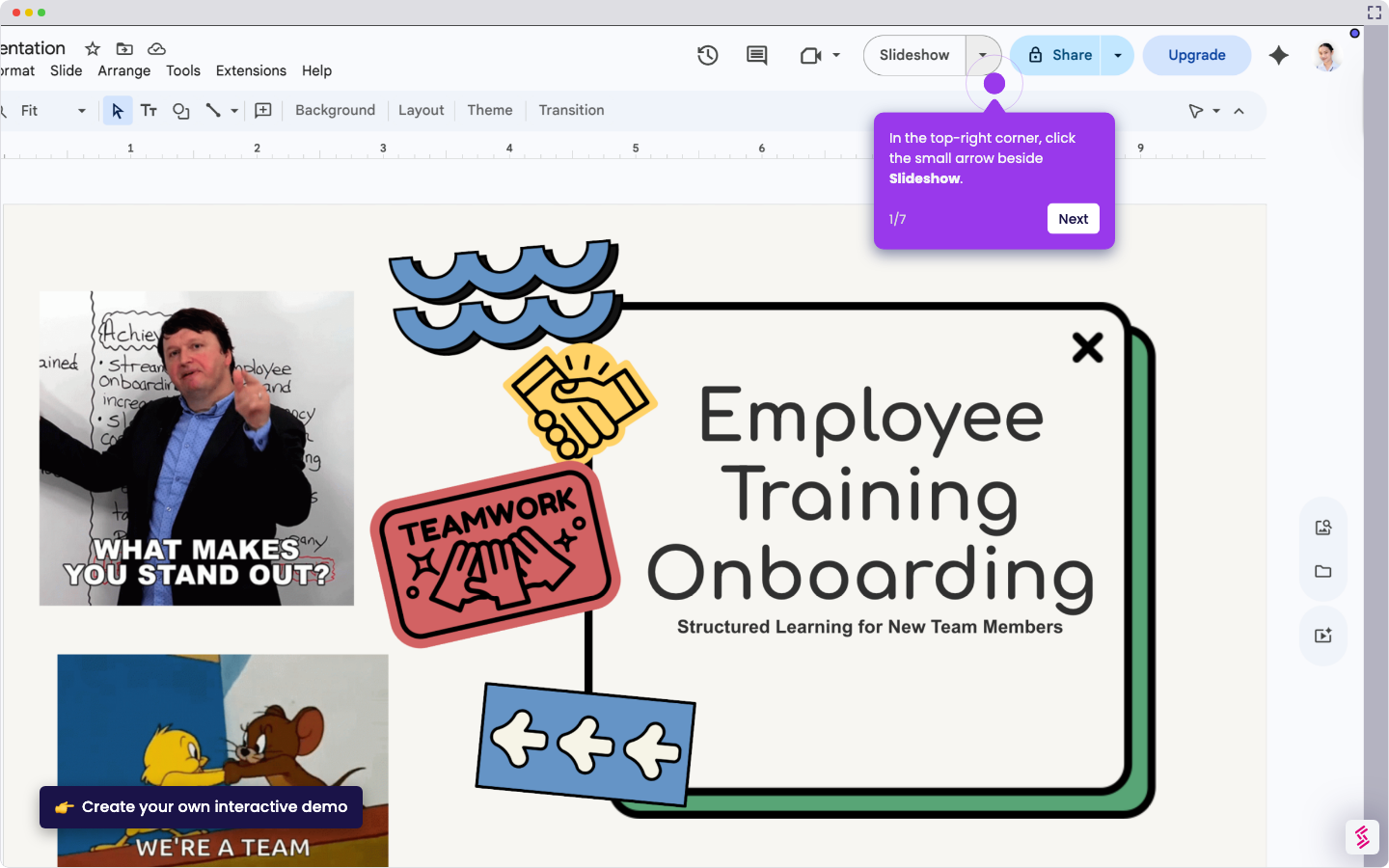
- Click and drag the photos on your canvas.
- With the image selected, click Mask image from the top toolbar.
- Click Shapes in the dropdown menu.
- Select a Shape.
- Repeat the steps for the other images.
- On your slide canvas, click Background on the top toolbar.
- In the panel that appears, choose a color for your background.
- Click Done.
- Back on your canvas, click Text box.
- Click and drag the Text box on your canvas to put a caption.
- On your canvas, click Shapes.
- Choose a shape you want to place in your slide.
- Click and drag the shape on your canvas.
- With the shape selected, click Fill colour.
- Choose a color for your shape.
- Choose different colors for each shape to alleviate your moodboard, and you're all set!
How to Create a Moodboard in Google Slides
Follow this interactive demo to learn how to create a moodboard in Google Slides.
📌 Why this matters
Moodboards help you visualize concepts before committing time and resources to full projects, whether you're planning a website redesign, interior space, or marketing campaign. Creating them in presentation software means your visual inspiration becomes instantly shareable and collaborative. Your team can comment directly on elements, stakeholders can approve directions remotely, and you can seamlessly transition from brainstorming to formal presentations. This transforms what's traditionally been a solo creative exercise into a dynamic tool for alignment and decision-making across groups.
Your product deserves an interactive demo
Similar Articles
No items found.