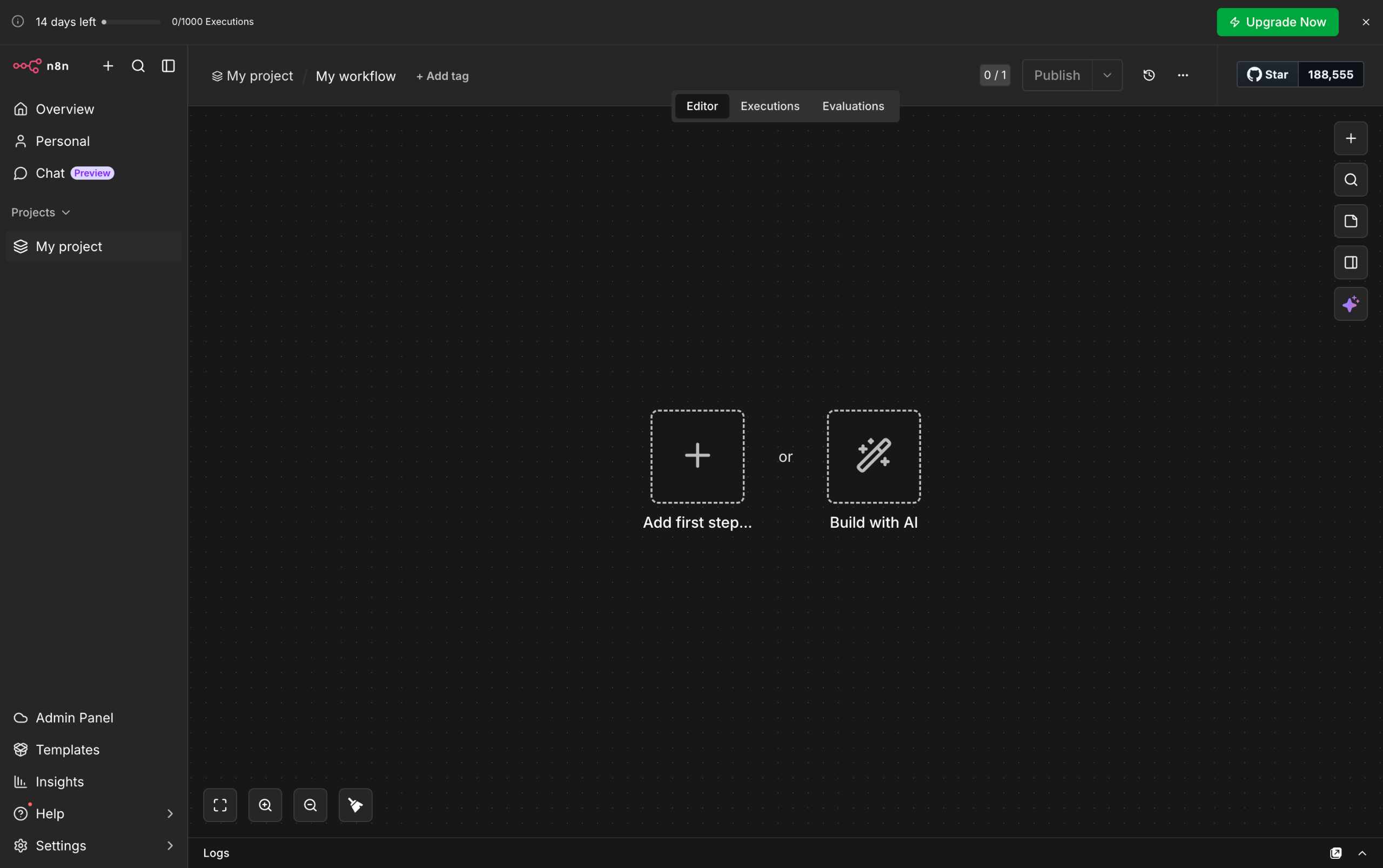
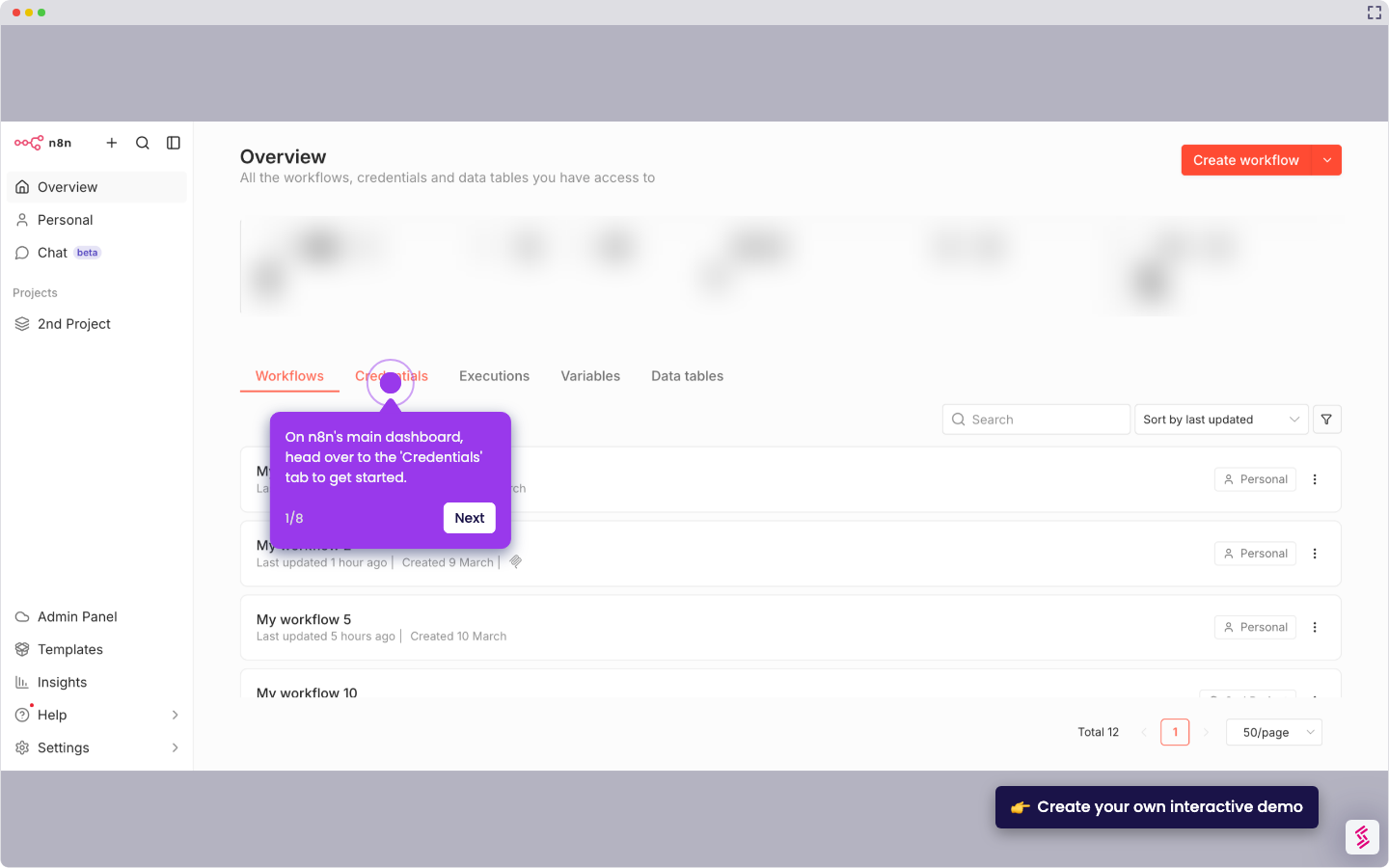
- Inside your n8n workflow, click the 'Add' button to create a new step.
- After that, go to the right-hand panel and click 'Action in an App'.
- Find and select 'Notion' from the list of options.
- Subsequently, click 'Create a Page' under the Page Actions section.
- Now, it's time to configure the selected node. To get started, tap the 'Credentials' menu and choose the Notion account you want to use.
- As for Resource and Operation, make sure that 'Page' and 'Create' are selected respectively.
- Following that, specify the Parent Page you wish to use. Enter its ID or URL into the provided input field.
- Come up with a unique page name and then type it into the provided input field.
- Following that, tap 'Add Block' to insert your desired content into the Notion page you're about to create.
- Select the type of content you want to add.
- Subsequently, type the content of the block into the Text input field.
- Finally, click 'Execute Step' to run your n8n configuration and create the Notion page based on your input.
How to Create a Page in Notion in n8n
Try this guided demo to learn how to create a page in Notion in n8n.
Your product deserves an interactive demo