This interactive demo was created free with Storylane in 2 minutes. Create your own demo
Start free
All Tutorials /Google Slides

How to Draw on Image in Google Slides

Updated on:
June 9, 2026
By:
Madhav Bhandari
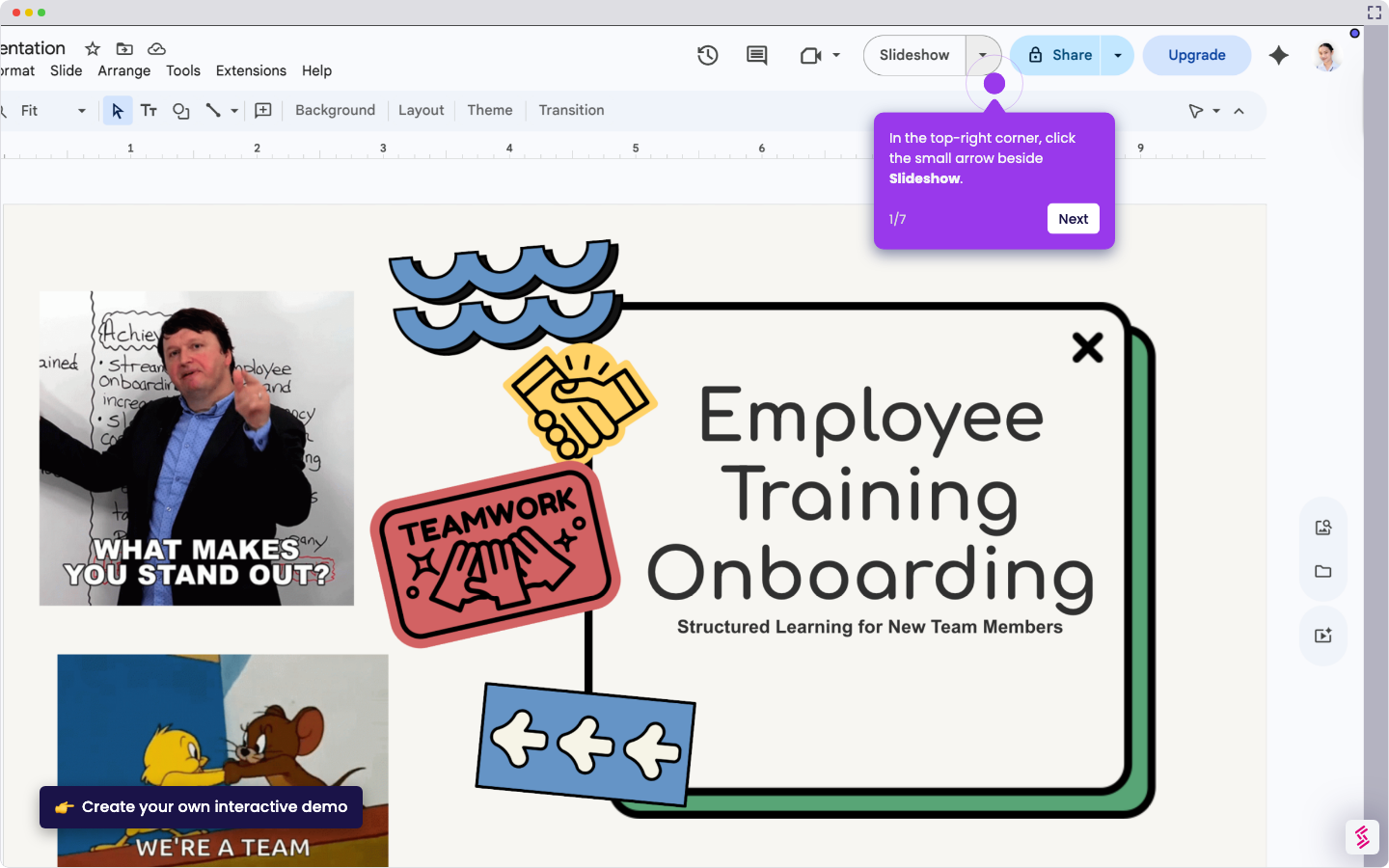
Follow this interactive demo to learn how to draw on image in Google Slides.
  1. Start by clicking the Insert menu to access drawing tools and add visual elements to your slide.
  2. Select Line from the dropdown to open Google's built-in sketch editor where you'll create your artwork.
  3. Click Scribble to activate freehand drawing mode—perfect for annotations, highlights, or quick sketches directly on your image.
  4. Draw freely on the canvas using your mouse or trackpad.

📌 Why this matters

Knowing how to draw on images in Google Slides matters because it helps you clearly communicate ideas by visually highlighting important details. Instead of just explaining something with text, you can point, circle, or annotate directly on an image, making your message easier for your audience to understand. This is especially useful for teaching, presentations, tutorials, and reports where visuals play a key role. Drawing on images also makes your slides more engaging and interactive, helping viewers stay focused and better remember the information you present.

Your product deserves an interactive demo
Start free
Similar Articles
Google Slides

How to Use Google Slides Presenter View

Madhav Bhandari
Director of Marketing @ Storylane
Google Slides

How to See Google Slides History

Madhav Bhandari
Director of Marketing @ Storylane
Google Slides

How to Link Table in Google Slides

Madhav Bhandari
Director of Marketing @ Storylane
No items found.
Platform
Interactive Demos
Sandbox Demos
Hubs
RepX
Integrations
Solutions
Product Marketers
Growth & Demand Gen
Sales Reps & AEs
Presales & SEs
Customer Success
Product Managers
Customers
Demo Showcase
Customer Stories
Finer Demos Club
Features
Demo Signals
Personalization
Deal Intelligence
Resources
Blog
The Plot
Tutorials
Help Docs
What’s New
Demo Dundies
Company
Careers
Pricing
Partners
Contact
Trust Center
Backed by
Chrome Extension Icon
Chrome extension
Download
Desktop app
Download
Built in San Francisco Bay Area - ©2026 Storylane
Privacy PolicyTerms & Conditions
X Corp (formerly Twitter)LinkedIn
This website uses cookies to ensure you get the best experience on our website. Learn More
Got it
This website uses cookies to ensure you get the best experience on our website. Learn More
Got it