This interactive demo was created free with Storylane in 2 minutes. Create your own demo
Start free
All Tutorials /LinkedIn

How to Edit a Resume on LinkedIn

Updated on:
June 9, 2026
By:
Luka Kankaras
Use this interactive demo to learn how to update and export your LinkedIn profile as a resume.

Quick summary

You can edit your LinkedIn resume directly from your profile page by updating sections like your name, headline, About, and contact info, then export the result as a PDF using the Save to PDF option.


Steps

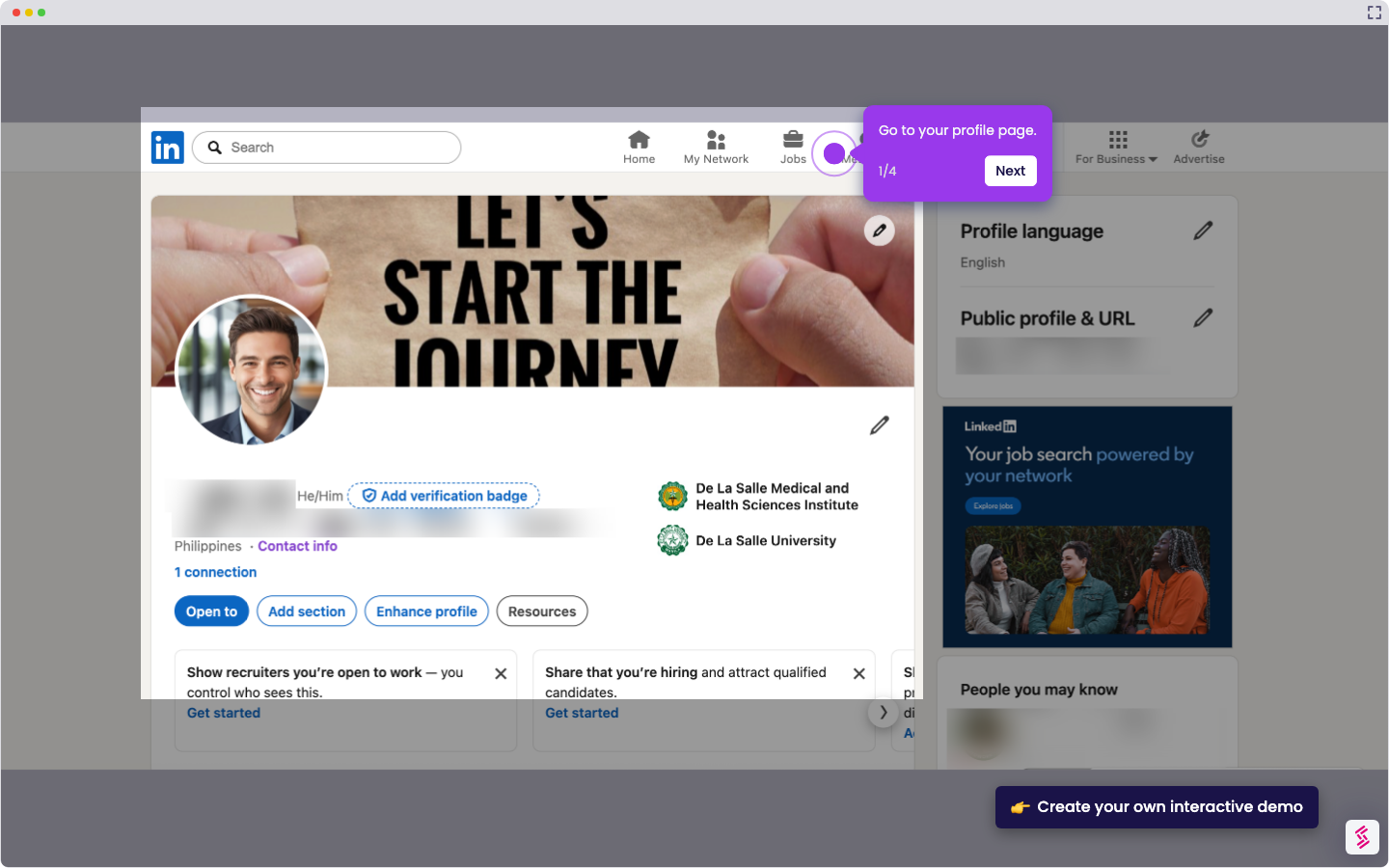
  1. Go to your LinkedIn profile page and click the pencil icon to open the edit options for your page content.
  2. In the Edit Intro dialog box, navigate to the name field to update your name.
  3. Scroll down and update your headline if needed.
  4. At the bottom of the dialog box, click 'Edit contact info' to update your contact details such as email or mobile number.
  5. Click 'Save' to apply your changes.
  6. Select the pencil icon at the top-right corner of the About section to edit it.
  7. Make any necessary changes to the About section, then click 'Save'.
  8. Keep your profile current by refreshing sections like education, skills, and experience to maintain an up-to-date resume.
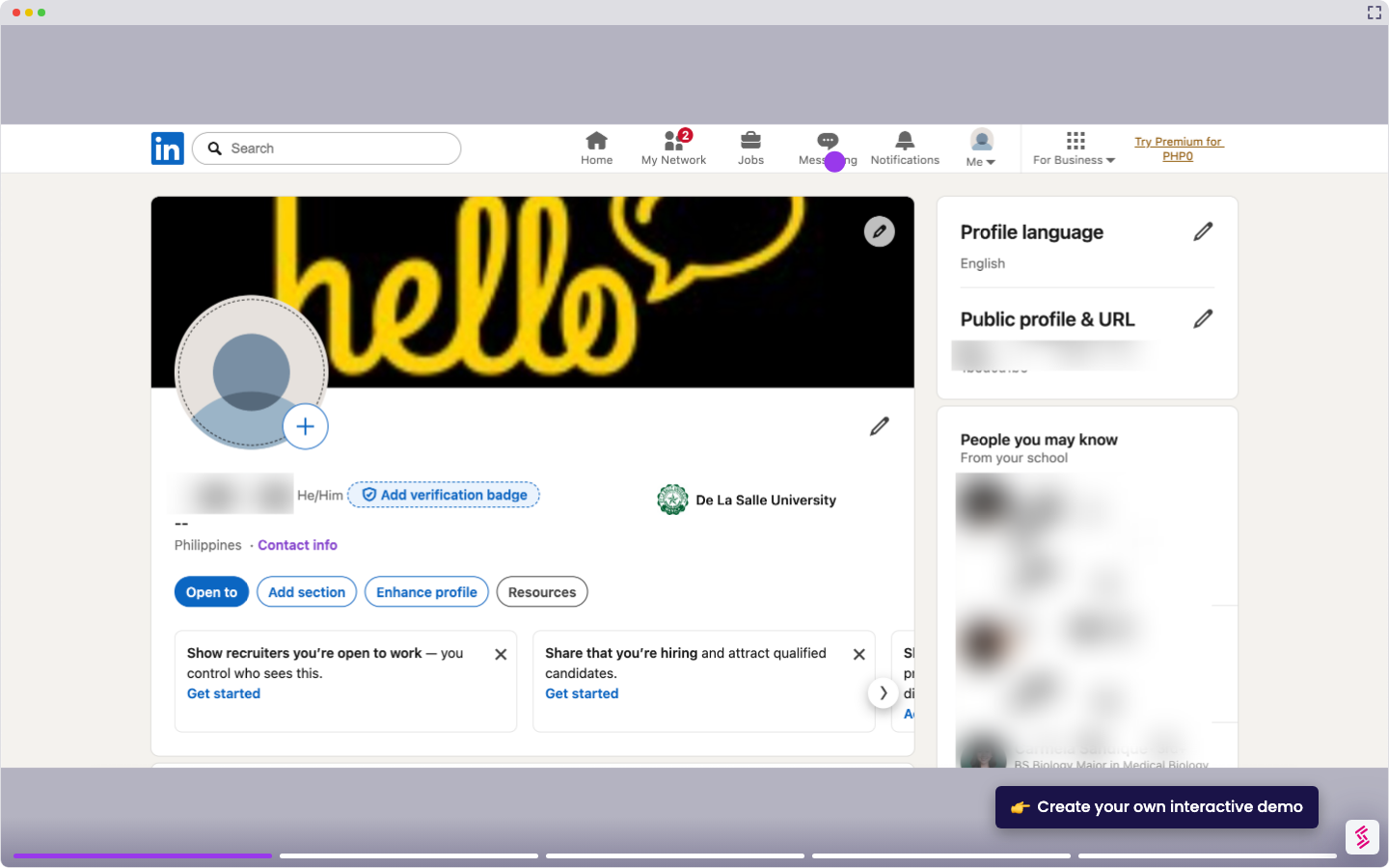
  9. Return to the top of your profile page and click 'Resources'.
  10. Select 'Save to PDF' to export your profile in PDF format.
  11. Open your exported PDF to confirm all changes are reflected.
📌 Why this matters

Editing your LinkedIn resume directly on the platform ensures your professional profile and downloadable PDF stay perfectly in sync. LinkedIn is the world's largest professional network, so keeping your headline, About section, experience, and contact info current dramatically improves recruiter discoverability. The built-in Save to PDF feature lets job seekers instantly generate an up-to-date resume without any third-party tools. Mastering LinkedIn profile editing is one of the highest-impact steps anyone can take to accelerate their job search or career growth.
Your product deserves an interactive demo
Start free
Similar Articles
LinkedIn

How to Add Extracurricular Activities on LinkedIn

Madhav Bhandari
Director of Marketing @ Storylane
LinkedIn

How to Find Out who Viewed your Profile Anonymously on LinkedIn

Madhav Bhandari
Director of Marketing @ Storylane
LinkedIn

How to do an Advanced Job Search on LinkedIn

Madhav Bhandari
Director of Marketing @ Storylane
No items found.
Platform
Interactive Demos
Sandbox Demos
Hubs
RepX
Integrations
Solutions
Product Marketers
Growth & Demand Gen
Sales Reps & AEs
Presales & SEs
Customer Success
Product Managers
Customers
Demo Showcase
Customer Stories
Finer Demos Club
Features
Demo Signals
Personalization
Deal Intelligence
Resources
Blog
The Plot
Tutorials
Help Docs
What’s New
Demo Dundies
Company
Careers
Pricing
Partners
Contact
Trust Center
Backed by
Chrome Extension Icon
Chrome extension
Download
Desktop app
Download
Built in San Francisco Bay Area - ©2026 Storylane
Privacy PolicyTerms & Conditions
X Corp (formerly Twitter)LinkedIn
This website uses cookies to ensure you get the best experience on our website. Learn More
Got it
This website uses cookies to ensure you get the best experience on our website. Learn More
Got it