Quick summary
The YouTube Studio end screen editor lets creators add interactive elements — like subscribe buttons and video links — to the final seconds of any uploaded video. This step-by-step walkthrough shows exactly how to edit end screens directly from the YouTube Studio online app without any third-party tools.
Steps
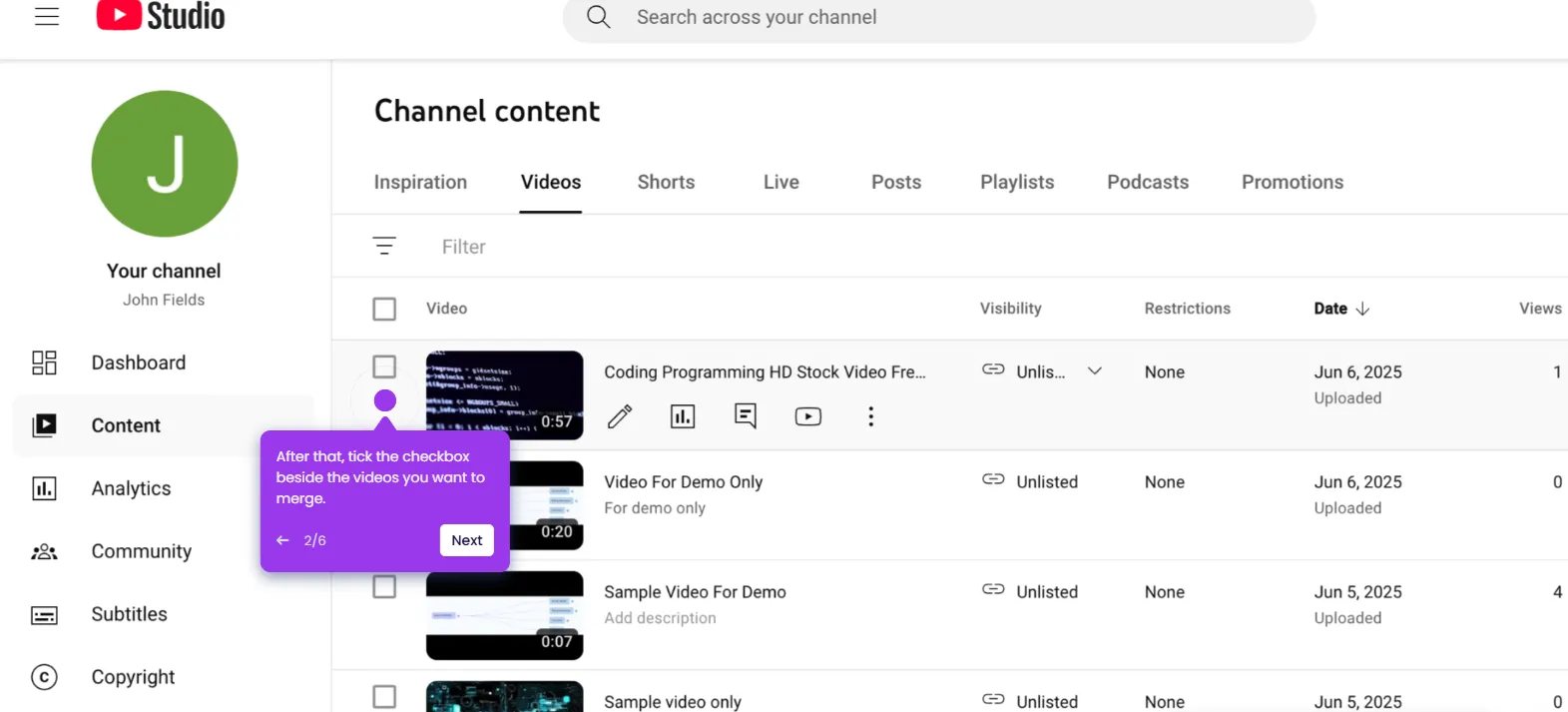
- Go to the left-side panel and click Content.
- Find the video you want to edit and click its corresponding Pencil icon.
- Choose Editor from the list of options.
- Locate the End Screen option and tap the Add icon next to it.
- Select an end screen template from the available choices.
- Pick the elements you want to add to your end screen.
- Configure the corresponding settings for each element, such as the Subscribe element.
- Once done, click Save.
- The end screen of the selected YouTube video will be updated based on your input.