Quick summary
Exporting leads from Keap lets you back up your contact list or migrate data to another platform in just a few clicks. This guide walks you through selecting all contacts and triggering a bulk export directly from the Keap Contacts view.
Steps
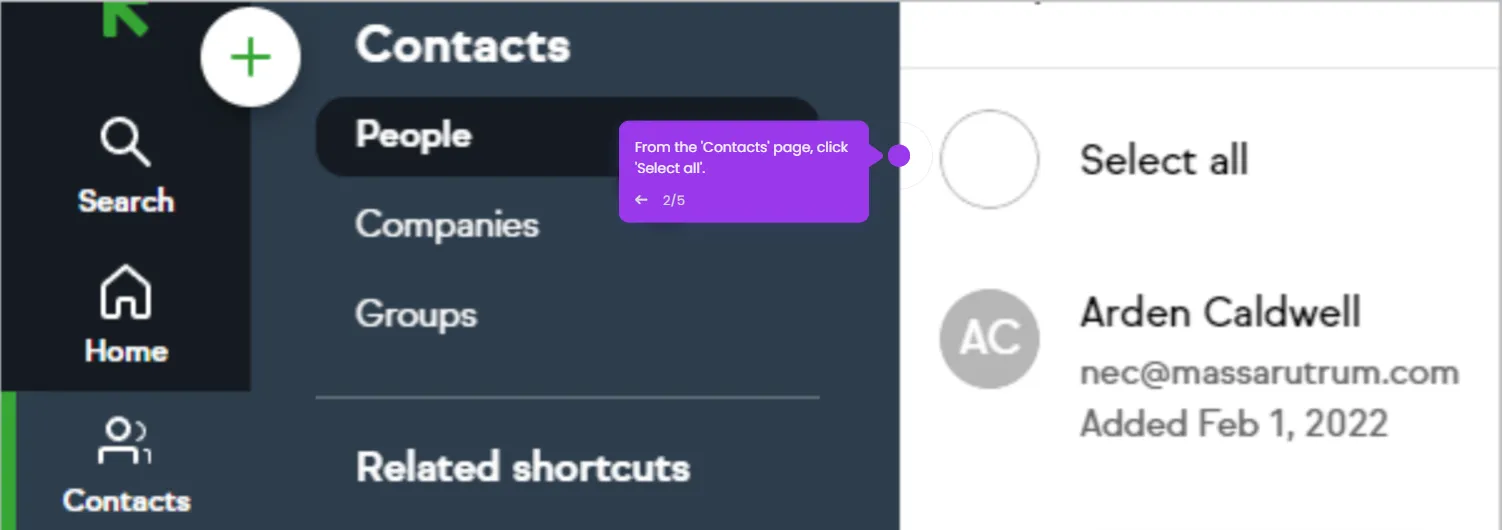
- Log in to your Keap account and navigate to the Contacts section.
- Click the Select All checkbox at the top of the contact list to select every contact.
- Click the Export button located at the bottom of the page to initiate the export.
- Wait for the export to finalize and check your email for the download link.