This interactive demo was created free with Storylane in 2 minutes. Create your own demo
Start free
All Tutorials /Google Slides

How to Give Letters a Border in Google Slides

Updated on:
June 9, 2026
By:
Madhav Bhandari
Walk through this interactive demo to learn how to give letters a border in Google Slides.
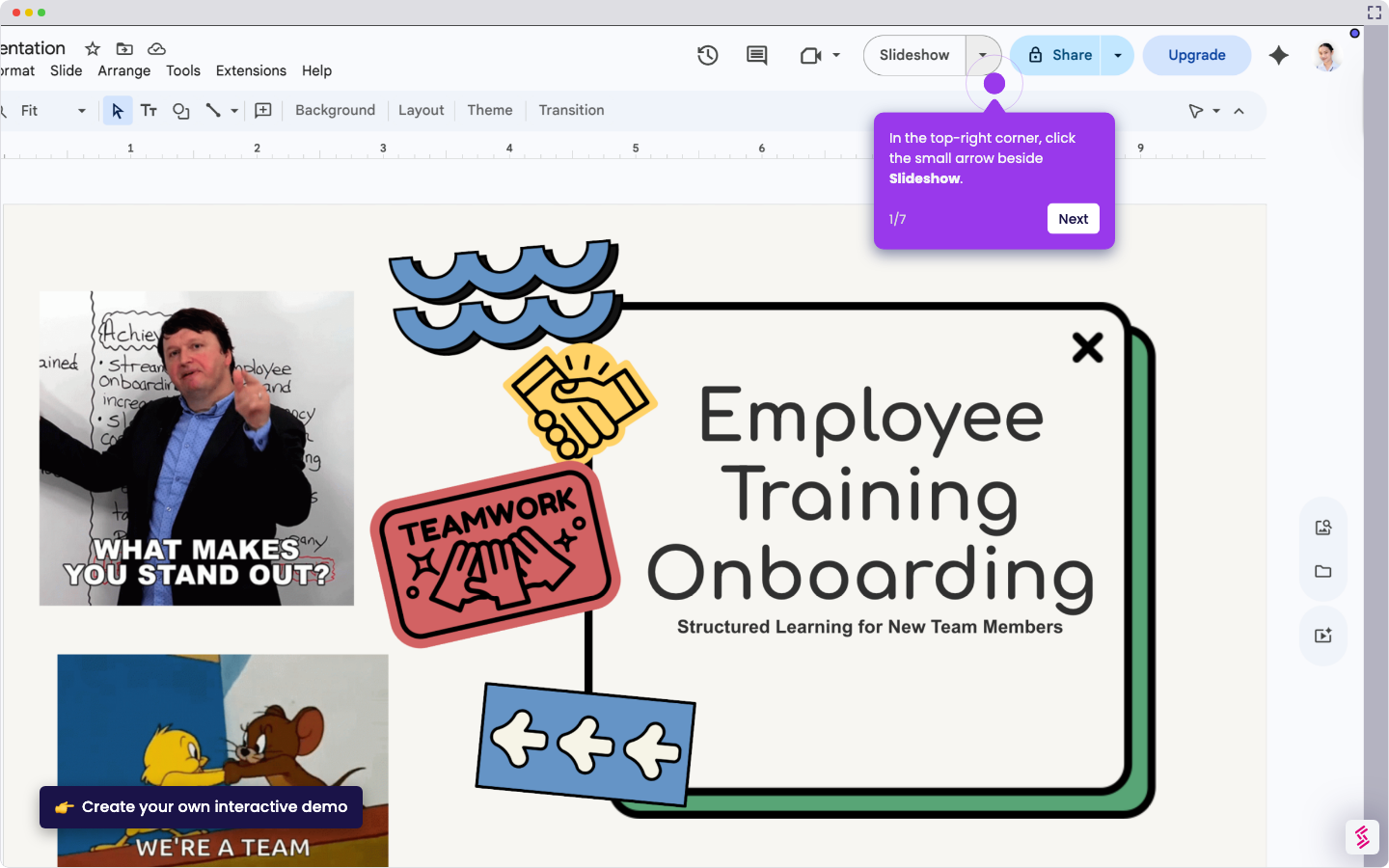
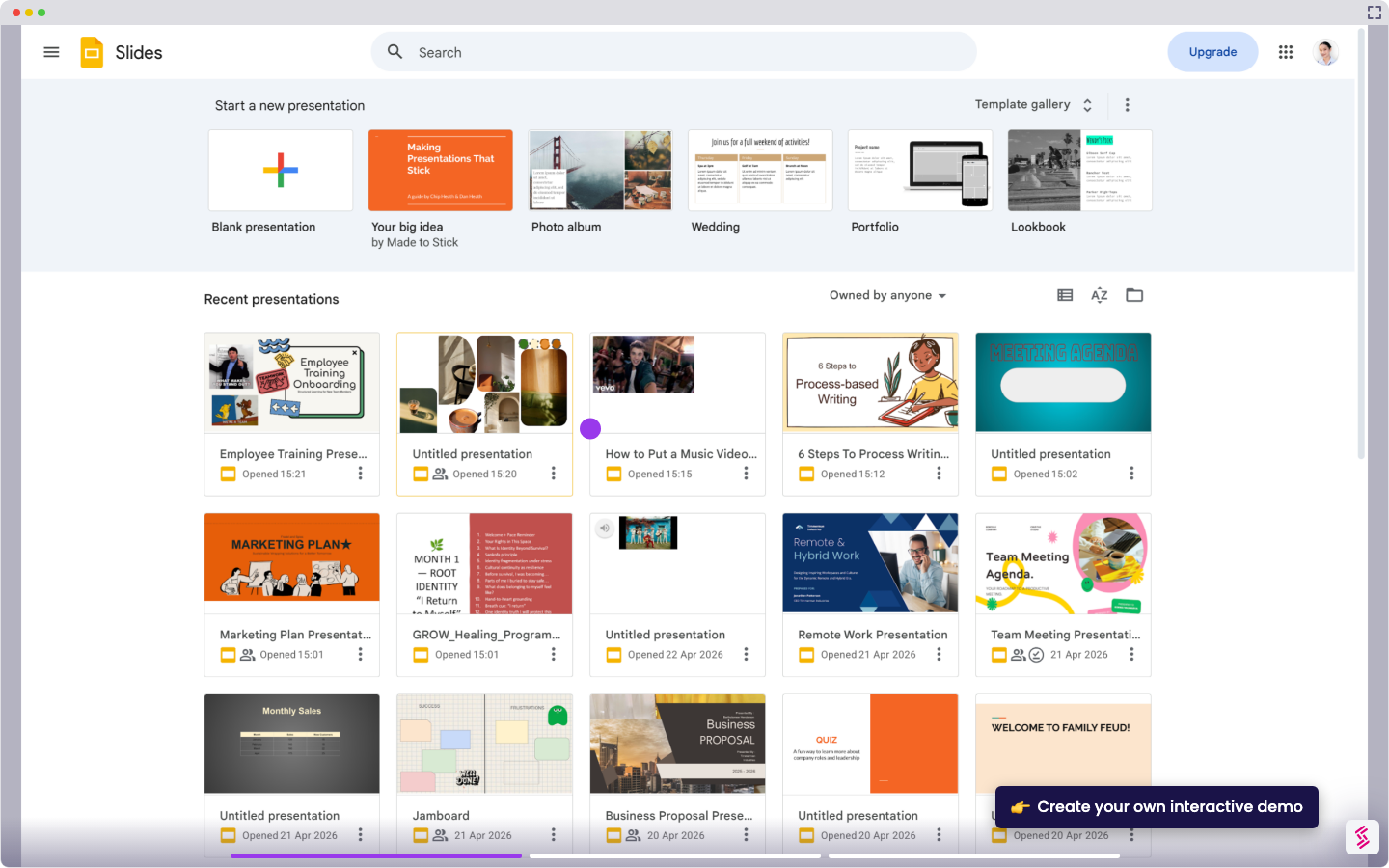
  1. Open your Google Slides presentation and select Insert at the top menu.
  2. From the menu, select Word art.
  3. Select the text and navigate to the toolbar. Choose a color by clicking the fill icon.
  4. Choose a border color by selecting the pencil icon.
  5. Then, hit the border weight button to increase the thickness of your borders.
  6. Now, your letters have an outline.

📌 Why this matters

Bordered text transforms ordinary presentations into professional, eye-catching displays that stand out against any background. You can layer text over images without losing readability, create logos and titles that pop, and maintain brand consistency across slides. The real power lies in accessibility—borders ensure your text remains visible regardless of background colors or patterns, preventing the common problem of white text disappearing on light backgrounds or dark text getting lost on busy images.

Your product deserves an interactive demo
Start free
Similar Articles
Google Slides

How to Use Google Slides Presenter View

Madhav Bhandari
Director of Marketing @ Storylane
Google Slides

How to See Google Slides History

Madhav Bhandari
Director of Marketing @ Storylane
Google Slides

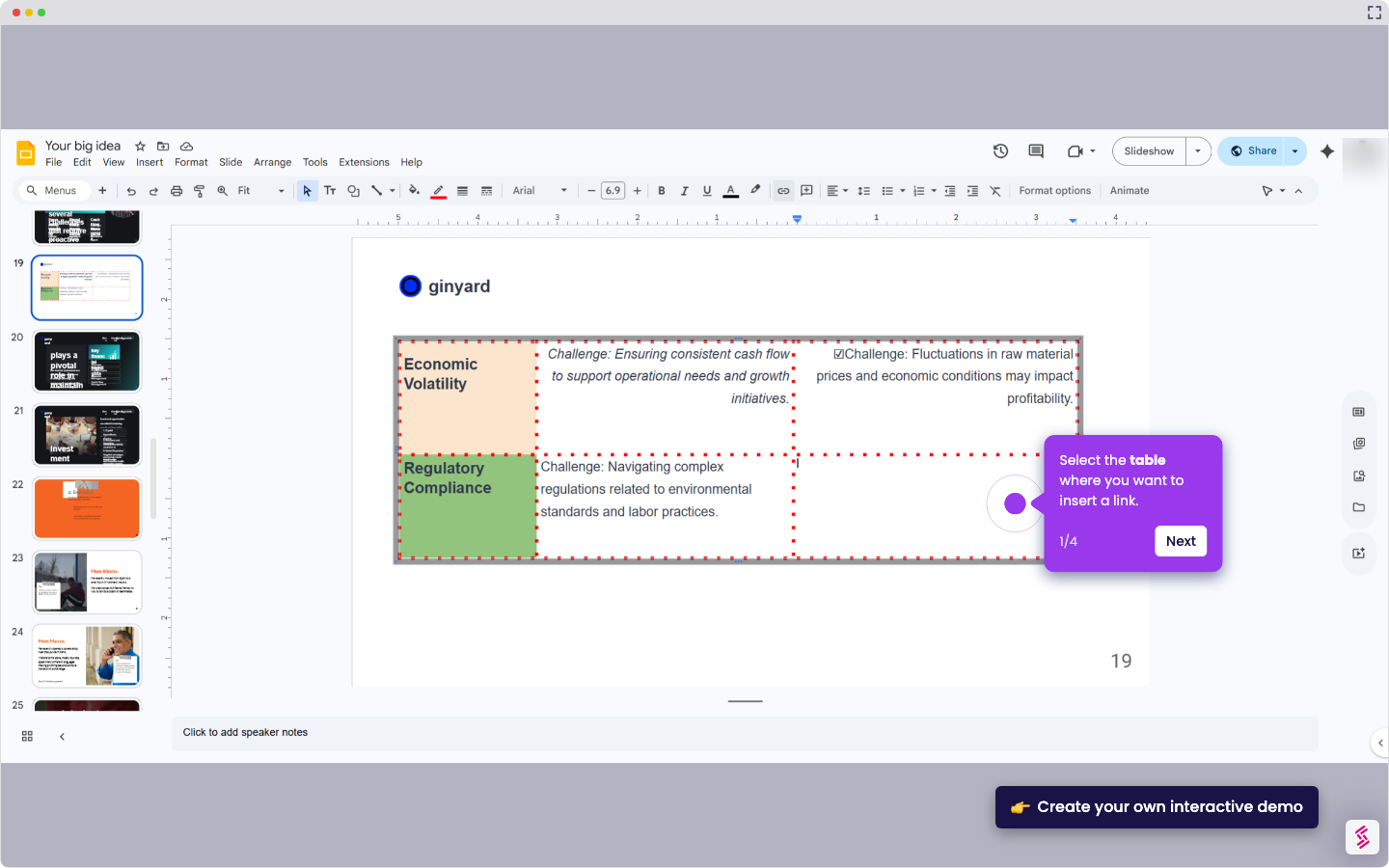
How to Link Table in Google Slides

Madhav Bhandari
Director of Marketing @ Storylane
No items found.
Platform
Interactive Demos
Sandbox Demos
Hubs
RepX
Integrations
Solutions
Product Marketers
Growth & Demand Gen
Sales Reps & AEs
Presales & SEs
Customer Success
Product Managers
Customers
Demo Showcase
Customer Stories
Finer Demos Club
Features
Demo Signals
Personalization
Deal Intelligence
Resources
Blog
The Plot
Tutorials
Help Docs
What’s New
Demo Dundies
Company
Careers
Pricing
Partners
Contact
Trust Center
Backed by
Chrome Extension Icon
Chrome extension
Download
Desktop app
Download
Built in San Francisco Bay Area - ©2026 Storylane
Privacy PolicyTerms & Conditions
X Corp (formerly Twitter)LinkedIn
This website uses cookies to ensure you get the best experience on our website. Learn More
Got it
This website uses cookies to ensure you get the best experience on our website. Learn More
Got it