This interactive demo was created free with Storylane in 2 minutes. Create your own demo
Start free
All Tutorials /MS Project

How to Insert Subtask in Microsoft Project

Updated on:
June 5, 2026
By:
Madhav Bhandari
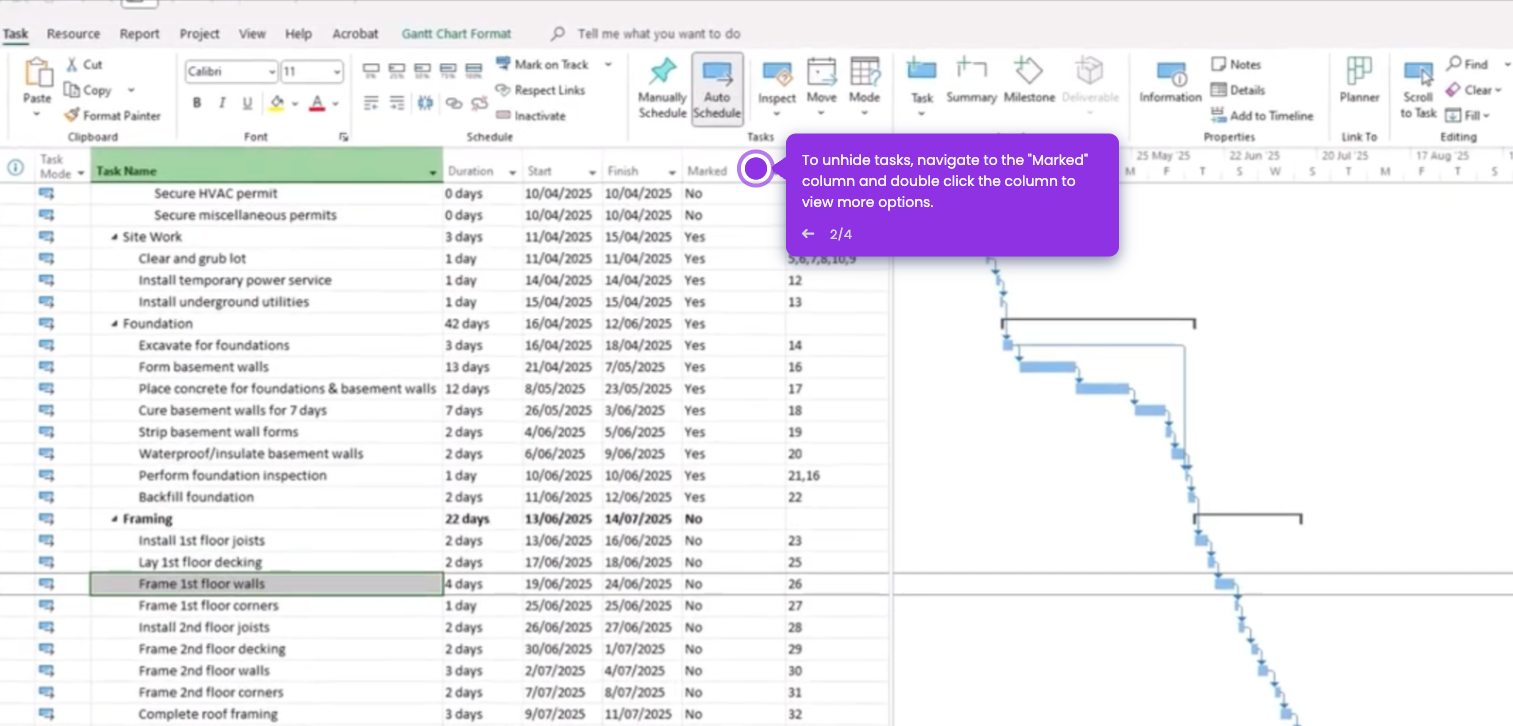
Use this interactive demo to learn how to create subtasks under a summary task in Microsoft Project.

Quick summary

Inserting a subtask in Microsoft Project requires selecting a new task in the Gantt Chart view and using the Indent Task button under the Task tab to nest it beneath a summary task. This process organizes your project hierarchy so dependent work items are grouped correctly under their parent task.


Steps

  1. Open the Gantt Chart view and click the row directly below the summary task to enter new tasks.
  2. Select the newly added task row you want to convert into a subtask.
  3. Navigate to the Task tab in the Microsoft Project ribbon.
  4. Click the Indent Task button to insert the selected task as a subtask under the summary task.
  5. Confirm the task now appears indented as a subtask nested beneath the summary task in the project hierarchy.

📌 Why this matters

Knowing how to insert subtasks in Microsoft Project is essential for project managers who need to build accurate work breakdown structures and hierarchical task lists. Subtasks allow teams to break complex deliverables into manageable, trackable units while keeping them logically grouped under a parent summary task. This improves project visibility, resource planning, and schedule accuracy across the entire project timeline. Mastering the Indent Task feature in Microsoft Project's Gantt Chart view is a foundational skill for effective project scheduling.
Your product deserves an interactive demo
Start free
Similar Articles
MS Project

How to Wrap Text in Microsoft Project

Madhav Bhandari
Director of Marketing @ Storylane
MS Project

How to Update Microsoft Project Schedule

Madhav Bhandari
Director of Marketing @ Storylane
MS Project

How to Unhide Rows in Microsoft Project

Madhav Bhandari
Director of Marketing @ Storylane
No items found.
Platform
Interactive Demos
Sandbox Demos
Hubs
RepX
Integrations
Solutions
Product Marketers
Growth & Demand Gen
Sales Reps & AEs
Presales & SEs
Customer Success
Product Managers
Customers
Demo Showcase
Customer Stories
Finer Demos Club
Features
Demo Signals
Personalization
Deal Intelligence
Resources
Blog
The Plot
Tutorials
Help Docs
What’s New
Demo Dundies
Company
Careers
Pricing
Partners
Contact
Trust Center
Backed by
Chrome Extension Icon
Chrome extension
Download
Desktop app
Download
Built in San Francisco Bay Area - ©2026 Storylane
Privacy PolicyTerms & Conditions
X Corp (formerly Twitter)LinkedIn
This website uses cookies to ensure you get the best experience on our website. Learn More
Got it
This website uses cookies to ensure you get the best experience on our website. Learn More
Got it