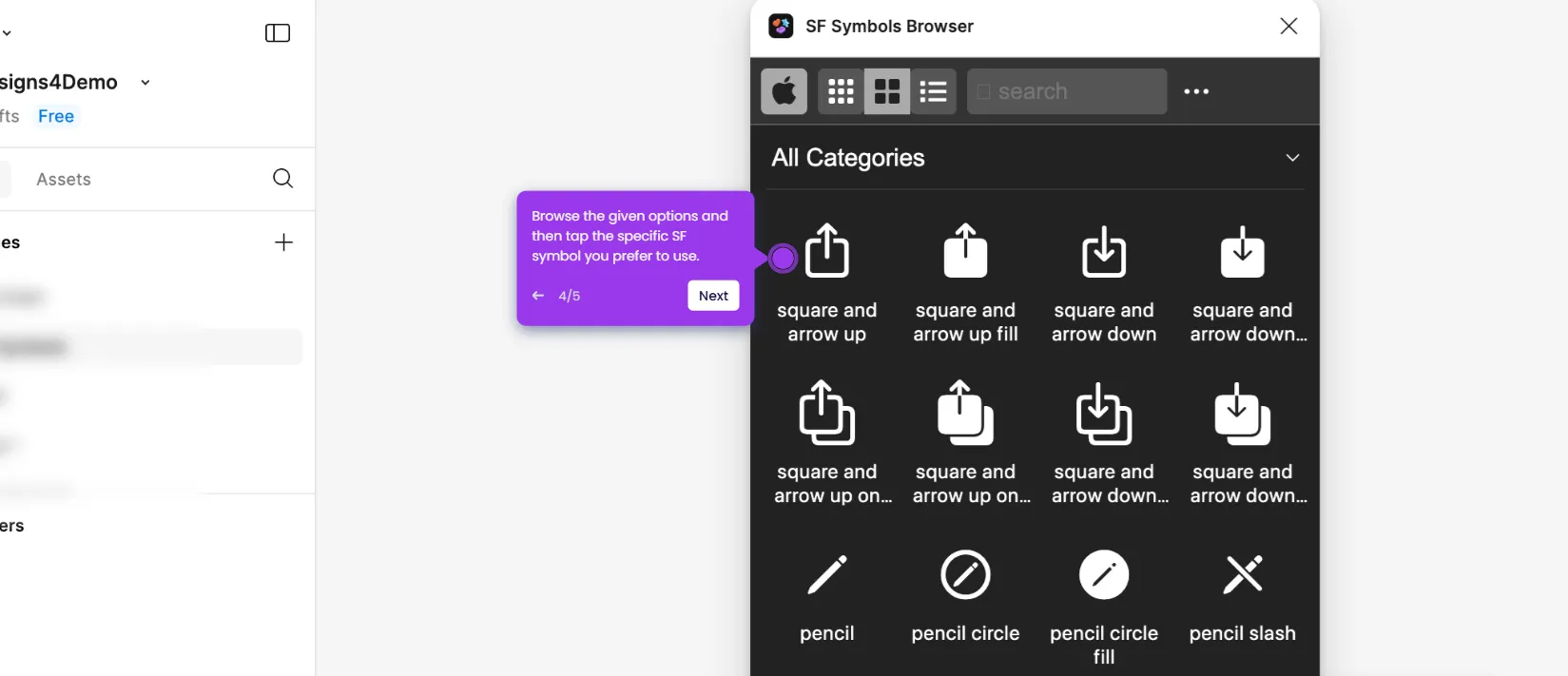
This interactive demo was created free with Storylane in 2 minutes. Create your own demo
Start free
All Tutorials /Figma

How to Link Pages in Figma

Updated on:
June 5, 2026
By:
Madhav Bhandari
Use this interactive demo to learn how to create page links inside your Figma design canvas.

Quick summary

Linking pages in Figma lets designers connect text or objects to specific pages, enabling interactive prototype navigation. This step-by-step process uses Figma's built-in Create Link feature to set up clickable page references directly from the design canvas.


Steps

  1. In your Figma design canvas, navigate to the left-side panel and right-click the page you want to link.
  2. Select 'Copy Link to Page' from the context menu options.
  3. Find and click the text or object on the canvas where you want to apply the page link.
  4. In the right-side panel, click the 'Create Link' icon under the Design tab.
  5. Click the floating input field above the selected text layer and paste the page link.
  6. Click anywhere on the canvas to apply the changes.
  7. The selected page in Figma will now be linked to your chosen text or object.

📌 Why this matters

Linking pages in Figma is essential for creating realistic, navigable prototypes that accurately reflect user flows without writing any code. This feature allows designers to connect frames, text elements, and objects directly to other pages, making it easier to demonstrate multi-screen interactions to stakeholders. Teams that use Figma page linking can streamline design reviews, reduce miscommunication, and deliver higher-fidelity prototypes faster. Mastering this workflow helps UX and product teams ship better designs with fewer feedback cycles.
Your product deserves an interactive demo
Start free
Similar Articles
Figma

How to Create a Figma Plugin

Madhav Bhandari
Director of Marketing @ Storylane
Figma

How to Use SF Symbols in Figma

Madhav Bhandari
Director of Marketing @ Storylane
Figma

How to Embed a Figma Prototype in Google Slides

Madhav Bhandari
Director of Marketing @ Storylane
No items found.
Platform
Interactive Demos
Sandbox Demos
Hubs
RepX
Integrations
Solutions
Product Marketers
Growth & Demand Gen
Sales Reps & AEs
Presales & SEs
Customer Success
Product Managers
Customers
Demo Showcase
Customer Stories
Finer Demos Club
Features
Demo Signals
Personalization
Deal Intelligence
Resources
Blog
The Plot
Tutorials
Help Docs
What’s New
Demo Dundies
Company
Careers
Pricing
Partners
Contact
Trust Center
Backed by
Chrome Extension Icon
Chrome extension
Download
Desktop app
Download
Built in San Francisco Bay Area - ©2026 Storylane
Privacy PolicyTerms & Conditions
X Corp (formerly Twitter)LinkedIn
This website uses cookies to ensure you get the best experience on our website. Learn More
Got it
This website uses cookies to ensure you get the best experience on our website. Learn More
Got it