This interactive demo was created free with Storylane in 2 minutes. Create your own demo
Start free
All Tutorials /Google Slides

How to Link Websites on Google Slides

Updated on:
June 9, 2026
By:
Madhav Bhandari
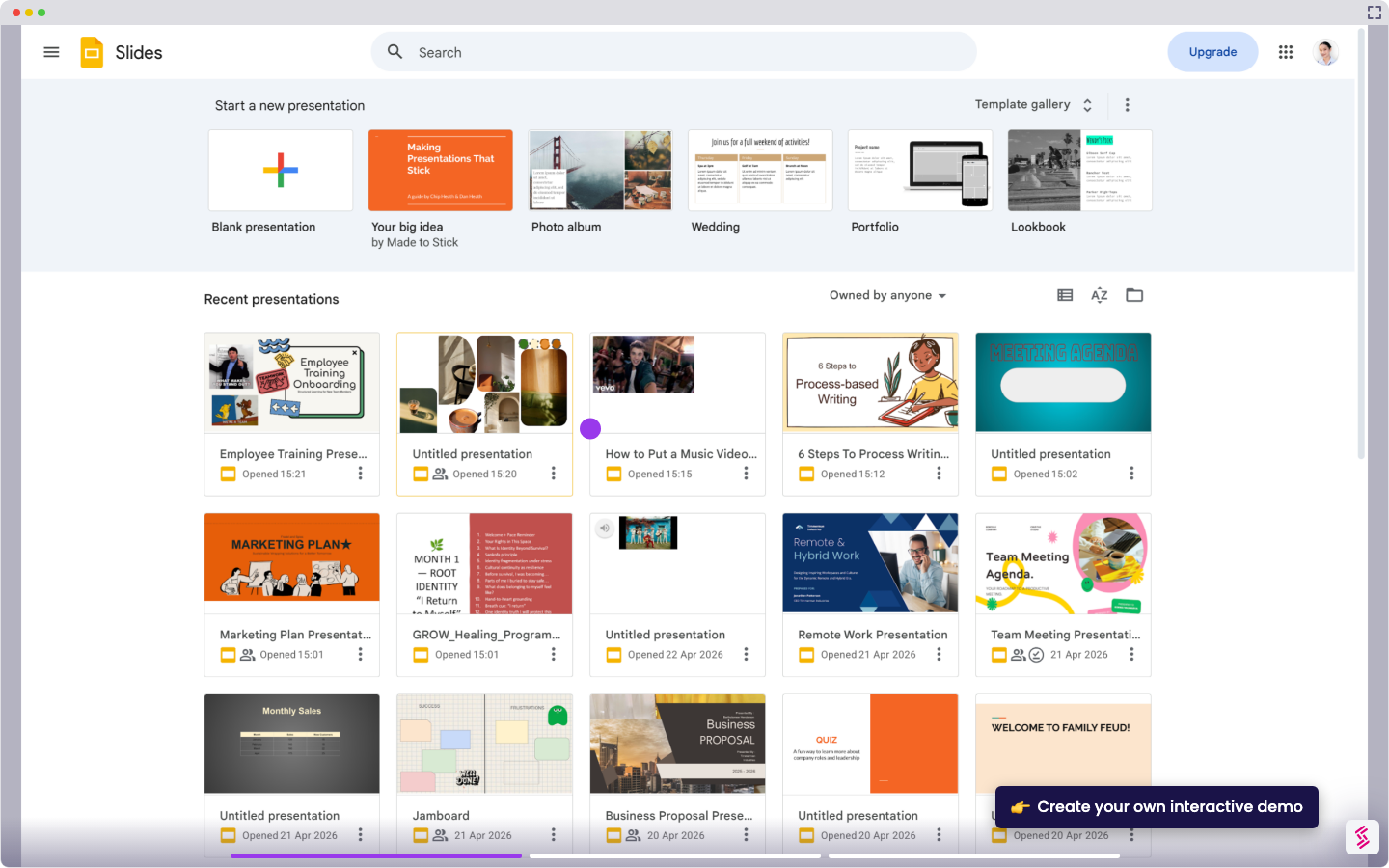
Use this interactive demo to learn how to add a clickable website link to any object in Google Slides.

Quick summary

This demo shows how to link a website to any text, image, or object in Google Slides using the built-in Link option. In just a few clicks, you can make any slide element clickable and point it directly to an external URL.


Steps

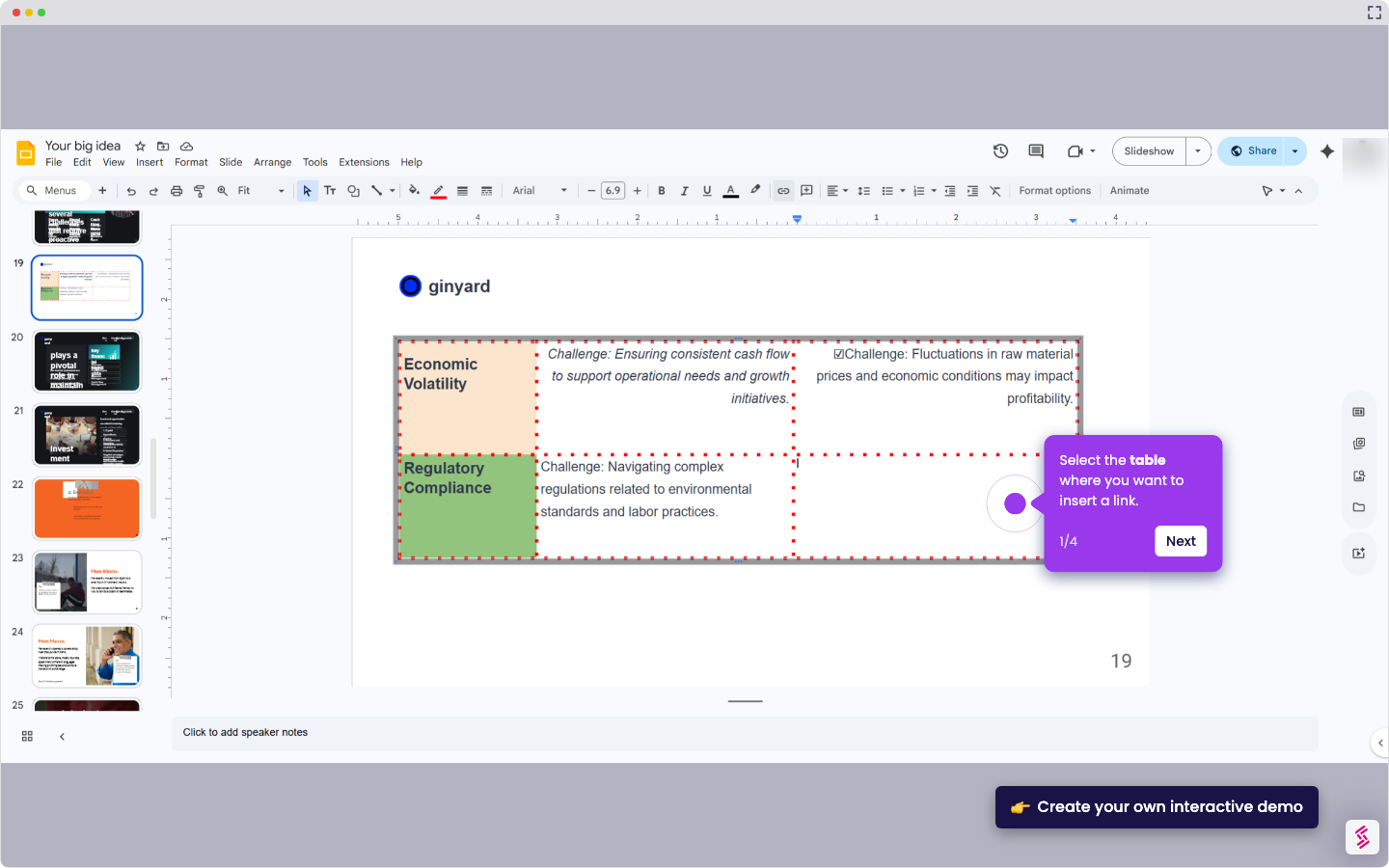
  1. Click the text, image, shape, or object you want to link.
  2. Confirm the object you selected is highlighted.
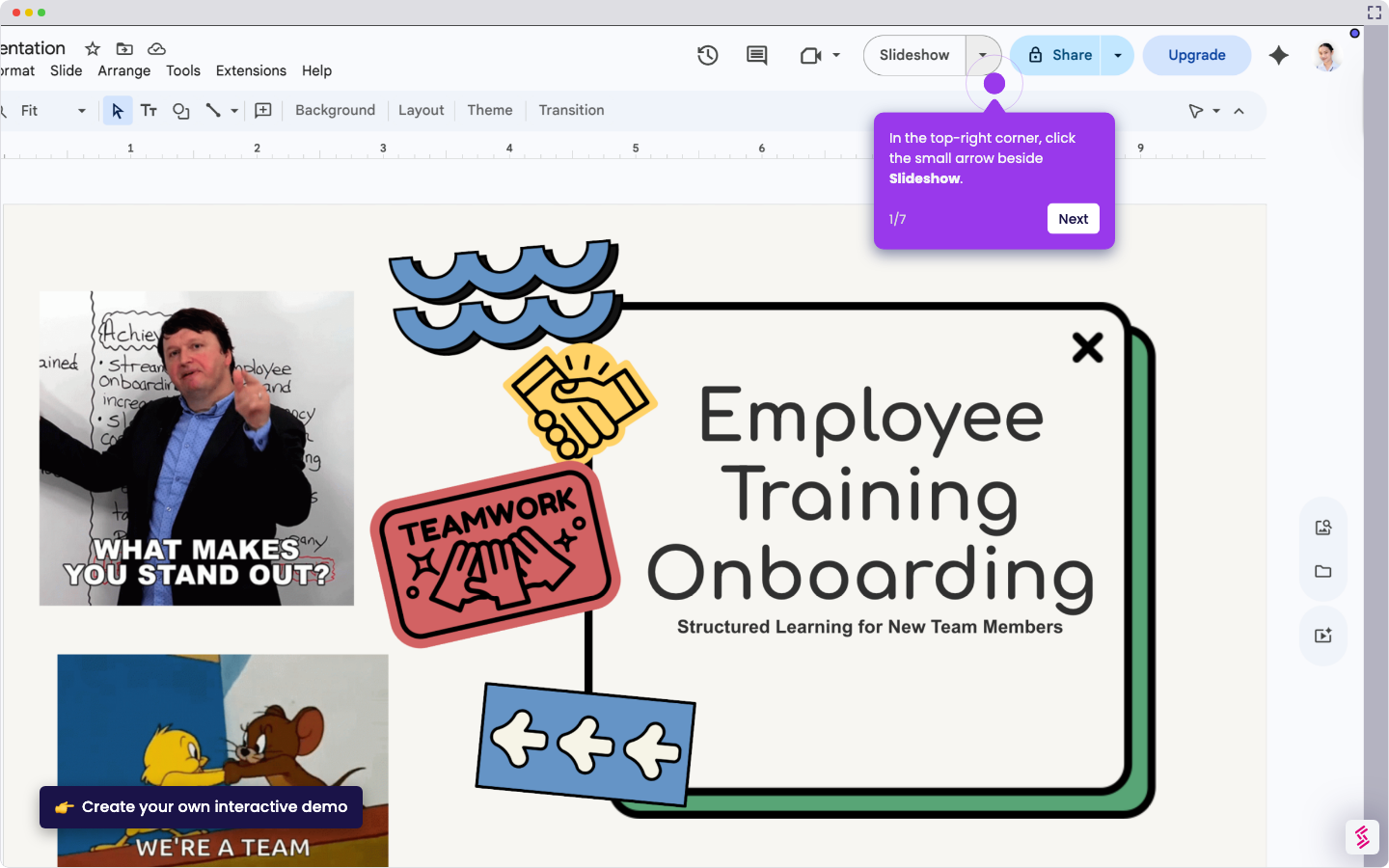
  3. Right-click on the highlighted text or selected object to open the context menu.
  4. In the dropdown menu, click Link.
  5. Your selected text or object is now linked to the website.
📌 Why this matters

Linking websites directly to objects in Google Slides makes presentations more interactive and actionable, letting audiences click through to external resources without leaving the slideshow. This feature is essential for educators, marketers, and business presenters who want to embed URLs into text, images, or shapes seamlessly. Using Google Slides hyperlinks reduces friction in sharing web content and keeps audiences engaged with live, clickable references. For teams building client-facing or instructional decks, mastering slide linking is a core productivity skill.
Your product deserves an interactive demo
Start free
Similar Articles
Google Slides

How to Use Google Slides Presenter View

Madhav Bhandari
Director of Marketing @ Storylane
Google Slides

How to See Google Slides History

Madhav Bhandari
Director of Marketing @ Storylane
Google Slides

How to Link Table in Google Slides

Madhav Bhandari
Director of Marketing @ Storylane
No items found.
Platform
Interactive Demos
Sandbox Demos
Hubs
RepX
Integrations
Solutions
Product Marketers
Growth & Demand Gen
Sales Reps & AEs
Presales & SEs
Customer Success
Product Managers
Customers
Demo Showcase
Customer Stories
Finer Demos Club
Features
Demo Signals
Personalization
Deal Intelligence
Resources
Blog
The Plot
Tutorials
Help Docs
What’s New
Demo Dundies
Company
Careers
Pricing
Partners
Contact
Trust Center
Backed by
Chrome Extension Icon
Chrome extension
Download
Desktop app
Download
Built in San Francisco Bay Area - ©2026 Storylane
Privacy PolicyTerms & Conditions
X Corp (formerly Twitter)LinkedIn
This website uses cookies to ensure you get the best experience on our website. Learn More
Got it
This website uses cookies to ensure you get the best experience on our website. Learn More
Got it