This interactive demo was created free with Storylane in 2 minutes. Create your own demo
Start free
All Tutorials /MS PowerPoint

How to Make a Font Default in PowerPoint

Updated on:
June 9, 2026
By:
Madhav Bhandari
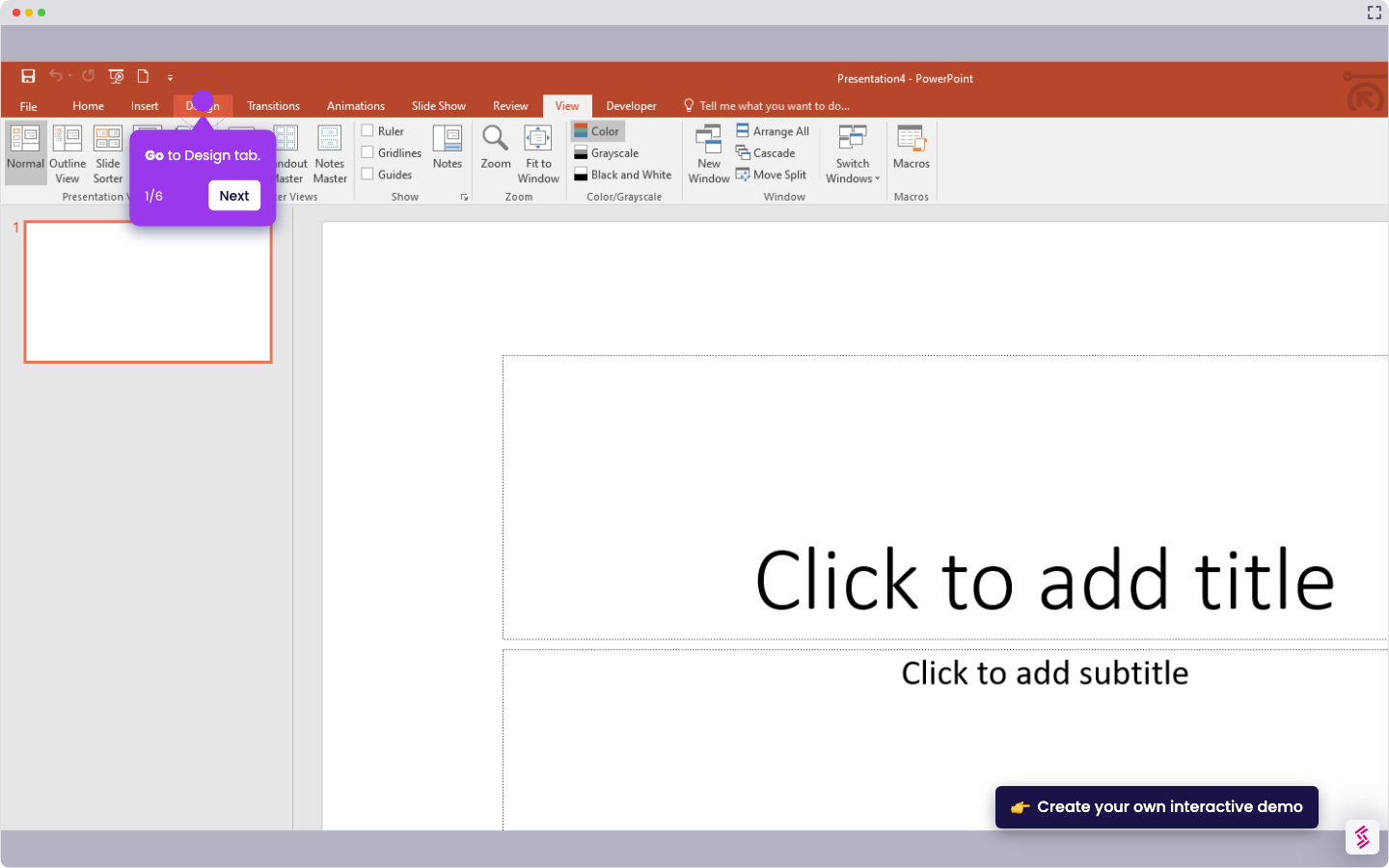
Use this interactive demo to learn how to set a custom default font in PowerPoint for every presentation.

Quick summary

Setting a default font in PowerPoint ensures consistent typography across every slide without manual formatting. Use the Customize Fonts option under the Design tab to define and save your preferred heading and body fonts as the theme default.


Steps

  1. Go to the Design tab in PowerPoint.
  2. Click the Variants dropdown on the right side of the ribbon.
  3. Click Fonts from the Variants menu.
  4. Click Customize Fonts at the bottom of the Fonts list.
  5. Set your preferred Heading font and Body font in the dialog box.
  6. Give your font set a name to identify it later.
  7. Click Save to apply — this becomes your default font style for the theme.
📌 Why this matters

Consistent typography is essential for professional, on-brand PowerPoint presentations. Setting a default font in PowerPoint through the Design tab eliminates repetitive manual formatting across slides and decks. This feature is especially valuable for teams maintaining brand standards, ensuring every new presentation automatically uses the correct heading and body fonts. Mastering font customization in PowerPoint saves time and reduces formatting errors at scale.
Your product deserves an interactive demo
Start free
Similar Articles
MS PowerPoint

How To Curve Letters In PowerPoint

Madhav Bhandari
Director of Marketing @ Storylane
MS PowerPoint

How to Make PowerPoint Slide 8.5 by 11

Madhav Bhandari
Director of Marketing @ Storylane
MS PowerPoint

How to Make Arrow Thicker in PowerPoint

Madhav Bhandari
Director of Marketing @ Storylane
No items found.
Platform
Interactive Demos
Sandbox Demos
Hubs
RepX
Integrations
Solutions
Product Marketers
Growth & Demand Gen
Sales Reps & AEs
Presales & SEs
Customer Success
Product Managers
Customers
Demo Showcase
Customer Stories
Finer Demos Club
Features
Demo Signals
Personalization
Deal Intelligence
Resources
Blog
The Plot
Tutorials
Help Docs
What’s New
Demo Dundies
Company
Careers
Pricing
Partners
Contact
Trust Center
Backed by
Chrome Extension Icon
Chrome extension
Download
Desktop app
Download
Built in San Francisco Bay Area - ©2026 Storylane
Privacy PolicyTerms & Conditions
X Corp (formerly Twitter)LinkedIn
This website uses cookies to ensure you get the best experience on our website. Learn More
Got it
This website uses cookies to ensure you get the best experience on our website. Learn More
Got it