This interactive demo was created free with Storylane in 2 minutes. Create your own demo
Start free
All Tutorials /Google Slides

How to Make Each Bullet Appear Separately in Google Slides

Updated on:
June 9, 2026
By:
Madhav Bhandari
Use this interactive demo to learn how to animate bullets one at a time in Google Slides.

Quick summary

To make each bullet point appear separately in Google Slides, place each bulleted item in its own text box and assign a unique bullet style to each one. This workaround lets presenters reveal slide content step by step without built-in animation limitations.


Steps

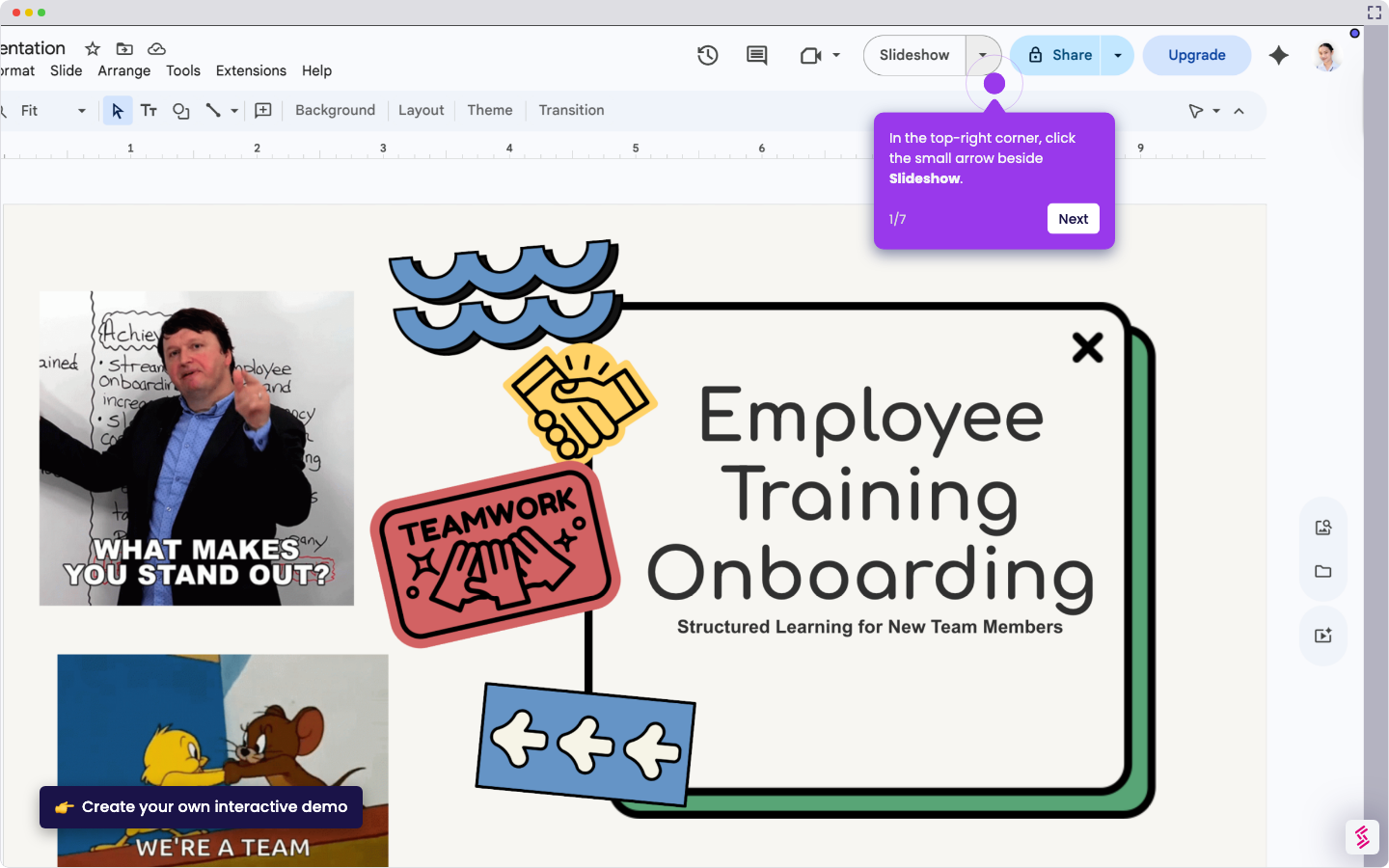
  1. On your slide, place each bulleted text into separate text boxes so you can edit them individually.
  2. Select the text box containing your first bulleted text, then click Bulleted list on the toolbar and choose a different bullet style.
  3. Select the text box containing your other bulleted text, then click Bulleted list on the toolbar and choose another bullet style.
  4. Each bulleted text on your presentation will now display a different bullet style, making each point visually distinct.
📌 Why this matters

Google Slides does not natively support revealing bullet points one at a time the way PowerPoint does, which frustrates presenters who want to control the pace of information delivery. By splitting bullet points into separate text boxes and applying distinct bullet styles, users can simulate step-by-step bullet reveals without needing third-party add-ons. This technique improves audience engagement during live presentations by preventing information overload. It is a practical, no-cost solution for anyone looking to create more dynamic Google Slides presentations.
Your product deserves an interactive demo
Start free
Similar Articles
Google Slides

How to Use Google Slides Presenter View

Madhav Bhandari
Director of Marketing @ Storylane
Google Slides

How to See Google Slides History

Madhav Bhandari
Director of Marketing @ Storylane
Google Slides

How to Link Table in Google Slides

Madhav Bhandari
Director of Marketing @ Storylane
No items found.
Platform
Interactive Demos
Sandbox Demos
Hubs
RepX
Integrations
Solutions
Product Marketers
Growth & Demand Gen
Sales Reps & AEs
Presales & SEs
Customer Success
Product Managers
Customers
Demo Showcase
Customer Stories
Finer Demos Club
Features
Demo Signals
Personalization
Deal Intelligence
Resources
Blog
The Plot
Tutorials
Help Docs
What’s New
Demo Dundies
Company
Careers
Pricing
Partners
Contact
Trust Center
Backed by
Chrome Extension Icon
Chrome extension
Download
Desktop app
Download
Built in San Francisco Bay Area - ©2026 Storylane
Privacy PolicyTerms & Conditions
X Corp (formerly Twitter)LinkedIn
This website uses cookies to ensure you get the best experience on our website. Learn More
Got it
This website uses cookies to ensure you get the best experience on our website. Learn More
Got it