This interactive demo was created free with Storylane in 2 minutes. Create your own demo
Start free
All Tutorials /Google Slides

How to Make Google Slides Timed

Updated on:
June 5, 2026
By:
Madhav Bhandari
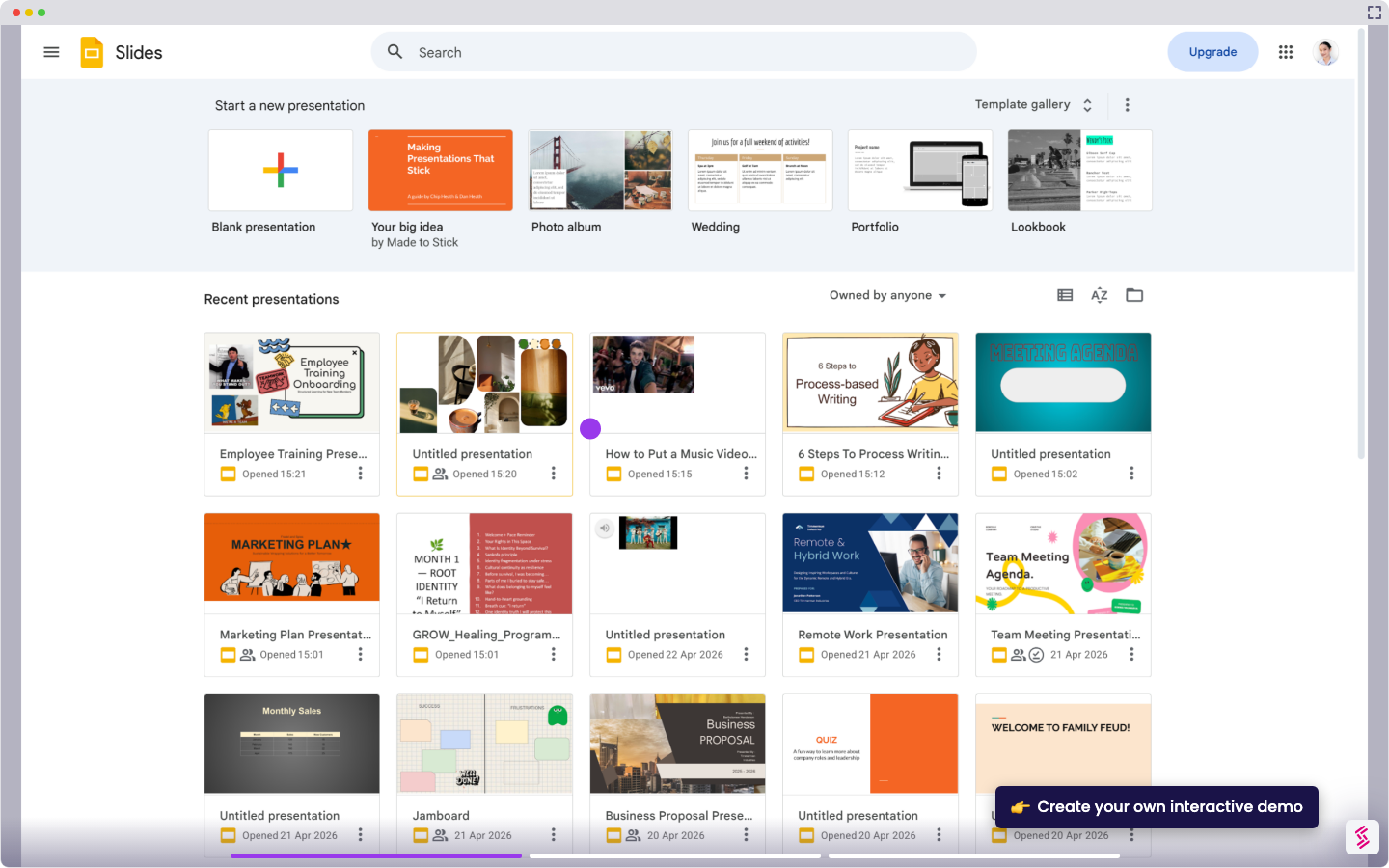
Use this interactive demo to learn how to auto-advance slides on a timed loop in Google Slides.

Quick summary

Google Slides lets you auto-play timed slides using the built-in Auto-play feature, so your presentation advances automatically without any manual clicks. Access the Slideshow menu, open the three-dot options in presentation mode, and set a custom slide duration to run your deck on autopilot.


Steps

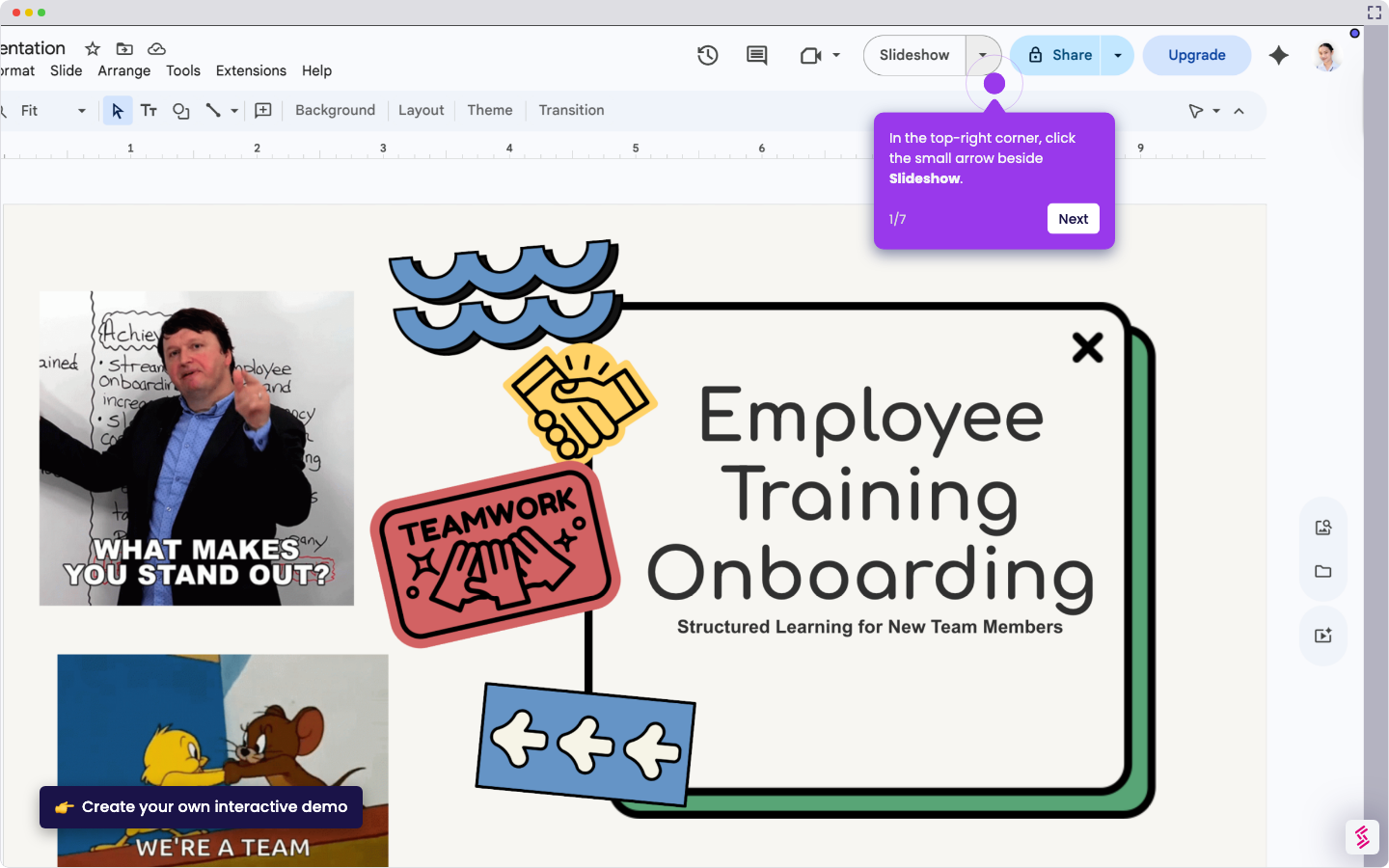
  1. Navigate to the Slideshow option in the menu bar — this is where slide timing controls are located.
  2. Enter presentation mode, hover over the screen, and click the three-dot menu to access timer settings.
  3. Click the arrow beside Auto-play to configure how long each slide stays on screen.
  4. Select your preferred timing interval and let your slides run automatically on autopilot.
📌 Why this matters

Google Slides' built-in auto-play and slide timing feature is essential for anyone running kiosk displays, self-guided presentations, or conference loops without a live presenter. By using the Slideshow menu's Auto-play option, users can set precise slide durations so the deck advances hands-free, eliminating the need for manual click-throughs. This feature saves time, reduces presenter dependency, and ensures a consistent, polished viewing experience every time the presentation runs.
Your product deserves an interactive demo
Start free
Similar Articles
Google Slides

How to Use Google Slides Presenter View

Madhav Bhandari
Director of Marketing @ Storylane
Google Slides

How to See Google Slides History

Madhav Bhandari
Director of Marketing @ Storylane
Google Slides

How to Link Table in Google Slides

Madhav Bhandari
Director of Marketing @ Storylane
No items found.
Platform
Interactive Demos
Sandbox Demos
Hubs
RepX
Integrations
Solutions
Product Marketers
Growth & Demand Gen
Sales Reps & AEs
Presales & SEs
Customer Success
Product Managers
Customers
Demo Showcase
Customer Stories
Finer Demos Club
Features
Demo Signals
Personalization
Deal Intelligence
Resources
Blog
The Plot
Tutorials
Help Docs
What’s New
Demo Dundies
Company
Careers
Pricing
Partners
Contact
Trust Center
Backed by
Chrome Extension Icon
Chrome extension
Download
Desktop app
Download
Built in San Francisco Bay Area - ©2026 Storylane
Privacy PolicyTerms & Conditions
X Corp (formerly Twitter)LinkedIn
This website uses cookies to ensure you get the best experience on our website. Learn More
Got it
This website uses cookies to ensure you get the best experience on our website. Learn More
Got it