This interactive demo was created free with Storylane in 2 minutes. Create your own demo
Start free
All Tutorials /Smartsheet

How to Make Recurring Tasks in Smartsheet

Updated on:
June 5, 2026
By:
Madhav Bhandari
Use this interactive demo to learn how to automate recurring tasks in Smartsheet using date-based triggers.

Quick summary

Recurring tasks in Smartsheet are created using the Automation feature with a date-based trigger and a custom recurrence schedule. Once configured, the automation runs on your chosen frequency and can alert team members about relevant rows automatically.


Steps

  1. In Smartsheet's Grid View, click Automation in the top menu bar.
  2. Select Create From Scratch from the available options.
  3. Enter a unique automation name in the input field provided.
  4. Open the Trigger menu to choose how the automation fires.
  5. Select When a Date is Reached as the trigger type.
  6. Click the frequency menu below the trigger setting.
  7. Choose Custom to define your preferred recurrence mode.
  8. Fill out the recurrence input fields according to your schedule preferences.
  9. Review your recurrence settings and click Done.
  10. Go to the Conditions tab and click the field menu to set your desired source.
  11. Choose the field that contains the recurring task you want to apply the condition to.
  12. Open the Value menu and select one of the available options.
  13. Navigate to the Action tab and select an action from the list.
  14. Configure the Action settings based on your notification preferences.
  15. Click Save to finalize the automation.
  16. Your recurring task automation is now created and enabled in Smartsheet.
📌 Why this matters

Recurring task automation in Smartsheet eliminates the need to manually recreate repetitive tasks, reducing human error and saving time for project managers and teams. By using date-based triggers and custom recurrence schedules, teams can ensure that critical tasks are never missed and stakeholders are automatically notified on time. This feature is essential for anyone managing ongoing workflows, compliance checklists, or regular reporting cycles in Smartsheet. Automating recurring tasks directly within Smartsheet keeps work centralized, visible, and consistently executed without manual intervention.
Your product deserves an interactive demo
Start free
Similar Articles
Smartsheet

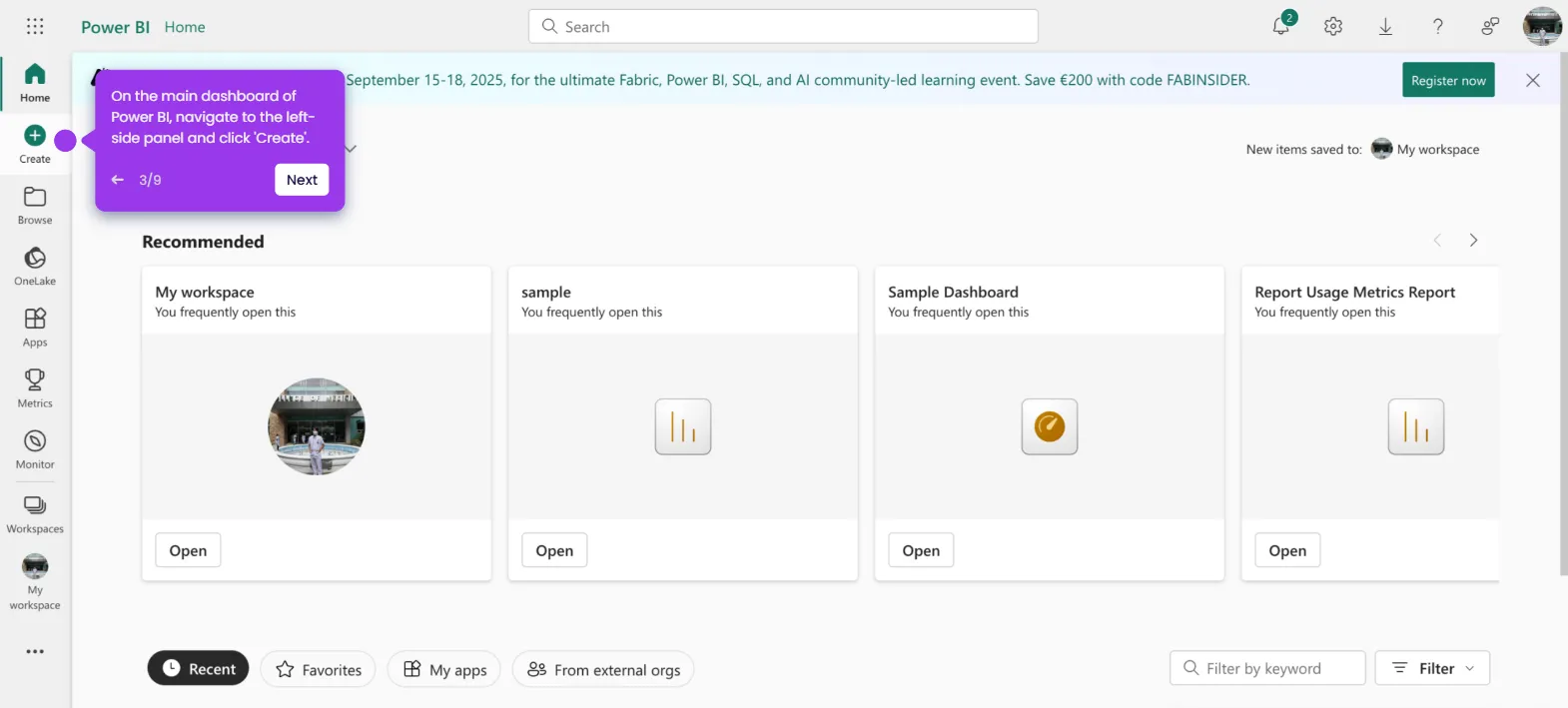
How to Connect a Smartsheet Document to Power BI

Madhav Bhandari
Director of Marketing @ Storylane
Smartsheet

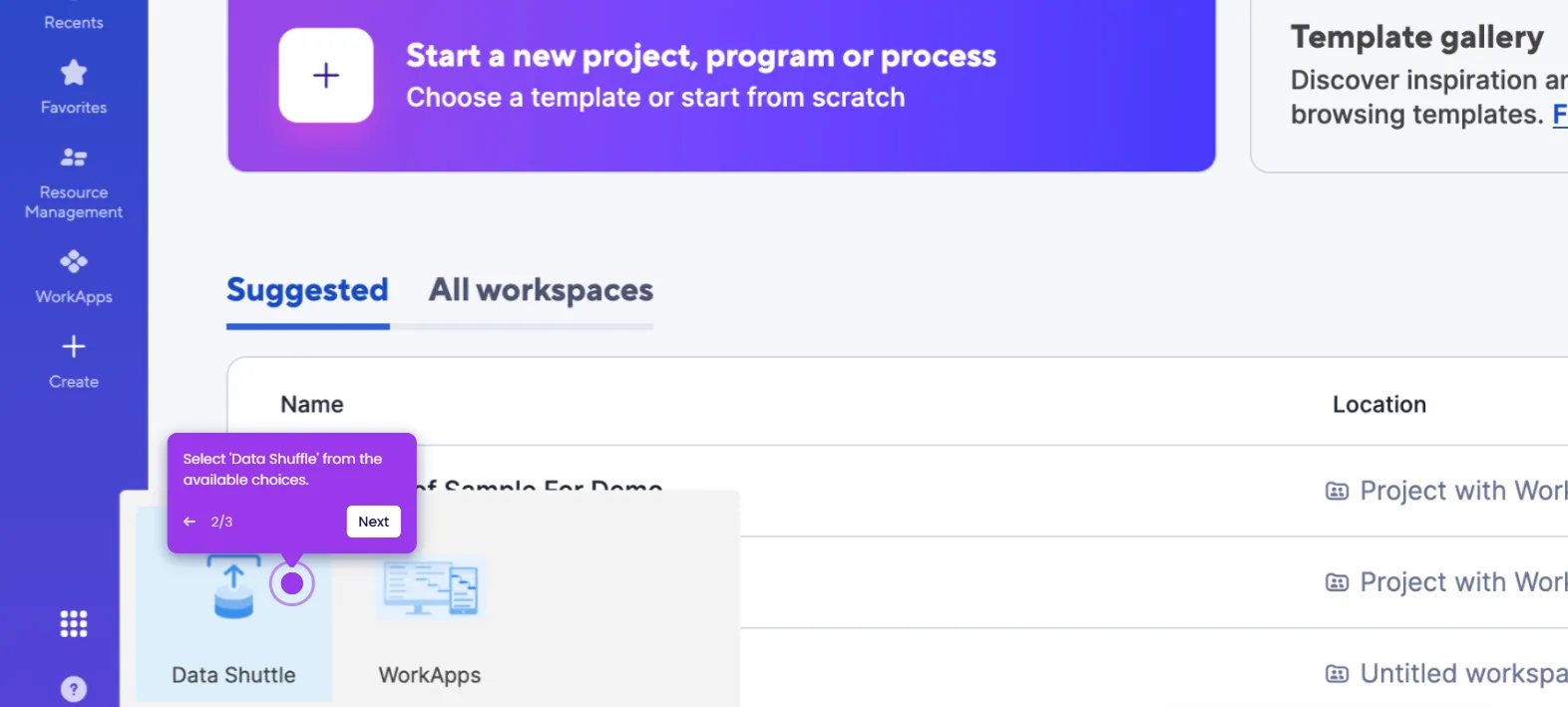
How to Use Data Shuffle in Smartsheet

Madhav Bhandari
Director of Marketing @ Storylane
Smartsheet

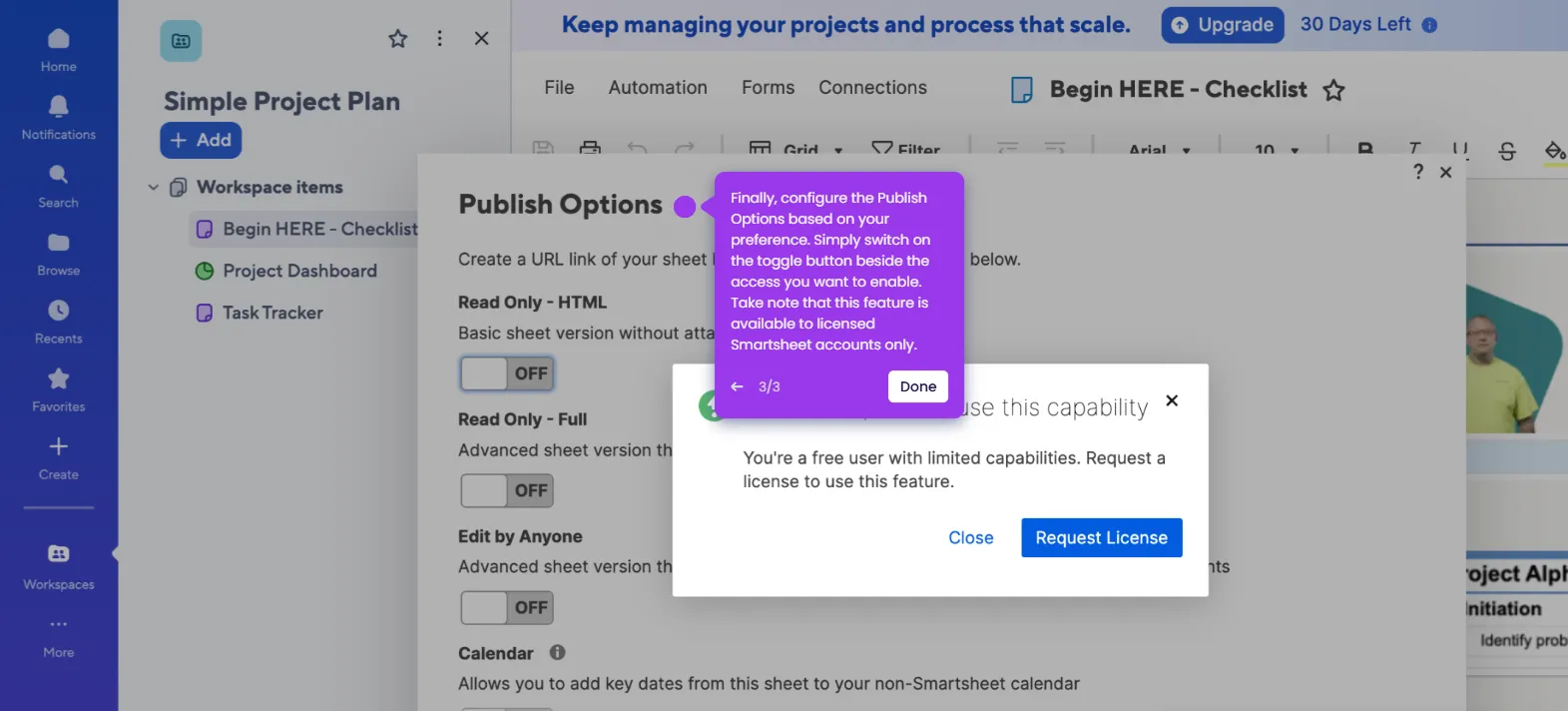
How to Publish a Smartsheet Document

Madhav Bhandari
Director of Marketing @ Storylane
No items found.
Platform
Interactive Demos
Sandbox Demos
Hubs
RepX
Integrations
Solutions
Product Marketers
Growth & Demand Gen
Sales Reps & AEs
Presales & SEs
Customer Success
Product Managers
Customers
Demo Showcase
Customer Stories
Finer Demos Club
Features
Demo Signals
Personalization
Deal Intelligence
Resources
Blog
The Plot
Tutorials
Help Docs
What’s New
Demo Dundies
Company
Careers
Pricing
Partners
Contact
Trust Center
Backed by
Chrome Extension Icon
Chrome extension
Download
Desktop app
Download
Built in San Francisco Bay Area - ©2026 Storylane
Privacy PolicyTerms & Conditions
X Corp (formerly Twitter)LinkedIn
This website uses cookies to ensure you get the best experience on our website. Learn More
Got it
This website uses cookies to ensure you get the best experience on our website. Learn More
Got it