This interactive demo was created free with Storylane in 2 minutes. Create your own demo
Start free
All Tutorials /LinkedIn

How to Make your Resume Visible on LinkedIn

Updated on:
June 9, 2026
By:
Madhav Bhandari
Use this interactive demo to learn how to upload and share your resume on LinkedIn.

Quick summary

To make your resume visible on LinkedIn, you can upload it to your Featured section so any visitor can view it directly on your profile. You can also apply to jobs through LinkedIn and submit your resume to recruiters on external employer sites.


Steps

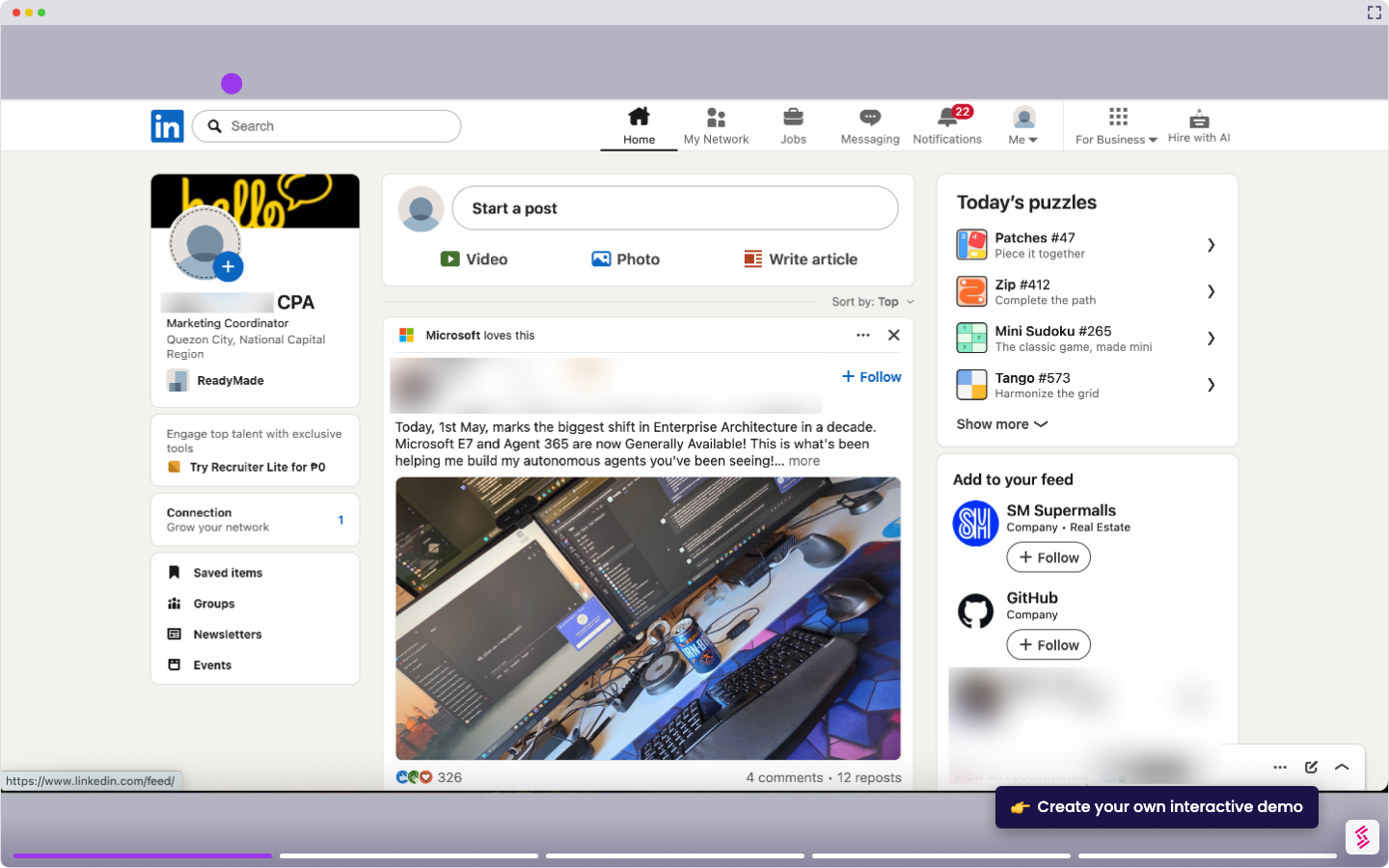
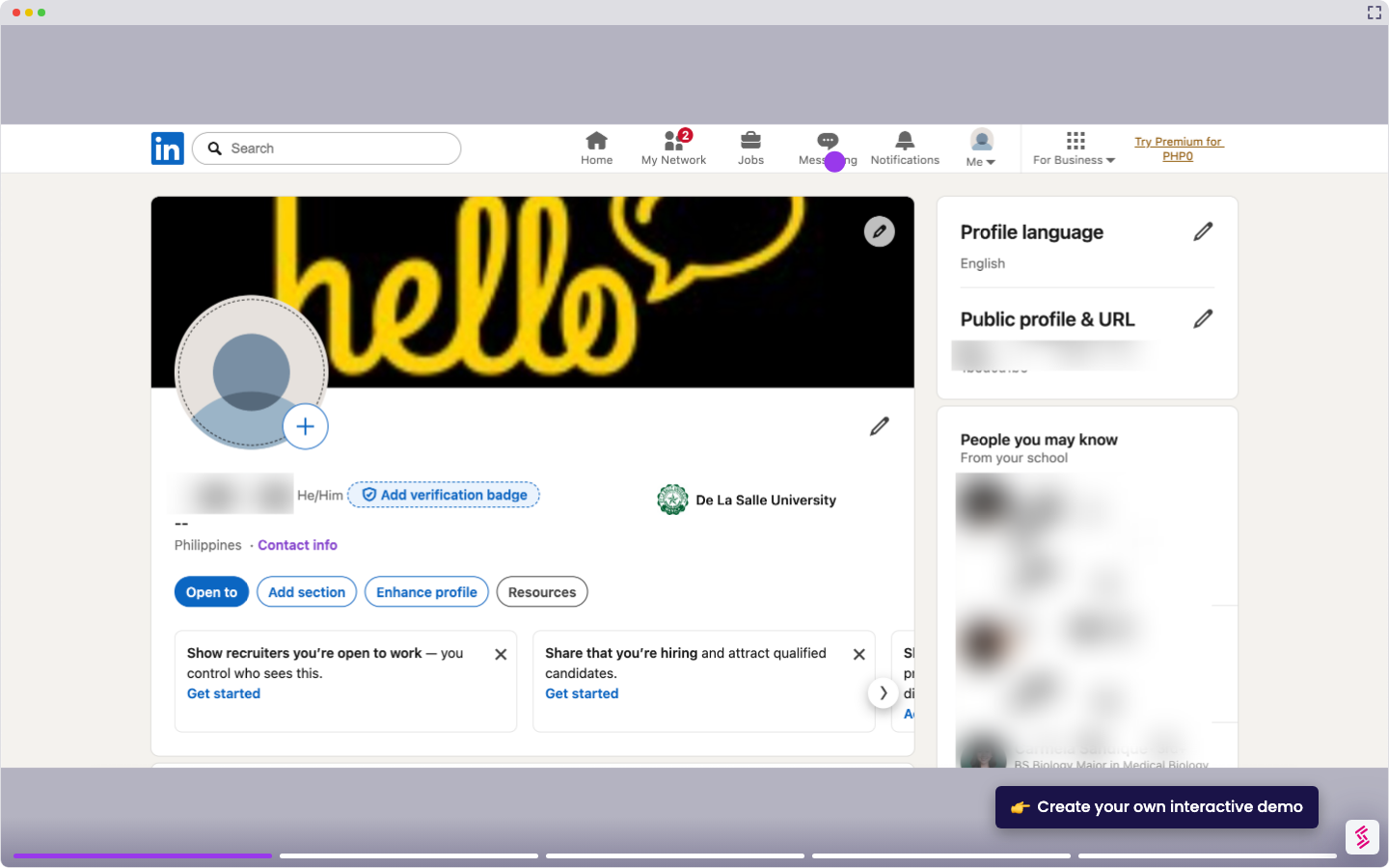
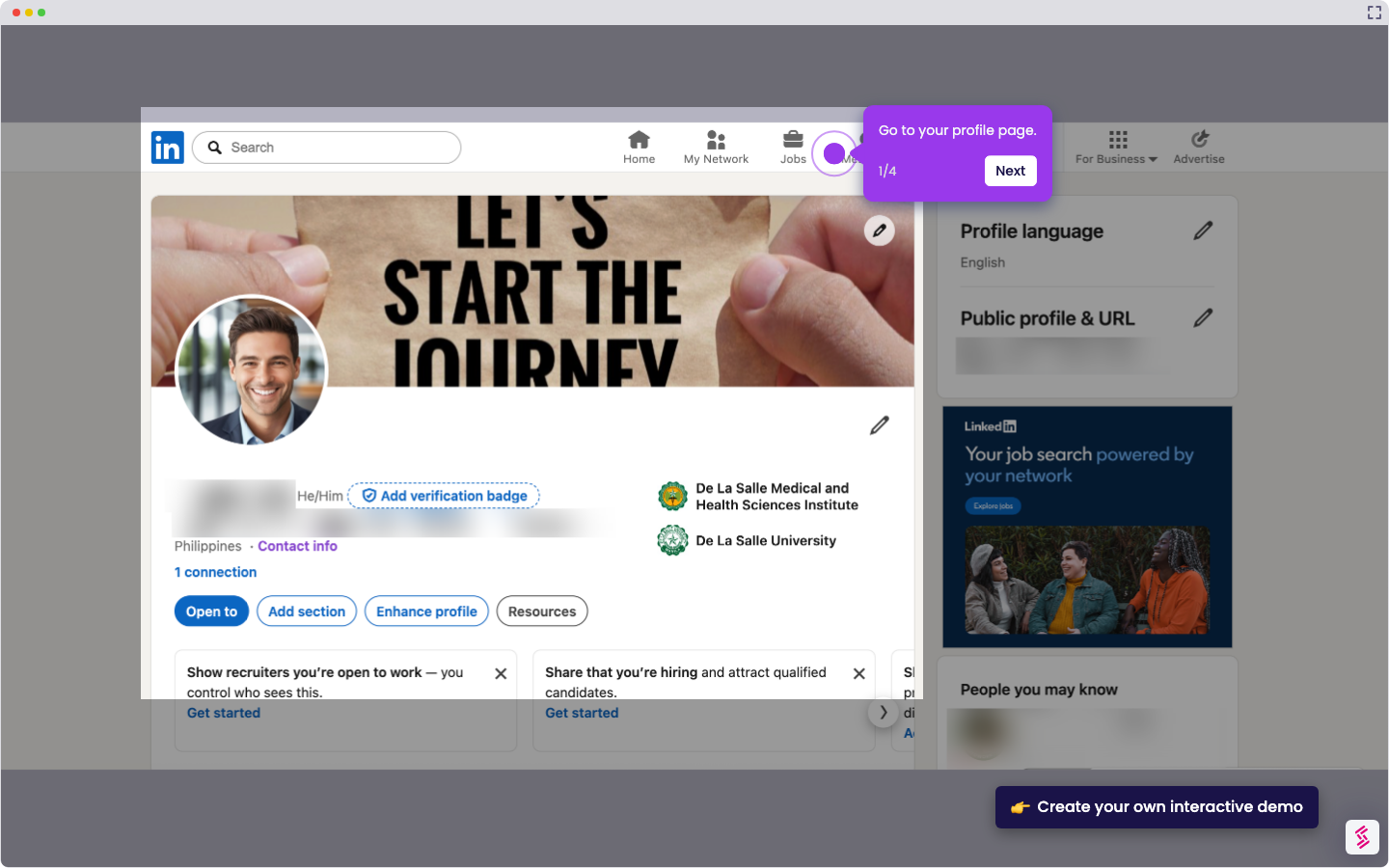
  1. Navigate to your LinkedIn profile page.
  2. Scroll down to the Featured section and click the '+' icon to add content.
  3. Select 'Add Document' from the options menu.
  4. Choose your resume file and click 'Open' to upload it.
  5. Fill in the required details for your resume and click 'Save' to attach it to your Featured section.
  6. Your resume is now visible to anyone who visits your profile.
  7. Click the 'Jobs' icon on the top navigation menu to explore job listings.
  8. Find and select a job listing, then click 'Apply' to submit your application.
  9. You'll be redirected to the employer's official site — fill in the required details and upload your resume to become visible to recruiters.
📌 Why this matters

Making your resume visible on LinkedIn is one of the most effective ways to attract recruiter attention and accelerate your job search. By uploading your resume to the Featured section, your profile becomes a one-stop destination where hiring managers can instantly access your full credentials. LinkedIn's built-in job application flow further streamlines the process, letting you apply to roles and submit your resume to employers without leaving the platform. This approach maximises your visibility to recruiters while reducing the friction of applying across multiple sites.
Your product deserves an interactive demo
Start free
Similar Articles
LinkedIn

How to Add Extracurricular Activities on LinkedIn

Madhav Bhandari
Director of Marketing @ Storylane
LinkedIn

How to Find Out who Viewed your Profile Anonymously on LinkedIn

Madhav Bhandari
Director of Marketing @ Storylane
LinkedIn

How to do an Advanced Job Search on LinkedIn

Madhav Bhandari
Director of Marketing @ Storylane
No items found.
Platform
Interactive Demos
Sandbox Demos
Hubs
RepX
Integrations
Solutions
Product Marketers
Growth & Demand Gen
Sales Reps & AEs
Presales & SEs
Customer Success
Product Managers
Customers
Demo Showcase
Customer Stories
Finer Demos Club
Features
Demo Signals
Personalization
Deal Intelligence
Resources
Blog
The Plot
Tutorials
Help Docs
What’s New
Demo Dundies
Company
Careers
Pricing
Partners
Contact
Trust Center
Backed by
Chrome Extension Icon
Chrome extension
Download
Desktop app
Download
Built in San Francisco Bay Area - ©2026 Storylane
Privacy PolicyTerms & Conditions
X Corp (formerly Twitter)LinkedIn
This website uses cookies to ensure you get the best experience on our website. Learn More
Got it
This website uses cookies to ensure you get the best experience on our website. Learn More
Got it