This interactive demo was created free with Storylane in 2 minutes. Create your own demo
Start free
All Tutorials /Smartsheet

How to Merge and Center Cells in Smartsheet

Updated on:
June 5, 2026
By:
Madhav Bhandari
Use this interactive demo to learn how to combine and center cell data in Smartsheet using a formula.

Quick summary

Smartsheet does not support traditional cell merging, but you can combine cell data using a formula in Grid View and then center-align the result for a clean, consolidated display. This step-by-step walkthrough shows exactly how to build the formula, run it, and apply center alignment in Smartsheet.


Steps

  1. In Smartsheet's Grid View, select the destination cell where you want to merge data and type an Equals (=) sign to start your formula.
  2. Select the first cell whose data you want to include in the merged result.
  3. Return to your formula bar and type a Plus (+) sign to continue building the formula.
  4. Select the second cell whose data you want to combine with the first.
  5. Review your completed formula, then press Enter or Command to run it and display the merged data.
  6. Resize the column containing the merged data by dragging its column header divider to fit the combined content.
  7. Navigate to the top menu bar and click Align Cell Content.
  8. Select Center from the alignment options to horizontally center the merged cell content.
  9. The data from your selected cells is now merged and centered in the destination cell.
📌 Why this matters

Smartsheet does not include a native merge-and-center button like traditional spreadsheet tools, which leaves many users unsure how to consolidate and format cell data cleanly. Understanding how to use a formula-based cell merge combined with center alignment in Smartsheet lets teams present unified data — such as combined name and contact fields — in a single, readable cell. This technique is especially valuable for project managers and operations teams who need polished, structured sheets without switching to a different tool. Mastering this workflow improves sheet readability and saves time spent on manual data formatting in Smartsheet.
Your product deserves an interactive demo
Start free
Similar Articles
Smartsheet

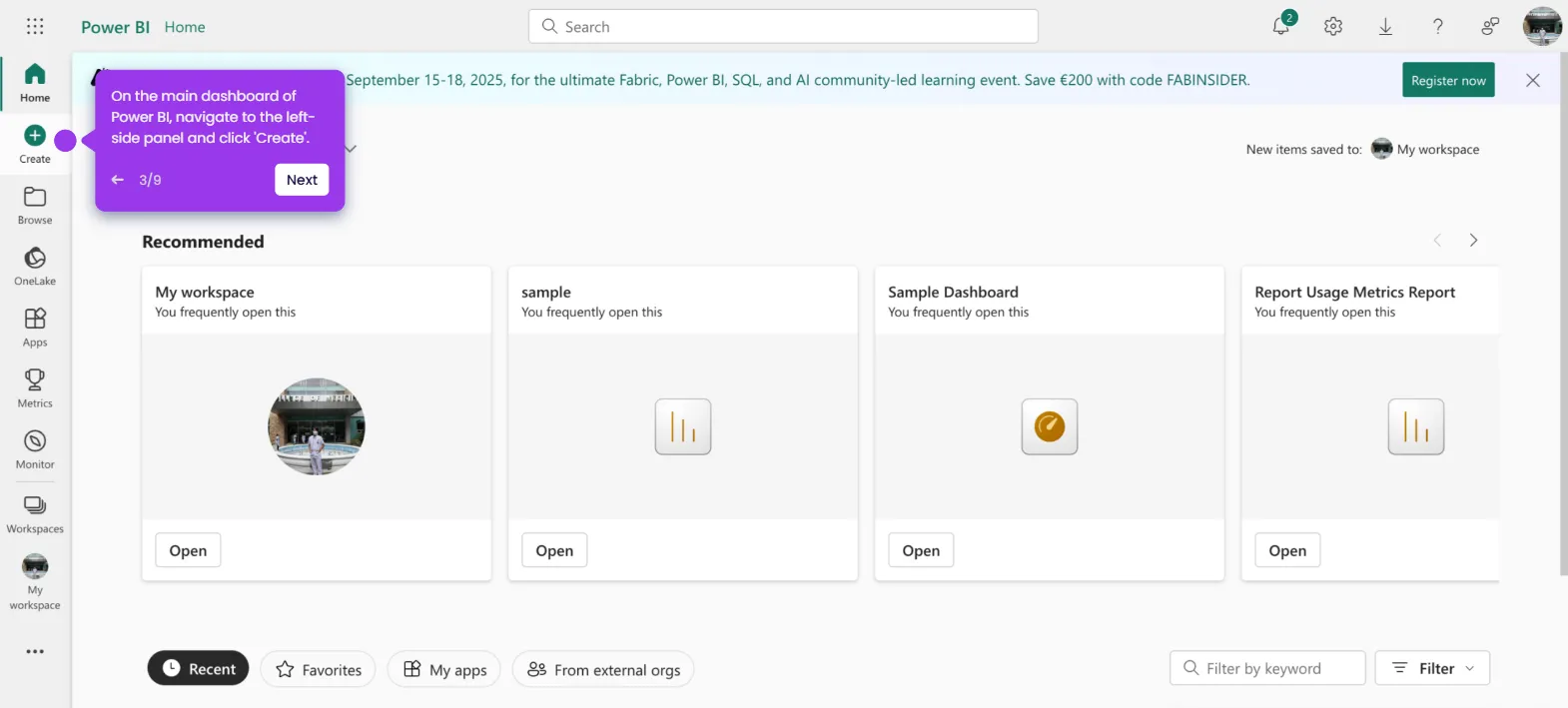
How to Connect a Smartsheet Document to Power BI

Madhav Bhandari
Director of Marketing @ Storylane
Smartsheet

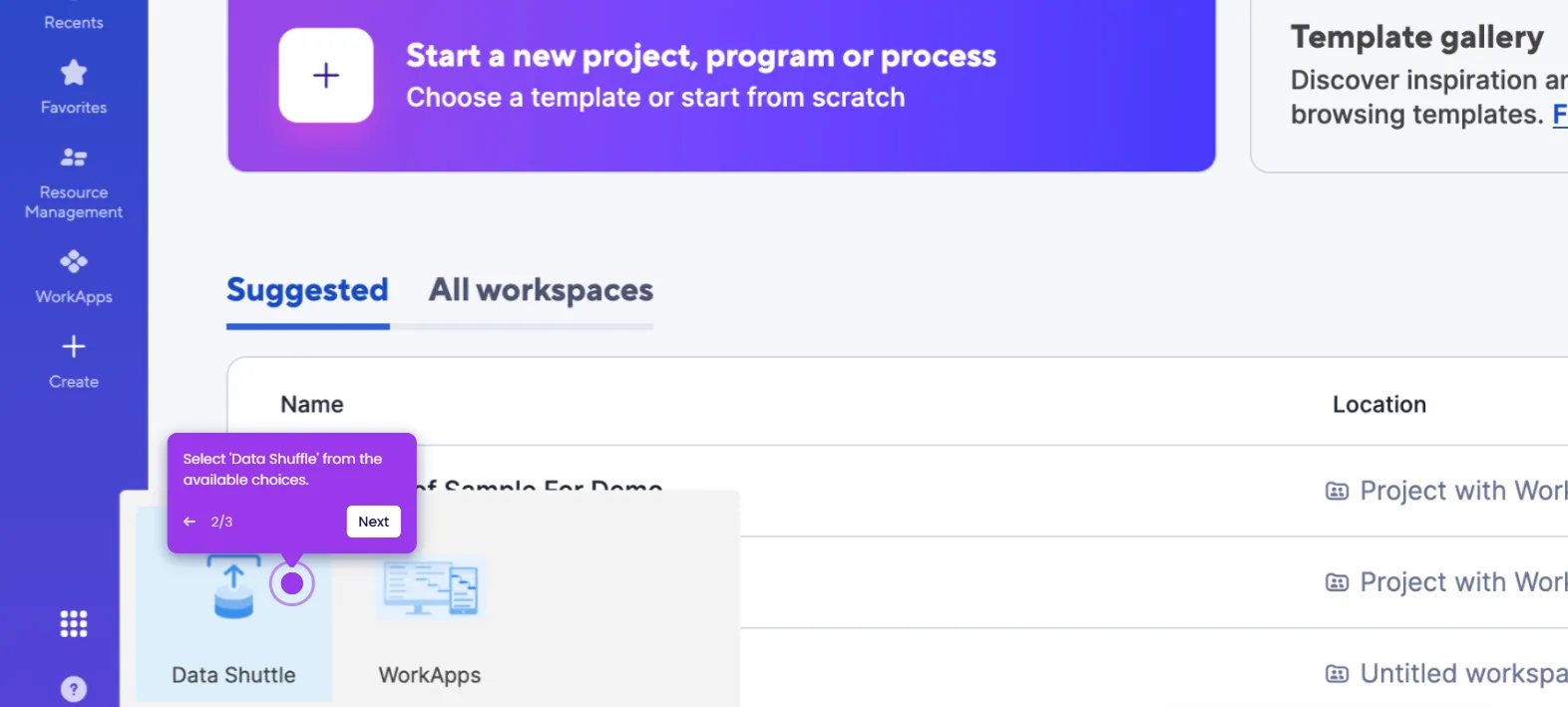
How to Use Data Shuffle in Smartsheet

Madhav Bhandari
Director of Marketing @ Storylane
Smartsheet

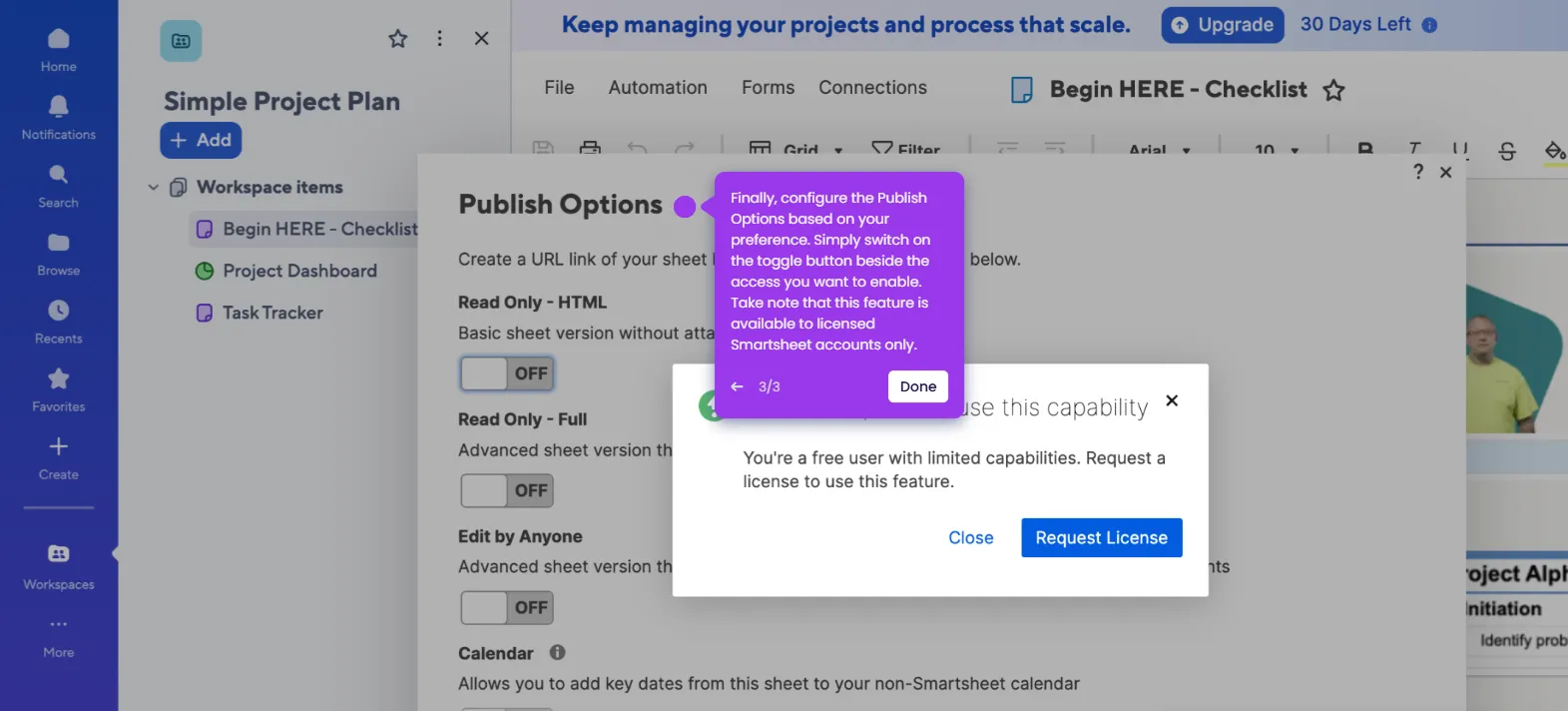
How to Publish a Smartsheet Document

Madhav Bhandari
Director of Marketing @ Storylane
No items found.
Platform
Interactive Demos
Sandbox Demos
Hubs
RepX
Integrations
Solutions
Product Marketers
Growth & Demand Gen
Sales Reps & AEs
Presales & SEs
Customer Success
Product Managers
Customers
Demo Showcase
Customer Stories
Finer Demos Club
Features
Demo Signals
Personalization
Deal Intelligence
Resources
Blog
The Plot
Tutorials
Help Docs
What’s New
Demo Dundies
Company
Careers
Pricing
Partners
Contact
Trust Center
Backed by
Chrome Extension Icon
Chrome extension
Download
Desktop app
Download
Built in San Francisco Bay Area - ©2026 Storylane
Privacy PolicyTerms & Conditions
X Corp (formerly Twitter)LinkedIn
This website uses cookies to ensure you get the best experience on our website. Learn More
Got it
This website uses cookies to ensure you get the best experience on our website. Learn More
Got it