
This interactive demo was created free with Storylane in 2 minutes. Create your own demo
Start free
All Tutorials /GoTo Meeting

How to Mute Someone in GoTo Meeting

Updated on:
June 5, 2026
By:
Madhav Bhandari
Use this interactive demo to learn how to silence a participant's microphone in GoTo Meeting.

Quick summary

This tutorial shows how to mute a participant in a live GoTo Meeting session using the People panel and per-attendee controls. Hosts can silence any attendee in seconds without disrupting the rest of the meeting.


Steps

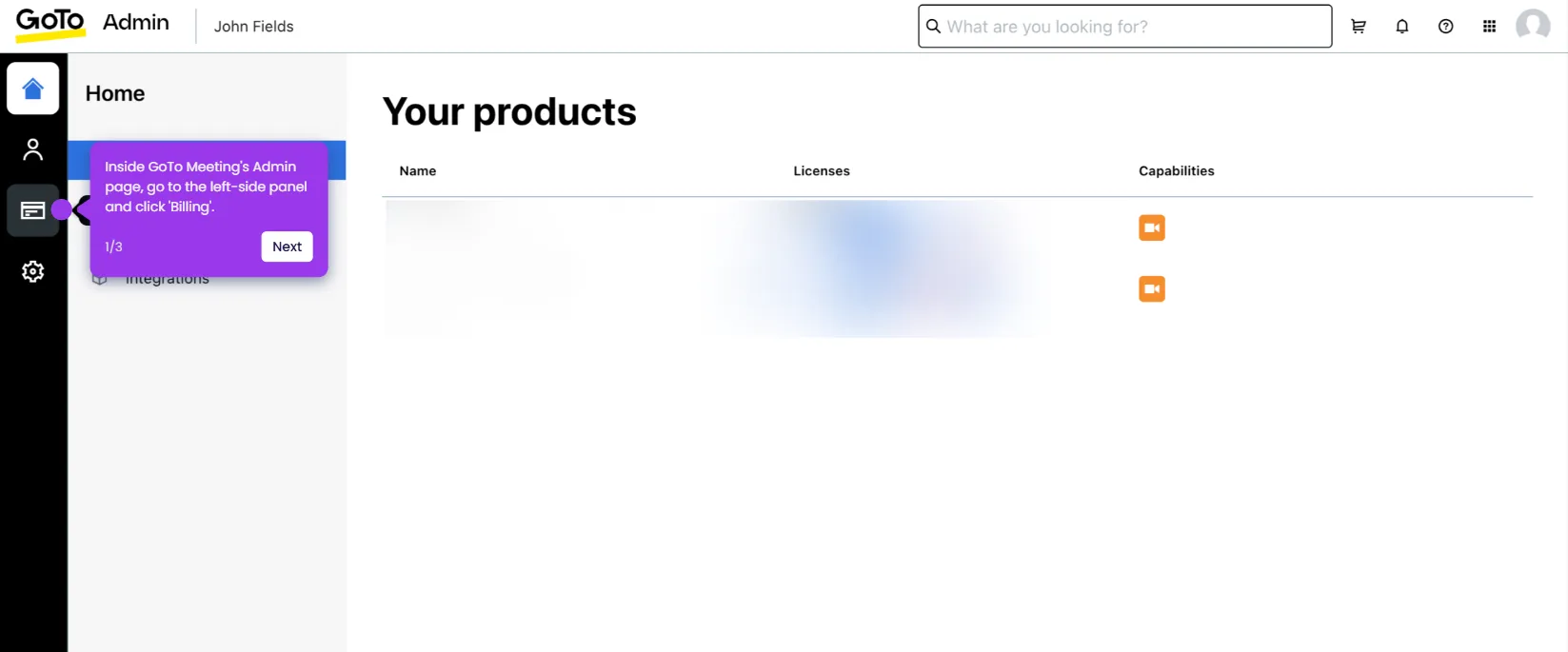
  1. From the GoTo Meeting dashboard, locate the meeting you want to host and click its Start button.
  2. Review and configure your meeting settings, then click OK, I'm Ready to launch the session.
  3. In the meeting toolbar, open the top menu bar and click People to view all participants.
  4. Find the participant you want to silence and click the More Options button next to their name.
  5. Select Mute from the dropdown list of options.
  6. The selected participant's microphone is now muted for the remainder of your GoTo Meeting session.

📌 Why this matters

Being able to mute individual participants in GoTo Meeting gives hosts precise control over audio during live video calls, reducing background noise and keeping meetings focused. This feature is essential for webinars, large team calls, and any session where unintended audio interruptions can disrupt the flow. GoTo Meeting's per-attendee mute controls let organizers manage participant audio instantly without removing anyone from the session. For businesses running frequent virtual meetings, this level of host control directly improves meeting quality and professionalism.
Your product deserves an interactive demo
Start free
Similar Articles
GoTo Meeting

How to Integrate GoTo Meeting with Salesforce

Madhav Bhandari
Director of Marketing @ Storylane
GoTo Meeting

How to Cancel the GoTo Meeting Subscription

Madhav Bhandari
Director of Marketing @ Storylane
GoTo Meeting

How to Create Breakout Rooms in GoTo Meeting

Madhav Bhandari
Director of Marketing @ Storylane
No items found.
Platform
Interactive Demos
Sandbox Demos
Hubs
RepX
Integrations
Solutions
Product Marketers
Growth & Demand Gen
Sales Reps & AEs
Presales & SEs
Customer Success
Product Managers
Customers
Demo Showcase
Customer Stories
Finer Demos Club
Features
Demo Signals
Personalization
Deal Intelligence
Resources
Blog
The Plot
Tutorials
Help Docs
What’s New
Demo Dundies
Company
Careers
Pricing
Partners
Contact
Trust Center
Backed by
Chrome Extension Icon
Chrome extension
Download
Desktop app
Download
Built in San Francisco Bay Area - ©2026 Storylane
Privacy PolicyTerms & Conditions
X Corp (formerly Twitter)LinkedIn
This website uses cookies to ensure you get the best experience on our website. Learn More
Got it
This website uses cookies to ensure you get the best experience on our website. Learn More
Got it