This interactive demo was created free with Storylane in 2 minutes. Create your own demo
Start free
All Tutorials /Framer

How to Remove Made in Framer Badge

Updated on:
June 5, 2026
By:
Madhav Bhandari
Use this interactive demo to learn how to hide the Made in Framer badge using a code override.

Quick summary

The Made in Framer badge can be removed from your published site by applying a code override that injects a CSS rule to hide it. This method uses Framer's built-in override system, requires no third-party plugins, and takes effect instantly after saving and publishing.


Steps

  1. Open your Framer project from the recent projects dashboard.
  2. Navigate to the Code Overrides tab and create a new code override.
  3. Name the override 'withCSS' so you can reuse the same file for future CSS customizations.
  4. Click 'Create' to generate the override file.
  5. Paste the CSS code into the override editor to target and hide the badge.
  6. Add the return statement to complete the component code structure.
  7. Press Ctrl + S to save your changes and apply them instantly to the canvas.
  8. Go to the Override option in the right panel to assign the override to your canvas element.
  9. Select your primary canvas and apply the code override to it.
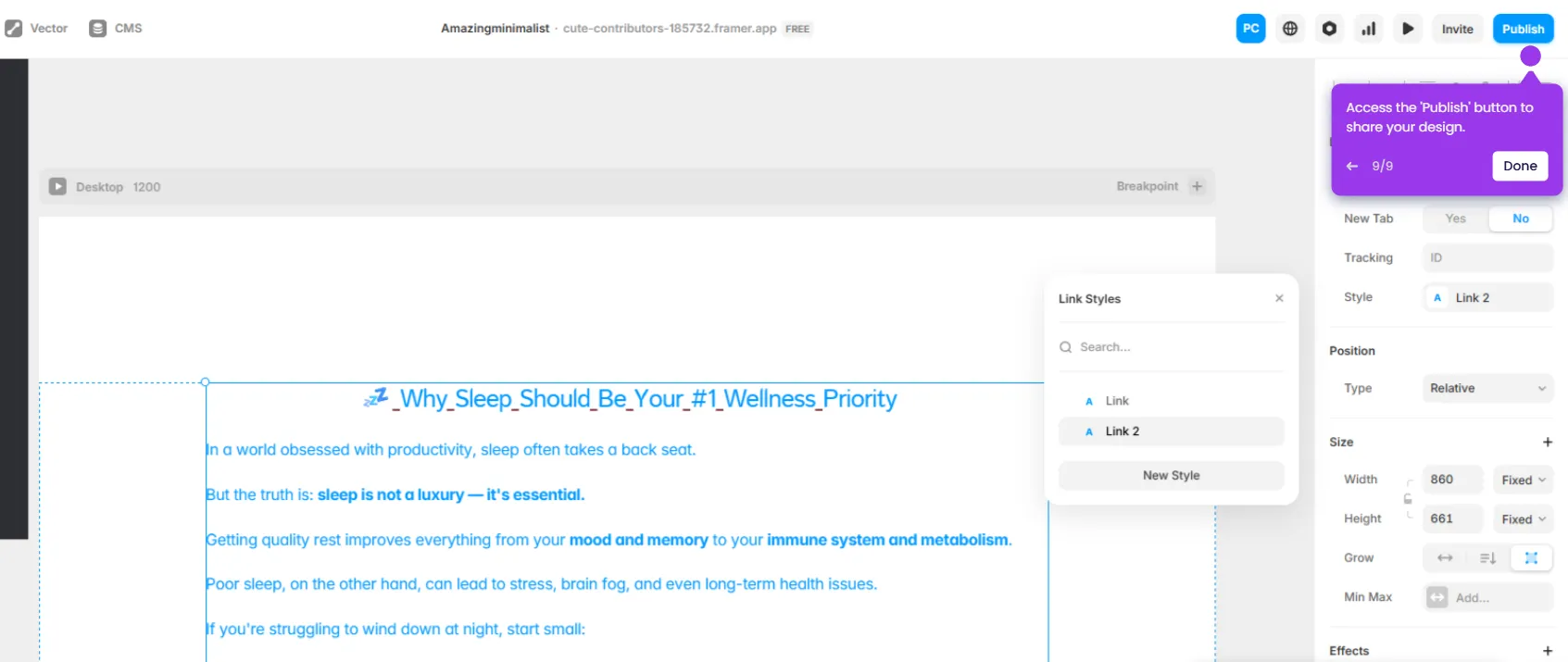
  10. Click 'Publish' to push the changes live and remove the badge from your site.
📌 Why this matters

The 'Made in Framer' badge appears by default on all free and some paid Framer sites, which can undermine brand credibility and professional presentation. Removing it via a code override — rather than upgrading to a higher-tier plan — gives designers and developers full control over their site's branding without additional cost. This CSS-based technique is reusable, non-destructive, and works entirely within Framer's native override system. For agencies and freelancers delivering client sites on Framer, hiding the badge is a critical step in delivering a polished, white-label web experience.
Your product deserves an interactive demo
Start free
Similar Articles
Framer

How to Add Adobe Fonts to Framer

Madhav Bhandari
Director of Marketing @ Storylane
Framer

Framer CRM Integration

Madhav Bhandari
Director of Marketing @ Storylane
Framer

How to Link to Section in Framer

Madhav Bhandari
Director of Marketing @ Storylane
No items found.
Platform
Interactive Demos
Sandbox Demos
Hubs
RepX
Integrations
Solutions
Product Marketers
Growth & Demand Gen
Sales Reps & AEs
Presales & SEs
Customer Success
Product Managers
Customers
Demo Showcase
Customer Stories
Finer Demos Club
Features
Demo Signals
Personalization
Deal Intelligence
Resources
Blog
The Plot
Tutorials
Help Docs
What’s New
Demo Dundies
Company
Careers
Pricing
Partners
Contact
Trust Center
Backed by
Chrome Extension Icon
Chrome extension
Download
Desktop app
Download
Built in San Francisco Bay Area - ©2026 Storylane
Privacy PolicyTerms & Conditions
X Corp (formerly Twitter)LinkedIn
This website uses cookies to ensure you get the best experience on our website. Learn More
Got it
This website uses cookies to ensure you get the best experience on our website. Learn More
Got it