This interactive demo was created free with Storylane in 2 minutes. Create your own demo
Start free
All Tutorials /LinkedIn

How to Resize an Image for LinkedIn

Updated on:
June 9, 2026
By:
Akash Bansal
Use this interactive demo to learn how to crop and resize photos directly on LinkedIn.

Quick summary

LinkedIn lets you resize and crop images directly within the post creation flow, so your photos match the correct aspect ratio for profile photos, banners, and feed posts without needing a third-party tool. Using the built-in photo editor, you can select preset crop sizes like Square (1:1) or Wide Rectangle (4:1) before publishing.


Steps

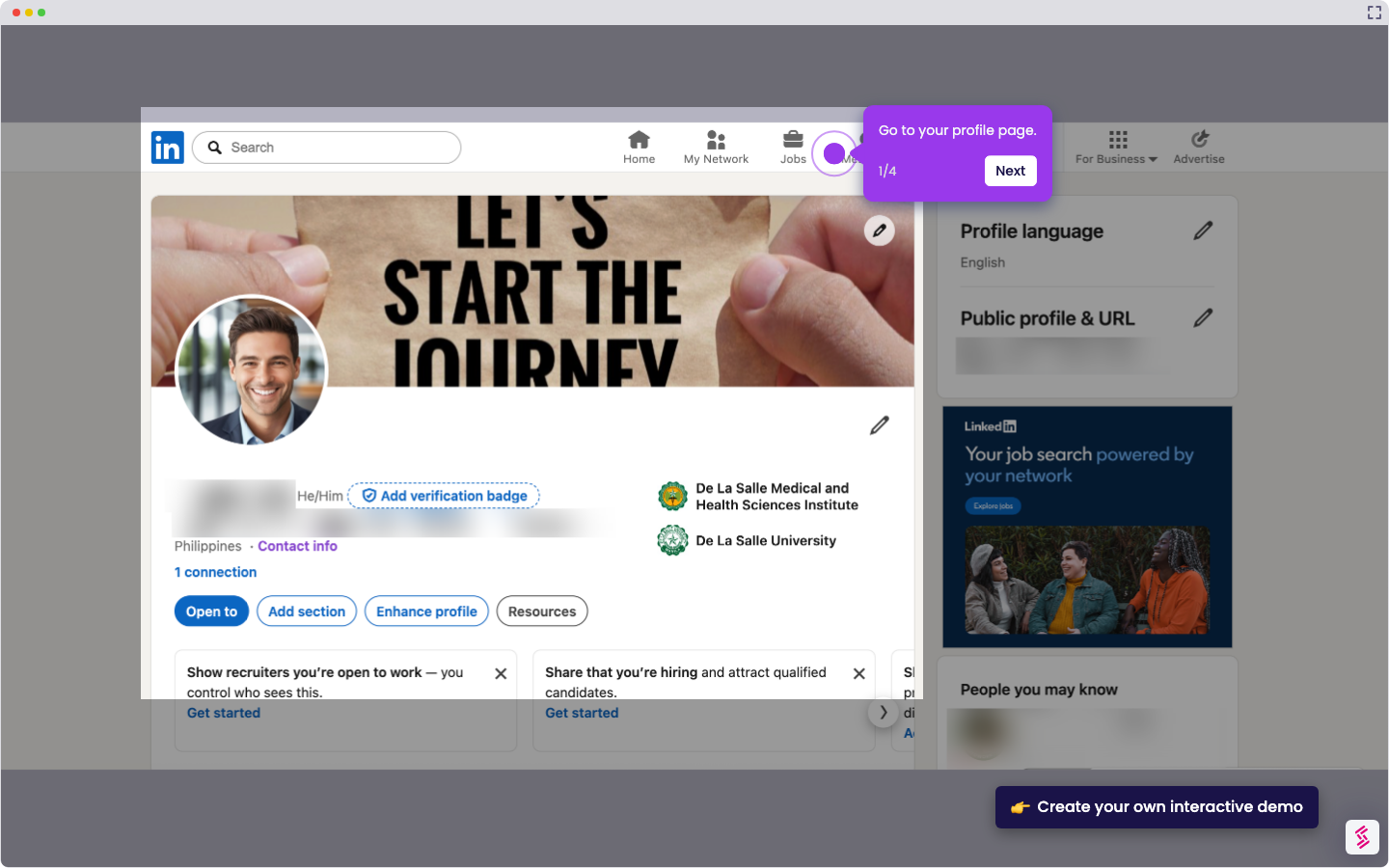
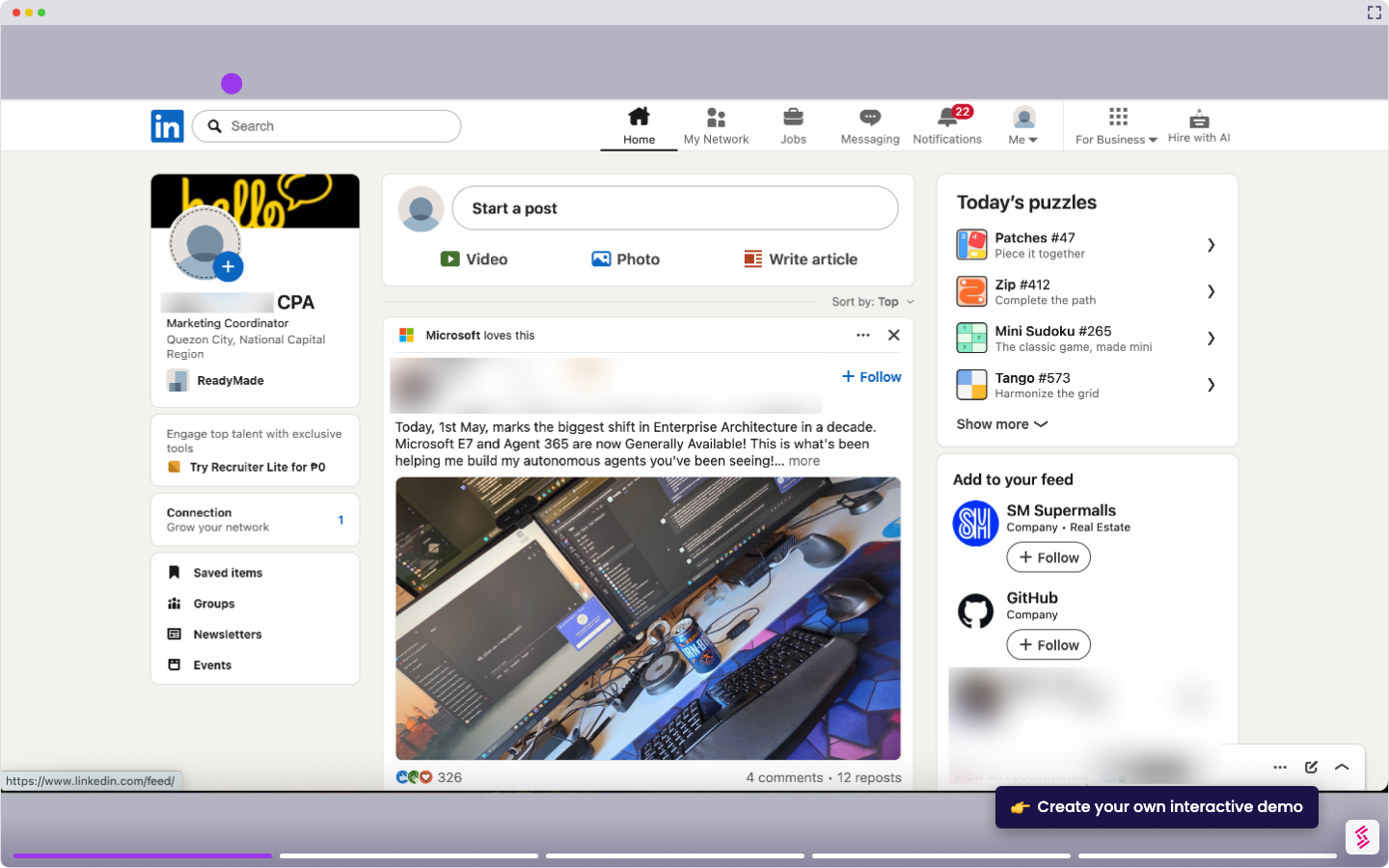
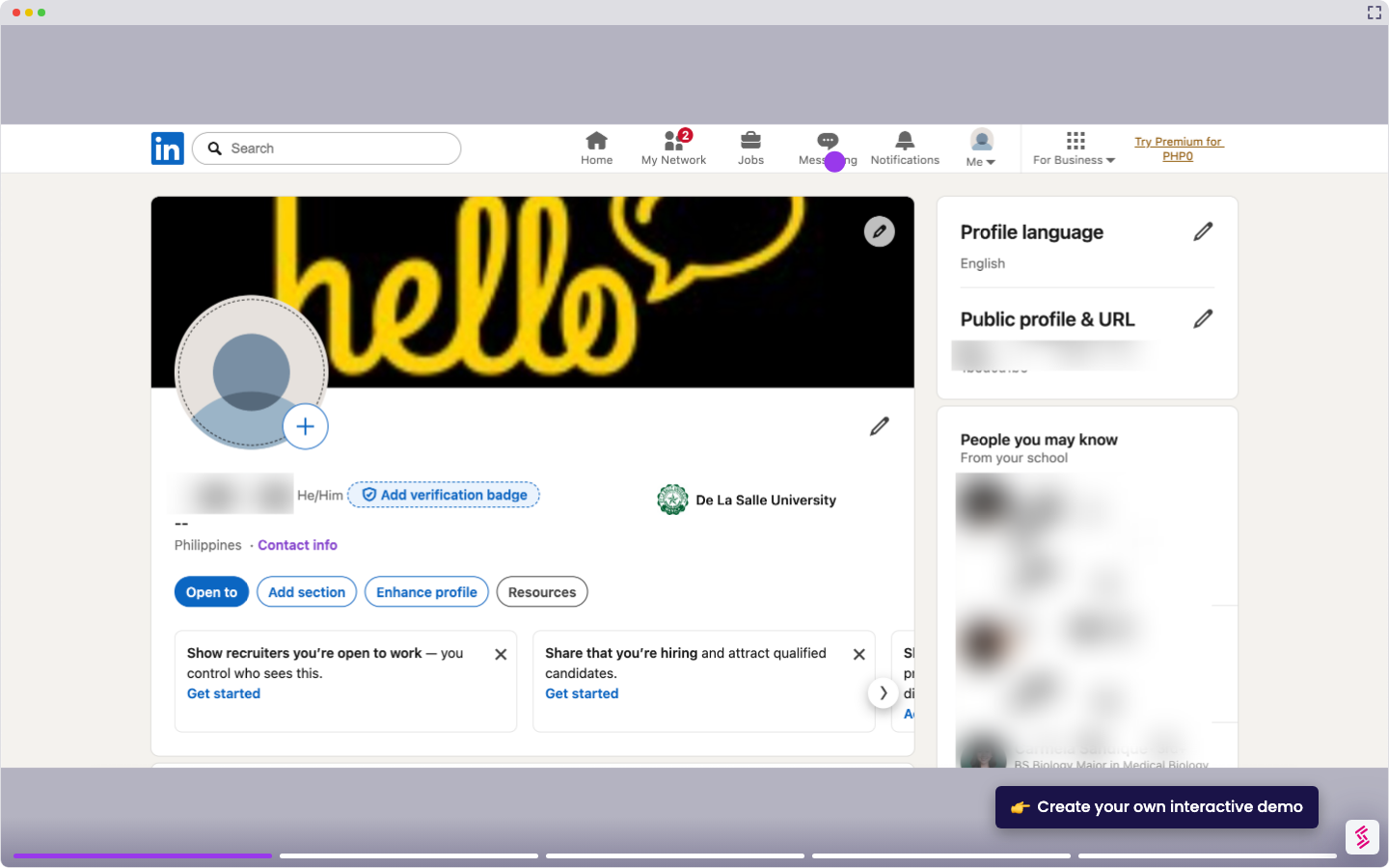
  1. Go to the post creation box on your dashboard and select 'Photo'.
  2. Select your photo to upload and click 'Open'.
  3. Click the 'pencil' icon below the photo you uploaded to open the editor.
  4. Resize your image using the 'crop' feature.
  5. Select 'Square (1:1 ratio)', which is the recommended size for a profile photo.
  6. Choose 'Wide rectangle (4:1 ratio)' as the recommended size for your banner or background photo.
  7. You can also select other crop sizes for different content types.
  8. Once done, click 'Apply' to confirm your crop selection.
  9. Review your work and click 'Post' to publish it.
  10. Your image has been successfully resized for a post.
📌 Why this matters

Posting images on LinkedIn with the wrong dimensions can hurt your professional appearance and reduce engagement. LinkedIn's built-in image resizing and crop tool lets users set the correct aspect ratio — Square (1:1) for profile photos and Wide Rectangle (4:1) for banners — without leaving the platform. This ensures every image looks polished and meets LinkedIn's recommended specifications. Getting image sizing right directly impacts how your profile and posts are perceived by recruiters, clients, and connections.
Your product deserves an interactive demo
Start free
Similar Articles
LinkedIn

How to Add Extracurricular Activities on LinkedIn

Madhav Bhandari
Director of Marketing @ Storylane
LinkedIn

How to Find Out who Viewed your Profile Anonymously on LinkedIn

Madhav Bhandari
Director of Marketing @ Storylane
LinkedIn

How to do an Advanced Job Search on LinkedIn

Madhav Bhandari
Director of Marketing @ Storylane
No items found.
Platform
Interactive Demos
Sandbox Demos
Hubs
RepX
Integrations
Solutions
Product Marketers
Growth & Demand Gen
Sales Reps & AEs
Presales & SEs
Customer Success
Product Managers
Customers
Demo Showcase
Customer Stories
Finer Demos Club
Features
Demo Signals
Personalization
Deal Intelligence
Resources
Blog
The Plot
Tutorials
Help Docs
What’s New
Demo Dundies
Company
Careers
Pricing
Partners
Contact
Trust Center
Backed by
Chrome Extension Icon
Chrome extension
Download
Desktop app
Download
Built in San Francisco Bay Area - ©2026 Storylane
Privacy PolicyTerms & Conditions
X Corp (formerly Twitter)LinkedIn
This website uses cookies to ensure you get the best experience on our website. Learn More
Got it
This website uses cookies to ensure you get the best experience on our website. Learn More
Got it