This interactive demo was created free with Storylane in 2 minutes. Create your own demo
Start free
All Tutorials /MS Project

How to Save Microsoft Project as PDF

Updated on:
June 5, 2026
By:
Madhav Bhandari
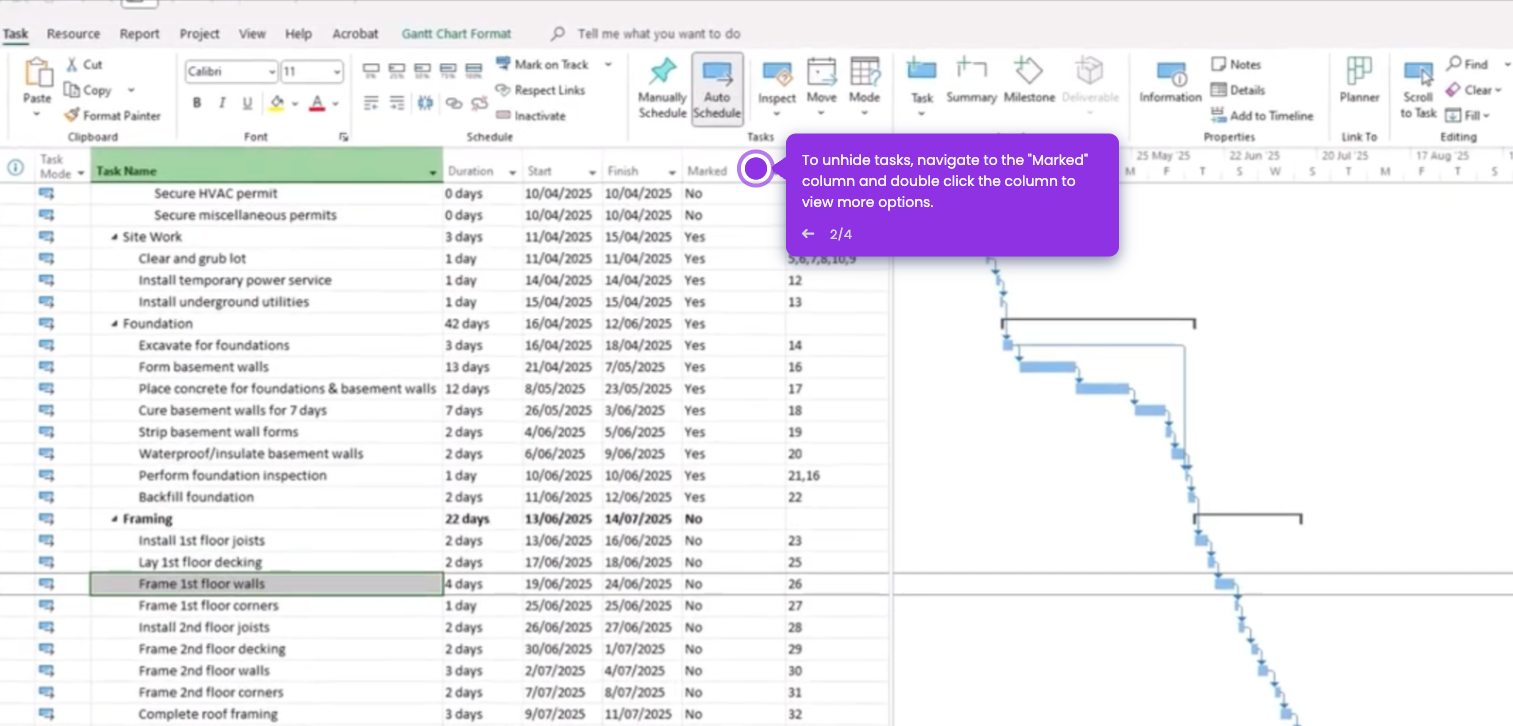
Use this interactive demo to learn how to export your Microsoft Project plan as a PDF file.

Quick summary

Saving a Microsoft Project file as a PDF lets you share a read-only, universally viewable version of your project plan without requiring recipients to have Project installed. The process takes under a minute using the built-in Export option in the File menu.


Steps

  1. Click the File tab in the top-left corner of Microsoft Project to open the backstage view where all saving and export options are located.
  2. From the left-side menu, select the Export option to access all available output formats.
  3. Click Create PDF/XPS Document to convert your project plan into a portable document format.
  4. In the dialog box that appears, choose a save location, enter a meaningful file name, and click OK to save.
  5. Adjust any PDF options such as page range or optimization settings, then click Publish to finalize your PDF.

📌 Why this matters

Saving a Microsoft Project file as a PDF solves a common collaboration challenge: stakeholders and clients rarely have Microsoft Project installed, making native .mpp files inaccessible to most of the team. Exporting to PDF preserves the Gantt chart layout, timelines, and task details in a format that anyone can open on any device. This workflow eliminates the need for third-party conversion tools and keeps project communication fast and professional. For project managers who regularly share status updates, mastering the built-in PDF export in Microsoft Project is an essential productivity skill.
Your product deserves an interactive demo
Start free
Similar Articles
MS Project

How to Wrap Text in Microsoft Project

Madhav Bhandari
Director of Marketing @ Storylane
MS Project

How to Update Microsoft Project Schedule

Madhav Bhandari
Director of Marketing @ Storylane
MS Project

How to Unhide Rows in Microsoft Project

Madhav Bhandari
Director of Marketing @ Storylane
No items found.
Platform
Interactive Demos
Sandbox Demos
Hubs
RepX
Integrations
Solutions
Product Marketers
Growth & Demand Gen
Sales Reps & AEs
Presales & SEs
Customer Success
Product Managers
Customers
Demo Showcase
Customer Stories
Finer Demos Club
Features
Demo Signals
Personalization
Deal Intelligence
Resources
Blog
The Plot
Tutorials
Help Docs
What’s New
Demo Dundies
Company
Careers
Pricing
Partners
Contact
Trust Center
Backed by
Chrome Extension Icon
Chrome extension
Download
Desktop app
Download
Built in San Francisco Bay Area - ©2026 Storylane
Privacy PolicyTerms & Conditions
X Corp (formerly Twitter)LinkedIn
This website uses cookies to ensure you get the best experience on our website. Learn More
Got it
This website uses cookies to ensure you get the best experience on our website. Learn More
Got it