This interactive demo was created free with Storylane in 2 minutes. Create your own demo
Start free
All Tutorials /Google Slides

How to Select Multiple Images in Google Slides

Updated on:
June 9, 2026
By:
Madhav Bhandari
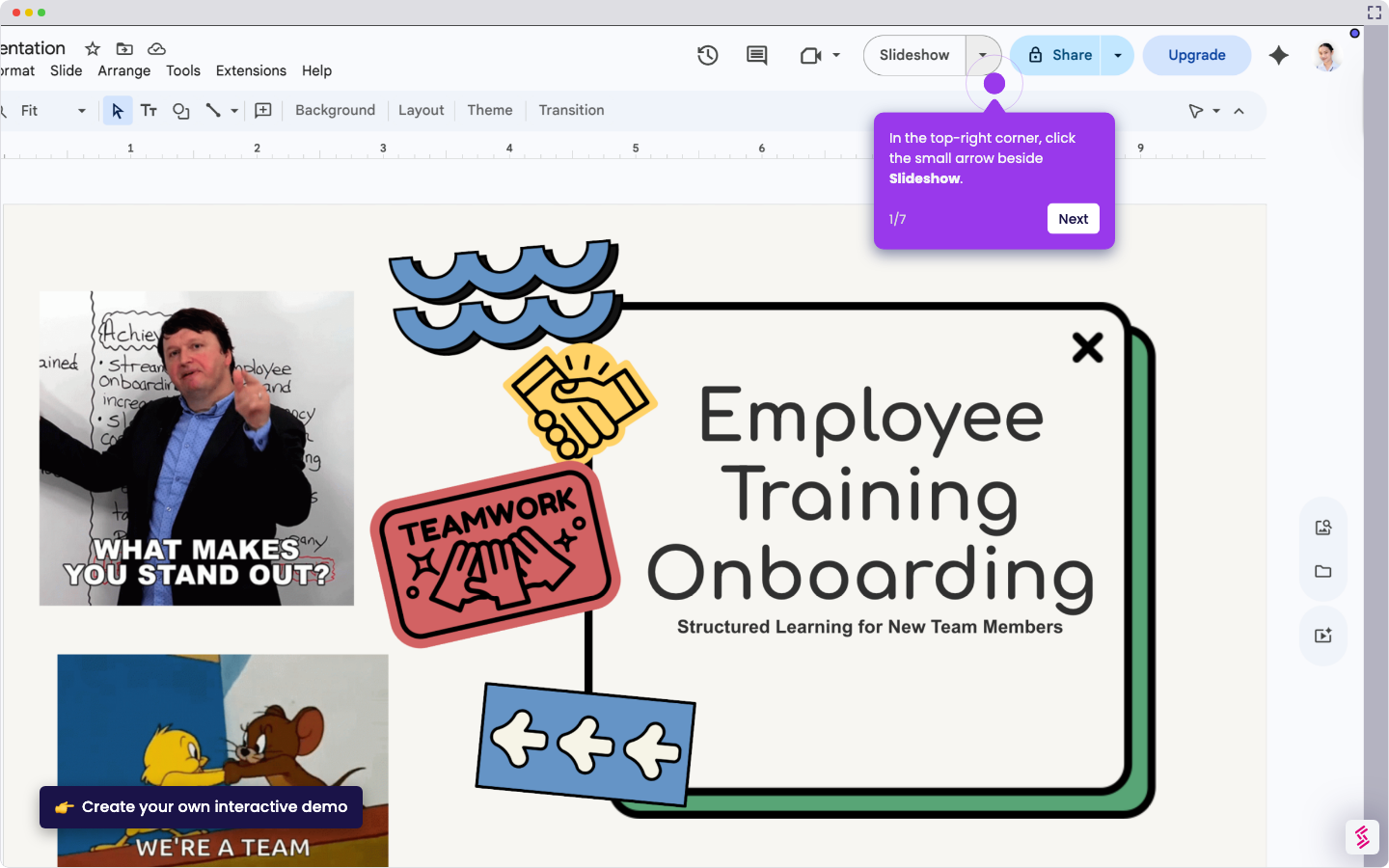
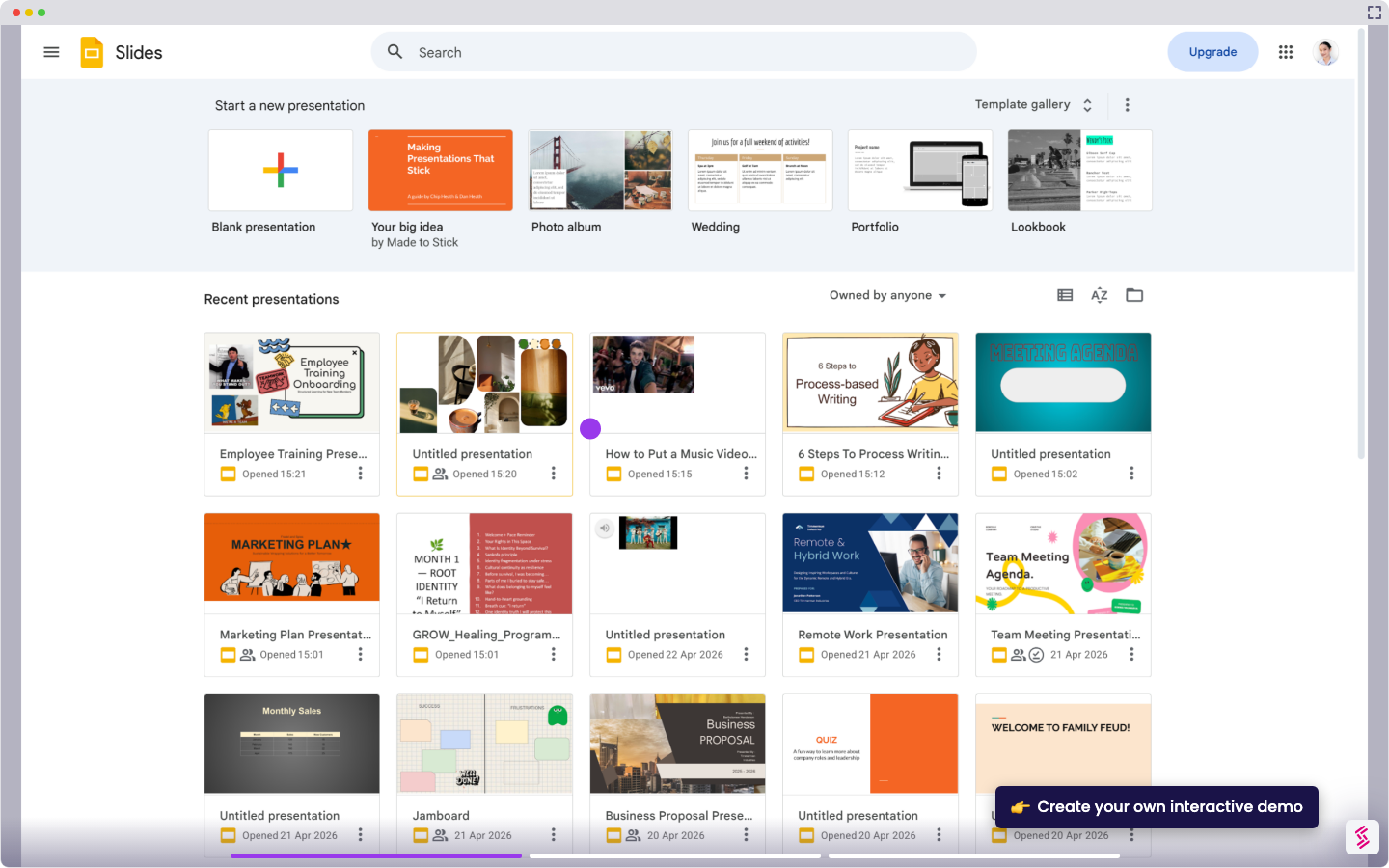
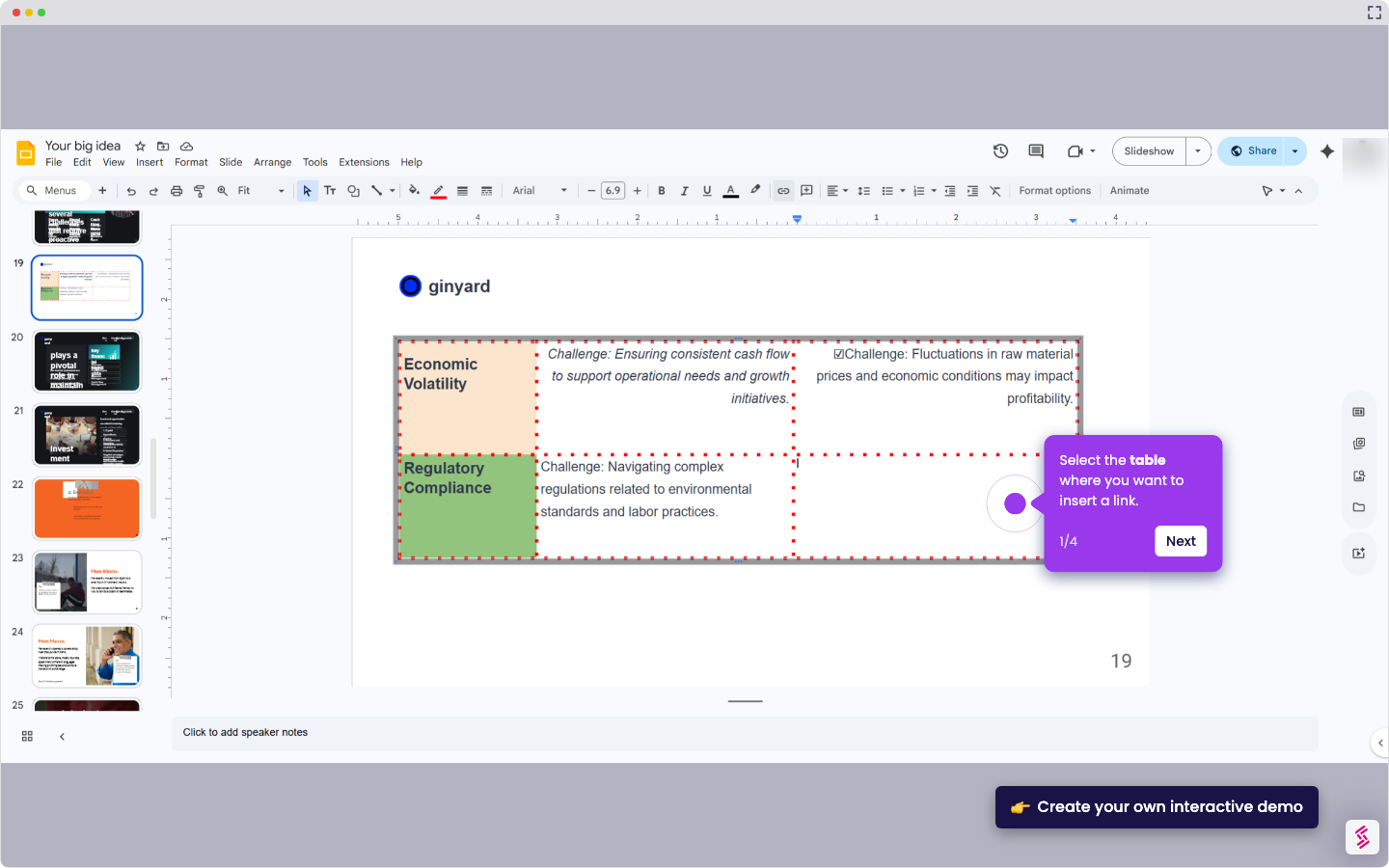
Try this interactive demo to learn how to select multiple images in Google Slides.
  1. Click on the first image you want to select. This becomes your starting point for multi-selection.
  2. Hold down the Shift key and click on another image. All images between them are now selected.
  3. Want to pick specific images? Hold Ctrl (or Cmd on Mac) and click each image you need. Total control.
  4. Once selected, you can move, resize, or format them all at once. Saves tons of time when building your deck.

📌 Why this matters

Batch editing images transforms scattered visual elements into cohesive design systems. When you're aligning logos across slides, standardizing photo sizes, or applying consistent borders to charts, selecting multiple images lets you maintain visual consistency with a few clicks instead of tedious one-by-one adjustments. This becomes especially powerful when collaborating—you can quickly unify formatting across slides created by different team members, ensuring your presentation looks professionally coordinated rather than like a patchwork of individual contributions.

Your product deserves an interactive demo
Start free
Similar Articles
Google Slides

How to Use Google Slides Presenter View

Madhav Bhandari
Director of Marketing @ Storylane
Google Slides

How to See Google Slides History

Madhav Bhandari
Director of Marketing @ Storylane
Google Slides

How to Link Table in Google Slides

Madhav Bhandari
Director of Marketing @ Storylane
No items found.
Platform
Interactive Demos
Sandbox Demos
Hubs
RepX
Integrations
Solutions
Product Marketers
Growth & Demand Gen
Sales Reps & AEs
Presales & SEs
Customer Success
Product Managers
Customers
Demo Showcase
Customer Stories
Finer Demos Club
Features
Demo Signals
Personalization
Deal Intelligence
Resources
Blog
The Plot
Tutorials
Help Docs
What’s New
Demo Dundies
Company
Careers
Pricing
Partners
Contact
Trust Center
Backed by
Chrome Extension Icon
Chrome extension
Download
Desktop app
Download
Built in San Francisco Bay Area - ©2026 Storylane
Privacy PolicyTerms & Conditions
X Corp (formerly Twitter)LinkedIn
This website uses cookies to ensure you get the best experience on our website. Learn More
Got it
This website uses cookies to ensure you get the best experience on our website. Learn More
Got it