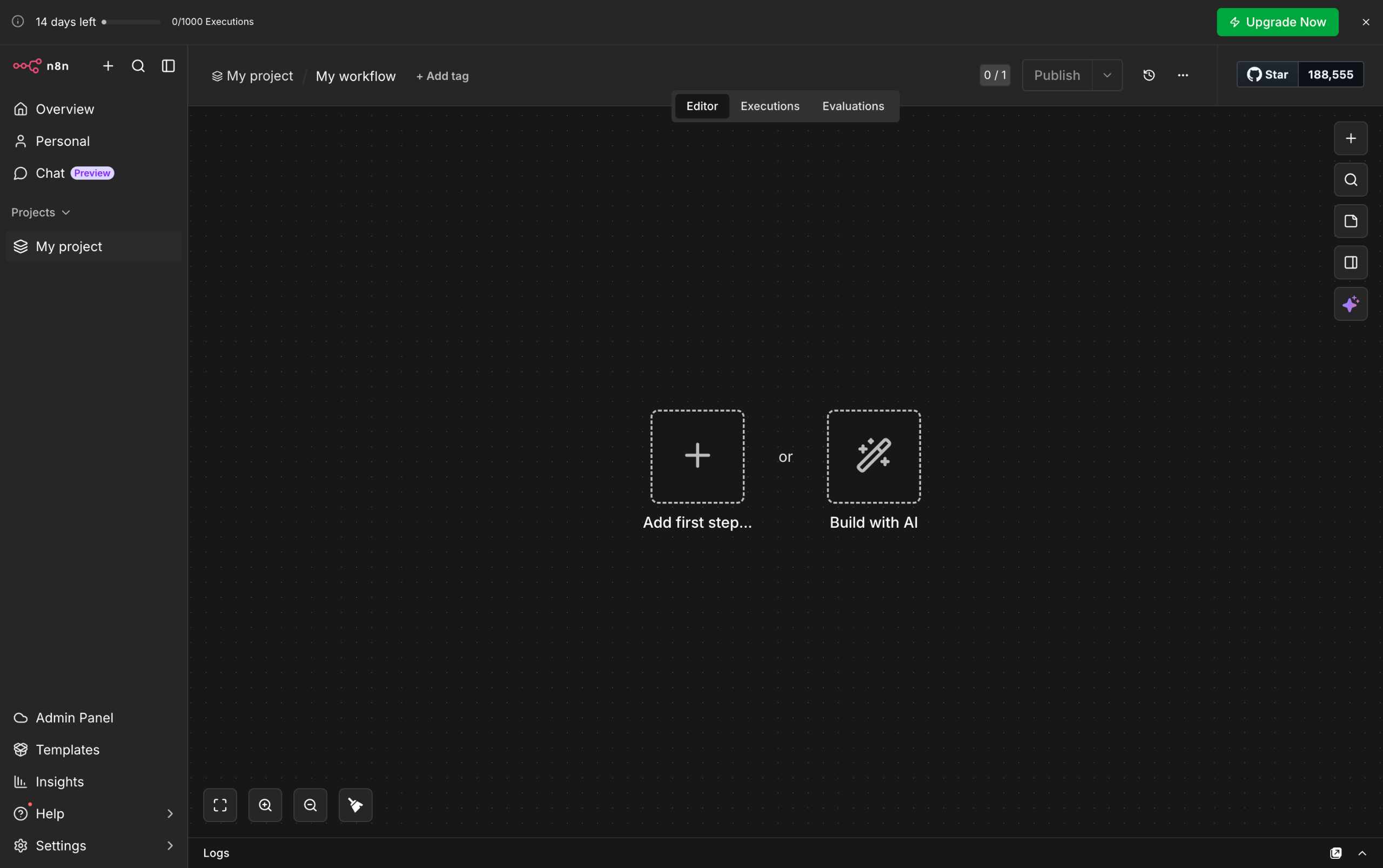
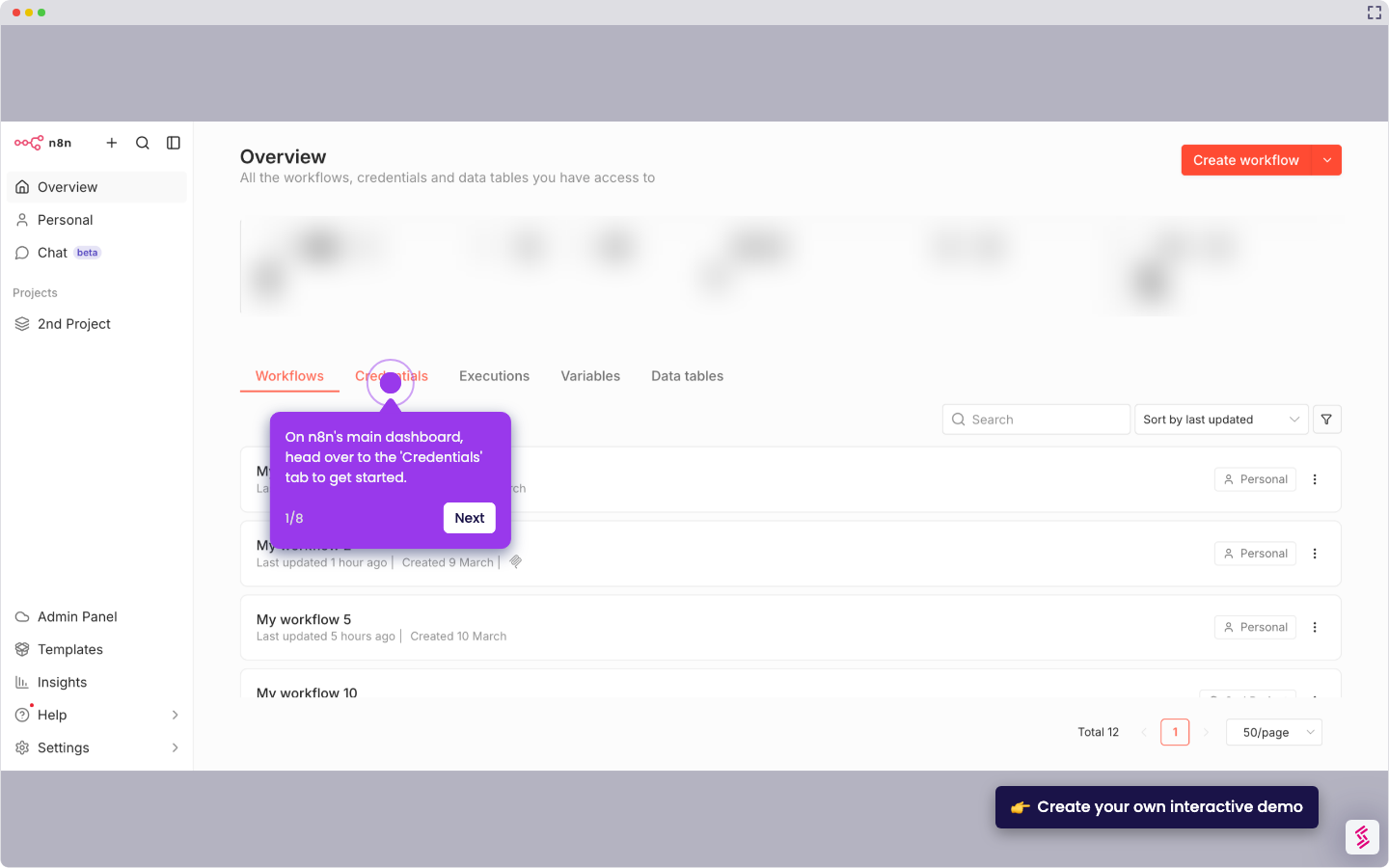
- Inside your n8n workflow, click the 'Add' button to create a new step.
- Following that, go to the right-hand panel and click 'Human Review'.
- Browse the list of apps, then choose 'WhatsApp Business Cloud'.
- Now, it's time to set up the selected node. To get started, click the 'Credentials' menu and choose the WhatsApp account you wish to use.
- As for the Resource and Operation, make sure that the default configurations are set to 'Message' and 'Send and Wait for Response'.
- Following that, click the 'Sender Phone Number' menu and choose the phone number you wish to use.
- Head over to the next input field, then enter the phone number of the intended recipient.
- Prepare your message afterwards and then type it into the provided input field.
- Following that, choose the type of response you want to receive and configure the corresponding settings based on your preference.
- If you wish to personalize the node further, click 'Add Option' and make your desired configurations.
- Finally, click 'Execute Step' to activate this node in your n8n workflow and send the WhatsApp message, and wait for the corresponding response.
How to Send a Message and Wait for a Response in WhatsApp in n8n
Use this step-by-step demo to learn how to send a message and wait for a response in WhatsApp in n8n.
Your product deserves an interactive demo