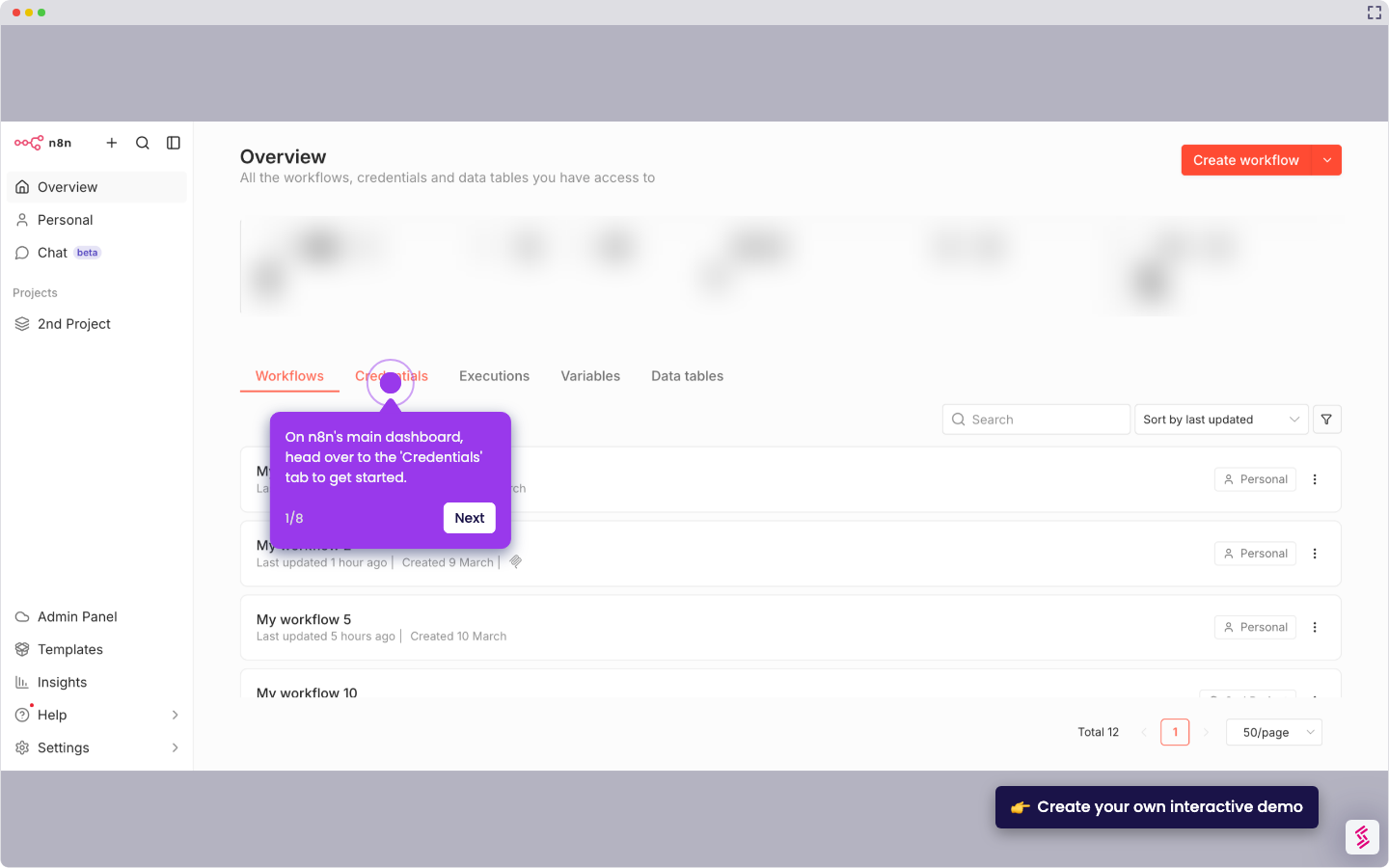
This interactive demo was created free with Storylane in 2 minutes. Create your own demo
Start free
All Tutorials /n8n

How to Send a Message in Slack in n8n

Updated on:
June 5, 2026
By:
Madhav Bhandari
Use this interactive demo to learn how to send a message in Slack within the n8n workflow automation tool.

‍

‍

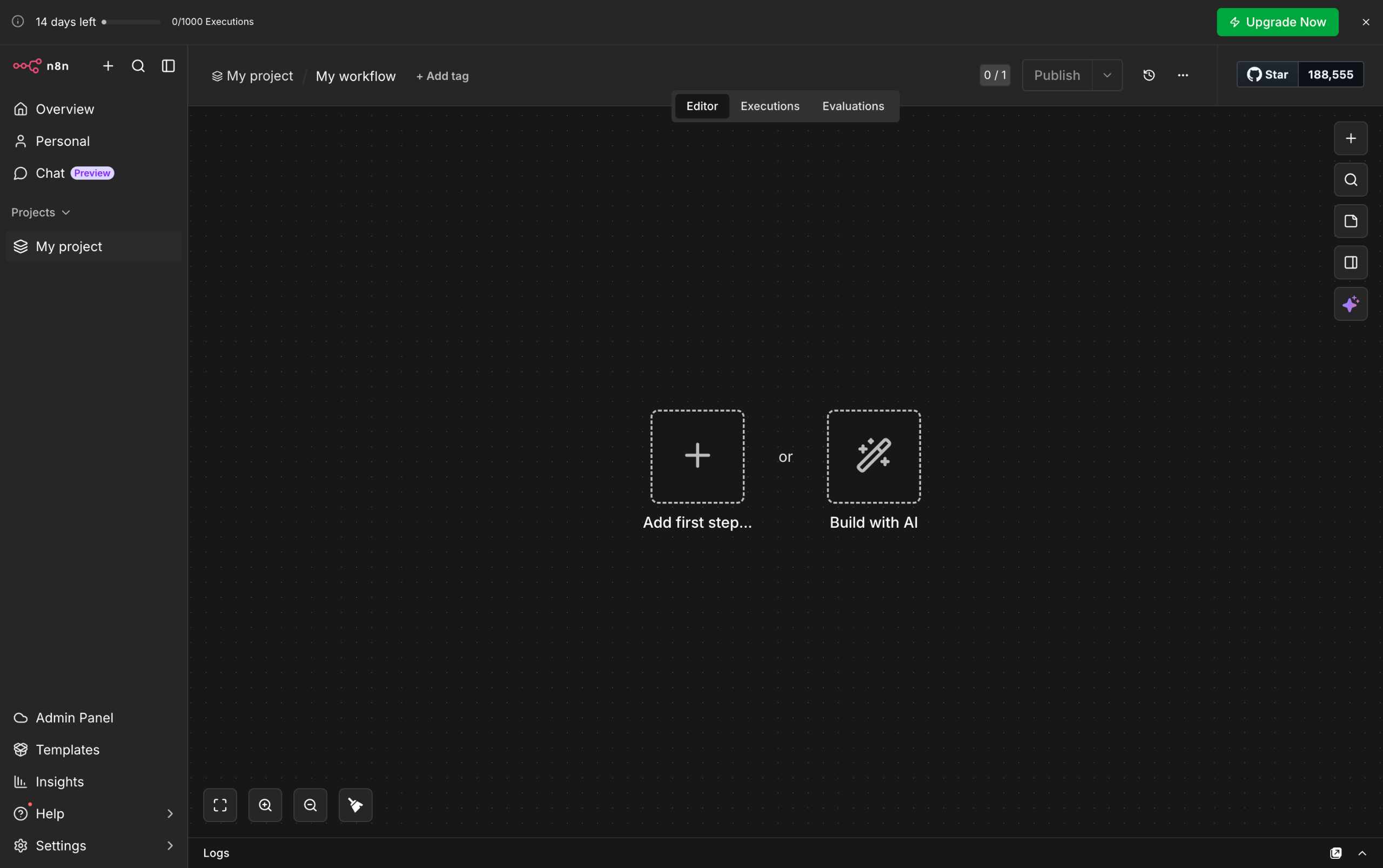
It is very easy to send a message in Slack in n8n. Here’s a short tutorial on how to do it in simple steps:

‍

  1. Inside your n8n workflow, click the 'Add' button to create a new step.
  2. Choose 'Action in an App' to proceed.
  3. Following that, tap the search bar and type 'Slack'.
  4. Subsequently, select 'Slack' from the suggested results.
  5. Under the Message Actions section, find and select 'Send a Message'.
  6. Now, it's time to configure the selected node. To get started, tap the 'Credential' menu and choose the Slack account you want to use.
  7. As for the Resource and Operation, make sure that 'Message' and 'Send' are selected respectively.
  8. Click the 'Send Message To' menu to specify the type of intended recipient. You can set it to 'User' or 'Channel' according to your liking.
  9. Following that, tap the 'Channel' or 'User' menu and select the recipient of the message.
  10. Subsequently, select the type of message you want to send.
  11. Prepare your message, then type it into the 'Message Text' input field.
  12. Once done, click 'Execute Step' to proceed.
  13. Finally, your Slack message will be sent using your n8n workflow.
📌 Why this matters

Sending Slack messages through workflows transforms isolated notifications into intelligent, context-aware communications. You can automatically alert team members when specific conditions are met, share processed data results, or trigger conversations based on external events.

This creates a feedback loop between your automated processes and human decision-making. Instead of checking multiple systems separately, your team receives relevant information exactly when they need it, keeping everyone synchronized with your workflow's progress and outcomes without manual intervention.

Your product deserves an interactive demo
Start free
Similar Articles
How to Integrate Notion with n8n WorkflowsHow to Integrate Notion with n8n Workflows
n8n

How to Integrate Notion with n8n

Madhav Bhandari
Director of Marketing @ Storylane
n8n

How to Integrate Jira with n8n

Madhav Bhandari
Director of Marketing @ Storylane
n8n

How to Connect a WhatsApp OAuth Account to n8n

Madhav Bhandari
Director of Marketing @ Storylane
No items found.
Platform
Interactive Demos
Sandbox Demos
Hubs
RepX
Integrations
Solutions
Product Marketers
Growth & Demand Gen
Sales Reps & AEs
Presales & SEs
Customer Success
Product Managers
Customers
Demo Showcase
Customer Stories
Finer Demos Club
Features
Demo Signals
Personalization
Deal Intelligence
Resources
Blog
The Plot
Tutorials
Help Docs
What’s New
Demo Dundies
Company
Careers
Pricing
Partners
Contact
Trust Center
Backed by
Chrome Extension Icon
Chrome extension
Download
Desktop app
Download
Built in San Francisco Bay Area - ©2026 Storylane
Privacy PolicyTerms & Conditions
X Corp (formerly Twitter)LinkedIn
This website uses cookies to ensure you get the best experience on our website. Learn More
Got it
This website uses cookies to ensure you get the best experience on our website. Learn More
Got it