This interactive demo was created free with Storylane in 2 minutes. Create your own demo
Start free
All Tutorials /Google Slides

How to Set Timer on Google Slides

Updated on:
June 5, 2026
By:
Madhav Bhandari
Use this interactive demo to learn how to add a timed auto-play interval to your Google Slides presentation.

Quick summary

Learn how to set a timer on Google Slides using the built-in Auto-play feature to automatically advance slides at a custom interval. This step-by-step walkthrough shows you exactly how to configure slide timing directly from the Slideshow menu.


Steps

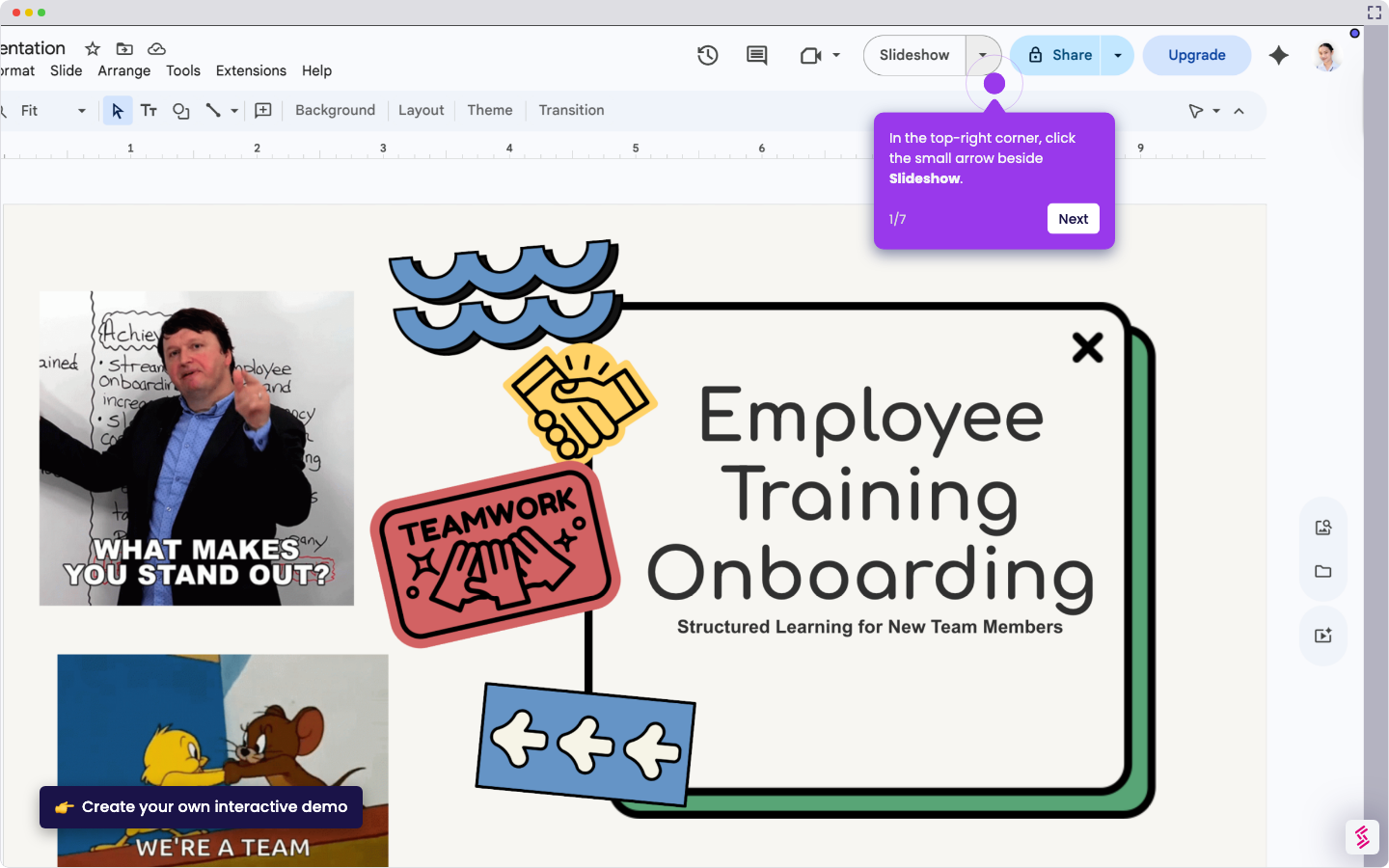
  1. Open your presentation and navigate to the Slideshow menu to access presentation settings.
  2. Hover over the toolbar area to reveal additional controls, then click the three-dot menu icon for advanced options.
  3. From the dropdown menu, select Auto-play to configure your slide timing preferences.
  4. Set your desired interval by selecting Every 15 seconds from the available timing options.
📌 Why this matters

Setting a timer on Google Slides using the Auto-play feature lets presenters automate slide advancement without manual clicking, making it ideal for kiosks, trade shows, and self-running presentations. The built-in slide timing controls in Google Slides eliminate the need for third-party tools, keeping your workflow entirely within Google Workspace. Configuring a custom interval — such as every 15 seconds — ensures your audience has enough time to absorb each slide, improving engagement and presentation pacing. This feature is especially valuable for educators, marketers, and event organizers who need hands-free, timed slideshows.
Your product deserves an interactive demo
Start free
Similar Articles
Google Slides

How to Use Google Slides Presenter View

Madhav Bhandari
Director of Marketing @ Storylane
Google Slides

How to See Google Slides History

Madhav Bhandari
Director of Marketing @ Storylane
Google Slides

How to Link Table in Google Slides

Madhav Bhandari
Director of Marketing @ Storylane
No items found.
Platform
Interactive Demos
Sandbox Demos
Hubs
RepX
Integrations
Solutions
Product Marketers
Growth & Demand Gen
Sales Reps & AEs
Presales & SEs
Customer Success
Product Managers
Customers
Demo Showcase
Customer Stories
Finer Demos Club
Features
Demo Signals
Personalization
Deal Intelligence
Resources
Blog
The Plot
Tutorials
Help Docs
What’s New
Demo Dundies
Company
Careers
Pricing
Partners
Contact
Trust Center
Backed by
Chrome Extension Icon
Chrome extension
Download
Desktop app
Download
Built in San Francisco Bay Area - ©2026 Storylane
Privacy PolicyTerms & Conditions
X Corp (formerly Twitter)LinkedIn
This website uses cookies to ensure you get the best experience on our website. Learn More
Got it
This website uses cookies to ensure you get the best experience on our website. Learn More
Got it