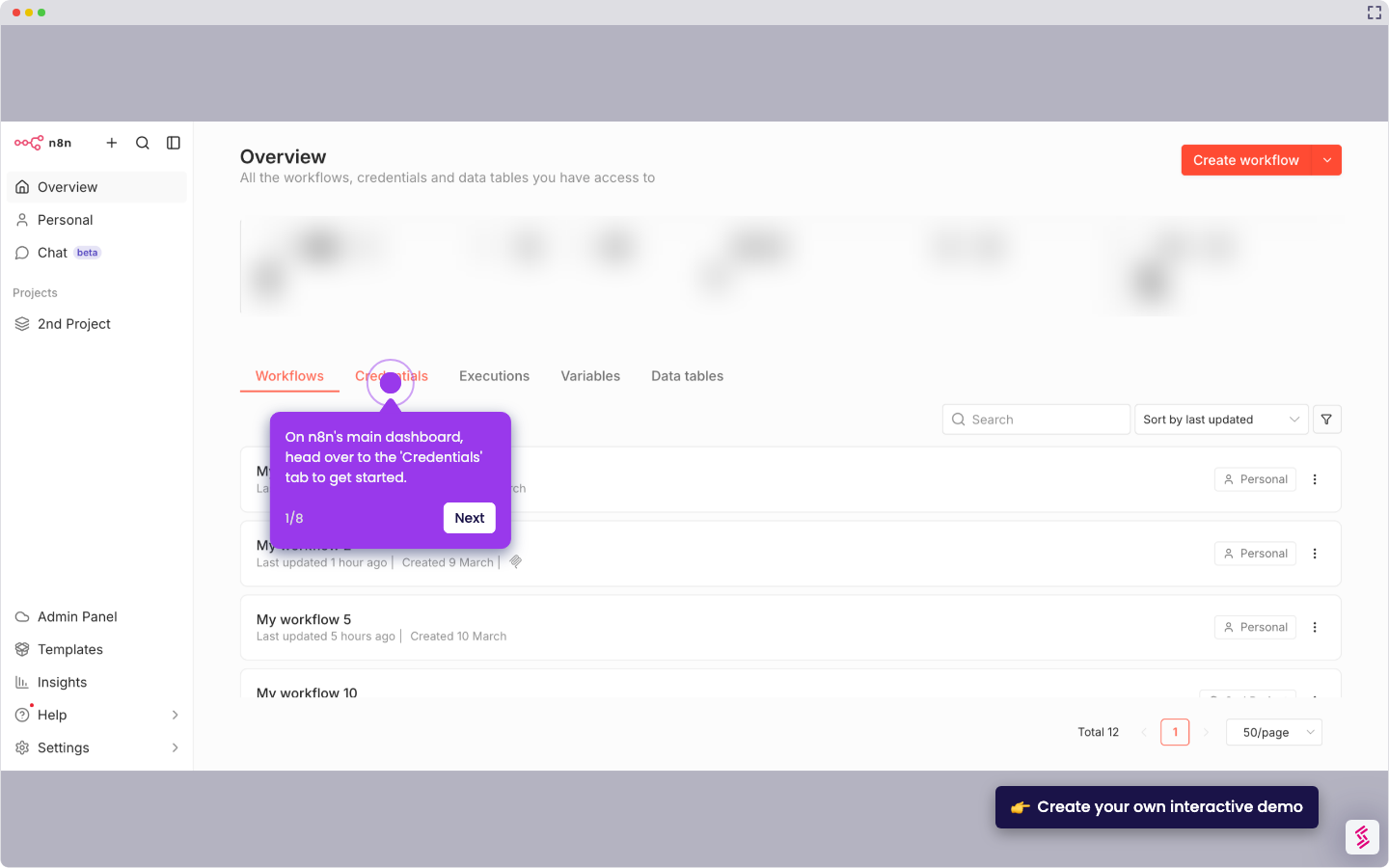
This interactive demo was created free with Storylane in 2 minutes. Create your own demo
Start free
All Tutorials /n8n

How to Set Up n8n’s Filter Node

Updated on:
June 5, 2026
By:
Madhav Bhandari
Interact with this demo to learn how to set up the Filter node in n8n.

‍

‍

It is very easy to set up n8n’s Filter node. Here’s a short tutorial on how to do it in simple steps:

‍

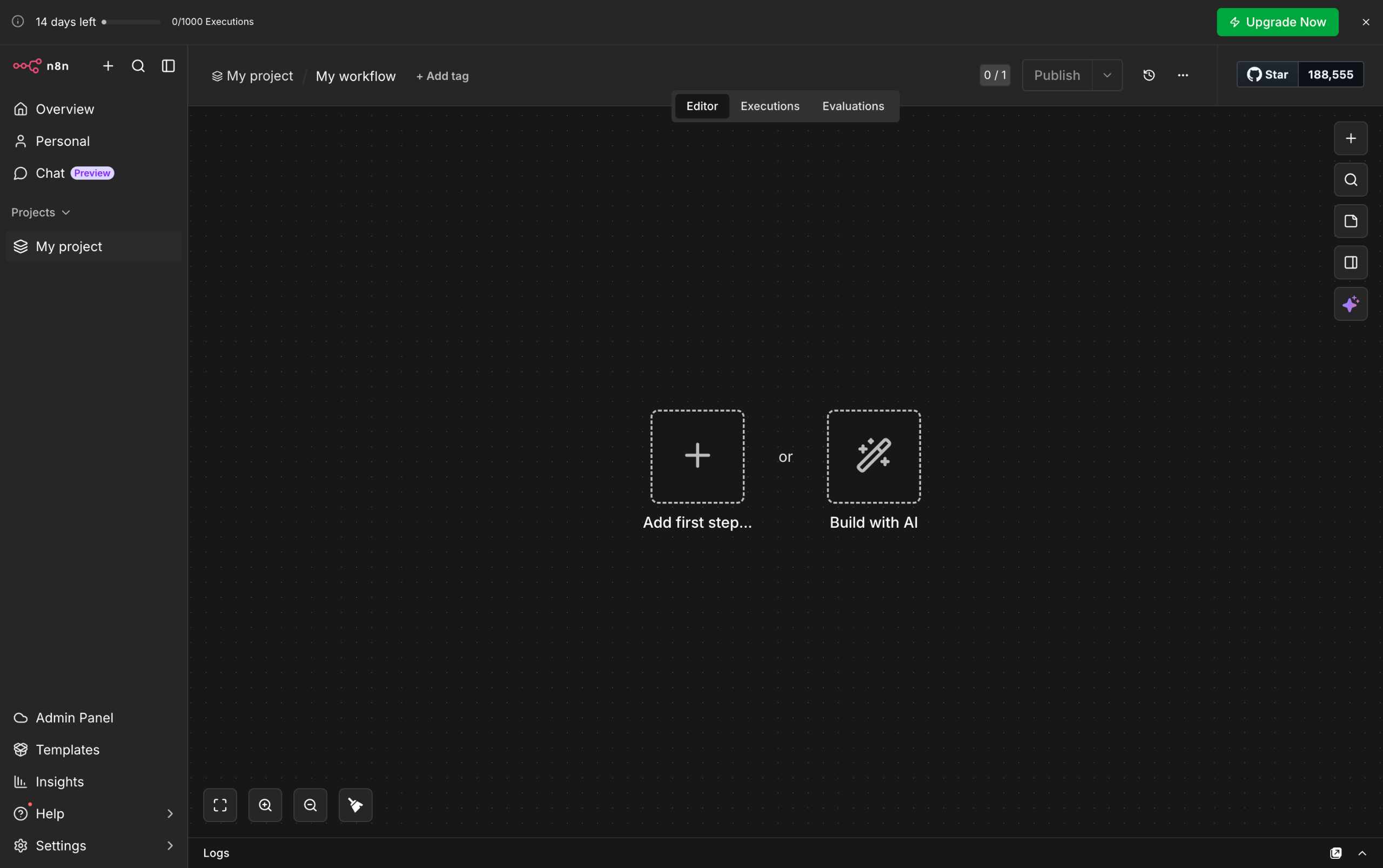
  1. Inside your n8n workflow, tap the 'Add' button to create a new step.
  2. After that, go to the right-hand panel and click 'Flow'.
  3. Find and select 'Filter' from the list of options.
  4. Now, it's time to configure the Filter node according to your preference. To get started, go to the Input Panel in the left-side corner and then tap the data you want to use.
  5. Drag it afterwards into the Condition field.
  6. Following that, click the menu next to it.
  7. Choose the type of data you want to filter.
  8. Subsequently, select the specific condition you want to set.
  9. If you need to add more conditions, simply tap 'Add Condition' and repeat the same procedure.
  10. Once done, click 'Execute Step' to proceed.
  11. Finally, the Filter node will be activated in your n8n workflow based on the provided configurations.
📌 Why this matters

Filter nodes let you control exactly which data flows through your automation, preventing downstream steps from processing irrelevant information. This becomes crucial when you're pulling data from APIs or databases that return more than you need.

The real power emerges when you chain multiple filters together - you can create sophisticated data pipelines that automatically sort, categorize, and route information based on complex criteria. Without proper filtering, your workflows become sluggish and your downstream actions get cluttered with noise instead of actionable data.

Your product deserves an interactive demo
Start free
Similar Articles
How to Integrate Notion with n8n WorkflowsHow to Integrate Notion with n8n Workflows
n8n

How to Integrate Notion with n8n

Madhav Bhandari
Director of Marketing @ Storylane
n8n

How to Integrate Jira with n8n

Madhav Bhandari
Director of Marketing @ Storylane
n8n

How to Connect a WhatsApp OAuth Account to n8n

Madhav Bhandari
Director of Marketing @ Storylane
No items found.
Platform
Interactive Demos
Sandbox Demos
Hubs
RepX
Integrations
Solutions
Product Marketers
Growth & Demand Gen
Sales Reps & AEs
Presales & SEs
Customer Success
Product Managers
Customers
Demo Showcase
Customer Stories
Finer Demos Club
Features
Demo Signals
Personalization
Deal Intelligence
Resources
Blog
The Plot
Tutorials
Help Docs
What’s New
Demo Dundies
Company
Careers
Pricing
Partners
Contact
Trust Center
Backed by
Chrome Extension Icon
Chrome extension
Download
Desktop app
Download
Built in San Francisco Bay Area - ©2026 Storylane
Privacy PolicyTerms & Conditions
X Corp (formerly Twitter)LinkedIn
This website uses cookies to ensure you get the best experience on our website. Learn More
Got it
This website uses cookies to ensure you get the best experience on our website. Learn More
Got it