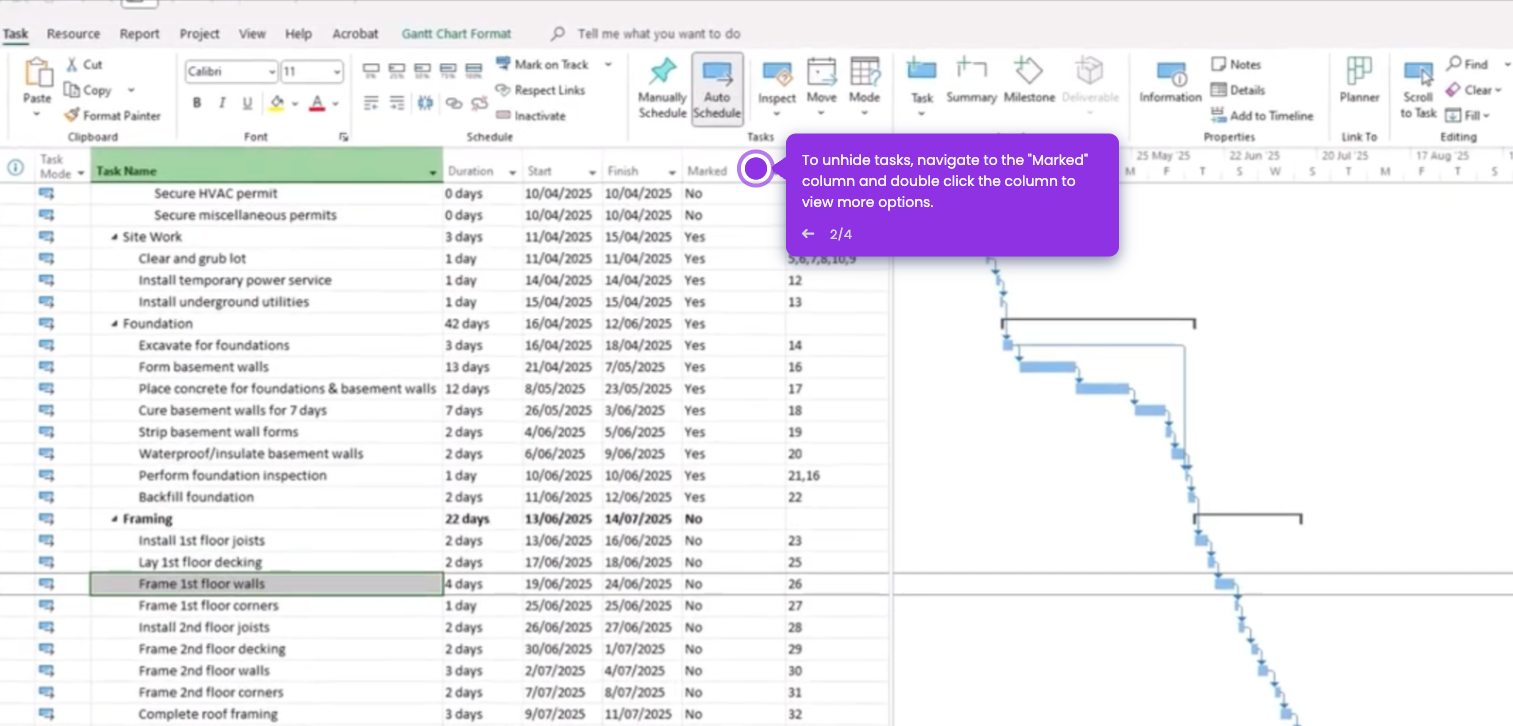
This interactive demo was created free with Storylane in 2 minutes. Create your own demo
Start free
All Tutorials /MS Project

How to Show Late Tasks in Microsoft Project

Updated on:
June 5, 2026
By:
Madhav Bhandari
Use this interactive demo to learn how to identify and highlight late tasks in Microsoft Project.

Quick summary

Microsoft Project lets you highlight late tasks using the View tab or generate a Late Tasks report via the Report tab, making it easy to spot overdue work at a glance. Both methods filter your project schedule so only late tasks are visible, helping project managers quickly assess delays and take corrective action.


Steps

  1. Open your project and navigate to the View tab.
  2. Select Highlight and click the drop-down arrow beside it.
  3. Select Late Tasks from the highlight options.
  4. Review your schedule — tasks that are late will now appear with a yellow highlight.
  5. Alternatively, click the drop-down arrow beside the Filter option in the View tab.
  6. Select Late Tasks to filter the view so only late tasks are displayed.
  7. Navigate to the Report tab for another method to show late tasks.
  8. Choose and select In Progress from the report categories.
  9. Select Late Tasks from the In Progress report options.
  10. Late tasks will appear in your report with a pie chart for a visual overview.

📌 Why this matters

Tracking late tasks in Microsoft Project is essential for keeping projects on schedule and preventing deadline overruns. Microsoft Project's built-in Highlight and Filter options let project managers instantly surface overdue tasks without manually scanning every row in a complex Gantt chart. The Late Tasks report under the Report tab goes further by presenting overdue work in a visual pie chart, making it easy to communicate delays to stakeholders. These features help teams prioritize recovery actions quickly and maintain project control across large, multi-task schedules.
Your product deserves an interactive demo
Start free
Similar Articles
MS Project

How to Wrap Text in Microsoft Project

Madhav Bhandari
Director of Marketing @ Storylane
MS Project

How to Update Microsoft Project Schedule

Madhav Bhandari
Director of Marketing @ Storylane
MS Project

How to Unhide Rows in Microsoft Project

Madhav Bhandari
Director of Marketing @ Storylane
No items found.
Platform
Interactive Demos
Sandbox Demos
Hubs
RepX
Integrations
Solutions
Product Marketers
Growth & Demand Gen
Sales Reps & AEs
Presales & SEs
Customer Success
Product Managers
Customers
Demo Showcase
Customer Stories
Finer Demos Club
Features
Demo Signals
Personalization
Deal Intelligence
Resources
Blog
The Plot
Tutorials
Help Docs
What’s New
Demo Dundies
Company
Careers
Pricing
Partners
Contact
Trust Center
Backed by
Chrome Extension Icon
Chrome extension
Download
Desktop app
Download
Built in San Francisco Bay Area - ©2026 Storylane
Privacy PolicyTerms & Conditions
X Corp (formerly Twitter)LinkedIn
This website uses cookies to ensure you get the best experience on our website. Learn More
Got it
This website uses cookies to ensure you get the best experience on our website. Learn More
Got it