
This interactive demo was created free with Storylane in 2 minutes. Create your own demo
Start free
All Tutorials /Adobe

How to Spell-Check the Comments in Adobe Acrobat

Updated on:
June 5, 2026
By:
Madhav Bhandari
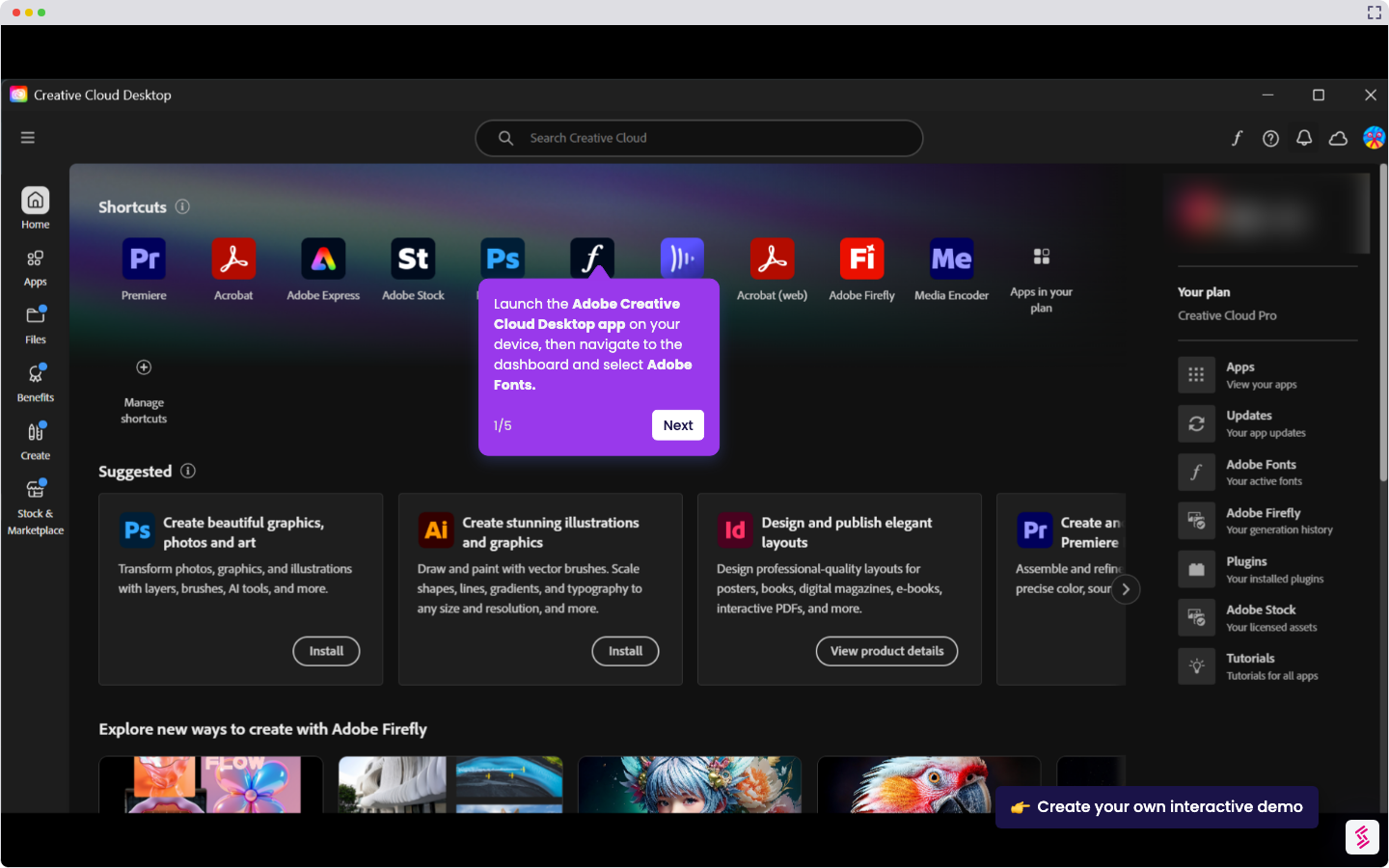
Use this interactive demo to learn how to run a spell-check on comments inside a PDF.

Quick summary

Spell-checking comments in Adobe Acrobat lets you catch and correct typos directly inside the PDF editor without leaving the application. Using the built-in Check Spelling tool, you can review suggestions and apply corrections to one or more comments in just a few clicks.


Steps

  1. Open your PDF in Adobe Acrobat's PDF editor and click the comment section you want to spell-check.
  2. Right-click on the comment and select Check Spelling from the context menu.
  3. Click Start to begin the spell-check process.
  4. Review the spelling suggestions, select the correct replacement, and click Change. Repeat for each additional spelling error in the comment.
  5. Click Done to save all spelling corrections.
  6. Confirm that all spelling errors in the comment have been checked and amended successfully.
📌 Why this matters

Adobe Acrobat's built-in spell-check for comments helps document reviewers and collaborators maintain professional, error-free PDF annotations without switching to an external tool. Catching spelling mistakes directly inside the PDF editor saves time and ensures that feedback, markups, and review comments are clear and credible. This feature is especially valuable for legal, editorial, and business teams where accurate written communication inside shared PDFs is critical. Knowing how to use Check Spelling in Acrobat improves document quality and reduces back-and-forth revision cycles.
Your product deserves an interactive demo
Start free
Similar Articles
Adobe

How to Add Adobe Fonts in Premiere Pro

Madhav Bhandari
Director of Marketing @ Storylane
Adobe

How to Digitally Sign Multiple PDF Pages at Once in Adobe Acrobat

Madhav Bhandari
Director of Marketing @ Storylane
Adobe

How to Sign Multiple Pages in a PDF in Adobe Acrobat

Madhav Bhandari
Director of Marketing @ Storylane
No items found.
Platform
Interactive Demos
Sandbox Demos
Hubs
RepX
Integrations
Solutions
Product Marketers
Growth & Demand Gen
Sales Reps & AEs
Presales & SEs
Customer Success
Product Managers
Customers
Demo Showcase
Customer Stories
Finer Demos Club
Features
Demo Signals
Personalization
Deal Intelligence
Resources
Blog
The Plot
Tutorials
Help Docs
What’s New
Demo Dundies
Company
Careers
Pricing
Partners
Contact
Trust Center
Backed by
Chrome Extension Icon
Chrome extension
Download
Desktop app
Download
Built in San Francisco Bay Area - ©2026 Storylane
Privacy PolicyTerms & Conditions
X Corp (formerly Twitter)LinkedIn
This website uses cookies to ensure you get the best experience on our website. Learn More
Got it
This website uses cookies to ensure you get the best experience on our website. Learn More
Got it