This interactive demo was created free with Storylane in 2 minutes. Create your own demo
Start free
All Tutorials /Youtube Studio

How to Trim a Video in YouTube Studio

Updated on:
June 5, 2026
By:
Madhav Bhandari
Use this interactive demo to learn how to trim and cut a video directly in YouTube Studio.

Quick summary

You can trim a video in YouTube Studio without re-uploading it by using the built-in Trim & Cut editor — changes are applied and saved directly to the published video. This step-by-step walkthrough shows exactly how to access the video editor, set your trim points, and confirm edits in just a few clicks.


Steps

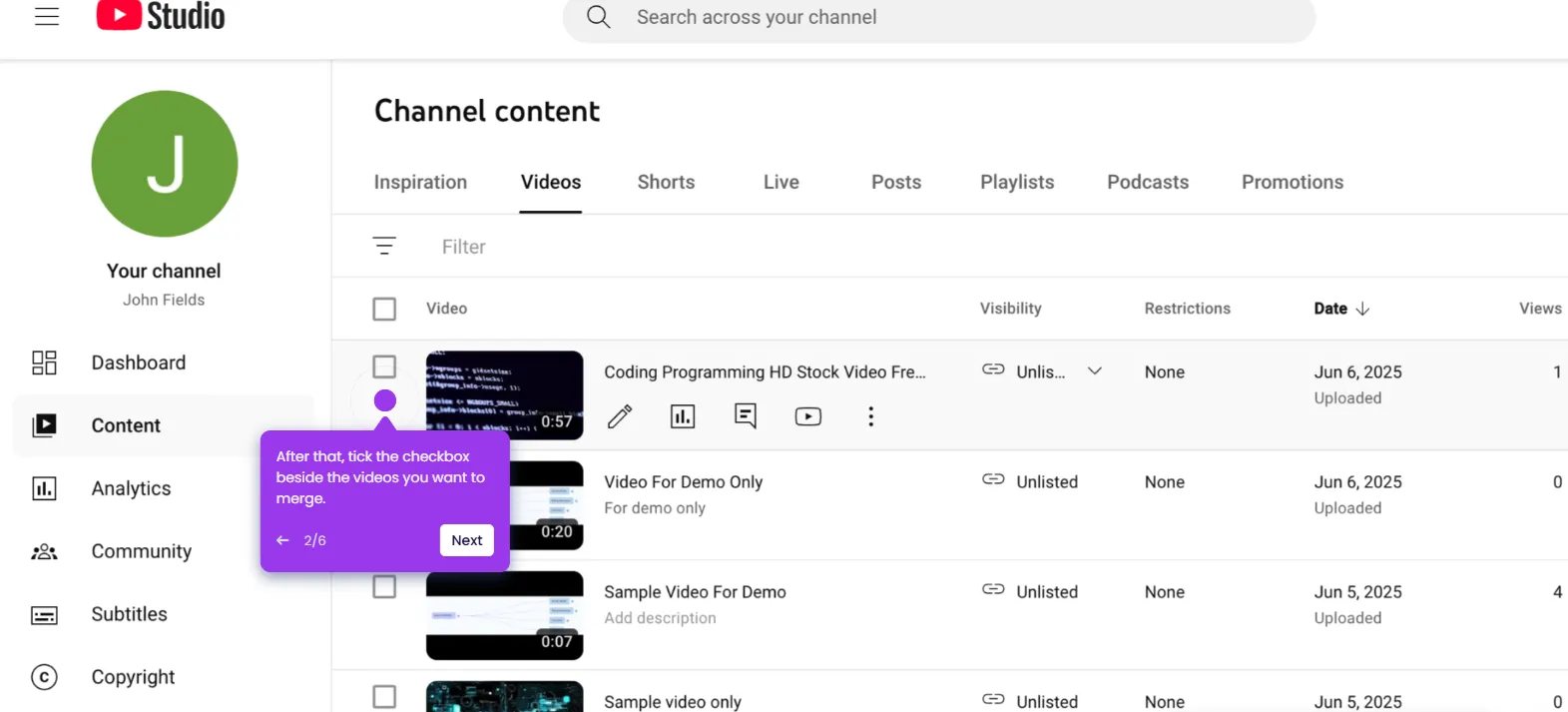
  1. Navigate to the left-side panel and click 'Content' to view your uploaded videos.
  2. Hover over the video you want to edit and click its 'Details' button.
  3. Click 'Editor' in the left-side menu to open the video editing tools.
  4. Tap 'Get Started' to launch the editor.
  5. Select 'Trim & Cut' from the list of editing options.
  6. Grab the trim handle and drag it to your desired start timestamp.
  7. Repeat the same step using the other trim handle to set the end point.
  8. Click 'Save' in the top-right corner to apply your changes.
  9. Tap 'Confirm Changes' to finalize and publish the trimmed video.
  10. Your YouTube video will be trimmed instantly and the updated version will go live.
📌 Why this matters

Trimming a published YouTube video without re-uploading it is a critical workflow for creators who need to remove intros, errors, or outdated segments while preserving their video's existing views, comments, and SEO ranking. YouTube Studio's built-in Trim & Cut editor lets channel owners edit video length directly from the dashboard — no third-party software required. This matters because re-uploading a video resets its entire performance history, making in-platform trimming the safest and fastest way to clean up published content. Understanding this workflow helps creators maintain channel quality and viewer experience without sacrificing hard-earned video metrics.
Your product deserves an interactive demo
Start free
Similar Articles
Youtube Studio

How to Add an Intro Video on YouTube Studio

Madhav Bhandari
Director of Marketing @ Storylane
Youtube Studio

How to Open Old Videos in YouTube Studio

Madhav Bhandari
Director of Marketing @ Storylane
Youtube Studio

How to Merge Two Videos in YouTube Studio

Madhav Bhandari
Director of Marketing @ Storylane
No items found.
Platform
Interactive Demos
Sandbox Demos
Hubs
RepX
Integrations
Solutions
Product Marketers
Growth & Demand Gen
Sales Reps & AEs
Presales & SEs
Customer Success
Product Managers
Customers
Demo Showcase
Customer Stories
Finer Demos Club
Features
Demo Signals
Personalization
Deal Intelligence
Resources
Blog
The Plot
Tutorials
Help Docs
What’s New
Demo Dundies
Company
Careers
Pricing
Partners
Contact
Trust Center
Backed by
Chrome Extension Icon
Chrome extension
Download
Desktop app
Download
Built in San Francisco Bay Area - ©2026 Storylane
Privacy PolicyTerms & Conditions
X Corp (formerly Twitter)LinkedIn
This website uses cookies to ensure you get the best experience on our website. Learn More
Got it
This website uses cookies to ensure you get the best experience on our website. Learn More
Got it