This interactive demo was created free with Storylane in 2 minutes. Create your own demo
Start free
All Tutorials /LinkedIn

How to Turn Off Looking for a Job on LinkedIn

Updated on:
June 9, 2026
By:
Ranga Kaliyur
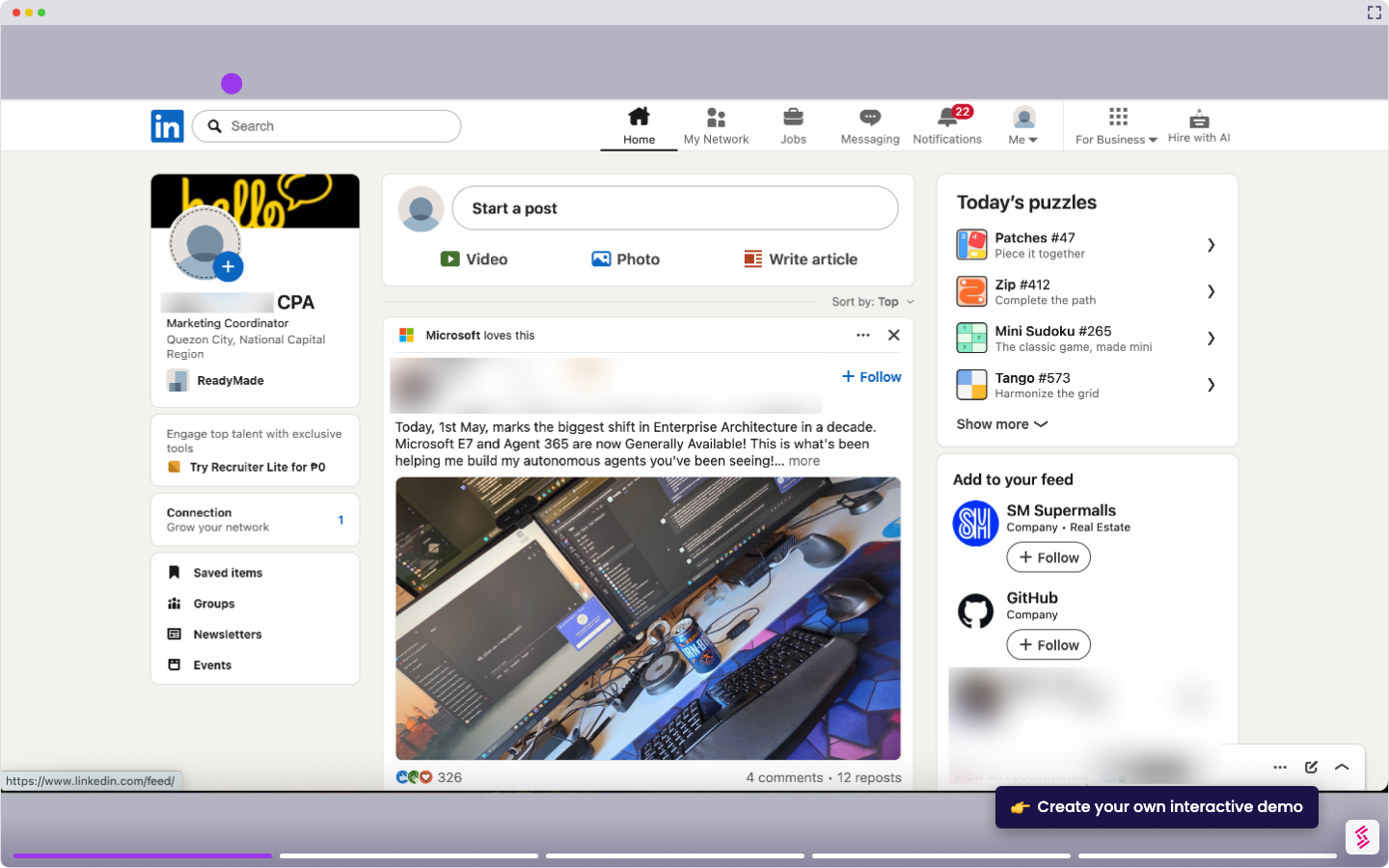
Use this interactive demo to learn how to disable the Open to Work status on your LinkedIn profile.

Quick summary

This demo shows you how to turn off "Looking for a Job" on LinkedIn by removing your Open to Work status or disabling recruiter signals through your privacy settings. Both methods are covered so you can control exactly who sees your job-seeking activity.


Steps

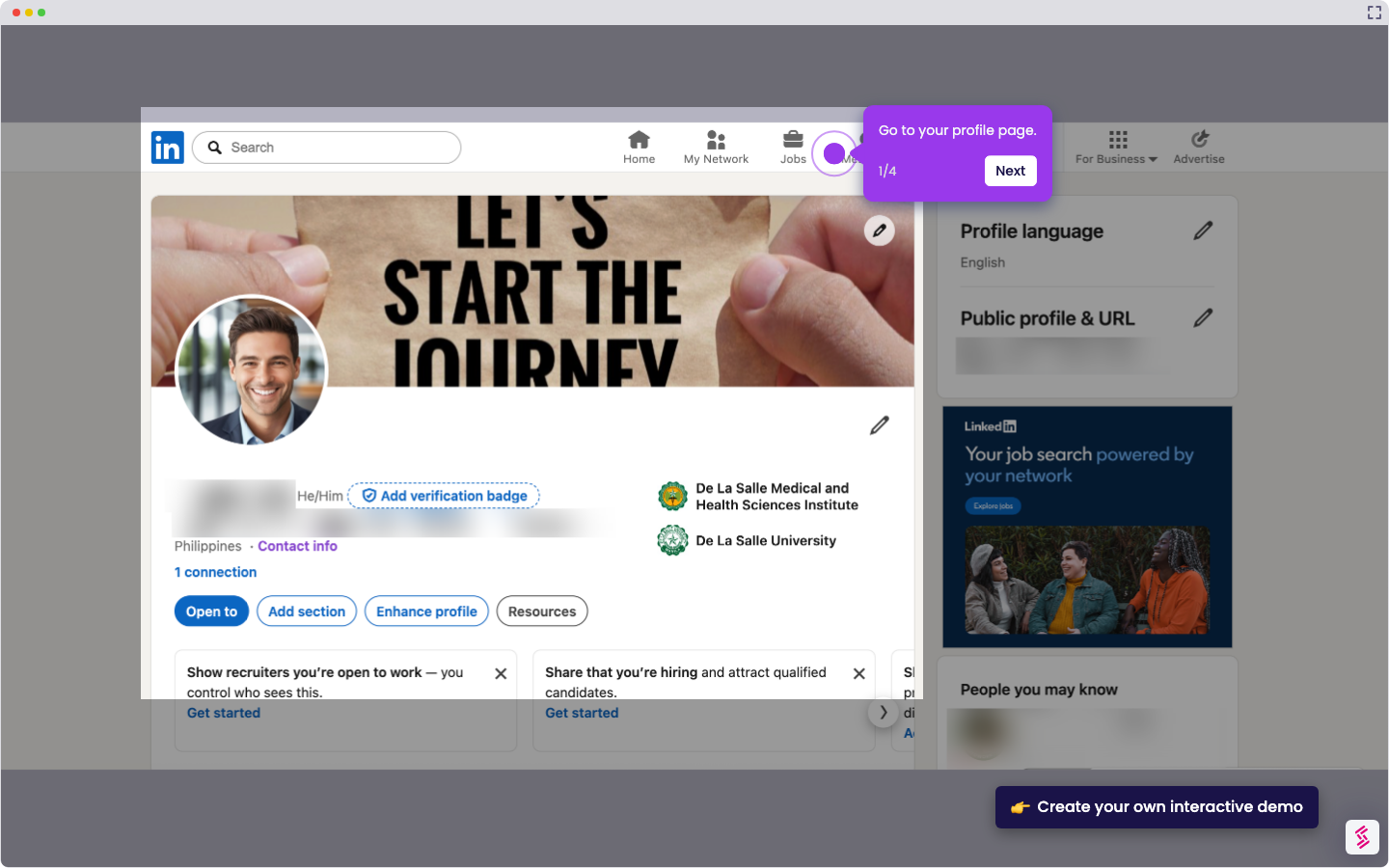
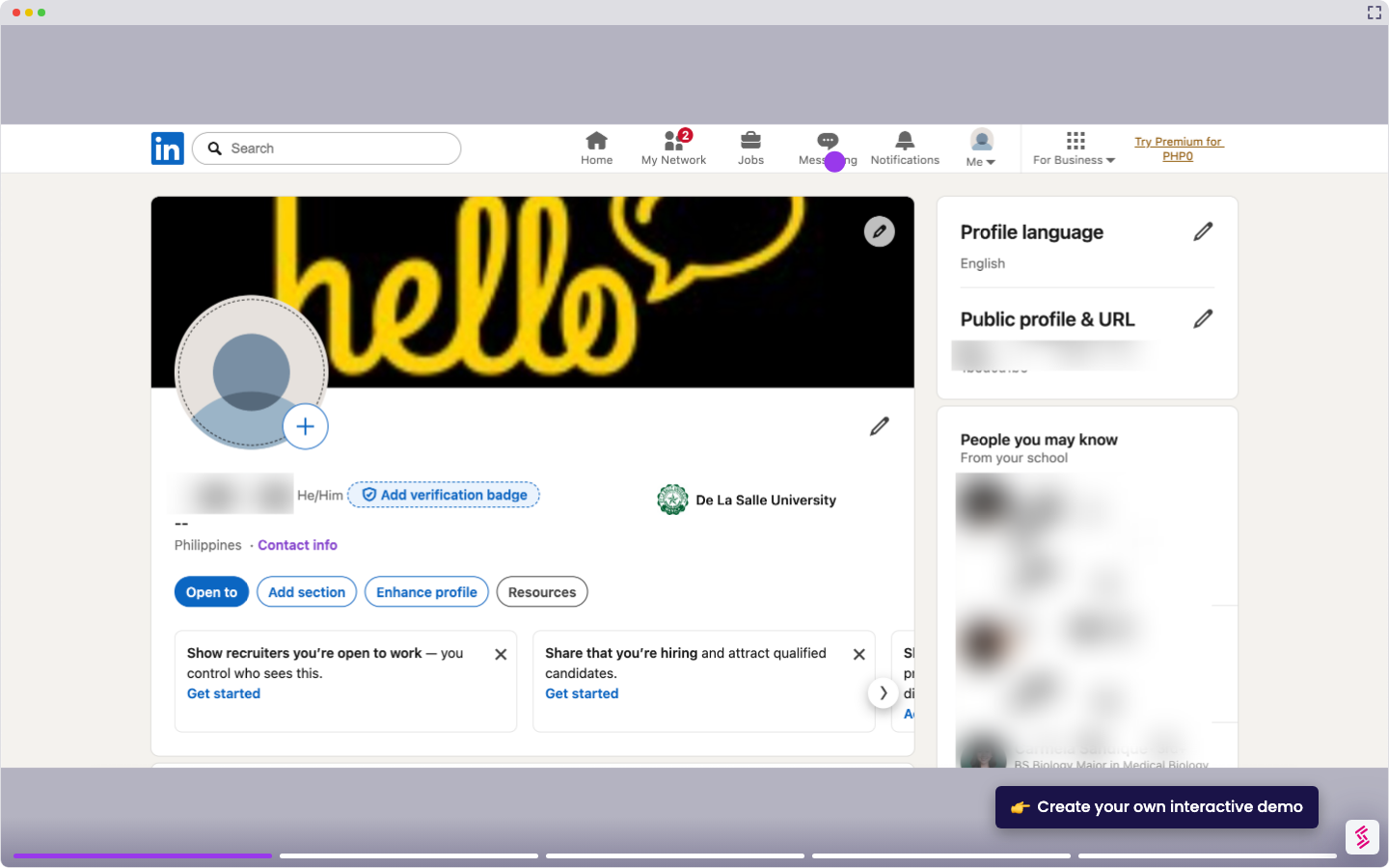
  1. Go to your LinkedIn profile and click the pencil icon in the top-right corner of the Open to Work section box.
  2. Click Delete in the bottom-left corner of the Job Preferences dialog box.
  3. Click the Delete button again to confirm and remove your Open to Work status.
  4. Alternatively, click your profile icon in the top menu and select Settings & Privacy.
  5. Under Data Privacy settings, navigate to Job Seeking Preferences and select the Signal your interest to recruiters option.
  6. Switch off the toggle button to stop signaling job-seeking interest to recruiters.
📌 Why this matters

Knowing how to turn off "Looking for a Job" on LinkedIn is essential for professionals who have accepted a new role or want to job-search discreetly without alerting their current employer. LinkedIn's Open to Work badge and recruiter signal settings are visible by default, which can expose your job-seeking activity unintentionally. This demo walks you through both the profile-based removal and the Settings & Privacy toggle, giving you full control over your LinkedIn job preferences. Taking two minutes to update these settings protects your professional reputation and keeps your career moves private.
Your product deserves an interactive demo
Start free
Similar Articles
LinkedIn

How to Add Extracurricular Activities on LinkedIn

Madhav Bhandari
Director of Marketing @ Storylane
LinkedIn

How to Find Out who Viewed your Profile Anonymously on LinkedIn

Madhav Bhandari
Director of Marketing @ Storylane
LinkedIn

How to do an Advanced Job Search on LinkedIn

Madhav Bhandari
Director of Marketing @ Storylane
No items found.
Platform
Interactive Demos
Sandbox Demos
Hubs
RepX
Integrations
Solutions
Product Marketers
Growth & Demand Gen
Sales Reps & AEs
Presales & SEs
Customer Success
Product Managers
Customers
Demo Showcase
Customer Stories
Finer Demos Club
Features
Demo Signals
Personalization
Deal Intelligence
Resources
Blog
The Plot
Tutorials
Help Docs
What’s New
Demo Dundies
Company
Careers
Pricing
Partners
Contact
Trust Center
Backed by
Chrome Extension Icon
Chrome extension
Download
Desktop app
Download
Built in San Francisco Bay Area - ©2026 Storylane
Privacy PolicyTerms & Conditions
X Corp (formerly Twitter)LinkedIn
This website uses cookies to ensure you get the best experience on our website. Learn More
Got it
This website uses cookies to ensure you get the best experience on our website. Learn More
Got it